

What if the drive inside your enclosure is fast enough to move a 50GB game folder in under a minute, but the box around it quietly strangles that speed in half? That is exactly the trap waiting for anyone shopping for an external SSD enclosure today. The market is full of sleek aluminum boxes promising “40 Gbps” on the front of the packaging, yet two enclosures with the same headline number can behave very differently once you plug them into a real computer.
The confusion usually comes down to one question: USB4 or Thunderbolt? Both use the same USB-C connector. Both can hit 40 Gbps on paper. Both cost real money. But they are not the same product, and picking the wrong one for your host machine is one of the most common ways people waste cash on storage gear.
This guide breaks down what actually differs, where the marketing exaggerates, and how to match an enclosure to the ports you already own.
Why These Two Standards Are So Easy to Mix Up
The reason the USB4 versus Thunderbolt debate feels so murky is that the two technologies are close relatives. USB4 was built on the Thunderbolt 3 protocol, which Intel contributed to the standard, and the USB4 1.0 specification was published in August 2019. That shared DNA means a USB4 enclosure and a Thunderbolt enclosure are speaking a very similar language over the same cable. (USB4)
The catch is certification and feature requirements. Thunderbolt is an Intel-administered certification with strict minimums, while USB4 compliance is handled through a separate program. The logos look similar. The port shapes are identical. The cables even look the same. That is why so many buyers assume the labels are interchangeable, then get surprised when a drive runs at half speed on a laptop that only supports one of them.
There is also a naming mess to untangle. You will see USB4, USB 4, USB4 Version 2.0, Thunderbolt 3, Thunderbolt 4, and Thunderbolt 5 all floating around product pages. Each label refers to a specific generation with its own rules, and marketing teams are not always careful about which one they print. (USB4)
The Core Specs Side by Side
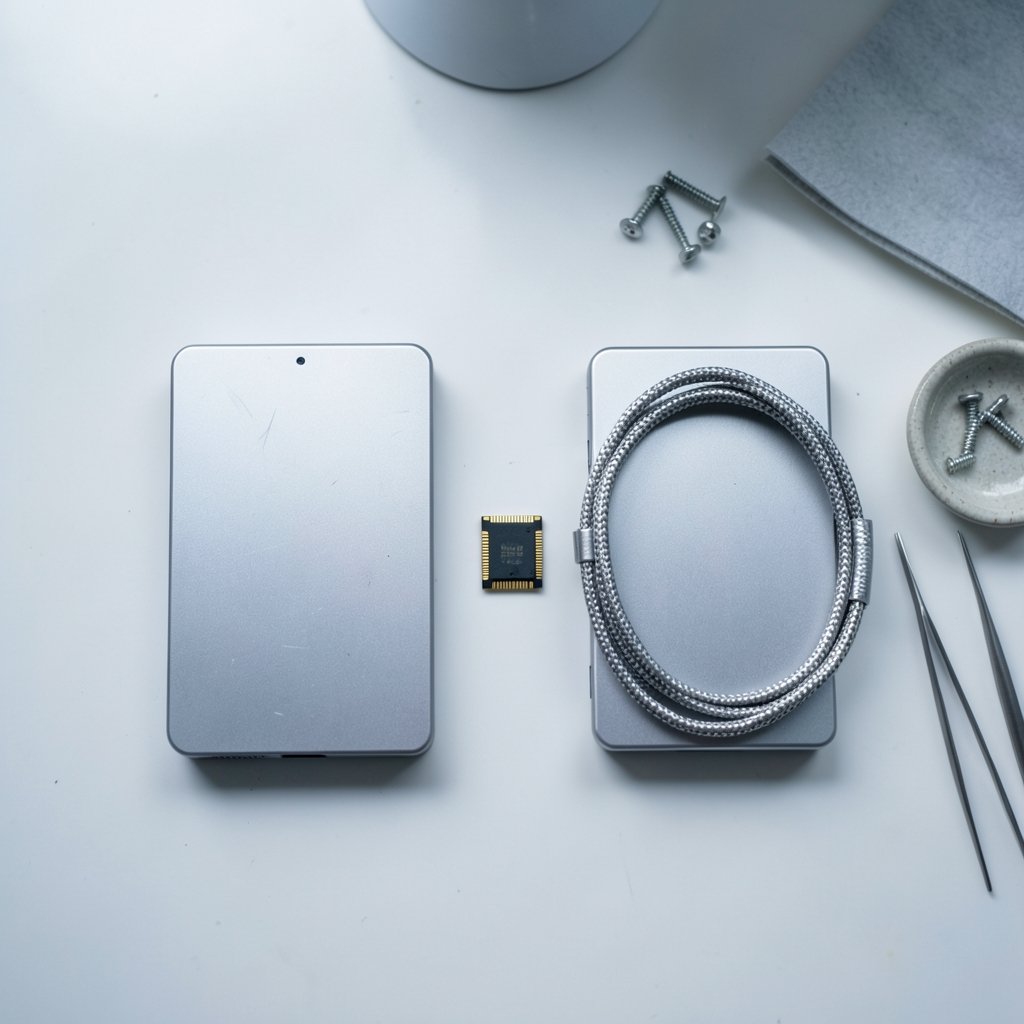
Here is the honest comparison most product pages bury in fine print. Treat the “link rate” column as the theoretical ceiling of the connection, not the speed your files will actually move.
| Feature | USB4 | Thunderbolt 3 | Thunderbolt 4 | Thunderbolt 5 |
|---|---|---|---|---|
| Peak link rate | 20 or 40 Gbps | 40 Gbps | 40 Gbps | 80 Gbps (up to 120 Gbps boost) |
| Underlying protocol | Thunderbolt 3 based | Proprietary Intel | Tunneled PCIe + DisplayPort | Tunneled PCIe + DisplayPort |
| Certification body | USB-IF | Intel | Intel | Intel |
| Minimum feature floor | Looser | Baseline | Stricter | Strictest |
| Typical host support | Broad, AMD and Intel | Intel and Apple mostly | Intel and Apple mostly | Newest machines only |
| Connector | USB-C | USB-C | USB-C | USB-C |
A few things jump out. First, Thunderbolt 4 did not raise the peak speed over Thunderbolt 3. It raised the minimum requirements, meaning certified devices must support things like dual 4K displays and a baseline level of PCIe tunneling. Second, Thunderbolt 5 is the real generational leap, announced in September 2023 with 80 Gbps bidirectional and a bandwidth-boost mode for displays. Third, USB4 sits at the same 40 Gbps ceiling as Thunderbolt 3 and 4, but with a looser floor.
That looser floor is the whole story. A USB4 port can be excellent or merely adequate, because the spec allows more flexibility. A Thunderbolt 4 port has to clear a higher bar to wear the badge.
The Bottleneck Nobody Talks About
Here is the part that saves you money: the 40 Gbps number is almost never your real-world speed. In an external SSD enclosure, the chain looks like this: your NVMe drive, then the bridge controller inside the enclosure, then the cable, then the host port. The weakest link sets the pace.
In practice, sustained sequential transfers on a well-built USB4 or Thunderbolt enclosure land well below the theoretical link rate. The drive itself, its thermal throttling behavior, and the controller chip matter enormously. A premium enclosure with a mediocre drive will lose to a cheaper enclosure with a great drive and decent cooling.
This is why experienced builders obsess over the controller and the heatsink rather than the badge on the box. If you are assembling your own setup, it helps to understand how the drive and enclosure interact before you buy. A good starting point is this guide to the best external SSD options, which covers how drive choice affects real throughput.
Practical tip: look for enclosures with a metal body and thermal pads that contact the drive. A plastic shell with no pad will throttle within a couple of minutes of heavy writing, no matter how fast the port is.
Compatibility: Where the Choice Actually Bites
The single biggest practical difference between the two standards is host compatibility, and this is where most buying mistakes happen.
Thunderbolt ports appear mostly on Intel-based laptops, Apple machines, and higher-end motherboards. If you own an AMD desktop or a budget laptop, your USB-C port is far more likely to be USB4 or plain USB 3.2. Plugging a Thunderbolt-certified enclosure into a non-Thunderbolt port usually works, but it falls back to slower USB modes. You paid for 40 Gbps and got a fraction of it.
USB4 enclosures tend to be more forgiving across mixed hardware. They are also generally cheaper, since they do not carry the same certification overhead. For someone juggling a Windows desktop, a work laptop, and a tablet, a USB4 enclosure is often the safer bet simply because it plays nicely with more machines.
The reverse also holds. If every computer you own has a Thunderbolt port, a Thunderbolt enclosure gives you a more predictable experience with stricter guarantees. It is the “known quantity” path.
One more compatibility wrinkle: cables matter as much as ports. A cable rated for charging may not carry full data bandwidth. Always use the cable that ships with a certified enclosure, or a clearly labeled 40 Gbps or 80 Gbps cable.
Real-World Scenarios: Which Should You Pick?
Abstract specs are less useful than concrete situations. Here is how the decision usually shakes out.
You edit video on a modern laptop
If you are cutting 4K footage and constantly moving large files, throughput and consistent sustained speed matter most. A Thunderbolt enclosure on a Thunderbolt-capable machine gives you the most predictable performance. If your machine is USB4, a quality USB4 enclosure is the smarter spend. Either way, budget for a fast drive and good cooling.
You want a fast backup drive across several computers
Mixed hardware favors flexibility. A USB4 enclosure that also handles USB 3.2 fallback gracefully is the practical choice. Pair it with a reliable drive and a clear backup routine. For planning that setup, this roundup of the best external hard drives for backup is a useful reference for capacity and reliability tradeoffs.
You are upgrading an existing laptop
Sometimes the smarter move is not an external enclosure at all. If your machine has an internal slot, swapping the boot drive can deliver a bigger real-world speed jump for similar money. This walkthrough on how to clone hard drive to SSD 2026 explains the migration process step by step.
You are building a gaming or editing rig
Enclosure speed is only one piece of a fast system. If you are putting together a new machine, it helps to see how storage fits into the whole build. This guide to the best gaming PC under 1000 shows where storage choices land in a balanced budget.
Common Mistakes That Cost People Money
A few traps show up again and again in forums and reviews.
Buying on the headline number alone. “40 Gbps” on the box tells you almost nothing about sustained throughput. Look for independent speed tests, not spec sheets.
Ignoring the host port. People buy a Thunderbolt enclosure, plug it into a USB 3.2 port, and wonder why it is slow. Check your laptop’s spec sheet before you buy.
Skipping the thermal pad. Many enclosures ship with a pad, but some do not. Without contact between the drive and the shell, throttling is guaranteed under sustained load.
Using the wrong cable. A charge-only cable will cap your speed. Always match the cable to the enclosure’s rating.
Assuming all USB4 ports are equal. Because the USB4 spec allows flexibility, two laptops with USB4 ports can behave differently. When in doubt, check the manufacturer’s documentation for the exact port capabilities.
USB4 Version 2.0 and Thunderbolt 5: The Next Wave
Both standards are already moving past 40 Gbps. USB4 Version 2.0, announced in September 2022, adds an 80 Gbps tier. Thunderbolt 5, announced in September 2023, matches that with 80 Gbps bidirectional and pushes to 120 Gbps in a display-focused boost mode.
For enclosure buyers, the practical takeaway is patience. Early high-speed enclosures tend to be expensive, and the host hardware that supports them is still spreading. If you are buying today for a machine you already own, matching your current ports is almost always smarter than chasing the next generation. If you are planning a build for the next few years, it is worth checking whether your chosen platform will support the newer standard.
The broader lesson from the tech industry is that standards consolidation takes time. Even well-documented transitions, from USB-A to USB-C or from older display standards to newer ones, took years to settle. Storage is no different. For a wider view of how fast-moving hardware markets behave, resources like Wikipedia’s USB4 overview and Intel’s Thunderbolt technology page are useful for tracking spec generations, while USB-IF’s USB4 page is the primary source for the standard itself.
How to Decide in Five Minutes
If you want a fast decision, run through this checklist.
- Check your computer’s ports. Look up the exact model and confirm whether it has Thunderbolt 4, Thunderbolt 5, USB4, or plain USB 3.2.
- Match the enclosure to the port. Buy the standard your machine actually supports at full speed.
- Pick the drive carefully. A great drive in a decent enclosure beats a mediocre drive in a premium one.
- Confirm the cable. Use a certified cable rated for your enclosure’s bandwidth.
- Plan for heat. Choose a metal enclosure and verify it includes thermal pads.
That sequence prevents nearly every common buying error. It also keeps you from overpaying for capability your hardware cannot use.
Conclusion
The USB4 versus Thunderbolt question does not have one universal answer, and that is the point. Thunderbolt offers stricter guarantees and predictable performance, especially on Intel and Apple machines. USB4 offers broader compatibility and lower prices, which makes it the friendlier choice for mixed hardware and AMD systems. Both share the same underlying protocol, both use USB-C, and both can deliver excellent real-world speed when paired with a good drive, a proper cable, and decent cooling.
The number on the box is not the number you will see when you move files. Focus on the whole chain, match the enclosure to the ports you actually own, and do not pay for bandwidth your laptop cannot deliver. Do that, and either standard will serve you well for years.
FAQ
Is USB4 the same thing as Thunderbolt?
No, but they are closely related. USB4 was built on the Thunderbolt 3 protocol, which Intel contributed to the standard. They share the same USB-C connector and tunneling approach, but they are certified through different programs and have different minimum requirements.
Can I use a Thunderbolt enclosure on a USB4 port?
Usually yes, and it will typically work at a reduced feature set or speed depending on the host. The reverse is also generally true. However, the exact behavior varies by device, so check both the enclosure and host documentation before relying on full speed.
Is Thunderbolt always faster than USB4?
Not necessarily. Both can reach 40 Gbps, and newer generations of both push to 80 Gbps. Real-world speed depends far more on the drive, the bridge controller, the cable, and cooling than on which badge is on the enclosure.
Do I need a special cable for a USB4 or Thunderbolt enclosure?
Yes. Use the cable that ships with a certified enclosure, or one clearly rated for the same bandwidth. A charge-only or low-rated cable will cap your transfer speeds even if the enclosure and port are both capable of more.
Will an external SSD enclosure ever hit the full 40 Gbps?
Rarely in sustained real-world use. The link rate is a theoretical ceiling. Actual throughput is limited by the NVMe drive, the controller, thermal throttling, and the host port, so measured speeds typically land well below the headline number.
What should I check first before buying an enclosure?
Check your computer’s exact port type. Confirm whether it supports Thunderbolt 4, Thunderbolt 5, USB4, or only USB 3.2. Matching the enclosure to the port you actually have prevents you from paying for speed your machine cannot deliver.



