
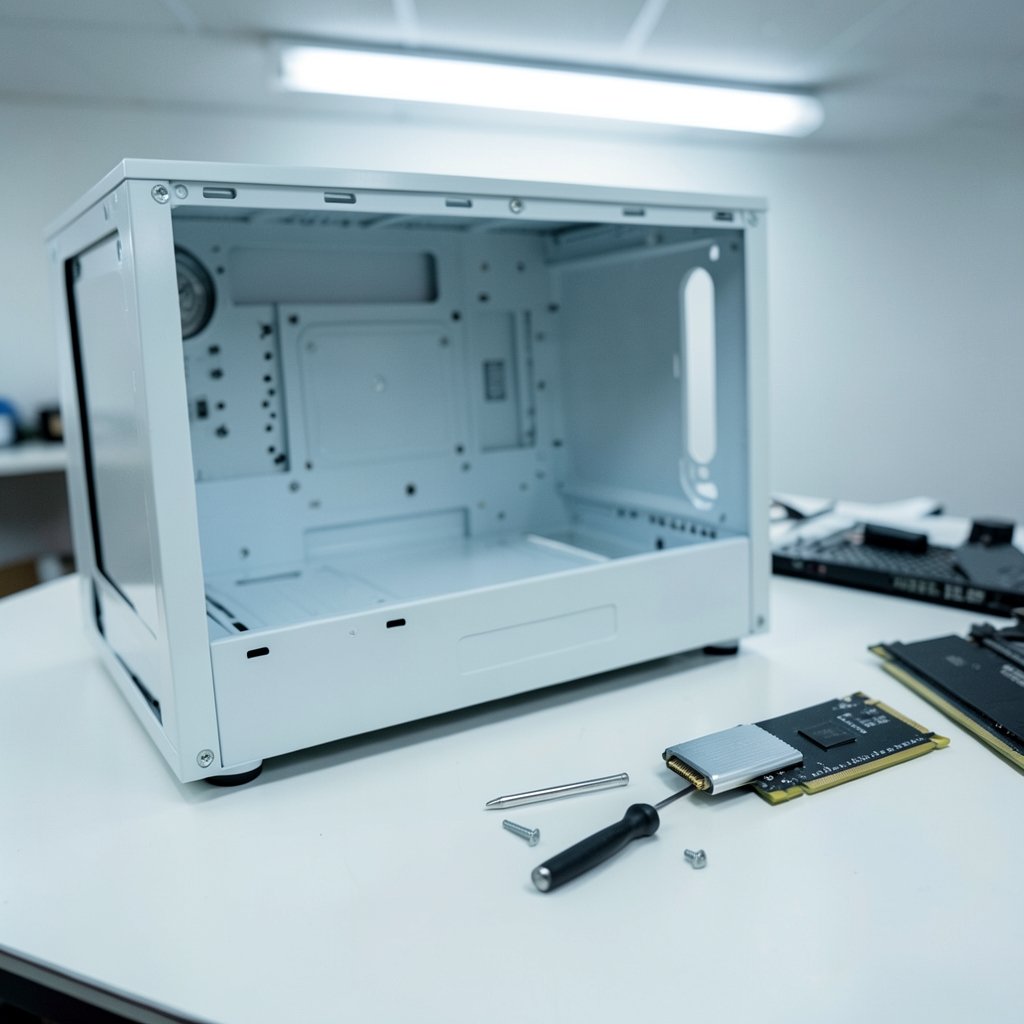
Quick Answer: What are the best gaming SSDs for beginners?
The best gaming SSD for a beginner is a mainstream NVMe drive using PCIe 4.0 in the M.2 2280 form factor, ideally with a DRAM cache and a capacity of at least 1TB. It installs into a slot on the motherboard, needs no cables, and delivers load times that feel instant in most modern titles.
A cheaper SATA SSD or a DRAM-less budget NVMe drive can work fine if money is tight, but the gap in real-world game loading is smaller than marketing suggests. A PCIe 5.0 drive is overkill for a first build unless the price difference is tiny.
Before buying, check the motherboard’s M.2 slot type and PCIe generation, the drive’s form factor length, whether it includes a heatsink, its TBW endurance rating, and the warranty length.
So You Want Faster Load Times Without Wasting Money
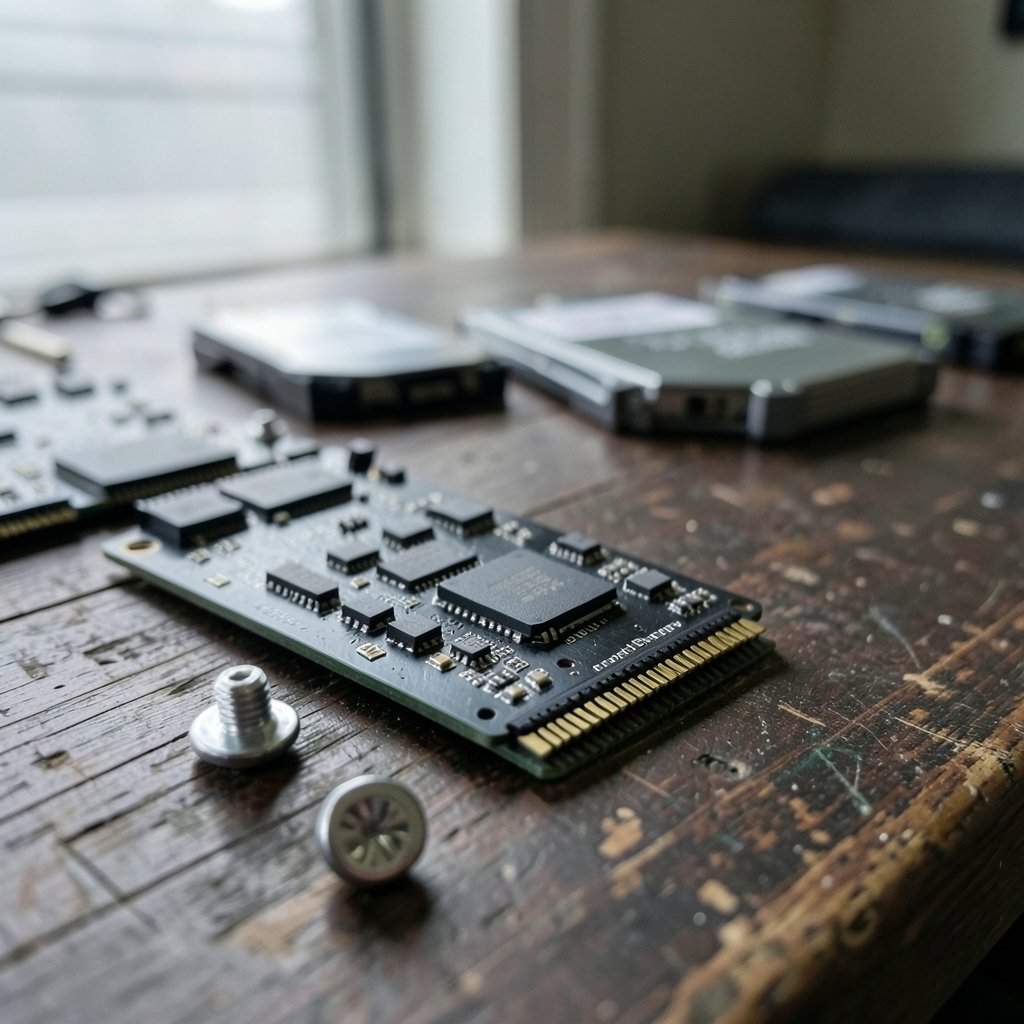
Ever sat staring at a loading screen while your friend is already in the match? That nagging wait is usually the moment people start shopping for a gaming SSD. The problem is that the shelf is crowded with drives shouting huge numbers at you, and most of those numbers barely matter for playing games.
Here is the honest version. For a beginner, the right gaming SSD is almost always a 1TB or 2TB NVMe drive on PCIe 4.0, installed in the right M.2 slot, bought from a brand with a real warranty. Everything beyond that is fine-tuning. This guide walks through what actually changes load times, which specs deserve your attention, and the mistakes that trip up first-time buyers.
The One Spec That Actually Matters: The Interface
SSDs connect in two main ways, and beginners should understand the difference before anything else.
SATA SSDs plug in with two cables and top out around 550 MB/s. NVMe SSDs sit directly on the motherboard through an M.2 slot and talk over PCIe lanes, which is dramatically faster on paper. A PCIe 3.0 x4 drive caps near 3.5 GB/s, PCIe 4.0 x4 near 7 GB/s, and PCIe 5.0 x4 reaches roughly 14 GB/s in theory.
Here is the catch that saves you money: for game loading, the jump from a good SATA SSD to a fast NVMe drive is usually modest. Measured gains vary by title, and many games simply do not stream data fast enough to exploit the extra bandwidth. NVMe is still the sensible default because it is now standard on new builds, needs no cables, and costs about the same per gigabyte. Just do not expect miracles.
If you are still assembling parts, the step-by-step approach in this guide to building a gaming PC for beginners will help you plan storage around your motherboard rather than the other way around.
Match the Drive to Your Motherboard Slot
This is where most first-time buyers go wrong, and it costs them a return shipping label.
M.2 is the slot. The drive itself comes in sizes, and 2280 (22mm wide, 80mm long) is by far the most common. Almost every desktop board supports it. Some laptops and small-form-factor builds use 2242 or 2230, so measure before ordering.
The bigger trap is the slot’s wiring. Not every M.2 slot supports NVMe, and some are SATA-only. A few boards share lanes between M.2 slots and SATA ports, meaning one drive can disable a port you wanted. The motherboard manual lists all of this in a table most people skip. Read it once and you avoid a frustrating evening.
A quick compatibility checklist:
| Check | Why it matters |
|---|---|
| Slot key and protocol | Confirms the slot accepts NVMe drives; a SATA-only slot will not |
| PCIe generation | A PCIe 5.0 drive runs slower in a 4.0 slot |
| Drive length | 2280 is standard; small builds may need shorter |
| Heatsink clearance | Some boards include one; some drives include one |
| Shared lanes | An M.2 drive can disable a SATA port |
How Much Speed Do You Actually Need?
Peak sequential read speed is the number printed in the biggest font, and it is the least useful figure for gaming. Games load many small files, so random performance and consistent behavior matter more.
Two specs deserve real attention. DRAM cache gives the drive a fast map of its own data, and drives without it can slow sharply once their SLC cache fills during large writes. For installing a 100GB game this is a minor annoyance, not a disaster. For heavy workloads it is a bigger deal. Endurance, rated in TBW (terabytes written), tells you how much data the drive can absorb over its life. A 1TB drive rated around 600 TBW will outlive any gaming PC you build this decade.
The practical takeaway: a mid-tier PCIe 4.0 drive with DRAM and a solid TBW rating beats a flagship drive that runs hot and costs 40% more. If you want to see how storage choices fit into a wider build budget, the advice on SSDs that actually cut game load times digs into where the real gains show up.
Capacity: Buy More Than You Think
Modern games are enormous. A single AAA title can eat 100GB to 150GB with updates, and a modest library of five or six games fills a 1TB drive faster than anyone expects. Add Windows, a browser, and a couple of creative apps, and 500GB becomes painful within months.
The sweet spot for beginners is 1TB minimum, 2TB if the budget allows. Price per gigabyte drops steeply as capacity rises, so a 2TB drive often costs far less than twice a 1TB model. Leaving 15% to 20% of the drive free also keeps write performance healthy, since SSDs slow down when nearly full.
A sensible split many people use: one 1TB NVMe drive for Windows and everyday apps, plus a second 1TB or 2TB drive for games. Two smaller drives also mean you can reinstall Windows without redownloading your entire library.
DirectStorage and the Fast-Drive Future
One reason fast NVMe drives matter for games is DirectStorage, an API that lets games stream assets from an NVMe drive with less CPU overhead. It shipped on Windows in 2022 and appears in a limited number of titles so far. Where it is used, a fast drive can genuinely change how a game feels, with fewer hidden loading pauses and smoother transitions between areas.
That said, support is still thin. Buying a PCIe 5.0 drive today to be “ready” for DirectStorage is like buying winter tires in spring. The technology is real and the direction is clear, but a good PCIe 4.0 drive will serve you well for years. If you are weighing where to spend on a display instead, the guidance on whether a gaming monitor is worth buying for everyday use is a useful sanity check on priorities.
Heat, Heatsinks, and Throttling
Fast drives generate heat, and hot drives slow themselves down. High-end PCIe 4.0 and 5.0 models can throttle without a heatsink during long writes. Most modern motherboards include at least one M.2 heatsink, and many drives ship with one attached.
Two practical notes. First, if your board has a heatsink, do not stack a second one on the drive; use one or the other. Second, check clearance under your graphics card, since the primary M.2 slot often sits directly beneath it, right in the warmest part of the case. Good airflow matters more than an exotic cooler.
Console Expansion Works Differently
If you are adding storage to a PlayStation 5 rather than a PC, the rules change. Sony specifies M.2 NVMe PCIe 4.0 drives with a heatsink and a minimum read speed around 5,500 MB/s. Plenty of mainstream PC drives meet that bar, but check the spec sheet rather than assuming.
Common Beginner Mistakes
A few patterns show up again and again in first-time SSD purchases.
Buying a drive that is too small to save a few dollars, then adding a second drive within a year. Skipping the motherboard manual and discovering the M.2 slot is SATA-only. Paying a premium for PCIe 5.0 speeds on a board that only has PCIe 4.0 slots. Forgetting to initialize a new drive in Windows Disk Management and assuming it is broken. Cloning an old system drive without checking that the new drive is at least as large as the data being copied.
None of these are catastrophic, but each one costs time or money. A ten-minute check before checkout prevents all of them.
A Simple Buying Framework
When comparing two drives on a product page, run through this order. Confirm the form factor and protocol match your slot. Compare TBW and warranty length rather than peak speed. Check whether a DRAM cache is listed. Note whether a heatsink is included and whether your board already has one. Then compare price per terabyte at the capacity you actually want.
That framework will land most beginners on a solid drive without hours of research. For a broader look at how storage fits alongside graphics and cooling decisions, the guide on choosing a gaming monitor that is actually worth buying covers the same “specs that matter versus specs that sell” thinking for displays.
Conclusion
The best gaming SSD for a beginner is not the fastest one on the shelf. It is a mainstream NVMe drive on PCIe 4.0, in the M.2 2280 form factor, with at least 1TB of space, a DRAM cache, a healthy TBW rating, and a warranty measured in years. It installs in minutes, needs no cables, and delivers load times that feel instant in nearly every game you will play.
Spend your attention on compatibility and capacity first. Speed tiers above PCIe 4.0 rarely change how a game feels, and the money saved buys more storage, which you will definitely use. Check the slot, read the manual, buy a little more space than you think you need, and you will be playing sooner than you expected.
Frequently Asked Questions
Is a SATA SSD still good enough for gaming?
Yes, for most games. A SATA SSD loads games far faster than a spinning hard drive and holds its own against NVMe in many titles, since measured gains vary by workload. NVMe is the better default for new builds because it costs about the same and skips the cables, but a SATA drive is not a mistake if the price is right.
Does a faster SSD improve game frame rates?
Rarely. Frame rates depend mostly on the graphics card and processor. A faster SSD mainly reduces loading times, speeds up installs and updates, and helps with asset streaming in games that support modern streaming APIs. Do not expect a new drive to add frames per second.
How much storage should a beginner buy?
At least 1TB, and 2TB if the budget stretches. Modern games routinely exceed 100GB each, and system files plus a small library fill 500GB quickly. Keeping 15% to 20% of the drive free also maintains healthy write performance.
Do I need a heatsink on my gaming SSD?
Not always. Many motherboards include an M.2 heatsink, and most mainstream PCIe 4.0 drives stay cool enough without one. High-end PCIe 5.0 drives benefit more, especially in the slot beneath the graphics card. Use either the board’s heatsink or the drive’s, never both stacked together.
Can I move my games to a new SSD without reinstalling?
Often yes. Many game launchers let you relocate an installed game to a new drive and verify the files afterward. Moving the Windows installation itself is a bigger job that usually means cloning the old drive, which requires the new drive to be at least as large as the data being copied.
What is TBW and why does it matter?
TBW stands for terabytes written, a rating of how much data a drive can absorb before its warranty coverage ends. A 1TB gaming drive rated around 600 TBW will last many years of normal use. Comparing TBW and warranty length tells you more about build quality than peak speed figures do.



