The best prototyping tools for designers in 2027 are the ones that let you test how a design actually behaves before anyone builds it, and the short answer is this: Figma is the best all-round choice for most teams, Framer is the best for publishing a working website, ProtoPie is the best for realistic interactions, and Axure is the best for complex, logic-heavy prototypes. The rest of this guide compares the leading options, explains the difference between a low-fidelity and a high-fidelity prototype, and helps you choose based on what you need to test.
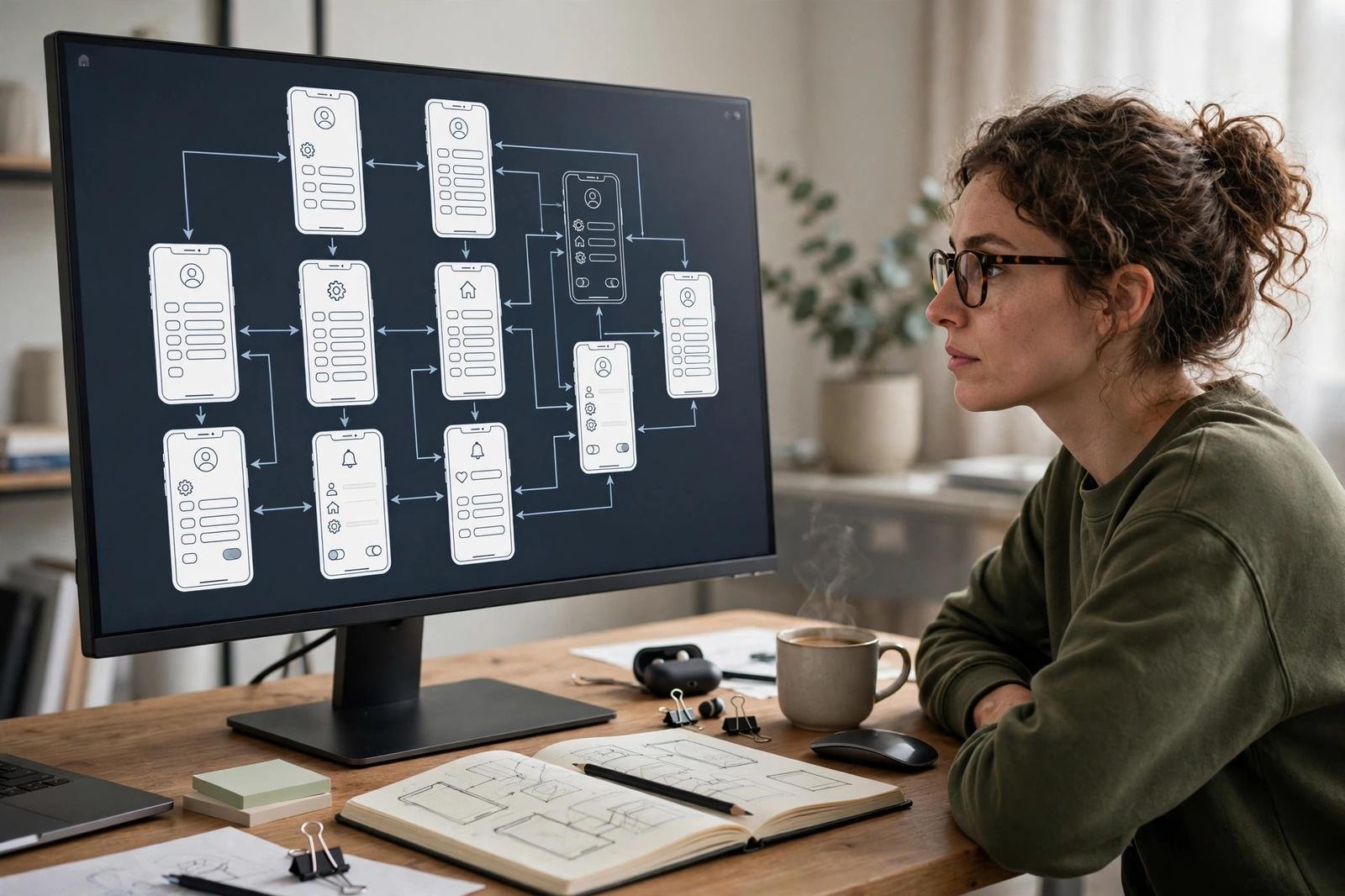
Prototyping is the step that separates a design that looks good from a design that works. A static mock-up can show you a screen. A prototype can show you what happens when a user taps a button, fills in a form, or swipes through a flow. That difference matters because most design problems are not visual — they are about flow, timing and feedback. A prototype finds those problems in hours, while building the real thing and finding them later costs weeks.
Key takeaways
- Figma is the best all-round prototyping tool for most teams, built into the design tool they already use.
- Framer is the best choice for publishing a working website from a prototype.
- ProtoPie is the best for realistic, sensor-based and highly interactive prototypes.
- Axure is the best for complex prototypes with conditional logic and dynamic content.
- Match the tool to the fidelity you need — a simple clickable flow does not need a complex tool.
What makes a good prototyping tool
A good prototyping tool is judged on how quickly you can build a prototype, how realistic the result feels, and how easy it is to share and test. Speed matters because prototyping is iterative: you build, test, learn and rebuild, often several times in a day. A tool that takes an hour to set up a simple flow will slow that loop down.
Realism matters because the point of a prototype is to learn what users will actually do. A prototype that feels like a slideshow tells you less than one that responds the way the real product will. The best tools let you build interactions — taps, swipes, hovers, scrolls, animations — without writing code. And sharing matters because a prototype nobody can open is useless. The best tools produce a link anyone can open in a browser, with no installation and no design licence required.
Figma: best all-round prototyping tool
Best for: designers who want prototyping built into the same tool they use for interface design.
Figma’s prototyping is built directly into the design tool, which is its main advantage. You design the screens and connect them into a flow in the same file, with no export step and no separate application. Its prototyping features have grown steadily and now include variables, conditional logic, and smart animate transitions that make flows feel smooth and realistic.
Figma’s prototyping is good enough for most purposes: clickable flows, onboarding sequences, checkout processes, and interactive demos for stakeholders. Its weakness is depth. For highly complex interactions — sensor-based behaviour, realistic device responses, or intricate conditional logic — specialist tools go further. But for the majority of product design work, Figma’s prototyping is the right balance of power and convenience. Figma has a free tier for individuals and small teams, with paid plans for larger teams. Check current pricing. For a fuller comparison with its rivals, see our guide to the best UI design tools in 2027.
Framer: best for publishing a working website
Best for: designers who want a prototype that is also a live, working website.
Framer’s distinctive strength is that the boundary between prototype and product is thin. A design built in Framer can be published as a live website, with real interactions, animations and content management, without a separate development step. For marketing sites, landing pages and portfolios, that means the prototype is the product — and the testing you do on it is testing the real thing.
Framer’s design and animation tools are strong, and its free tier covers personal use. Paid plans add site publishing and team features. Check current pricing. Its limitation is scope: Framer is best for websites, not for complex app prototypes or large product design systems, where Figma’s components and collaboration are stronger.
ProtoPie: best for realistic interactions
Best for: prototypes that need to feel like a real product, including sensor-based and device-specific interactions.
ProtoPie is built for high-fidelity, realistic prototyping. It can use a device’s sensors — tilt, shake, voice, camera — and it supports complex interactions that most other tools cannot build without code. If you need to prototype a mobile app that responds to how a phone is held, or an interface that uses voice input, ProtoPie is the tool that can do it.
ProtoPie imports designs from Figma, Sketch and Adobe XD, so it fits into an existing workflow rather than replacing it. It has a free tier for learning and personal use, with paid plans for professional work. Check current pricing. Its main limit is that it is a specialist tool: for a simple clickable flow, it is more than you need, and the learning curve is steeper than Figma’s.
Axure RP: best for complex logic-heavy prototypes
Best for: enterprise products and complex applications where the prototype needs conditional logic, dynamic data and detailed documentation.
Axure RP is the most powerful prototyping tool in this guide, and the most complex. It supports conditional logic, variables, dynamic panels and data-driven content, which means you can build prototypes that behave like a working application — with forms that validate input, flows that branch based on choices, and screens that update from data. That makes it the standard choice for complex enterprise software, where the prototype needs to demonstrate behaviour that simpler tools cannot express.
Axure’s power comes with a learning curve, and it is slower to work in than Figma for simple flows. It is subscription software. Check current pricing. It suits teams building complex products — government systems, financial software, healthcare applications — where the prototype is a specification as much as a demo.
InVision: the tool to move away from
Best for: existing InVision users maintaining current projects; not recommended for new work.
InVision was once the standard prototyping tool, known for its simple approach of turning static screens into clickable prototypes. In recent years, however, InVision has wound down its core products and shifted focus, and its design collaboration services have been discontinued. Existing users should check InVision’s current product pages for the latest status.
The practical consequence is the same as with Adobe XD: a tool that is no longer actively developed is not a good place to start new work. If your team still uses InVision, plan a migration to Figma or another active tool, starting with new projects.
How the leading tools compare
| Tool | Best for | Price model | Standout feature |
|---|---|---|---|
| Figma | All-round prototyping | Free tier, paid plans | Prototyping built into the design tool |
| Framer | Publishing a live website | Free tier, paid plans | Prototype becomes a working site |
| ProtoPie | Realistic interactions | Free tier, paid plans | Sensor-based and device interactions |
| Axure RP | Complex logic-heavy prototypes | Subscription | Conditional logic and dynamic data |
| InVision | Existing users only | Check current status | No longer actively developed |
A practical checklist for choosing a prototyping tool
- Decide what you need to test. A simple user flow needs only Figma. A sensor-based mobile interaction needs ProtoPie. A complex enterprise application needs Axure. Match the tool to the question.
- Check what your team already uses. If your team designs in Figma, start with Figma’s prototyping. Adding a separate tool is only worth it when Figma cannot do what you need.
- Consider fidelity honestly. Low-fidelity prototypes — sketches and clickable wireframes — are often enough to test a flow. Do not build a high-fidelity prototype when a rough one would answer the question.
- Test the sharing experience. Send a prototype link to someone outside your team and ask them to open it. If it takes more than a click, the tool is creating friction.
- Plan for testing. A prototype is only useful if you test it with real users. Choose a tool that makes it easy to share a link and observe how people use it.

Low fidelity versus high fidelity
One of the most useful distinctions in prototyping is fidelity — how close the prototype is to the finished product. A low-fidelity prototype is rough: paper sketches, wireframes, or simple clickable screens with placeholder text. It is fast to build and good for testing structure and flow. A high-fidelity prototype is polished: realistic visuals, real content, smooth animations and detailed interactions. It is slower to build and good for testing the details of an experience.
The common mistake is to build a high-fidelity prototype too early, when the basic flow is still uncertain. Start low, test the flow, and add fidelity only when the structure is settled. The tools in this guide cover the whole range: Figma handles both ends well, ProtoPie and Axure are for the high-fidelity end, and even a paper sketch is a legitimate prototype for the earliest questions.
FAQs
What is the best prototyping tool for beginners?
Figma is the best starting point for most beginners, because its prototyping is built into the design tool, it has a free tier, and there are many tutorials available. Start with simple clickable flows and build up from there.
Do I need a separate prototyping tool if I use Figma?
For most work, no. Figma’s built-in prototyping covers clickable flows, animations and conditional logic. A separate tool such as ProtoPie or Axure is only needed for highly realistic or logic-heavy prototypes.
Can I test a prototype with real users?
Yes, and you should. Most prototyping tools produce a shareable link that anyone can open in a browser. Share it with representative users, watch how they use it, and note where they get stuck.
What is the difference between a wireframe and a prototype?
A wireframe is a static, low-detail sketch of a screen’s layout. A prototype is interactive — it shows what happens when a user taps, scrolls or types. A prototype can be built from wireframes by linking them together.
Is InVision still available?
InVision has wound down its core design collaboration products. Check InVision’s current product pages for the latest status before relying on it for new work.
The bottom line
The best prototyping tools for designers in 2027 start with Figma, which covers most prototyping needs inside the design tool teams already use. Framer is the best choice when the prototype should become a live website, ProtoPie is the best for realistic, sensor-based interactions, and Axure is the best for complex, logic-heavy enterprise prototypes. InVision is the tool to move away from. Match the tool to the question you need to answer, start with low fidelity, and test with real users — that is where prototyping earns its keep. If you are comparing the underlying design tools, our guide to the best UI design tools in 2027 covers them in depth, and the Figma vs Adobe XD comparison covers Figma’s former rival.