The best tablets for architects in 2027 are the ones that handle real design work, not just sketching. A good architecture tablet runs CAD and BIM apps, marks up drawings at full scale, and survives a day of site visits without hunting for a charger.
We tested the shortlist against the work architects actually do: reviewing AutoCAD and Revit files, sketching concepts in Morpholio Trace and Concepts, annotating PDFs on site, and presenting renders to clients.
The Apple iPad Pro 13 leads the list for most architects, with the Samsung Galaxy Tab S10 Ultra close behind for Android users and the Microsoft Surface Pro 11 the pick for anyone who needs full desktop CAD.
Key takeaways
- The iPad Pro 13 is the best all-round tablet for architects, thanks to its large OLED display, M4 chip, and the strongest architecture app library.
- Buy the biggest screen you can carry comfortably: 13 inches is the practical minimum for reading A3 drawings without constant zooming.
- A pressure-sensitive stylus with tilt support is essential for sketching and markup; budget for the pen, which is often sold separately.
- Windows tablets are the only option if your workflow depends on full desktop Revit or AutoCAD rather than mobile apps.
- Pen displays such as the Wacom Movink are studio tools, not site tools: they need a computer and a desk, but they offer the best drawing feel.
At a glance: the shortlist
| Tablet | Best for | Starting price | Standout limit |
|---|---|---|---|
| Apple iPad Pro 13 (M4) | Most architects | From $1,299 | Apple Pencil Pro sold separately |
| Samsung Galaxy Tab S10 Ultra | Large Android screen | From $1,199 | Fewer pro CAD apps than iPad |
| Microsoft Surface Pro 11 | Full Windows CAD | From $999 | Heavier with keyboard attached |
| Wacom Movink | Studio pen display | From $749 | Needs a computer to run |
| Huawei MatePad Pro 13.2 | Value large OLED | From $999 | App store gaps outside China |
| XP-Pen Artist Pro 16 (Gen 2) | Budget pen display | From $599 | Needs a computer to run |
| Huion Kamvas 13 (Gen 3) | Affordable starter display | From $279 | Smaller 13-inch workspace |
| Apple iPad Air 11 (M3) | Budget site visits | From $599 | Smaller screen for drawings |
Apple iPad Pro 13 (M4) — Best overall
The iPad Pro 13 is the tablet most architects should buy first. Its 13-inch tandem OLED display is bright enough for outdoor site checks, and it shows fine linework and hatch patterns with a clarity that cheaper LCD panels cannot match.
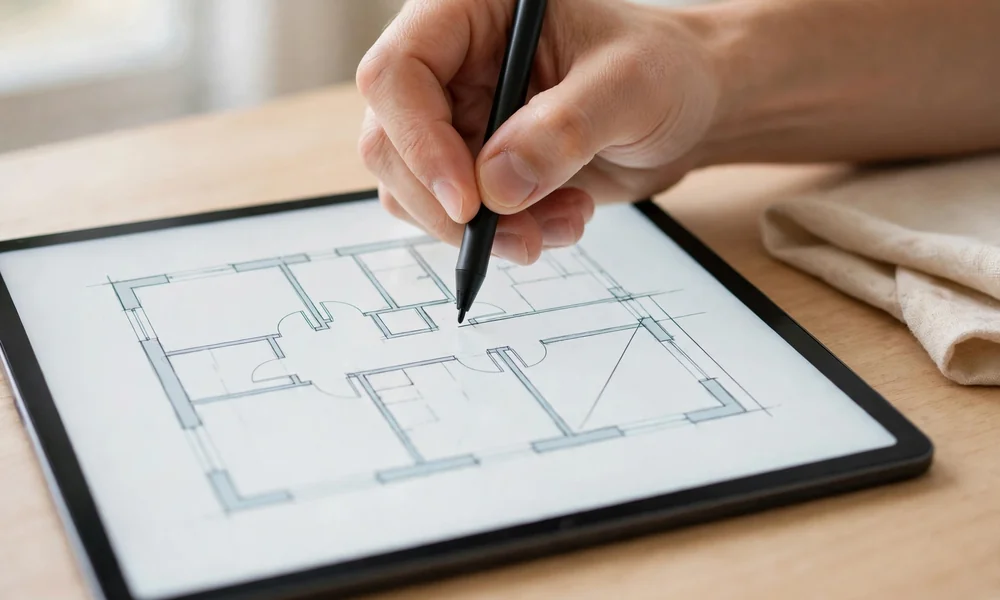
What sets the iPad apart is the app library. Morpholio Trace, Concepts, AutoCAD mobile, SketchUp for iPad, and Procreate all run well here, If your work leans more toward freehand drawing than CAD, our guide to the best tablets for artists covers the drawing-first options in more depth.
Pros: superb OLED display, fastest chip in a tablet, best architecture app library, excellent stylus
Cons: Apple Pencil Pro costs extra, no full desktop Revit, premium price
Samsung Galaxy Tab S10 Ultra — Best large Android screen
The Galaxy Tab S10 Ultra has a 14.6-inch display, the largest screen on this list, and that size changes how drawings feel. An A3 sheet fits on screen at a readable scale, and split-screen multitasking lets you keep a PDF drawing open next to a specification document. The S Pen is included in the box, which is a real saving against Apple.
Android has fewer professional CAD apps than iPadOS, but the essentials are covered: AutoCAD mobile, SketchUp, Concepts, and Samsung Notes all work well, and the tablet doubles as a second display for a Windows laptop. For architects already invested in Android or Samsung phones, this is the natural pick.
Pros: huge 14.6-inch screen, S Pen included, good multitasking, strong battery life
Cons: fewer pro CAD apps than iPad, large and heavy to carry all day, DeX mode takes setup
Microsoft Surface Pro 11 — Best for full Windows CAD
The Surface Pro 11 is the only tablet here that runs full desktop AutoCAD, Revit, and Rhino without compromise. That matters when your project files live in desktop software and mobile apps strip out the features you need. With the keyboard attached it works as a slim laptop; detached, it becomes a markup tablet.
The Snapdragon X Elite chip handles everyday CAD work well, and the 13-inch touchscreen supports the Surface Slim Pen 2 with haptic feedback that feels closer to pen on paper than most rivals.
Pros: full desktop CAD and BIM apps, doubles as a laptop, good pen feedback, strong build
Cons: keyboard and pen cost extra, heavier than pure tablets, battery dips under heavy loads
Wacom Movink — Best pen display for the studio desk
The Wacom Movink is a different kind of tablet: a 13.3-inch OLED pen display that connects to your computer rather than running apps itself. In the studio, that is a strength. You get Wacom’s best-in-class pen accuracy, 8,192 levels of pressure,
For architects, the Movink shines for concept sketching, rendering touch-ups, and long markup sessions where pen precision matters more than portability. It is not a site tool and it is not a standalone tablet, so it only makes sense alongside a capable computer.
Pros: best pen accuracy available, light and slim, superb OLED display, built for long sessions
Cons: needs a computer, no standalone use, no battery, premium for a display-only device
Huawei MatePad Pro 13.2 — Best value large OLED
The MatePad Pro 13.2 offers a huge 13.2-inch flexible OLED display and the M-Pencil 3 stylus at a price well below the iPad Pro. The screen is genuinely impressive for the money: bright, accurate, and easy on the eyes during long drawing sessions. The tablet itself is thin and light for its size.
The catch is software. Google services and some Western professional apps are limited on Huawei devices, so architects should check that their essential apps are available before buying.
Pros: large OLED display, competitive price, light for its size, good stylus
Cons: limited app availability, no Google services, weaker CAD app support
XP-Pen Artist Pro 16 (Gen 2) — Best budget pen display
The XP-Pen Artist Pro 16 (Gen 2) is a 16-inch pen display that brings a large drawing surface to the studio for around $599. The 2.5K display is sharp enough for detailed linework, and the included battery-free stylus supports tilt and 16,384 pressure levels. Two dials and shortcut keys speed up common tasks in CAD and illustration software.
Like the Wacom, it needs a computer to run, and its colour accuracy is a step below the Movink. For a small practice that wants a big pen display without Wacom prices, though, it is a strong buy.
Pros: large 16-inch display, low price, good pressure sensitivity, shortcut dials included
Cons: needs a computer, colour accuracy trails Wacom, bulky on a small desk
Huion Kamvas 13 (Gen 3) — Best affordable starter display
The Huion Kamvas 13 (Gen 3) is the cheapest way to get a proper pen display into an architecture studio, starting from around $279. The 13.3-inch display is compact, the anti-glare etched glass reduces reflections, and the included pen needs no battery or charging. It connects to a computer with a single USB-C cable.
Performance is solid for sketching, markup, and concept work, though the screen is smaller than the other displays here and colour coverage is more modest.
Pros: very affordable, single-cable setup, anti-glare screen, battery-free pen
Cons: smaller workspace, modest colour accuracy, needs a computer
Apple iPad Air 11 (M3) — Best budget tablet for site visits
The iPad Air 11 with the M3 chip is the best-value Apple tablet for architects who mainly need a site device. It runs the same architecture apps as the iPad Pro, supports the Apple Pencil Pro, and is light enough to carry around a building all day with one hand. At around $599, it costs less than half of a fully equipped iPad Pro 13.
The trade-off is screen size. An 11-inch display means more zooming and panning on large drawings, and the LCD panel is not as bright or contrasty as the Pro’s OLED.
Pros: same app library as the Pro, light and portable, much cheaper, Apple Pencil Pro support
Cons: smaller 11-inch screen, LCD rather than OLED, less storage at the base price
How to choose
Start with your software, not the hardware. If your practice runs on Revit or desktop AutoCAD, a Windows tablet such as the Surface Pro 11 is the only choice that keeps your full workflow. If you work in Morpholio Trace, SketchUp for iPad, or Concepts, the iPad Pro is the better tool. A 2-in-1 can be the better call when you need a full desktop CAD app on site, so see our roundup of the best 2-in-1 laptops for 2027 before deciding.
Screen size is the next decision. For reading drawings at scale, 13 inches is the minimum and 14 inches is better, but every extra inch adds weight you will feel on a site walk. Stylus quality matters as much as the screen: look for pressure sensitivity, tilt support, and low latency, and budget for the pen if it is not included.
Checklist: before you buy
- Confirm your essential CAD, BIM, and markup apps run on the tablet’s operating system.
- Check whether the stylus is included, and add its price if it is sold separately.
- Test the tablet with a real project file, not a demo drawing, before the return window closes.
- Make sure the screen is readable in daylight for site work, not just indoors.
- Confirm storage and RAM are enough for your largest drawing sets and renders.
- Check current pricing and warranty terms, and confirm the return policy for a work device.
Frequently asked questions
Can a tablet replace a laptop for architects?
For sketching, markup, site notes, and client presentations, yes. For full Revit modelling or heavy rendering, most architects still need a laptop or desktop,
What size tablet is best for architecture?
Thirteen inches is the practical minimum for reading drawings comfortably, and 14 inches is better still. Smaller tablets work for site notes and quick sketches but force constant zooming on full drawing sets.
Do architects need a pen display or a standalone tablet?
A standalone tablet is the better first purchase because it works on site and in the office.
Is the iPad Pro good for AutoCAD?
Yes, for viewing, markup, and light editing. AutoCAD mobile on the iPad Pro is fast and reliable, but it does not include every desktop feature, so complex modelling still belongs on a computer.
How much should an architect spend on a tablet?
Most architects should budget $600 to $1,300 for the tablet plus a stylus and case. Studio pen displays add $280 to $750 on top of a computer. For client presentations, polished visuals matter as much as the drawings, and our guide to the best tablets for photo editing looks at screens that make renders and photos look their best.
Which stylus is best for architecture work?
The Apple Pencil Pro, Samsung S Pen, and Wacom Pro Pen 3 are the strongest options, each matched to its own tablet. The key features are pressure sensitivity, tilt support, and low latency,
The bottom line
For most architects, the iPad Pro 13 is the best tablet to buy in 2027: the screen, the stylus, and the app library are all class-leading. Android users should take the Galaxy Tab S10 Ultra, and anyone who needs full desktop CAD should choose the Surface Pro 11 instead.
On a tighter budget, the iPad Air 11 covers site work well, while the Wacom Movink or XP-Pen Artist Pro 16 is the right studio upgrade once your computer is doing the heavy lifting.