
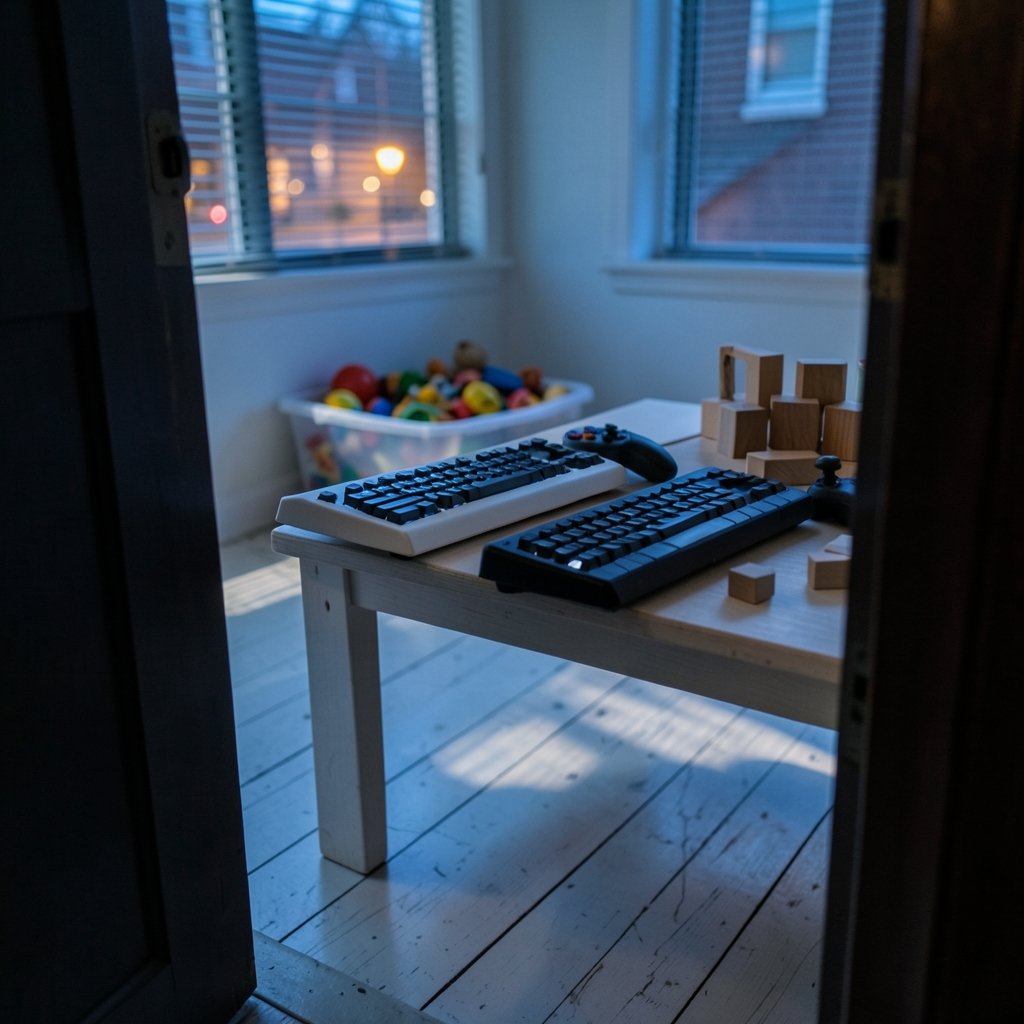
Does a $49 keyboard really feel different from a $99 one when you’re three hours into a ranked session? The honest answer is yes, but not in the ways the spec sheets scream about. The gap between the two price tiers isn’t about raw speed. It’s about how the board holds up night after night, how it sounds and feels under your fingers, and whether you can fix a rattly spacebar instead of living with it. This guide breaks down what to actually check in 2027, so you spend money on the things you’ll notice and skip the marketing noise.
The Real Divide: Feel and Durability, Not Speed
Here’s the uncomfortable truth for anyone shopping by numbers: most budget boards, whether $40 or $95, poll at 1,000 Hz, meaning they report input roughly once per millisecond. That figure is a ceiling, not a promise. End-to-end latency also depends on scan rate, debounce settings, firmware processing, and even your operating system. The USB HID device class specification explains how these report descriptors work, and it’s a useful reality check: a “1 ms” marketing badge describes the polling interval, not measured click-to-photon delay.
So what separates the tiers? In practice, three things:
- Build solidity. Sub-$50 boards often flex under pressure and slide on smooth desks. Boards near $100 more commonly use gasket mounting and added internal foam, which changes both sound and feel.
- Keycaps. Cheap boards lean on ABS plastic, which shines and wears faster. PBT keycaps, more common as you approach $100, resist that wear and keep their texture.
- Stabilizers. The spacebar and shift keys are where budget boards betray themselves. Rattly, unlubed stabilizers are the single most common complaint under $50.
None of these appear in a polling-rate chart. All of them shape how a keyboard feels in hour four of a session.
Switch Types: The Choice That Actually Shapes Your Game

Switch feel matters more than price tier. The three families behave very differently, and the overview of keyboard switch technologies is a solid primer on mechanical versus membrane versus optical designs.
| Switch type | Feel | Best for | Budget availability |
|---|---|---|---|
| Linear | Smooth, no bump | Fast repeated presses, shooters | Widely available under $50 |
| Tactile | Noticeable bump at actuation | Typing, mixed-use gaming | Common in both tiers |
| Clicky | Bump plus audible click | Typing satisfaction, solo play | Under $50, but noisy |
Under $50, you’ll mostly find unbranded or clone switches. They can feel genuinely good, but consistency varies from unit to unit. Approaching $100, hot-swap sockets become common, letting you pull and replace switches without soldering. That’s the quiet superpower of the higher tier: if a switch develops a chatter or dead press, you swap it for a dollar or two instead of replacing the whole board.
One practical tip: check whether the hot-swap socket supports 3-pin or 5-pin switches before you buy replacement switches. A 5-pin board accepts both; a 3-pin board will need the extra plastic legs clipped. It’s a two-minute job, but knowing beforehand saves a frustrating evening.
Rollover, Firmware, and the Specs That Hide in Fine Print
N-key rollover (NKRO) lets you press many keys at once without dropped inputs. Full NKRO over USB depends on how the keyboard’s report descriptor is configured, and some budget boards ship in 6-key rollover mode by default, requiring a firmware toggle to enable the other keys. For most gaming, 6KRO is plenty. But if you play sims or MMOs where you’re holding movement, crouch, and an ability key together, it’s worth checking. The explanation of key rollover and its limits) covers why the distinction exists.
Then there’s firmware. This is where the tiers genuinely diverge. Open-source firmware like QMK lets you remap keys, build layers, and configure NKRO without vendor software. The QMK firmware documentation shows just how deep that rabbit hole goes: layers, macros, tap-dance, the works. Many sub-$50 boards offer only basic vendor software, sometimes Windows-only and occasionally abandoned after a year. If customizing your layout matters to you, firmware support should be a top-three buying criterion, not an afterthought.
Wireless is another trade-off. A 2.4 GHz dongle generally beats Bluetooth on latency, and Bluetooth polling is much slower. Many budget boards are wired-only, which is honestly fine for a desk setup. If you want wireless, expect to pay closer to the $100 mark for a respectable 2.4 GHz implementation.
What $50 Buys You in Practice
A sub-$50 mechanical keyboard is a real upgrade over a membrane board, and it’s a smart entry point. Expect:
- Decent linear or tactile clone switches
- ABS keycaps
- A plastic case with some flex
- Wired USB-C connection
- Basic or no software customization
- Stabilizers that may need a little TLC
The common mistake here is chasing the cheapest board with the flashiest RGB. Lighting doesn’t win fights. A better move is to pick a board with a layout you like and switches whose weight suits your hands. If you also need to match a keyboard to a full setup, the guide to a mechanical keyboard worth buying for beginners and everyday use walks through the practical basics without overspending.
Another tip that costs nothing: before judging stabilizers, give the spacebar a firm press and listen. A hollow rattle is fixable with a bit of lubricant and a steady hand, but it’s easier to start with a board that doesn’t need the surgery.
What the Extra $50 Actually Fixes
The jump to $100 isn’t about faster input. It’s about fewer annoyances over time. Typical upgrades include:
| Feature | Under $50 | Under $100 |
|---|---|---|
| Keycaps | ABS, often thin | PBT, more durable |
| Mounting | Tray mount, some flex | Gasket mount, softer feel |
| Switches | Clones, soldered | Branded or hot-swap |
| Stabilizers | Basic, sometimes rattly | Improved, often lubed |
| Firmware | Vendor software | QMK/VIA more common |
| Connection | Wired | Wired or 2.4 GHz |
If you’re building out a whole desk, that extra budget competes with other gear. It helps to think in priorities: a great keyboard paired with a mediocre monitor wastes the keyboard. The roundup of budget gaming monitors under $200 that actually matter is worth reading alongside keyboard shopping, because refresh rate and panel quality affect your experience more than a marginally nicer case.
Practical Evaluation: How to Judge a Board Before You Commit
You can’t test-drive most budget keyboards, so use these steps to evaluate from specs and reviews:
- Check the switch name and weight. A named switch with a published actuation force tells you more than “mechanical blue.”
- Confirm hot-swap and pin count. 5-pin sockets give you more replacement options later.
- Look for PBT in the keycap description. If it just says “double-shot,” ask what plastic.
- Search reviews for the word “stabilizer.” It’s the fastest way to find rattle complaints.
- Verify firmware support. QMK or VIA compatibility means long-term remapping freedom.
- Check the case material and weight. A heavier board stays put during intense play.
- Confirm rollover mode. Look for NKRO support and whether it’s toggleable.
A common mistake is buying on switch color alone. Two boards with “red” linear switches can feel completely different because of spring weight and housing tolerances. Reading a handful of long-term reviews beats any spec sheet.
Matching the Board to the Rest of Your Setup
A keyboard doesn’t exist in isolation. If you’re pairing it with a new desk, stability matters: a wobbly desk makes even a great keyboard feel cheap. The guide to gaming desks that hold up under real loads covers what to look for in frame rigidity, which pairs naturally with a heavier keyboard that won’t slide.
If voice chat is part of your sessions, audio gear often eats into the same budget. A sensible split is to buy a solid keyboard first and add a microphone later. The picks for a budget USB microphone that works under $100 show how far that money stretches. And if you’re weighing a full desktop upgrade instead, the breakdown of the best gaming PC under $1000 helps you decide whether peripherals or core hardware deserve the next dollar. (About USB-IF and the USB standard)
Where 2027 Changes the Picture
Two trends are worth watching. First, hot-swap is trickling down. Sockets that were a $100 feature are appearing on cheaper boards, which weakens the case for the higher tier if you’re willing to swap switches yourself. Second, open firmware is spreading, slowly, into budget territory. As more sub-$50 boards ship with QMK support, the software gap narrows.
What hasn’t changed: the “50 million keystrokes” durability figure is a manufacturer rating, not a standardized test result. Treat it as marketing unless the test method is disclosed. The same skepticism applies to any 2027 model you haven’t seen independently reviewed. Prices and lineups shift, so verify current specs before buying rather than trusting a list written months earlier.
Conclusion
The choice between a sub-$50 and a sub-$100 mechanical keyboard in 2027 comes down to what you value over time. Under $50 gets you genuine mechanical feel and a real step up from membrane, with the understanding that keycaps, stabilizers, and firmware may be compromises. Approaching $100 buys durability, hot-swap flexibility, better sound, and often open firmware. Neither tier is faster in any way you’ll feel in a match. Pick based on switch feel, repairability, and how much rattle you’re willing to tolerate, and you’ll end up with a board you’re happy to use long after the honeymoon phase.
Frequently Asked Questions
Is a $100 mechanical keyboard actually faster than a $50 one for gaming?
Generally no, not in a way most players can perceive. Both tiers commonly poll at 1,000 Hz, and real latency depends on scan rate, debounce, firmware, and your system. The meaningful differences are build quality, keycaps, stabilizers, and configurability.
Do I need N-key rollover for gaming?
For most games, 6-key rollover is sufficient. Full NKRO matters more in simulators or MMOs where you hold several keys at once. Some budget boards ship in 6KRO mode and need a firmware toggle to enable NKRO, so check before buying.
What are hot-swap switches and why do they matter?
Hot-swap sockets let you pull out and replace switches without soldering. If a switch fails or you want a different feel, you swap it instead of replacing the board. Check whether the socket supports 3-pin or 5-pin switches before buying replacements.
Are PBT keycaps worth paying more for?
Yes, for most people. PBT resists shine and wear better than ABS, so the keys keep their texture longer. Sub-$50 boards frequently use ABS, while PBT becomes more common as you approach $100.
Is wireless a bad idea for a budget gaming keyboard?
It depends on the connection. A 2.4 GHz dongle generally offers lower latency than Bluetooth, which is much slower. Many budget boards are wired-only, which is the safest choice for competitive play. Expect to pay closer to $100 for solid wireless.
How can I tell if a budget keyboard has rattly stabilizers?
Read long-term reviews and search for the word “stabilizer.” Rattly spacebars and shift keys are the most common complaint under $50. Some rattle is fixable with lubricant, but starting with a board that doesn’t need the fix saves time.
Disclosure: some links in this article may be affiliate links. If you buy through them, we may earn a small commission at no extra cost to you. It never affects our recommendations.



