Roughly 1.5 billion websites exist, and every single request you make to any of them carries your IP address along for the ride. That string of numbers is how the internet knows where to send the response, but it also leaves a trail. For that reason, “how to change your IP address” is one of the most searched networking questions on the planet.
Here’s the catch: most guides mash two completely different things into one answer. Changing your local IP is a settings tweak you can do in two minutes. Changing your public IP depends on your internet provider, your hardware, and sometimes your willingness to pay for a different plan. This article separates the two, walks through every realistic method, and flags the mistakes that trip people up.
The Two IP Addresses You Actually Have
Before touching any settings, it helps to know which address you’re trying to change. Every device on a home network has at least two identities.
Your local IP (also called a LAN or private IP) is assigned by your router. It usually looks like 192.168.x.x, 10.x.x.x, or 172.16.x.x — ranges reserved for private networks under the long-standing address standard. It only matters inside your home. Nobody on the wider internet sees it.
Your public IP is assigned by your internet service provider. It’s the address every website, game server, and streaming platform sees when you connect. Changing your local IP does nothing to your public IP, and that’s the single most common misunderstanding in this whole topic.
If you’re not sure what yours looks like, this explainer on what is an IP address and how does it work covers the basics, and there’s a separate walkthrough for how to find your IP address on any device if you want to check your current numbers first. (IP address)
How to Change Your Local IP Address
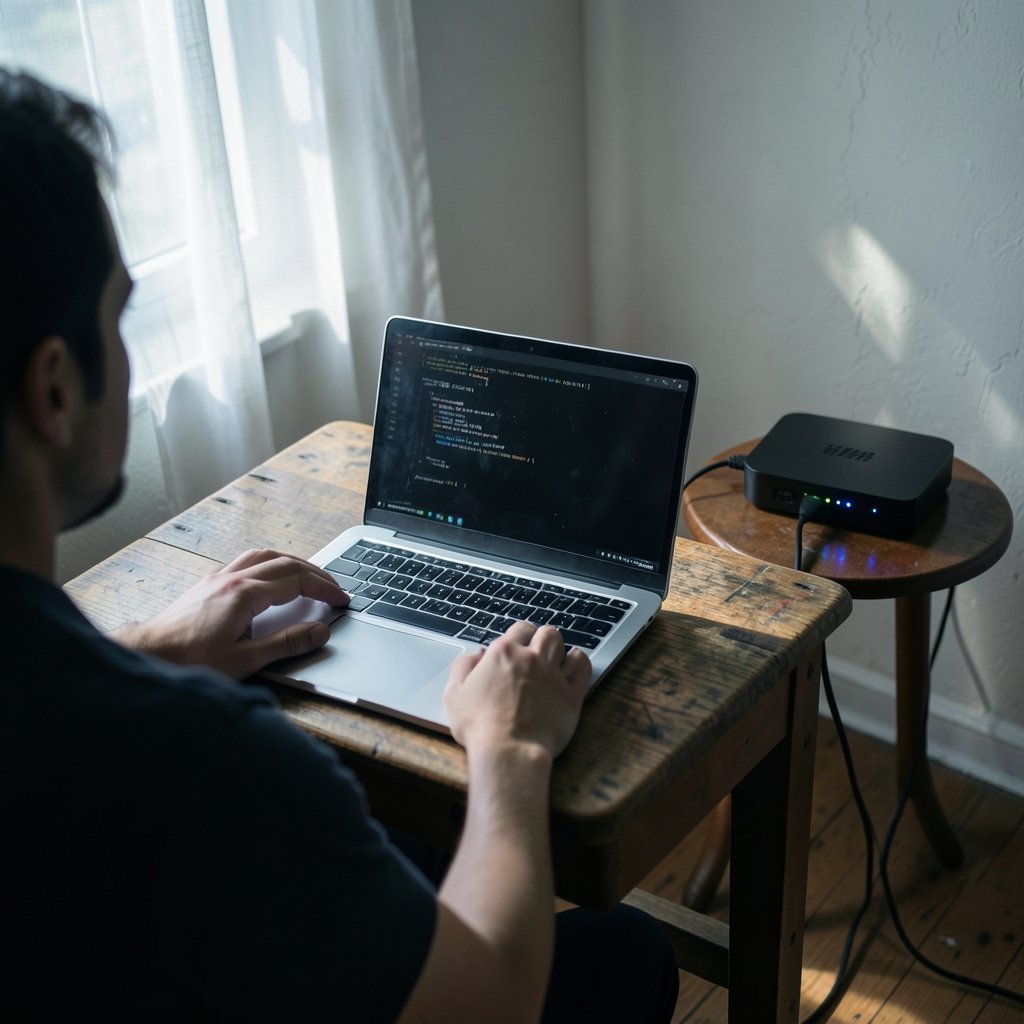
This is the easy one. Your router hands out local addresses automatically through DHCP, and you have three ways to nudge it.
Method 1: Release and Renew the Lease
On Windows, open Command Prompt and type `ipconfig /release`, then `ipconfig /renew`. On Mac, you can toggle the network connection off and on in System Settings. This asks the router for a fresh address.
Here’s the reality check: routers often hand back the exact same address, because the DHCP server remembers your device’s hardware identifier. This method works more reliably on networks with many devices, where addresses get recycled quickly.
Method 2: Reboot the Router
Unplug the router for about 30 seconds and plug it back in. When devices reconnect, the router reassigns addresses from its pool. This is the most common fix people try, and it’s the one most likely to produce a different local IP — especially if you leave the router off long enough for leases to lapse.
Method 3: Set a Static Local IP
If you want a permanent local address (useful for printers, home servers, or port forwarding), assign one manually. On Windows, go to Settings, Network & Internet, then your adapter’s properties, and enter an address outside your router’s DHCP pool — say, 192.168.1.200 if the pool starts at .100. On Mac, it’s under System Settings, Network, Details, TCP/IP.
Common mistake: picking an address inside the DHCP range. Your router may eventually hand that same address to another device, causing an IP conflict that knocks both machines offline. Always choose a number well outside the pool.
How to Change Your Public IP Address
Now the harder half. Your public IP is controlled by your ISP, so your options are limited to what they allow and what tools you route traffic through.
Restart Your Router (Sometimes Works)
Many residential ISPs assign public IPs that can change when your connection re-authenticates. A router reboot, or leaving it unplugged for several minutes, sometimes triggers a new address.
Sometimes is the operative word. Some providers assign sticky addresses that survive reboots for weeks. Others sell static IPs as a paid add-on. There is no universal answer here — the behavior depends entirely on your provider’s assignment policy, so test it and see what yours does.
Connect Through a VPN
A VPN routes your traffic through a server elsewhere, so websites see that server’s IP instead of yours. It’s the most popular consumer method for a reason: it’s simple, it works on phones and computers, and it changes your apparent location too.
The tradeoffs are real, though. Free VPNs often log activity, throttle speeds, or sell data. Paid providers vary wildly in privacy policies and jurisdiction. Read the actual privacy policy rather than the marketing page — the fine print is where the truth lives.
Use a Proxy Server
A proxy sits between you and a website and forwards requests using its own IP. Proxies can be handy for specific applications, but they typically don’t cover all your traffic, and many free proxies are outright unsafe — some inject ads or harvest credentials. Treat unknown proxies the way you’d treat a stranger’s USB stick.
Switch to Mobile Data
Toggling off Wi-Fi and using cellular data almost always gives you a different public IP, because your carrier assigns it. It’s a quick trick when you just need a fresh address for a few minutes. Be aware that many carriers place customers behind CGNAT (carrier-grade NAT), meaning you share a public IP with many other users — so the address you get isn’t uniquely yours and may change unpredictably.
Ask Your ISP for a Static IP
If you need a stable, dedicated public address — for remote access to a home server, for example — most ISPs will sell you one for a monthly fee. This is a billing change, not a settings toggle, and it gives you the opposite of what most people want: an address that doesn’t change.
Use Tor (With Caveats)
Tor routes traffic through a series of relays, so the exit node’s IP is what sites see. It’s genuinely effective for anonymity, but speeds are slow, many sites block Tor exits outright, and it’s overkill for casual use. The Tor Project’s official documentation is the place to understand how the relay system works before relying on it.
Comparing Your Options
| Method | Changes Local IP? | Changes Public IP? | Difficulty | Best For |
|---|---|---|---|---|
| Release/renew lease | Yes (sometimes) | No | Easy | Home network troubleshooting |
| Router reboot | Yes | Sometimes | Easy | A quick public IP refresh attempt |
| Static local IP | Yes (permanent) | No | Medium | Printers, servers, port forwarding |
| VPN | No | Yes | Easy | Privacy, geo-shifting, public Wi-Fi |
| Proxy | No | Yes (partial) | Medium | App-specific routing |
| Mobile data | No | Yes | Easy | A temporary different address |
| Static IP add-on | No | Yes (fixed) | Billing request | Remote access, hosting |
| Tor | No | Yes | Medium | Strong anonymity, low speed |
Why People Want a Different IP in the First Place
Motivations vary enormously, and they shape which method makes sense.
Privacy from trackers. Advertisers and analytics firms build profiles partly by IP. A VPN blurs that signal, though it doesn’t make you invisible — cookies and browser fingerprinting still exist.
Accessing region-locked content. Streaming libraries differ by country. Fair warning: using a VPN to dodge geo-restrictions usually violates the service’s terms of use, and enforcement (account bans, blocked VPN ranges) is common. In some jurisdictions, circumventing blocks carries legal risk, so know your local rules.
Recovering from a block. Occasionally a site blocks an IP range after abuse from another user. A new address fixes it. Repeatedly evading a ban you earned yourself is a different matter entirely — and a bad idea.
Testing and development. Developers often need to see how a site behaves from another location. VPNs and proxies are standard tools for this.
Security on public Wi-Fi. A VPN encrypts traffic on untrusted networks, which is a legitimate and underrated reason to use one.
Practical Tips and Mistakes to Avoid
A few things separate a smooth experience from a frustrating afternoon.
Check before and after. Note your public IP before making changes, then verify it afterward. Without a baseline, you’re guessing.
Don’t confuse the two addresses. If a website still shows your old location after you changed your local IP, nothing is broken — you changed the wrong one.
Watch for CGNAT. If your “public” IP starts with 100.64 through 100.127, you’re behind carrier-grade NAT and don’t have a dedicated address at all. No amount of rebooting will give you one.
Beware “IP changer” apps. Plenty of free apps promise one-click changes and deliver adware. Stick with reputable VPN providers or built-in OS settings.
Expect the same address back. DHCP is designed to be stable, not random. If a method doesn’t work the first time, it may simply be your router’s or ISP’s policy.
Keep records if you run a home server. Document any static IP you assign. Future-you will be grateful when the network breaks at 11 p.m.
For readers interested in where networking technology is heading, this piece on how quantum computing could change artificial intelligence explores how infrastructure shifts ripple outward — a useful long-view companion to the practical steps here.
When Changing Your IP Won’t Help
Honesty matters here. A new IP address is not a privacy shield, and it’s not a fix for most problems people hope it solves.
It won’t stop browser fingerprinting, which identifies you through screen size, fonts, and dozens of other signals. It won’t hide you from logged-in accounts — Google knows who you are the moment you sign in, regardless of IP. It won’t defeat sophisticated fraud detection, and it won’t make you anonymous on its own.
What it will do is change the address websites see, which is exactly what it says on the tin. Treat it as one tool among several, not a magic wand.
Conclusion
Changing your IP address comes down to knowing which address you mean. Local IPs are yours to control — release and renew, reboot, or set one statically, and you’re done in minutes. Public IPs belong to your ISP, so your realistic options are a router restart (which may or may not work), a VPN, a proxy, mobile data, or paying for a static address.
Start with the simplest method that matches your goal. Verify the result. Skip the sketchy free apps; the reputable route is almost always easier anyway. Whether you’re troubleshooting a home network, protecting yourself on public Wi-Fi, or just curious how the plumbing works, the two-address distinction is what makes the rest make sense.
Frequently Asked Questions
Does changing my IP address make me anonymous online?
No. A different IP hides your network location from sites, but browser fingerprinting, cookies, and logged-in accounts still identify you. Anonymity requires layered tools; a new address by itself is not enough.
Why does my IP address stay the same after rebooting my router?
Many routers reassign the same local address because they remember your device’s hardware identifier. For public IPs, some ISPs assign sticky addresses that survive reboots. The behavior is set by your router and provider, not by anything you did wrong.
Is using a VPN to change my IP address legal?
VPN use itself is legal in most countries. What matters is why you’re using it — circumventing geo-restrictions typically violates a streaming service’s terms, and evading legal blocks can carry consequences in some jurisdictions. Check your local rules.
Can I get a permanent new IP address?
Yes, in two ways. You can set a static local IP yourself through your device’s network settings. For a permanent public IP, ask your ISP about a static IP add-on, which is usually a small monthly fee.
What is CGNAT, and why does it matter?
Carrier-grade NAT means your ISP shares one public IP among many customers. If you’re behind it, you don’t have a dedicated public address, and rebooting won’t produce one. Addresses starting with 100.64 through 100.127 are the giveaway.
Does changing my IP address affect my internet speed?
It can. VPNs add encryption overhead and route traffic through distant servers, which often slows connections. Local IP changes have no speed impact. A simple router reboot sometimes improves speed by clearing stale connections.