

Quick Answer: How do I choose gaming monitors?
Choosing a gaming monitor starts with matching four things to your hardware and desk: panel type, resolution, refresh rate, and size. Get those aligned and most of the decision makes itself.
The main alternatives sit on a spectrum. TN panels are fastest and cheapest, IPS gives the best color and viewing angles, and VA delivers the deepest blacks but can smear in dark scenes. OLED and Mini LED raise contrast further at a higher price.
Before buying, compare panel type, resolution and pixel density, refresh rate and adaptive sync support, response time as measured by independent reviewers, HDR certification tier, port versions, and stand ergonomics.
Why the Monitor Decision Feels So Messy
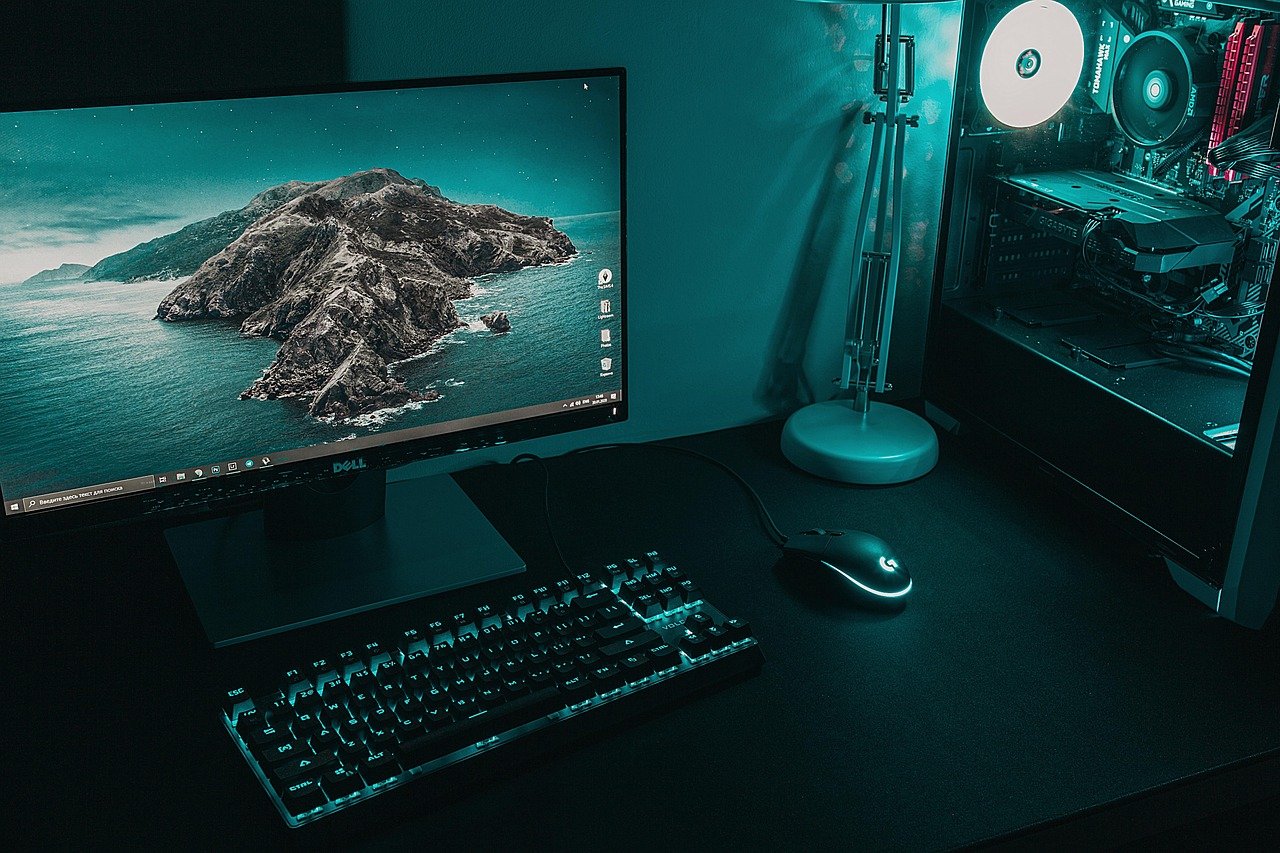
Walk into any electronics store and the wall of monitors looks like a wall of near-identical rectangles. The spec sheets do not help much. Every box shouts about “1 ms response time” and “HDR ready,” and after ten minutes the numbers blur together.
Here is the thing: most of those numbers are marketing, not measurement. A monitor is a system of trade-offs, and the right pick depends on what sits on your desk and what runs inside your PC case. Get the pairing wrong and you either overspend on pixels your graphics card cannot push, or you save money and stare at motion blur during every firefight.
This guide walks through the decisions in the order that actually matters. No jargon walls, no brand cheerleading, just the factors that change how a game feels.
Start With Panel Type, Because It Sets Everything Else
Panel technology is the foundation. It decides color, contrast, viewing angles, and how fast pixels can change state. Three mainstream types dominate, plus two premium options worth knowing.
| Panel type | Strength | Weakness | Best for |
|---|---|---|---|
| TN | Fastest pixel response, lowest cost | Narrow viewing angles, weak color | Budget esports setups |
| IPS | Best color accuracy and viewing angles | Lower contrast than VA, some backlight bleed | All-round gaming plus work |
| VA | Deepest blacks, high contrast | Smearing and ghosting in dark scenes | Single-player, cinematic games |
| OLED | Near-instant response, perfect blacks | Risk of burn-in, higher price | Premium mixed use |
| Mini LED | Very high brightness, strong HDR | Haloing around bright objects | Bright rooms, HDR fans |
The practical takeaway: if the reader plays fast shooters on a tight budget, TN still earns its place. If one monitor must handle gaming, spreadsheets, and Netflix, IPS is the safest generalist. If dark, moody single-player worlds matter most, VA contrast is seductive, though the ghosting trade-off is real. For a deeper walkthrough of how panel choice interacts with the games people actually play, see this guide on how to choose gaming monitor match panel you actually play.
Premium panel types deserve their own caution. OLED and Mini LED behave very differently depending on the room, and ambient light changes the calculus more than most buyers expect. That trade-off is covered in detail in this comparison of OLED vs mini LED gaming monitors room lighting changes.
Match Resolution to Screen Size and GPU
Resolution is not a bragging right. It is a workload. More pixels mean a sharper image and a heavier burden on the graphics card.
A useful rule of thumb: 1080p suits roughly 24-inch panels, 1440p suits 27 inches, and 4K suits 27 to 32 inches. Those pairings land in a comfortable pixel density range of about 90 to 110 pixels per inch, which is where text looks crisp without scaling headaches.
The mistake buyers make most often is pairing a 4K panel with a mid-range GPU. The monitor looks stunning on the desktop, then the frame rate collapses in demanding games and the owner either drops settings or buys a new graphics card. Neither outcome was planned.
A second common error is going too large at low resolution. A 32-inch 1080p panel spreads pixels so thin that edges look soft and text looks fuzzy. Size and resolution must move together.
Ultrawide panels in a 21:9 ratio sit in a different category. They boost immersion and horizontal field of view, but they demand more desk depth and more GPU muscle. Measure the desk before falling in love with the curve.
Refresh Rate and Adaptive Sync: The Smoothness Engine
Refresh rate, measured in hertz, caps how many frames per second the screen can show. A 144 Hz panel displays up to 144 frames each second. A 60 Hz panel shows 60, no matter how fast the graphics card renders.
Higher refresh rates make motion clearer and aiming feel more direct. The jump from 60 Hz to 144 Hz is the single most noticeable upgrade in gaming displays. Past 240 Hz, gains shrink and become harder to perceive for most players.
Refresh rate alone is not enough. Without adaptive sync, the display and the graphics card can fall out of step, producing screen tearing or stutter. Adaptive sync matches the panel’s refresh to the frame rate the GPU delivers.
The naming is confusing but the reality is simple. AMD FreeSync builds on the open VESA Adaptive-Sync standard. NVIDIA G-Sync historically required a dedicated hardware module, while “G-Sync Compatible” now certifies displays built on Adaptive-Sync. In practice, most modern gaming monitors work with both AMD and NVIDIA cards, but checking the certification list before buying saves grief.
One more pairing rule: a 144 Hz monitor delivers no benefit if the GPU only manages 70 frames per second in the games someone plays. Refresh rate and frame rate should be roughly matched. If the hardware is modest, a high-refresh 1080p panel beats a 4K panel every time.
Ignore the Response Time Sticker
Every box claims 1 ms. Almost none of them deliver a true 1 ms full pixel transition in real use.
Manufacturer figures are usually grey-to-grey measurements taken under favorable conditions, often with aggressive overdrive settings that introduce their own artifacts. Independent reviews that measure actual transition times and overshoot are far more trustworthy than a spec sheet.
This is where practical buying behavior matters. Look for reviews that show measured response curves rather than quoted numbers. A panel marketed at 1 ms that smears visibly in dark scenes is worse than one honestly rated at 4 ms that stays clean.
Overdrive settings compound the problem. Crank them too high and you get inverse ghosting, a bright halo trailing behind moving objects. The best setting is usually the middle one, and reviewers who test each level are doing the work buyers cannot do in a store aisle.
HDR Labels Are Tiered, and Most Are Modest
HDR promises brighter highlights, deeper shadows, and richer color. The label alone guarantees very little.
VESA’s DisplayHDR program sets tiers from 400 up to 1400. DisplayHDR 400 is a low bar. It requires modest brightness and does not deliver a true high dynamic range experience. Meaningful HDR starts around DisplayHDR 600 and improves from there, and it depends on local dimming zones or self-emissive pixels.
If HDR matters, check the tier and whether the panel has local dimming. If the budget is tight, skip HDR entirely and put the money into refresh rate or panel quality instead. A strong SDR image beats weak HDR every time.
Ports, Cables, and Bandwidth Limits
Connectors look identical and behave very differently. The port version determines the maximum resolution and refresh rate combination a monitor can accept.
DisplayPort 1.4 with display stream compression can drive high refresh rates at 4K. HDMI 2.1 supports high bandwidth too, which matters for consoles. An older HDMI 2.0 port may cap 4K at 60 Hz, which quietly wastes a fast panel.
The practical check: confirm the port version beyond the connector shape, and confirm the cable in the box supports the mode intended. Many buyers discover their “4K 144 Hz” monitor runs at 60 Hz because the bundled cable or the laptop port is the bottleneck.
Ergonomics, Eye Comfort, and Desk Fit
A monitor is furniture as much as it is a display. Comfort matters over long sessions.
Look for a height-adjustable stand, tilt and swivel, and VESA mounting compatibility if a monitor arm is planned. Flicker-free backlights using DC dimming reduce eye strain compared with pulse-width modulation. Low blue light modes help in the evening, though certification criteria vary between bodies.
Physical dimensions deserve a tape measure. Curved and ultrawide panels need more depth, and a monitor that crowds the keyboard ruins the setup regardless of its specs.
Room lighting changes the experience more than most buyers expect, especially with glossy or OLED panels. If the desk sits near a window, that factor alone can reshape the shortlist, as explored in this breakdown of gaming monitor vs tv room lighting changes viewing.
Budget Tiers: What Money Actually Buys
Spending smart beats spending big. Here is how the tiers usually shake out.
| Budget band | What to expect | Smart pick |
|---|---|---|
| Under $200 | 1080p or entry 1440p, 144 to 165 Hz, IPS or VA | High-refresh 1080p IPS |
| $200 to $400 | Solid 1440p, 165 to 240 Hz, good stands | 27-inch 1440p IPS |
| $400 to $800 | Fast 1440p, entry 4K, better HDR | 1440p high refresh or 4K 144 Hz |
| $800 and up | OLED, Mini LED, 4K high refresh | Premium panel matched to room |
Budget shoppers often assume cheap means compromised. That is less true than it used to be, and a well-chosen entry panel can carry a setup for years. This roundup of best budget gaming monitors under 200 actually matters covers where the real compromises hide.
At the other end, competitive players chasing every millisecond should weigh measured motion clarity over marketing claims. A practical look at which displays genuinely help in ranked play appears in this guide to best gaming monitors competitive gaming actually wins you.
Common Mistakes That Cost Real Money
Buying a 4K panel with a mid-range GPU tops the list. The monitor outresolves the hardware, and frame rates suffer.
Second is trusting the response time sticker over independent testing. Third is ignoring the port version and cable, which silently caps refresh rate. Fourth is choosing a panel type that fights the room, such as a glossy OLED in a sunlit space or a VA panel for dark horror games where smearing shows worst.
Fifth is skipping the tape measure. Ultrawides and curved panels look smaller in photos than on a desk.
Conclusion
Choosing a gaming monitor comes down to matching, not maximizing. Panel type sets the character of the image. Resolution and size must move together and respect the graphics card. Refresh rate and adaptive sync create smoothness, and only when the frame rate keeps up. Response time claims deserve skepticism, HDR labels deserve a tier check, and ports deserve a version check.
Buyers who line up those factors end up with a display that disappears into the experience, which is exactly the point. For a broader look at which specs genuinely shift the needle before purchase, this guide on best gaming monitors 2026 actually matters before you buy is a useful next step. Measure the desk, check the graphics card, pick the panel, then buy the monitor that fits the whole picture.
FAQ
Is 1440p worth it over 1080p for gaming?
For most players at 27 inches, yes. A 1440p panel at that size lands in a comfortable pixel density range, so text and edges look sharper, and the wider canvas helps in games with detailed environments. The catch is GPU load. A 1440p display needs a graphics card that can push roughly 60 percent more pixels than 1080p at the same frame rate, so pair it with hardware that can keep up.
Does refresh rate matter if my GPU can’t hit high frame rates?
Less than the marketing suggests. A 144 Hz monitor shows no benefit above the frame rate the graphics card actually delivers. Adaptive sync helps by matching refresh to output, which smooths uneven frame rates, but it cannot create frames. If the hardware is modest, a high-refresh 1080p panel usually feels better than a 4K panel running at low frame rates.
Are curved monitors better for gaming?
Curved panels improve immersion on wide and ultrawide screens because the edges sit closer to the eye. On a standard 24 or 27-inch flat panel, the benefit is small. The real cost is desk depth and physical fit, so measure before buying. Curvature is a preference, not a performance upgrade.
How much does response time really matter?
It matters, but the sticker number matters less. What counts is measured pixel transition behavior and how well the overdrive setting is tuned. A panel with honest, well-tuned response looks cleaner in motion than one chasing a headline figure with aggressive overdrive that produces inverse ghosting. Trust independent measurements over spec sheets.
Can a gaming monitor double as a work display?
Yes, and IPS panels handle this best thanks to accurate color and wide viewing angles. Check pixel density for text clarity, confirm the stand adjusts for comfortable posture, and look for flicker-free backlights. OLED and VA panels can work too, but each brings trade-offs around burn-in risk or dark-scene smearing that matter more for static desktop use.
What should I check first when comparing two monitors?
Start with panel type, then resolution and size pairing, then refresh rate and adaptive sync support. After that, compare measured response time from independent reviews, HDR tier if it matters, port versions and cable support, and stand ergonomics. Those seven checks catch nearly every mismatch that leads to buyer’s remorse.



