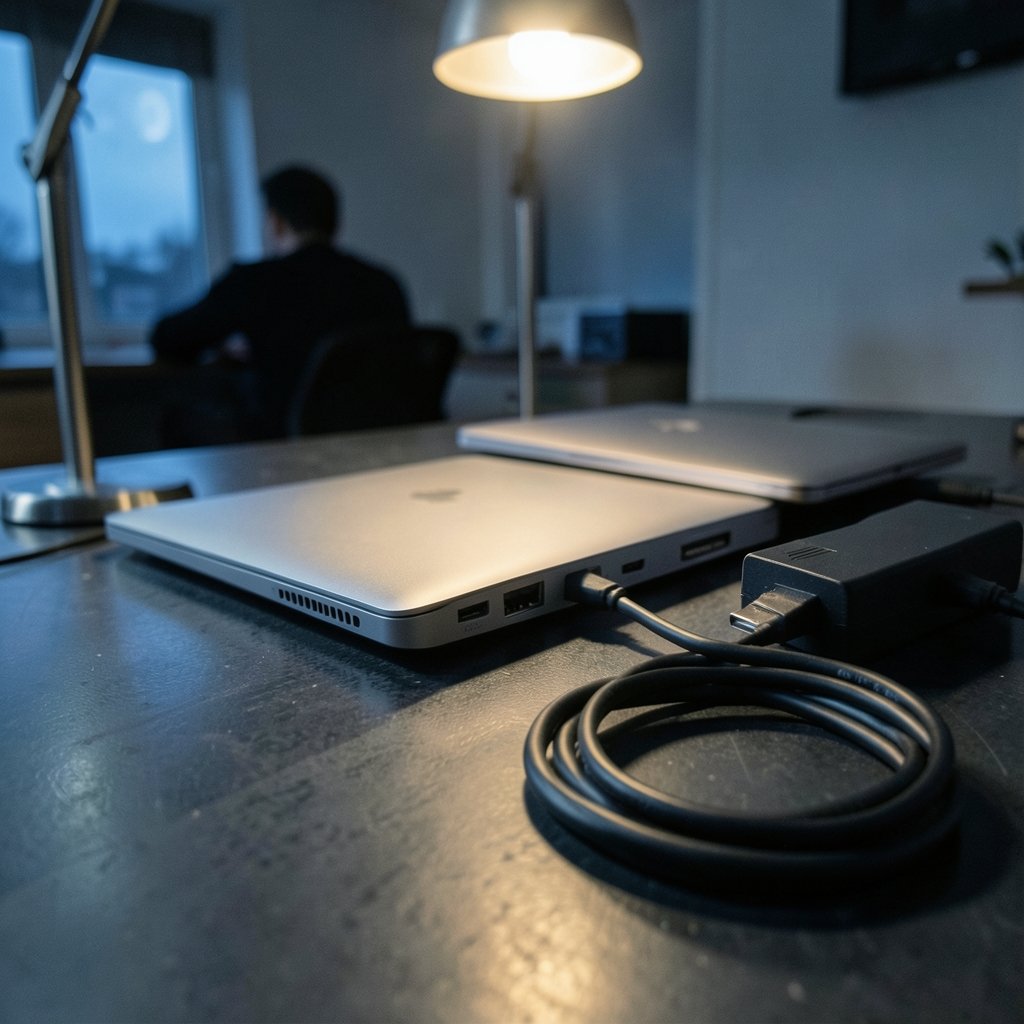
Does a 65W dock actually charge a laptop that ships with a 130W power brick? That single question causes more returns and bad reviews in the docking station market than almost any other. The answer is not a simple number, because a dock does not “push” a fixed wattage into a laptop. Power is negotiated, and the dock is usually just a middleman passing along what an upstream charger can supply.
This guide breaks down the real numbers behind laptop dock charging wattage requirements: the USB Power Delivery voltage tiers, the cable rules that cap current, the overhead a dock keeps for itself, and the practical way to size a dock so it keeps up with your machine instead of limping behind it.
USB PD voltage tiers set the ceiling
USB-C charging runs on USB Power Delivery, a negotiation protocol rather than a dumb wire. The PD 3.0 specification defines four fixed supply voltages: 5V, 9V, 15V, and 20V. PD 3.1, released in 2021, added 28V, 36V, and 48V fixed levels for what the spec calls Extended Power Range, or EPR.
That matters because wattage is simply volts times amps. On the classic fixed tiers, the highest voltage is 20V, so the maximum power depends entirely on how much current the cable and charger can handle:
| PD level | Voltage | Current | Max power |
|---|---|---|---|
| Standard cable | 20V | 3A | 60W |
| E-marked cable | 20V | 5A | 100W |
| EPR (PD 3.1) | 48V | 5A | 240W |
Those three rows explain most of the confusion buyers run into. A dock rated at 100W is not pouring 100W into your laptop. It is offering a negotiation ceiling, and the laptop takes only what it asks for.
The cable rule that quietly caps your dock
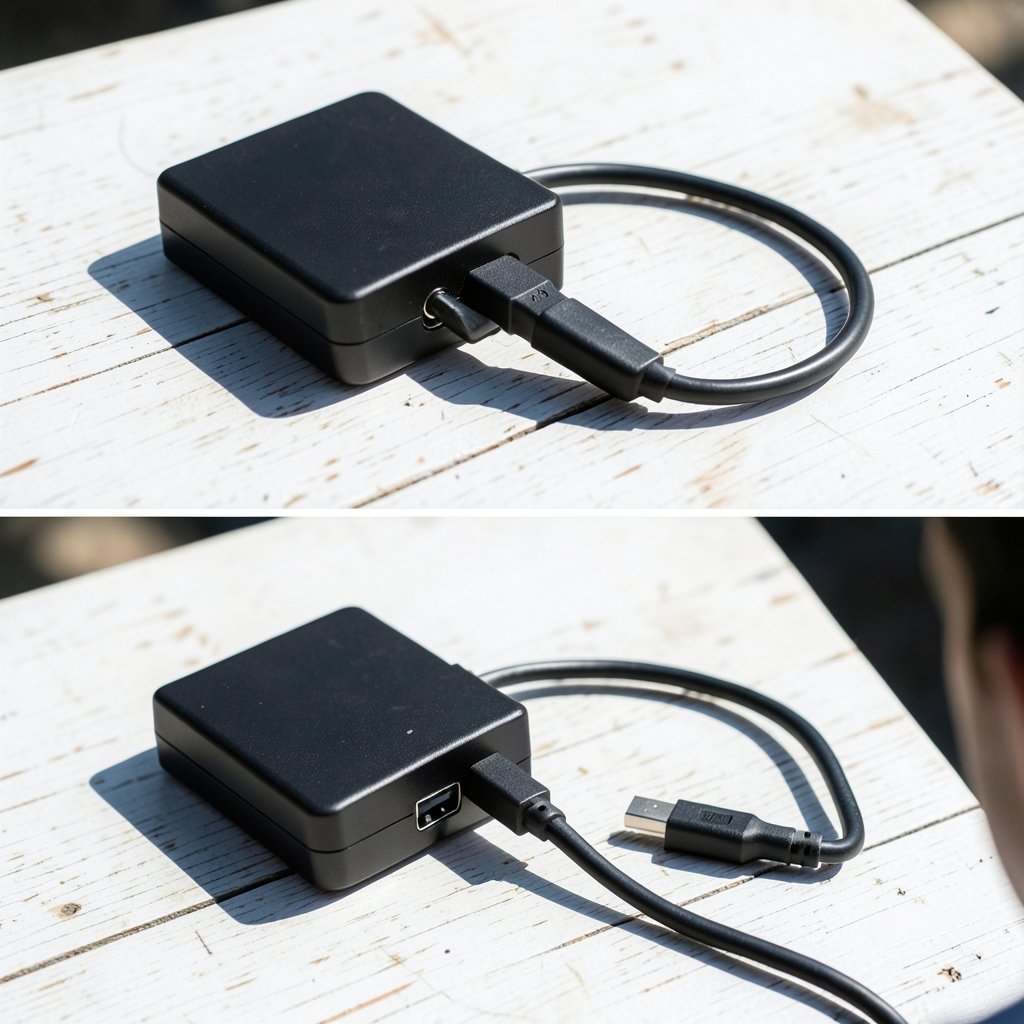
Here is the mistake almost nobody catches until after purchase: standard USB-C cables are rated to 3A, and only electronically marked (e-marked) cables are required to carry 5A. The e-marker is a tiny chip inside the connector that tells the charger and laptop what the cable can safely handle.
Plug a 100W dock into a laptop using a cheap 3A cable and the negotiation drops to the 60W tier. The dock did nothing wrong. The cable set the limit. In practice, this is the single most common reason people report that a “100W dock” charges slowly.
So when a dock claims high wattage, check three things, not one: the dock’s power input, the cable in the box, and whether that cable is e-marked for 5A. If any link in the chain is 3A, the whole chain is 60W.
Why the dock never delivers its full label
A dock has its own job to do. It runs Ethernet, USB-A ports, card readers, audio jacks, and sometimes an internal SSD or display output. All of that draws from the same power budget.
The practical formula looks like this: the dock’s upstream charger rating minus the dock’s own overhead equals the wattage it can pass to the laptop. A 90W supply feeding a dock that reserves 15W for its ports leaves roughly 75W for charging. Vendors rarely publish the exact reserve figure, which is why the honest answer to “how much does this dock pass through” is often “a bit less than the number on the box.”
This is where proprietary fast-charge modes complicate things further. Some laptop makers use non-standard PD extensions or barrel connectors to reach higher wattage. Those machines will charge through a generic PD dock, but not at full speed. They fall back to the standard tier the dock supports.
Match the dock to the laptop, not the other way around
The right way to size a dock is to start with the laptop’s original power adapter. That adapter’s wattage is the manufacturer’s statement of what the machine wants under load.
| Laptop adapter size | What to look for in a dock | What happens if you go lower |
|---|---|---|
| 45W to 65W | 65W or higher dock output | Charging slows or stalls under heavy load |
| 90W to 100W | 100W dock with e-marked 5A cable | Charges slowly; battery may drain during gaming |
| 130W and up (proprietary) | Dock plus the laptop’s own adapter | Standard PD caps out; expect slower charging |
A useful rule of thumb: pick a dock whose pass-through rating meets or slightly exceeds your adapter. Going under is not dangerous, but it changes behavior. The laptop will charge when idle and may hold steady or slowly drain under sustained load, because the machine is drawing more than the dock can supply.
If you are shopping across a range of machines, it helps to compare options by category. Guides on the best laptops 2026 top picks for every budget today often list adapter wattages alongside specs, which makes dock matching much easier. Engineering students juggling CAD workloads should look at best laptops for engineering students with an eye on the bundled charger, since those machines tend to sit in the 100W-plus bracket.
Thunderbolt and USB4 docks: same rules, different plumbing
It is tempting to assume a Thunderbolt or USB4 dock charges faster because the interface is faster. It does not work that way. Those standards carry power delivery, but the charging wattage depends on the host machine and the dock’s own power supply, not on the Thunderbolt specification itself.
What Thunderbolt and USB4 docks do offer is more headroom for peripherals, which means a bigger internal reserve and, sometimes, a higher upstream supply to compensate. A well-designed Thunderbolt dock might ship with a 180W brick so it can pass 96W to the laptop after feeding its own ports. The spec did not guarantee that. The vendor’s power design did.
For MacBook owners in particular, the dock’s pass-through behavior matters more than the interface badge. A hub that splits power across too many downstream devices will shortchange the host. Practical breakdowns of best usb c hubs for macbook laptops usually call out pass-through wattage for exactly this reason.
Real-world pitfalls worth knowing before you buy
A few patterns show up again and again in practice, and none of them are obvious from a product page.
The dock charges, but the battery still drops. This happens when total system draw exceeds dock output. It is not a fault. It is arithmetic. Heavy gaming or video export on a 100W dock with a 130W laptop will do this every time.
Two chargers, one dock. Some docks accept power from a USB-C charger rather than a fixed brick. Swap in a weaker charger and the dock’s pass-through drops with it. The dock did not change. Its fuel source did.
Display and charging compete. Driving a high-resolution external monitor from the dock consumes budget. A dock that passes 85W with no display attached may pass less once a 4K panel is running.
The “240W dock” label. EPR at 240W requires EPR-rated cables and chargers on both ends. A 240W-capable dock connected to a laptop that only negotiates 20V will still charge at the laptop’s tier. The dock’s ceiling is not the laptop’s ceiling.
Linux and firmware quirks. PD negotiation is handled by the laptop’s PD controller and firmware. Some machines under Linux report lower negotiated wattage than they do under Windows, or take longer to settle on a tier. It is worth checking community reports for your specific model before blaming the dock. Buyers comparing open-source-friendly hardware can cross-reference the best linux laptop roundups for notes on charging behavior.
How to size a dock in five steps
- Find the wattage printed on your laptop’s original adapter.
- Note whether the laptop charges over USB-C at all, or needs a proprietary connector for full speed.
- Choose a dock whose pass-through rating meets or beats that adapter number.
- Confirm the included cable is e-marked for 5A if you need more than 60W.
- Add up your peripherals. If the dock powers drives, Ethernet, and a display, expect a real-world reserve of 10W to 20W.
Budget matters here too. Docks with genuine 100W pass-through and proper e-marked cables cost more than 60W units, and the gap is not marketing fluff. If you are working within a tight budget, the guidance in best budget laptops under 1000 is useful because lower-power machines pair happily with cheaper 65W docks. Spending up on a 240W dock for a 45W ultrabook is wasted money.
What the spec does and does not promise
The USB Implementers Forum maintains the USB Power Delivery Specification and the USB Type-C Cable and Connector Specification, and those documents define the voltage tiers, the e-marker requirement, and the EPR ceiling. You can read the technical background on the USB Implementers Forum site and the broader history on Wikipedia’s USB-C page. (USB-C)
What the spec does not do is guarantee that any particular dock delivers any particular wattage to any particular laptop. That is a vendor design decision layered on top of the standard. The specification sets the rules of negotiation. The dock maker decides how much of its supply to reserve, and the laptop maker decides what tiers to request.
That gap between spec and product is why the same 100W dock can feel flawless on one desk and underwhelming on the next. It is also why reading the fine print on pass-through wattage is worth more than reading the headline number.
Tariffs, pricing, and why dock specs may shift
Hardware pricing has been moving, and docking stations are not immune. Component costs and trade policy both feed into what vendors can offer at a given price. Coverage of the Trump semiconductor tariffs laptops servers 2026 situation is worth a look if you are planning a purchase, because power-delivery controllers and charging ICs sit squarely in the affected supply chain. When costs rise, the first thing to get quietly trimmed is often the bundled cable, and that is exactly the part that determines whether you get 60W or 100W.
Conclusion
Laptop dock charging wattage is less about the number on the box and more about a chain of negotiations. The laptop asks, the dock offers, the cable permits, and the charger supplies. Break any link and the whole chain drops to the lowest common tier.
The practical playbook is short. Find your adapter’s wattage. Buy a dock that meets it. Insist on an e-marked 5A cable if you need more than 60W. Expect the dock to keep 10W to 20W for itself. And accept that a proprietary 130W laptop will charge more slowly through any standard PD dock, no matter what the marketing says.
Get those four things right and the dock will do its job quietly for years. Get them wrong and you will spend an afternoon wondering why a “100W” dock is trickling power into a machine that shipped with a 130W brick.
Frequently asked questions
Is a 65W dock enough to charge my laptop?
It depends on your laptop’s original adapter. If the machine shipped with a 45W or 65W charger, a 65W dock is a good match. If it shipped with 90W or more, a 65W dock will charge slowly when the laptop is idle and may not keep up under heavy load.
Why does my 100W dock charge more slowly than expected?
The most likely culprit is the cable. Standard USB-C cables are rated to 3A, which caps power at 60W. Only electronically marked cables are required to carry 5A and reach 100W. Check the cable before blaming the dock.
Can a dock charge a laptop that uses a proprietary charger?
Yes, but usually not at full speed. Laptops with proprietary fast-charge modes or barrel connectors will fall back to the standard PD tier the dock supports. They charge, just more slowly than with the original adapter.
Does a Thunderbolt dock charge faster than a USB-C dock?
Not because of Thunderbolt itself. The interface carries power delivery, but the wattage depends on the dock’s power supply and the host laptop. A well-built Thunderbolt dock may pass more power, but that is a vendor design choice, not a spec guarantee.
What is the maximum wattage a USB-C dock can deliver?
Under PD 3.1 Extended Power Range, the ceiling is 240W at 48V and 5A, but only with EPR-rated cables and chargers on both ends. Most laptops today negotiate well below that, typically in the 45W to 100W range.
Will a lower-wattage dock damage my laptop?
No. USB Power Delivery is a negotiation, not a forced feed. The laptop requests what it can use, and the dock supplies what it can. A weaker dock simply means slower charging or a battery that holds steady under load rather than a damaged machine.