Does your laptop dock feel hot enough to fry an egg after a couple of hours of work? You are not imagining it, and you are definitely not alone. A docking station that runs warm is normal. A dock that runs hot, drops connections, throttles your laptop, or shuts down mid-meeting is a problem worth fixing.
The good news is that most dock overheating cases come down to a handful of causes, and nearly all of them can be solved without buying new hardware. This guide walks through why docks heat up, the fixes that actually work in practice, the mistakes people make when troubleshooting, and when it is time to replace the dock instead of repairing the situation.
Why Laptop Docks Get Hot in the First Place
A dock is a small computer in its own right. It runs a controller chip, often a network chip, sometimes display hardware, and a power delivery system that can push 90 to 100 watts or more into your laptop. Every one of those components produces heat, and most docks rely on passive cooling, meaning there is no fan at all. Heat escapes only through the plastic or aluminum shell.
Add a few common conditions and the heat stacks up fast:
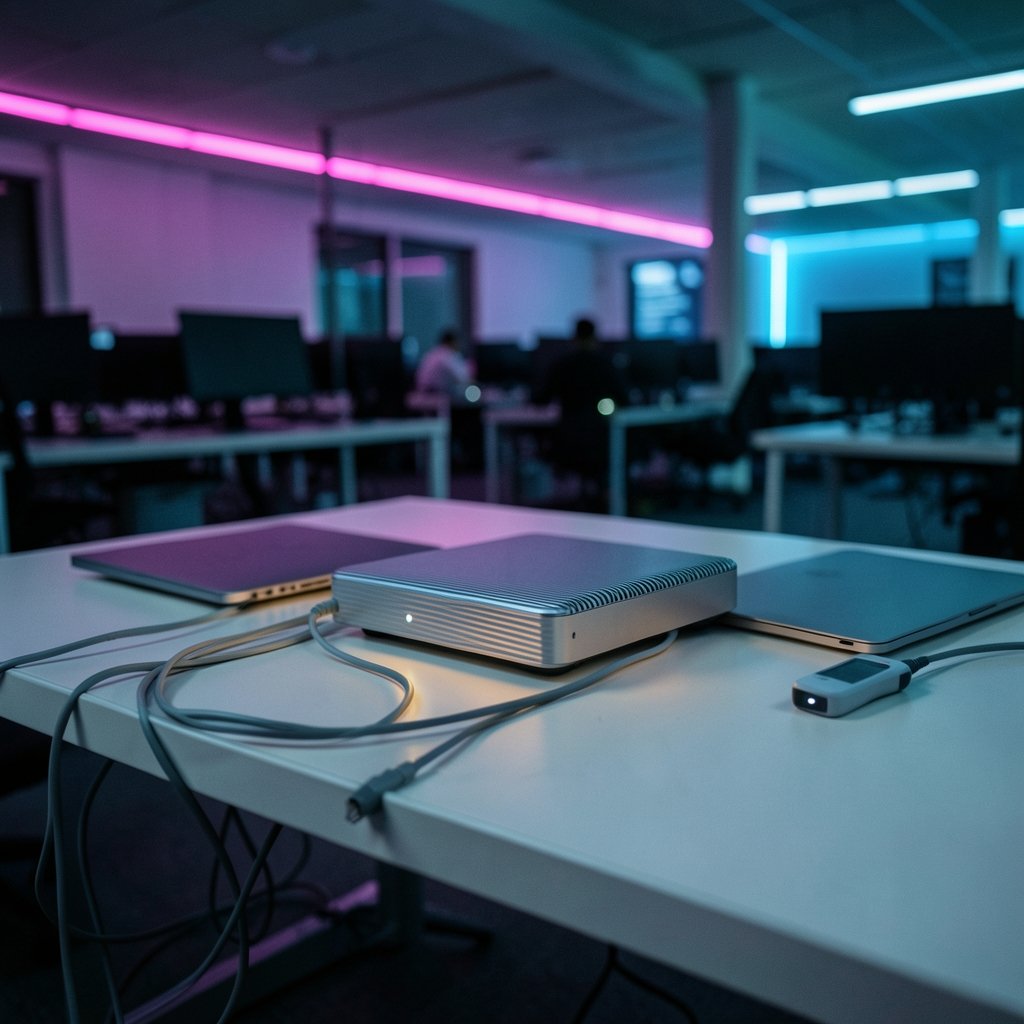
- Closed-lid operation. Many people dock a laptop, shut the lid, and slide it under a monitor. That traps heat inside the laptop and pushes warm air toward the dock sitting right beside it.
- High power delivery. A dock feeding 100W to a laptop under heavy load generates more internal heat than one feeding 45W to an idle machine.
- Bus-powered peripherals. External drives, phones, and webcams drawing power from the dock add electrical load, which becomes thermal load.
- Poor desk airflow. Docks tucked behind monitors, under stands, or on carpet have nowhere to dump heat.
- Firmware and power negotiation bugs. Outdated dock firmware or laptop BIOS can cause inefficient power delivery, which shows up as excess heat.
Understanding which of these applies to your setup is half the fix. The other half is a short list of practical adjustments.
Start With the Simplest Fix: Airflow
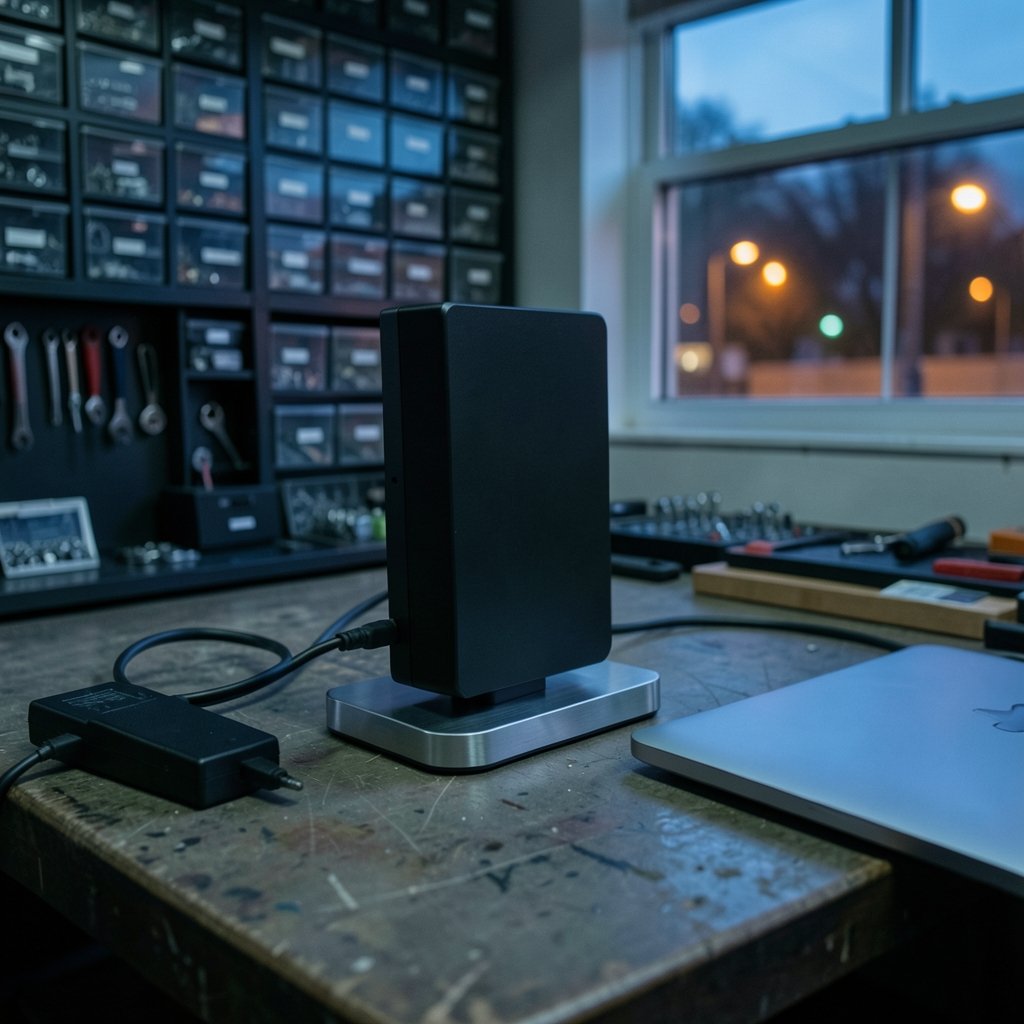
Before touching firmware or buying anything, give the dock room to breathe. This single step resolves a surprising share of overheating complaints.
- Move the dock out from behind the monitor and off any fabric surface.
- Set it on a hard, flat surface with at least two inches of clearance on all sides.
- If your desk is cramped, mount the dock vertically using a stand or adhesive bracket so both large faces are exposed to air.
- Keep the dock away from the laptop’s exhaust vents. Warm air blowing directly onto the dock raises its temperature several degrees.
A practical tip from real-world setups: place the dock on the side of the desk opposite your laptop’s main exhaust. If your laptop vents to the rear, put the dock to the side. Small repositioning changes often drop dock surface temperatures noticeably within an hour.
Open the Lid or Use a Vertical Stand
Running a laptop closed is convenient, but it concentrates heat in a small chassis. If your dock sits close to the laptop, that heat spreads. Two approaches work well:
- Keep the lid open even when using an external monitor. Most operating systems let you set the display to mirror or extend with the lid open, and the extra vent area helps both devices.
- Use a vertical laptop stand with the hinge side up. This exposes the bottom vents and moves the laptop’s heat plume away from the dock.
If you must run closed-lid, elevate the laptop on a stand with open airflow rather than laying it flat on the desk. For readers who work across multiple machines and want hardware that handles docking and thermals well, a look at the best laptops 2026 top picks for every budget today is a reasonable starting point, and engineering users juggling CAD and docking stations may find the best laptops for engineering students comparison useful.
Update Firmware, BIOS, and Drivers
Thermal problems are frequently software problems wearing a hardware disguise. Power delivery negotiation between a laptop and a dock is handled by firmware on both ends, and bugs in that negotiation can cause the dock to run hotter than necessary.
The update checklist that resolves most cases:
- Dock firmware. Most major dock makers ship a firmware updater utility. Run it, then power-cycle the dock by unplugging it for 30 seconds.
- Laptop BIOS or UEFI. Check the manufacturer’s support page for your exact model. BIOS updates often include power management and thermal fixes.
- Chipset and Thunderbolt/USB4 drivers. Outdated controller drivers are a common source of both heat and connection drops.
- Operating system power patches. Install pending OS updates, since power management fixes ship regularly.
After updating, test the dock under your normal workload for a full day before concluding the fix failed. Thermal behavior often improves gradually rather than instantly.
Reduce the Electrical Load on the Dock
Every device plugged into a dock draws power, and that power becomes heat. Trimming the load is one of the most effective fixes available.
| Load Source | Heat Impact | Practical Fix |
|---|---|---|
| External SSD or HDD | Moderate to high | Move large drives to a powered hub or direct laptop port |
| Phone charging | Low to moderate | Charge the phone from a wall charger overnight |
| Bus-powered monitor | Moderate | Use a monitor with its own power supply |
| Multiple USB peripherals | Cumulative | Unplug devices you are not actively using |
| High-wattage laptop charging | High | Use the dock’s included power adapter, not a third-party one |
One common mistake: using a third-party power supply with a lower or mismatched wattage than the dock was designed for. That can cause inefficient conversion and extra heat. Always use the adapter that shipped with the dock, or an exact replacement from the manufacturer.
Check for Recalls and Service Bulletins
Sometimes the dock itself is the problem, and no amount of airflow will fix a design flaw. Manufacturers occasionally issue service bulletins or recalls for docks with thermal or power delivery defects. Before spending money on accessories, check your dock maker’s support site for your model number and look for any published advisories.
If your dock is under warranty and runs dangerously hot, contact support rather than opening the case. Opening a dock voids the warranty and, in the case of docks with internal power supplies, carries a genuine safety risk. The Wikipedia article on USB hardware is a useful primer on how power delivery and connector standards work if you want to understand what your dock is negotiating with your laptop.
When the Problem Is Actually Your Laptop
Not every hot dock is a dock problem. A laptop that is already running hot will push that heat outward, and a dock sitting beside it absorbs the overflow. If your laptop’s fan runs constantly or the chassis is uncomfortably warm, address the laptop first.
Background processes are a frequent hidden cause. On Windows machines, a runaway service can pin the CPU at high load for hours. If you notice the laptop fan roaring while docked, the guide to fixing antimalware service executable high CPU usage covers one of the most common culprits. On Linux setups, power management profiles and driver issues can cause similar behavior, and the best Linux laptop roundup discusses hardware that handles thermals and docking more gracefully.
If your dock connects through a network or software layer that keeps dropping, the problem may not be thermal at all. Connection failures that look like overheating sometimes trace back to a service that will not load, and the fix for a website that will not load walks through the same diagnostic logic for isolating whether a failure is hardware, network, or software. Steam Deck users running a docked setup have their own quirks too, and the Decky loader not working Steam Deck fix 2026 guide covers related docked-mode troubleshooting.
Measure Before and After
Guessing at temperatures is unreliable. A cheap infrared thermometer or a dock utility that reports internal temperature gives you real data. Check the dock’s surface temperature after an hour of normal work, make one change at a time, and re-measure.
What actually works in practice is a methodical approach: change one variable, test for a full workday, and record the result. People who change five things at once rarely learn which fix mattered, and they often reintroduce the problem later.
A reasonable target is a dock that stays warm to the touch but never hot enough to be uncomfortable for more than a second. If surface temperatures climb above that threshold even after airflow, firmware, and load fixes, the dock is likely undersized for your workload.
Know When to Replace the Dock
Replacement makes sense in a few clear situations:
- The dock is rated for less power than your laptop draws under load.
- The dock has no firmware updates available and is several generations old.
- Surface temperatures remain high after every fix above.
- Connections drop consistently under load.
When shopping for a replacement, match the dock’s power delivery rating to your laptop’s charger wattage, favor models with metal housings that spread heat, and prefer docks with external power supplies over bus-powered designs. A dock rated comfortably above your laptop’s peak draw will run cooler because it is not working at its limit.
Conclusion
A hot laptop dock is usually a solvable airflow, firmware, or load problem rather than a sign of imminent failure. Start with the free fixes: give the dock breathing room, keep the laptop lid open or elevated, trim unnecessary peripherals, and run every available firmware and BIOS update. Measure the temperature before and after each change so you know what worked. If the heat persists after all of that, the dock is probably undersized for your setup, and replacing it with a higher-rated model is the smarter investment than living with dropped connections and throttled performance.
Frequently Asked Questions
Is it normal for a laptop dock to get warm?
Yes. Docks contain controller chips and power delivery hardware, and most rely on passive cooling. Warm is expected. Hot enough to be painful to touch, or hot enough to cause dropped connections, is not normal and points to a fixable problem.
Can a hot dock damage my laptop?
A dock running within its design limits will not damage a laptop. However, a defective dock or one with a faulty power supply can deliver unstable power, which stresses the laptop’s charging circuit. If a dock runs dangerously hot or smells of burning plastic, stop using it immediately.
Does closing the laptop lid make dock overheating worse?
It often does. A closed lid traps heat inside the laptop chassis, and that heat radiates toward nearby equipment. Keeping the lid open or using a ventilated vertical stand reduces heat buildup for both the laptop and the dock. (Heat)
How do I update my dock’s firmware?
Most manufacturers provide a firmware update utility on their support site. Download the tool for your exact dock model, connect the dock with only the power and host cable attached, run the update, then unplug the dock for about 30 seconds to complete the reset.
Will a cooling pad help a hot dock?
A cooling pad designed for laptops can help if the dock has ventilation slots on its underside, since moving air across the surface speeds heat dissipation. A small desk fan aimed at the dock works just as well and costs less.
How do I know if my dock is undersized for my laptop?
Compare the dock’s power delivery rating to your laptop’s original charger wattage. If the dock delivers less than the laptop draws under heavy load, the laptop will charge slowly, the dock will run hot, and performance may throttle. A dock rated above your laptop’s peak draw is the safer choice. (Laptop)