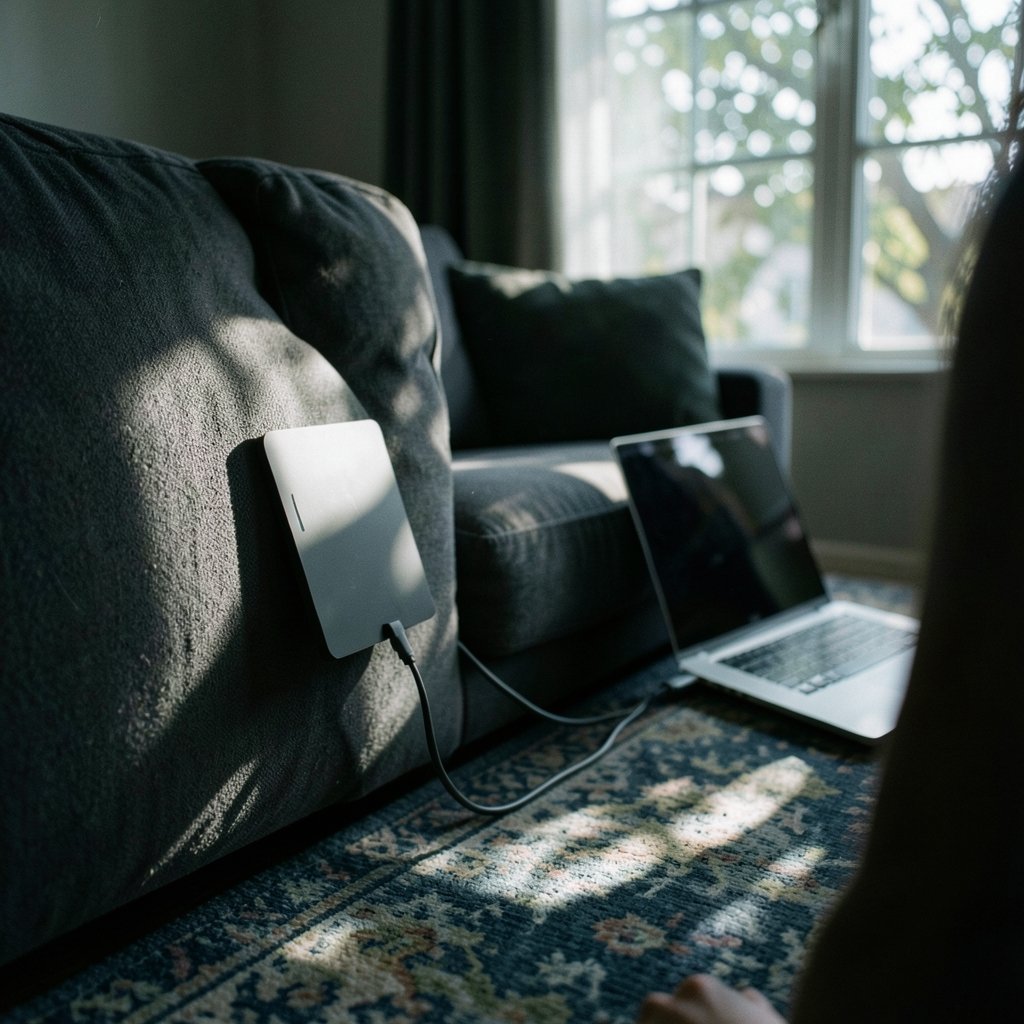
Can a portable monitor actually stay bright when it’s running off nothing but your laptop’s USB-C port? It’s one of the most common questions buyers ask, and the honest answer is: sometimes, and it depends on a handful of specs most product listings bury in the fine print.
A portable monitor that draws all its power from a single USB-C cable is a beautiful thing. No wall wart, no second power brick, no tangle of adapters in your bag. But the moment you unplug from the wall and rely on bus power alone, brightness becomes the first thing to suffer. Understanding why that happens, and how to work around it, is the difference between a screen that’s usable outdoors and one that washes out the second sunlight hits it.
This guide breaks down the physics, the specs that matter, and the practical habits that squeeze the most nits out of a bus-powered display.
Why Brightness Drops the Moment You Unplug
Every portable monitor is essentially a laptop panel in a slim chassis. Panels are rated for a peak brightness, usually expressed in nits (candelas per square meter). A typical portable monitor might claim 250 to 400 nits. But that number is almost always measured under ideal power conditions, often with an external adapter connected.
When the display runs purely off USB-C bus power, the power budget shrinks dramatically. A standard USB-C port can deliver a limited amount of wattage, and that wattage has to cover the panel’s backlight, the display controller, and any scaling or conversion circuitry. The backlight is by far the hungriest component. So manufacturers build in power-saving behavior: the monitor caps its own brightness to stay within the power it can safely pull. (USB Charger (USB Power Delivery))
This is why two identical-looking monitors can behave very differently. One might hold 300 nits on bus power; another might quietly throttle to 180 nits to avoid browning out the host port. The spec sheet rarely tells you which.
The USB-C Power Ceiling
USB-C is capable of delivering substantial power through USB Power Delivery, but a monitor doesn’t automatically get the maximum. The host device decides how much it will supply, and many laptops are conservative. A thin ultrabook may cap a single port’s output well below what a monitor would happily consume.
There’s also the video signal to consider. USB-C carries DisplayPort video alongside power, and the port has to juggle both. When a monitor tries to draw more than the host allows, the usual symptoms are flicker, a sudden dimming, or the display dropping out entirely and reconnecting. If you’ve ever seen a portable monitor blink on and off, you’ve probably watched a power negotiation fail.
The Specs That Actually Predict Bus-Powered Brightness
If you want a monitor that stays bright without a wall adapter, you need to read between the marketing lines. Here’s what to look for.
| Spec or Signal | What It Tells You | Why It Matters |
|---|---|---|
| Rated brightness (nits) | Peak output, often with external power | Treat as a ceiling, not a guarantee |
| “Brightness boost” mode | Higher nits only with adapter | Signals bus-power throttling |
| Power draw (watts) | How much the monitor pulls | Lower draw = more headroom on the port |
| Panel type (IPS, OLED) | Efficiency and contrast | OLED can look brighter at lower nits |
| Battery capacity (mAh) | Onboard power reserve | Decouples brightness from the host |
| HDR support | Dynamic range handling | Often misleading on small panels |
The single most useful habit is to hunt for the phrase “brightness when powered by USB-C” in reviews. Manufacturer spec sheets list the headline nits; independent reviewers are the ones who measure what actually happens on bus power.
Watch for the “Boost Mode” Trap
Many portable monitors advertise something like 400 nits, then add a footnote: “requires external power adapter.” That footnote is doing a lot of work. In practice, the monitor might deliver 250 nits on bus power and only reach 400 when plugged into the wall.
This isn’t dishonest, exactly, but it’s easy to miss. Before buying, look specifically for whether the top brightness figure is tied to an adapter. If it is, plan your workflow around the lower number.
Practical Ways to Maximize Brightness on Bus Power
You can’t change the physics, but you can absolutely change how much brightness you get out of the same hardware. These habits make a real difference.
- Use the shortest, highest-quality USB-C cable you own. Cheap cables have higher resistance, which means more voltage drop and less usable power at the monitor end. A short, certified cable delivers cleaner power.
- Plug into a port that can actually supply power. Not all USB-C ports are equal. Some are data-only, some charge-only, and some deliver full power. Check your laptop’s documentation for which port supports video and high-wattage output.
- Avoid daisy-chaining through hubs. Every hub in the chain steals a slice of the power budget. A direct connection to the laptop almost always yields more brightness.
- Turn off HDR and dynamic contrast. These features consume processing power and can cause the backlight to pump up and down. Locking a steady brightness level often looks better and draws less.
- Lower the resolution or refresh rate if the monitor allows it. Fewer pixels to drive means more power left for the backlight, though the effect varies by model.
- Dim the room, not just the screen. A monitor at 200 nits in a dim room reads as brighter than the same panel at 300 nits under overhead lighting. Controlling ambient light is free.
If you’re building a mobile workstation around a bus-powered display, pairing it with the right accessories matters. A guide to the best portable monitors for remote work can help you match a display to your laptop’s power output before you buy.
The Battery-Powered Alternative
If brightness without an outlet is non-negotiable, a monitor with an internal battery sidesteps the whole problem. These models carry their own power reserve, so the backlight isn’t competing with the host port for wattage. The trade-offs are weight, cost, and the need to remember to charge yet another device.
A middle path is a small USB power bank. Many portable monitors will accept power from a battery pack while receiving video over USB-C, effectively giving you wall-adapter brightness without a wall. It’s a hack, but a genuinely useful one for field work.
What Actually Works in Practice
Real-world experience with bus-powered monitors tends to converge on a few truths that don’t show up in spec sheets.
First, the host laptop is usually the bottleneck, not the monitor. People blame the display when their brightness collapses, but the port simply couldn’t supply enough. Testing the same monitor on a different laptop often produces a completely different result.
Second, perceived brightness is about contrast, not raw nits. A matte panel with good black levels can look perfectly readable at 200 nits, while a washed-out glossy panel at 300 nits can feel dim. Don’t chase nits in isolation.
Third, the cheapest monitors throttle hardest. Budget models cut power-management corners, and the result is aggressive dimming the moment you unplug. Spending a little more often buys more consistent bus-power behavior.
And fourth, cable quality is underrated. A surprising number of “my monitor keeps flickering” complaints trace back to a flimsy cable that came in the box. Swapping it for a reputable short cable fixes the problem more often than people expect.
For anyone who also works with external storage alongside a portable display, it’s worth noting that power-hungry peripherals compete for the same port budget. Choosing an efficient external SSD keeps more wattage available for the screen.
Matching the Monitor to Your Actual Workflow
The right brightness strategy depends entirely on where and how you work.
For café and coworking use, ambient light is moderate and you’re rarely in direct sun. A bus-powered monitor at 200 to 250 nits is usually fine, and you’ll value the cable-free simplicity more than raw output.
For outdoor or field work, bus power alone will disappoint you. Either bring a battery pack or choose a monitor with an internal battery. This is the scenario where the extra weight pays for itself.
For a dual-screen desk setup, you’re likely near an outlet anyway, so bus-power brightness barely matters. Prioritize panel quality and color accuracy instead.
For travel and flights, weight and cable count dominate. A single-cable monitor that holds a steady, modest brightness beats a brighter one that needs an adapter you forgot to pack.
A common mistake is buying for the brightest spec sheet number and then discovering that number only exists with an adapter. Buy for the bus-power number, and treat the boost figure as a bonus.
Understanding the Underlying Standards
The behavior of USB-C power and video isn’t magic; it’s governed by published specifications. The USB Implementers Forum maintains the USB Power Delivery and USB Type-C standards that define how much power a port can negotiate and how devices request it. Understanding that framework helps you predict why a monitor dims: it’s negotiating for less power than it wants. (USB hardware)
Similarly, display brightness measurement and HDR standards are shaped by VESA, the industry body behind DisplayHDR certification. When a monitor claims HDR support, VESA’s certification tiers give you a rough sense of whether the panel can actually deliver meaningful brightness or just decode the signal.
For readers who want to understand the broader ecosystem of display and power standards, the Wikipedia entry on USB-C is a reasonable starting point, though manufacturer documentation remains the authoritative source for any specific device.
Common Mistakes That Cost You Brightness
Even careful buyers trip over the same handful of errors.
- Trusting the headline nits figure. It’s almost always measured under ideal power. Look for the bus-power number.
- Ignoring the laptop’s port limits. A monitor can only draw what the host allows. Check your laptop’s spec for per-port output.
- Using a charge-only cable. Some USB-C cables carry power but not video, or vice versa. Make sure yours handles both.
- Assuming all USB-C ports are identical. They aren’t. One port may be full-featured while another is data-only.
- Skipping the power bank. A modest battery pack can restore full brightness for hours and weighs less than you’d think.
Avoiding these five mistakes alone will save most people from a disappointing purchase.
Conclusion
Getting strong brightness from a portable monitor without plugging into the wall is less about finding a magic model and more about understanding the power chain. The monitor, the cable, the port, and the host laptop all share a finite wattage budget, and the backlight is always first in line to get squeezed.
The practical playbook is simple: buy for the bus-power brightness figure, not the boost-mode headline; use a short, quality cable; plug directly into a full-featured port; and keep a small power bank in your bag for the times when you truly need every nit. If you follow those rules, a single-cable setup can stay bright enough for real work, and you’ll stop blaming the monitor for a limit that was never really its fault.
Frequently Asked Questions
Why is my portable monitor dimmer when it runs on USB-C only?
Because the USB-C port on your laptop supplies a limited amount of power, and the monitor caps its backlight to stay within that budget. When you connect an external adapter, the monitor has more wattage available and can raise brightness to its full rated level. The dimming is a power negotiation, not a defect.
Can a portable monitor reach full brightness without a power adapter?
Some can, but many cannot. It depends on the monitor’s power draw and your laptop’s port output. Monitors with an internal battery or a bundled power bank can hit full brightness independently, while bus-powered models typically top out below their rated peak.
Does a longer USB-C cable reduce brightness?
It can. Longer and lower-quality cables have higher electrical resistance, which causes voltage drop and reduces the usable power reaching the monitor. A short, well-made cable delivers cleaner power and helps the display hold its brightness.
Is a battery-powered portable monitor worth it for outdoor work?
For outdoor or field work, often yes. An internal battery decouples the backlight from the host port, so brightness stays consistent regardless of what your laptop can supply. The trade-offs are extra weight, higher cost, and one more device to keep charged.
What nits do I actually need on bus power?
For indoor use in normal lighting, roughly 200 to 250 nits is usually comfortable. For bright rooms or near windows, aim higher or bring a power bank. For direct sunlight, no bus-powered monitor will be truly comfortable, so plan for shade or an external power source.
Does turning off HDR improve brightness on a portable monitor?
It can help consistency. HDR and dynamic contrast features consume processing power and cause the backlight to shift up and down. Locking a steady brightness level often produces a more readable image and draws less power, which matters when you’re running on a tight bus-power budget.