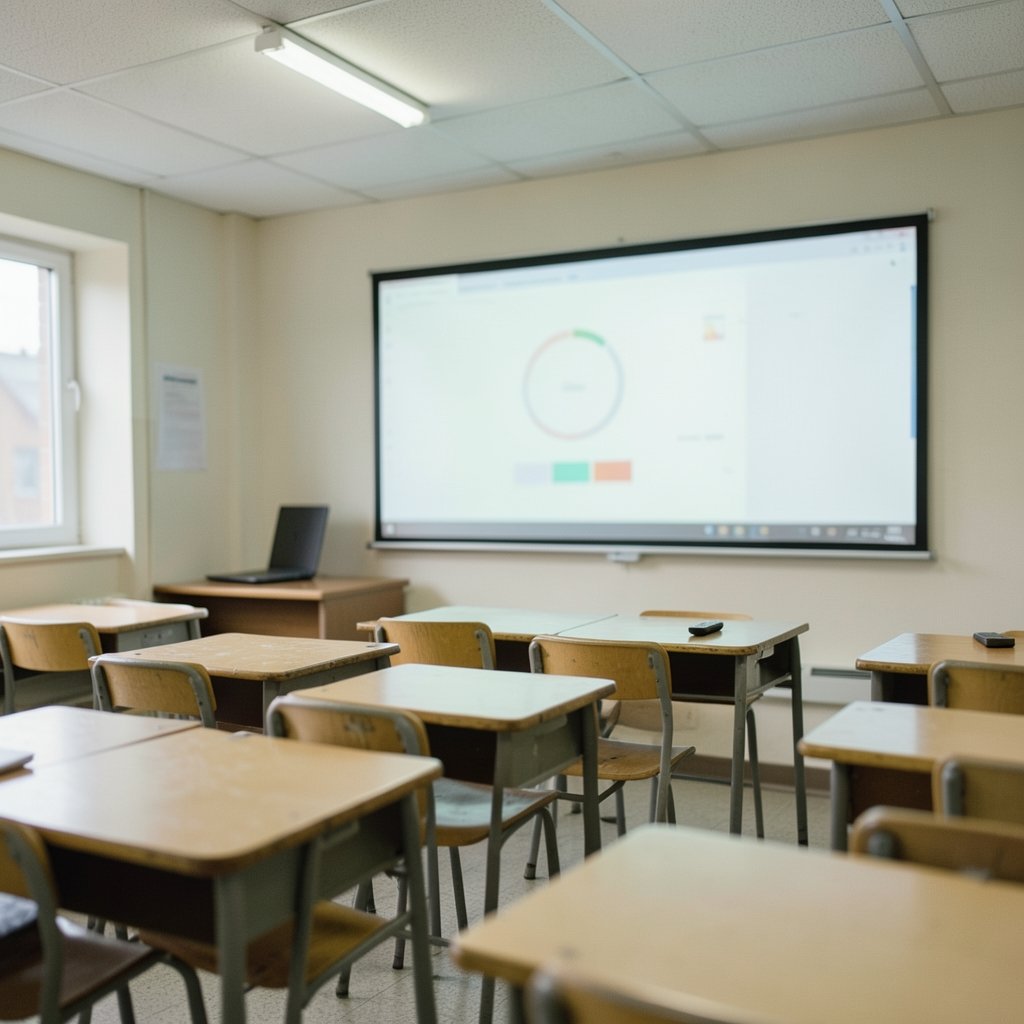
What if the most useful teaching tool in the room wasn’t a lesson plan, an app, or even a worksheet, but the screen at the front of the class? That question sits behind the growing interest in classroom screen tools, a category of browser-based display software that turns a projector or interactive whiteboard into a calm, organized command center for the school day. Teachers use them to show a timer, a noise meter, a random name picker, or a simple “please sit down and start” prompt. It sounds small. In practice, it changes how a room feels. (Screen record iphone steps audio tips fixes) (Classroom)
This article looks at what classroom screen tools are, how they differ from the hardware they run on, what the evidence actually says, and where the real pitfalls hide. It also covers privacy, accessibility, and the practical mistakes that make these tools more distracting than helpful.
What “classroom screen” actually means
The phrase is ambiguous, and that ambiguity matters for anyone searching for it. It usually refers to one of two things:
- Classroomscreen, a specific free web tool launched in the Netherlands around 2016–2017 that displays a dashboard of widgets on a projected screen.
- The broader category of classroom management display software, which includes that tool plus timers, randomizers, noise monitors, and drawing boards built into other platforms.
Both run in a browser and are projected to a class. Neither is a learning management system, and neither replaces the interactive whiteboard hardware underneath. Think of the screen as a stage and the software as the set dressing.
The widgets teachers actually use
Most tools in this category share a common widget set. A typical dashboard includes:
| Widget | What it does | Typical use |
|---|---|---|
| Timer | Countdown or stopwatch | Timed tasks, transitions, exam pacing |
| Traffic light | Red/amber/green signal | Volume or behavior cue without talking |
| Random name picker | Draws a student name | Cold calling, group formation |
| Noise meter | Microphone-based volume display | Independent work, group work |
| Drawing board | Blank canvas | Quick modeling, brainstorming |
| Text box | Large on-screen instructions | “Do now” tasks, lesson objectives |
| QR code / link display | Shows a URL large | Getting students to a resource fast |
The appeal is not novelty. It is that these widgets replace a scattered pile of separate tabs, physical timers, and laminated cards with one clean display that students can read from the back row.
How this differs from the interactive whiteboard era
Interactive whiteboards arrived in the early 1990s and spread widely through UK and other schools in the 2000s, backed by government guidance from the former Becta agency. The promise was transformation. The reality was more complicated.
A 2007 literature review by Higgins, Beauchamp and Miller, published in Learning, Media and Technology, found modest positive effects on some outcomes, with results depending heavily on pedagogy rather than the technology itself. In plain terms: the board didn’t teach anyone. The teacher did, and the board helped or got in the way.
That lesson applies directly to browser-based classroom screen tools. They are lighter, cheaper, and faster to set up than a mounted interactive whiteboard, but they inherit the same rule. A timer only improves a lesson if the lesson needed a timer.
It’s also worth being honest about the evidence gap. Peer-reviewed research specifically on browser-based classroom display tools, as opposed to interactive whiteboards, is thin. Most adoption claims come from vendor surveys and teacher anecdotes. That doesn’t make the tools useless. It does mean teachers should treat bold claims with a raised eyebrow.
Why the display itself matters more than the software
Here’s a practical point that gets overlooked: a classroom screen tool is only as good as the screen it appears on. A brilliant dashboard projected onto a washed-out wall is unreadable. A well-designed timer shown at the wrong size is invisible to the back row.
Projection quality is not a minor detail. If a wall is being used instead of a proper screen, the surface and lighting make a measurable difference to legibility, and there are practical ways to improve a projected image on a plain wall that cost nothing. Similarly, a dirty or scratched display coating scatters light and softens text, so knowing how to clean a laptop screen without damaging the coating protects both the hardware and the readability of anything projected from it.
For teachers running a laptop into a projector, display settings matter too. Mirroring versus extending changes what students see, and a quick look at a split screen guide for Mac users helps when a teacher wants notes on one display and the student-facing dashboard on another.
The broader principle: fix the display before blaming the software.
The practical mistakes teachers make
Most classroom screen problems are not technical. They are habits. These come up again and again.
Too many widgets at once. A screen showing a timer, a noise meter, a name picker, a traffic light, and three text boxes is not organized. It is visual noise. Students stop reading it. The fix is to show two or three elements maximum and change them as the lesson moves.
Timers used as punishment. A countdown that starts before instructions finish creates anxiety, not focus. Give the instruction, confirm understanding, then start the clock.
Random name pickers used carelessly. Calling on students at random can raise engagement, but it can also humiliate a student who is genuinely lost. Many teachers use the picker to choose pairs or groups rather than to cold-call individuals, which keeps the fairness benefit without the stress.
Noise meters that everyone games. A microphone-based meter is easy to trigger deliberately. If the class treats it as a game, it has stopped doing its job. Use it for short, specific periods rather than all lesson.
Forgetting the screen is visible. Anything left open on the projected display is public. That includes a name picker list, an email tab, or a message preview. A quick check before projecting avoids awkward moments.
Assuming it will work. Browser tools need a working connection, a logged-in session, and a projector that is actually on the right input. A two-minute test before the bell is the single best habit in this category. When things do go wrong, a structured approach helps, and a step-by-step recovery plan for a black screen on Windows 11 covers the most common failure. Laptop-specific faults are worth knowing too, since black lines on a Lenovo laptop screen can look like a software problem when the cause is hardware.
Privacy and data protection: the part nobody reads
This is where classroom screen tools deserve real scrutiny. Many of them store student names, and some store behavior records. That turns a simple display tool into a data processing activity.
Under the EU GDPR, which has applied since 25 May 2018, tools that process student data may require a data processing agreement and a school-level assessment before use. In the United States, FERPA governs education records, and COPPA adds requirements for services directed at children under 13. A teacher typing 30 names into a free web tool is, technically, making a data decision. Most don’t realize it.
The practical checklist is short:
- Check whether the tool requires an account and what it stores.
- Prefer tools that keep data in the browser session rather than on a server.
- Avoid entering full names, grades, or behavior notes unless the school has approved it.
- Ask the school’s data protection lead before adopting anything class-wide.
None of this is meant to scare teachers away. It is meant to make the choice deliberate rather than accidental.
Accessibility and readability on a projected display
A classroom screen is a public display, and public displays have accessibility obligations. The Web Content Accessibility Guidelines (WCAG) 2.2, published by the W3C, set out criteria for contrast, text size, and keyboard access that apply directly to anything projected to a room full of people with different visual needs.
In practice, that means:
- High contrast. Dark text on light backgrounds, or the reverse, with no pale gray on white.
- Large type. If it can’t be read from the back row, it isn’t a display, it’s decoration.
- Color not used alone. A traffic light should pair color with a word or icon, since red-green color blindness is common.
- Motion kept minimal. Flashing or scrolling elements distract students with attention difficulties.
There is a related hardware angle. E-ink displays and matte screen protectors change how text reads under classroom lighting, and understanding the paper-feel versus matte tradeoff in e-ink screen protectors helps when choosing devices for reading-heavy tasks. Ergonomics guidance on display screen equipment from the UK Health and Safety Executive is also worth a look for anyone spending the day facing a screen and a projector. (Split screen mac practical guide that actually works)
Setting up a classroom screen that actually works
A reliable setup follows a simple sequence.
- Test the projector and input before students arrive.
- Open the tool in a clean browser window with no other tabs visible.
- Load only the widgets needed for the first activity.
- Check readability from the back of the room, not from the teacher’s desk.
- Set a default “do now” screen so the room has a task the moment students enter.
- Save a template for common lesson types so setup takes seconds.
- Close the session at the end and clear any student data.
That last step is the one most often skipped, and it is the one that matters most for privacy. (ISTE Standards)
When a classroom screen tool is the wrong choice
Balance matters here. These tools are not universally useful.
They add little to a lesson built around discussion, practical work, or extended writing. They can become a crutch that replaces clear verbal instructions with on-screen text students ignore. And in schools with unreliable networks or aging projectors, the friction can outweigh the benefit.
The honest test is simple: if removing the tool would make the lesson worse, keep it. If not, the lesson probably didn’t need it.
Conclusion
Classroom screen tools sit at an interesting intersection: cheap, fast, genuinely useful, and quietly carrying privacy and accessibility obligations that most users never think about. The evidence base is thinner than the enthusiasm suggests, and the hardware underneath matters more than the widget set on top. Used with restraint, a good classroom screen reduces friction, gives students clear cues, and saves teachers from repeating themselves. Used carelessly, it becomes another glowing distraction. The difference is not the software. It is the setup, the habits, and a willingness to ask what the screen is actually for.
What is a classroom screen?
A classroom screen is a browser-based display shown on a projector or interactive whiteboard at the front of a class. It typically combines widgets such as a timer, noise meter, random name picker, traffic light, and instruction box into one dashboard that the whole room can see.
Is Classroomscreen free?
The best-known tool in this category offers a free tier, with additional features behind a subscription. Pricing and feature sets in this market change frequently, so check the current terms directly rather than relying on older reviews or secondhand descriptions.
Do classroom screen tools collect student data?
Some do, especially if they store names for random pickers or keep behavior records. Under GDPR in Europe and FERPA and COPPA in the United States, storing student information can trigger legal obligations for the school. Teachers should check what a tool stores and get approval before entering full names or sensitive details.
Are classroom screen tools better than interactive whiteboards?
They are different things. Interactive whiteboards are hardware; classroom screen tools are software that runs on whatever display is already there. The tools are cheaper and faster to set up, but research on interactive whiteboards suggests outcomes depend on teaching method rather than the technology, and the same caution applies here.
How do I make a classroom screen readable from the back row?
Use high contrast, large text, and minimal on-screen clutter. Show two or three elements at most, check legibility from the back of the room rather than the teacher’s desk, and pair color cues with words or icons so students with color blindness aren’t excluded. WCAG 2.2 contrast guidance is a useful reference.
What should I do if the projected screen goes black mid-lesson?
Check the input source on the projector first, then the cable connection, then whether the laptop is awake and mirroring correctly. Most black-screen issues are input or cable problems rather than software failures. Keep a short recovery routine ready and test the setup before class rather than during it. (Fix black screen windows 11 step by step recovery plan)