

Apple shipped roughly 232 million iPhones in 2024 alone, according to Statista’s iPhone sales data, which means a staggering number of people wake up every day to a phone that won’t charge, won’t connect, or drains battery like a leaky bucket. The good news? Most of these problems have boring, fixable causes. The bad news? People often make them worse by trying internet folklore before trying the basics.
This guide walks through the most common iPhone problems, what actually causes them, and the fixes that hold up in practice. No rice bags. No freezer tricks. Just the stuff that works.
Why So Many iPhone Problems Are Self-Inflicted
Before diving into specific issues, it’s worth naming the pattern. In practice, a huge share of “broken” iPhones are dealing with one of four things: a full storage drive, an outdated iOS version, a background app misbehaving, or a charging accessory that’s quietly failing. None of these are glamorous, and none of them require a Genius Bar appointment.
The most common mistake people make is jumping to a factory reset before trying a forced restart. A forced restart clears temporary glitches without touching your data, and it resolves a surprising number of frozen screens, unresponsive touch issues, and app crashes. It takes about ten seconds.
The second most common mistake is ignoring storage. When an iPhone gets within a gigabyte or two of full, everything slows down: apps crash, the camera refuses to save photos, and updates fail silently. Checking storage under Settings > General > iPhone Storage should be step one for any “my phone is slow” complaint.
Battery Drain: The Complaint That Never Dies
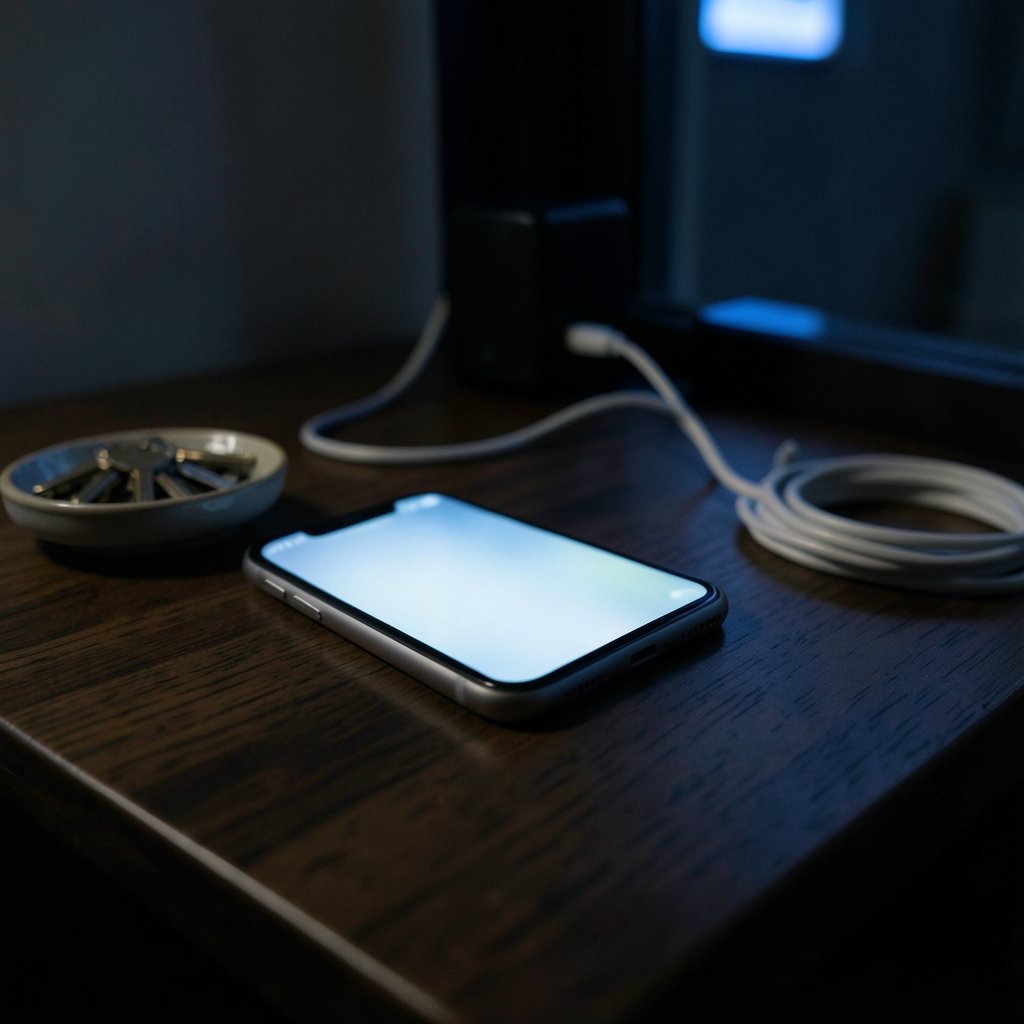
Battery complaints spike after every major iOS release, and the timing isn’t a coincidence. Right after an update, the phone reindexes photos, re-downloads app data, and rebuilds search indexes. That background work burns power for a day or two, then settles.
If drain persists beyond a few days, the fix is diagnostic rather than magical. Open Settings > Battery and scroll to “Battery Usage by App.” Look for an app with high background activity that you don’t actually use. Social media apps and email clients with aggressive push settings are frequent culprits. Restricting background refresh for those apps often recovers hours of standby time.
A few practical habits that genuinely help:
- Turn on Optimized Battery Charging so the phone learns your routine and avoids sitting at 100% overnight.
- Lower screen brightness or enable auto-brightness rather than chasing dark mode as a battery cure.
- Check battery health under Settings > Battery > Battery Health. Below 80% capacity, replacement is usually the honest answer.
- Disable location access for apps that don’t need it, especially ones set to “Always.”
For people who want to squeeze more life out of overnight charging habits, there are practical routines worth adopting, and the same discipline that helps a phone also helps the person holding it, as covered in this guide to how to stop snoring at night home remedies — small environmental tweaks beat dramatic interventions every time.
Charging Problems: Cable, Port, or Something Else?
When an iPhone won’t charge, the failure is almost always physical before it’s electrical. Lint compressed into the Lightning or USB-C port is extraordinarily common, especially for anyone who carries a phone in a pocket. A wooden toothpick, used gently and with the phone off, often pulls out a surprising plug of gray fuzz.
If the port is clean, work through the chain in order:
| Symptom | Likely cause | Fix |
|---|---|---|
| Charges with one cable, not another | Failed cable | Swap cables, test with a known-good one |
| Charges slowly or not at all | Weak charger or worn adapter | Try a higher-wattage adapter from a reputable brand |
| Charges only at certain angles | Port damage or debris | Clean port; if it persists, service |
| Wireless charging fails | Case too thick or misaligned coil | Remove the case and reposition |
Wireless charging adds its own quirks. Thick cases, metal plates for car mounts, and off-center placement all block power transfer. If wireless charging has gone flaky, it’s worth reviewing which pads actually deliver consistent wattage, and a roundup of the best wireless chargers for iPhone and Android can save a lot of trial and error. Also worth knowing: charging while gaming in a hot room triggers thermal throttling, and the phone may simply stop charging to protect the battery. That’s a feature, not a fault.
Overheating: When the Phone Becomes a Hand Warmer
iPhones are designed to run within a specific temperature band, and when they exceed it, they throttle performance and dim the screen. Common triggers include direct sunlight, navigation apps running on a dashboard mount, and charging inside a hot car.
The fix is environmental, not software. Remove the case during heavy use in warm conditions, avoid charging in direct sun, and stop stacking a phone on a pillow while streaming video. If the phone shows a temperature warning screen, let it cool at room temperature. Never put an iPhone in a fridge or freezer; condensation inside the chassis is a far worse problem than the heat.
Wi-Fi and Cellular Connectivity Issues
Connectivity problems split neatly into two buckets: the network and the phone.
For Wi-Fi, the fastest fix is usually toggling airplane mode, then forgetting and rejoining the network. If only one app fails to connect, check its cellular and Wi-Fi permissions under Settings. Router-side issues masquerade as phone issues constantly, so testing a second device on the same network settles the question in under a minute.
For cellular, check Settings > Cellular to confirm data is enabled for the right line, especially on dual-SIM setups where the phone may be using a line with no data plan. Resetting network settings (Settings > General > Transfer or Reset iPhone > Reset > Reset Network Settings) clears saved Wi-Fi passwords but resolves a lot of stubborn connection failures.
Slow Performance and App Crashes
A slow iPhone is usually a full iPhone. When storage drops below roughly 10% free, iOS has less room to manage caches and temporary files, and the whole system drags.
The practical sequence:
- Check storage and delete large videos, old screenshots, and unused apps.
- Offload apps you rarely use rather than deleting them outright, which keeps their data.
- Restart the phone — genuinely, not as a joke. It clears memory leaks.
- Update iOS. Point releases frequently fix app crash bugs.
- If one app crashes repeatedly, delete and reinstall just that app before blaming the phone.
App crashes tied to a specific app are almost always the app’s fault, not the hardware. Check the App Store for updates before assuming anything worse.
Screen, Touch, and Unresponsive Display Problems
A screen that won’t respond to touch but still shows an image is usually a software hang, not a dead digitizer. A forced restart resolves most of these. The button combination depends on the model, so check Apple’s official guidance for your specific iPhone rather than guessing.
Ghost touches — the screen registering taps nobody made — are different. They often trace to a cheap third-party charger introducing electrical noise, a screen protector with trapped moisture, or genuine display damage. Unplug the charger and see if the behavior stops; that single test rules out a whole category of causes.
Face ID and Passcode Failures
Face ID failures cluster around a few predictable causes: a dirty TrueDepth camera, a mask or sunglasses blocking the scan, or a recent software update resetting biometric data. Cleaning the sensor area with a microfiber cloth fixes more Face ID complaints than any settings change.
If the phone is disabled after too many passcode attempts, the only path forward is a restore, which requires a computer and, ideally, a recent backup. This is the single strongest argument for enabling automatic iCloud backups and for knowing your Apple Account password by memory rather than relying on a saved note on the same device.
Storage Full and Update Failures
An iPhone needs free space to install an iOS update — often several gigabytes of working room. When an update fails repeatedly, the cause is usually storage or a weak Wi-Fi connection.
Practical fixes: delete a large app temporarily, connect to power, and use a stable Wi-Fi network. If the update still refuses, installing via a computer using Finder or the Apple Devices app bypasses the on-device installer entirely.
This is also the moment to think about the next phone rather than fighting the current one. Anyone weighing an upgrade should compare real pricing before committing, and a breakdown of the iPhone Philippines price shows how much regional pricing varies. For buyers deciding between models, guidance on the best iPhone to buy helps separate meaningful upgrades from marketing noise, while anyone budgeting for the newest release will want the specifics on how much does the iPhone 17 cost before assuming it’s out of reach. (iPhone)
When to Stop Troubleshooting and Get Service
Some problems aren’t software. Swollen batteries, screens lifting away from the frame, repeated random restarts, and phones that won’t power on after a full charge all point to hardware. A swollen battery is a safety issue — stop using the phone and stop charging it.
Before booking service, back up the device if it still turns on. Then check whether the model is covered by any active repair program, since some defects are covered beyond the standard warranty.
For anyone protecting a newer phone, a case is cheaper than a screen replacement, and a look at the best iPhone 17 Pro cases covers the options that actually absorb drops rather than just looking nice. And for downtime during repairs, having a few lightweight games installed makes a borrowed or backup phone far less miserable — this list of the best iPhone games is a reasonable starting point. (iPhone Support)
A Realistic Troubleshooting Order
Most people troubleshoot in the wrong sequence, chasing exotic causes before simple ones. A better order:
- Forced restart. Clears the majority of transient glitches.
- Check storage. Below 10% free causes cascading failures.
- Update iOS and apps. Fixes known bugs.
- Test accessories. Cables, chargers, and cases fail quietly.
- Reset specific settings. Network settings for connectivity, keyboard dictionary for autocorrect weirdness.
- Restore from backup. The nuclear option, and rarely necessary.
- Hardware service. When physical symptoms appear.
Following that order saves time and, in many cases, saves people from wiping a phone they didn’t need to wipe.
Conclusion
The overwhelming majority of iPhone problems trace back to storage, software updates, accessories, or heat — not catastrophic hardware failure. A forced restart, a clean charging port, a storage cleanup, and an honest look at battery health resolve most complaints within fifteen minutes. The phones are durable; the failure modes are mundane. Treat troubleshooting as a process of elimination rather than a search for a magic fix, and the phone usually cooperates.
How often should I restart my iPhone?
Once a week is a reasonable habit. Restarting clears memory leaks and stuck background processes. It isn’t required daily, but a weekly restart prevents the slow accumulation of glitches that make people think their phone is dying.
Why does my iPhone battery drain so fast after an update?
Right after a major iOS update, the phone reindexes photos, rebuilds search data, and re-downloads app content. That background work typically settles within 24 to 72 hours. If drain continues past that window, check Battery Usage by App for a misbehaving app.
Can a dirty charging port really stop my iPhone from charging?
Yes, and it’s one of the most common causes. Pocket lint compresses into the port and prevents the cable from seating fully. Cleaning gently with a wooden toothpick while the phone is off often restores normal charging immediately.
Is it safe to use a third-party charger with my iPhone?
Reputable third-party chargers that meet safety certification standards are generally fine. The problems come from unbranded, ultra-cheap adapters, which can cause slow charging, ghost touches on the screen, and in rare cases, damage. Buy from established brands.
What should I do if my iPhone won’t turn on at all?
Charge it for at least 30 minutes with a known-good cable and adapter, then perform a forced restart for your specific model. If the screen stays black after both steps, the issue is likely hardware and needs professional service.
Does resetting network settings delete my data?
No. It removes saved Wi-Fi passwords, Bluetooth pairings, and cellular settings, but photos, apps, and files stay untouched. You’ll need to rejoin Wi-Fi networks afterward, so have those passwords handy before resetting.



