
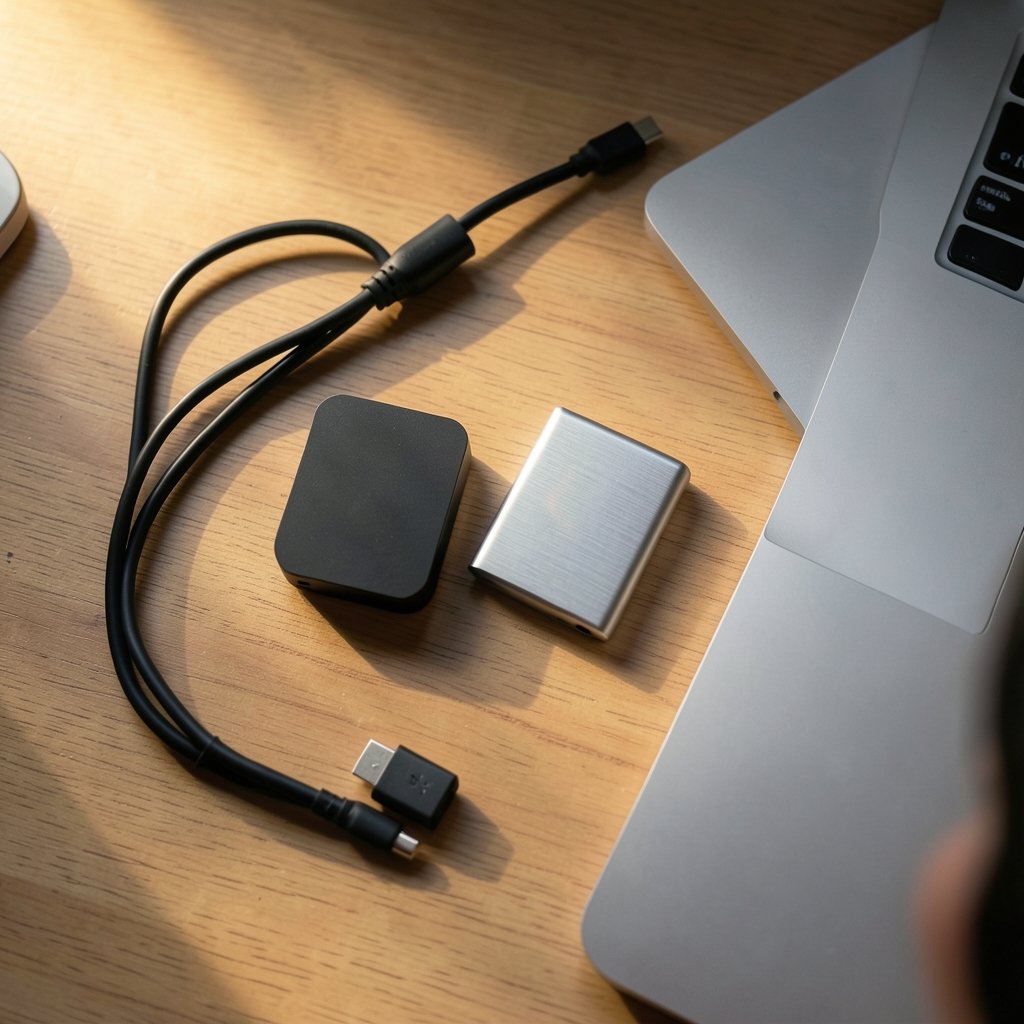
Picture this: you buy a shiny new external SSD, plug it into your Mac, and a small window asks how you want to format it. Two names stare back at you, exFAT and APFS, and you have no idea which one matters. Pick wrong and you could end up with a drive that only half your devices can read, or one that quietly corrupts files after an unexpected unplug. Pick right and the drive just works, for years, with no drama.
This guide walks through the real differences between exFAT and APFS on external SSDs. It covers speed, compatibility, safety features, and the specific situations where each format wins. By the end, the choice should feel obvious rather than intimidating.
What Each File System Actually Is
APFS stands for Apple File System. Apple introduced it in 2017 and shipped it with macOS High Sierra that September. It replaced the aging HFS+ format and was built from the ground up for flash storage, which is exactly what an SSD uses. Apple’s own documentation describes it as optimized for solid-state drives, with features like copy-on-write metadata, snapshots, and native encryption.
exFAT is Microsoft’s file system, designed as the successor to FAT32. Microsoft published the full exFAT specification in August 2019 under its Open Specification Promise, which is what finally let the Linux kernel ship a proper native driver in version 5.4 later that year. Before that, exFAT was a black box that Linux handled through slower workarounds.
The core philosophical difference is simple. APFS is a deep, feature-rich system built for Apple hardware and software. exFAT is a lightweight, universal system built to be understood by everything. That single distinction drives almost every practical decision that follows.
Compatibility: The Deciding Factor for Most People

If a drive will ever touch a Windows PC, exFAT is the safe answer. It reads and writes natively on Windows, macOS, and Linux with no extra software. Plug it into a friend’s laptop, a work PC, a camera, or a smart TV, and it just mounts.
APFS is Apple-only. macOS, iOS, iPadOS, tvOS, and watchOS support it natively. Windows and Linux do not. There are third-party APFS drivers for Windows, but they are unofficial, vary in reliability, and often cost money. If someone hands you an APFS drive and asks you to copy files on a Windows machine, the honest answer is that you cannot, at least not without installing something first.
| Feature | exFAT | APFS |
|---|---|---|
| Native on Windows | Yes | No |
| Native on macOS | Yes | Yes |
| Native on Linux | Yes (kernel 5.4+) | No |
| Journaling | No | Yes (copy-on-write) |
| Built-in encryption | No | Yes |
| Snapshots | No | Yes |
| Multiple volumes sharing space | No | Yes |
| Time Machine support | No | Yes |
| Per-file permissions | No | Yes |
The table tells the story quickly. exFAT wins on reach. APFS wins on capability. Most buyers only need one of those two things, and knowing which one you need settles the question.
Performance: What Actually Matters on an SSD
Here is where a lot of online advice goes wrong. People argue about exFAT versus APFS speed as if one format is dramatically faster. In practice, on a modern external SSD over USB 3.2 or Thunderbolt, the gap is small and workload-dependent. The drive’s controller, the cable, and the port matter far more than the file system.
That said, APFS has structural advantages that show up in real use. Because it was designed for flash storage, it handles small-file operations and metadata-heavy tasks efficiently. Snapshots are near-instant because APFS tracks changes rather than copying whole files. exFAT, being older and simpler, has no such tricks.
There is one exFAT quirk worth knowing. Because it has no journaling, an unplug during a write operation can leave the file system in a messy state. On spinning drives that was annoying. On fast SSDs, where writes complete in milliseconds, the window is smaller, but it still exists. The practical fix is simple: always eject the drive properly before pulling the cable. That one habit prevents most exFAT corruption stories you read online. (ExFAT)
If raw sequential speed is your priority for large video files, both formats will saturate a typical USB connection. The format is not your bottleneck. The interface is.
Safety and Data Integrity Features
APFS carries safety features that exFAT simply lacks. Copy-on-write means metadata changes are written to new locations before old ones are invalidated, so a crash mid-write is far less likely to scramble the directory structure. Snapshots let macOS capture a point-in-time view of the drive instantly. Native encryption means you can encrypt the entire volume with FileVault-style protection without third-party tools.
exFAT has none of this. No journaling, no snapshots, no built-in encryption, no per-file permissions. It is a straightforward catalog of where files live on the disk. That simplicity is why it is so portable, and also why it is more fragile.
For backup drives, this matters a lot. Time Machine, Apple’s built-in backup tool, requires APFS or HFS+ on macOS. Since macOS Big Sur in November 2020, Time Machine can use APFS-formatted backup disks, and Apple recommends it. An exFAT drive cannot serve as a Time Machine destination. If backup is the job, APFS is not optional. For anyone setting up a Mac backup strategy, that single requirement often decides the format before any speed comparison even starts. If you are shopping for a drive for that purpose, this roundup of the best external hard drives for backup covers capacity and reliability considerations.
When exFAT Is the Right Call
exFAT earns its place in several common scenarios:
- Cross-platform file transfer. Moving footage from a camera to a Windows edit bay and then to a Mac. exFAT handles this without a single conversion step.
- Shared drives in mixed households. A drive that gets passed between a Mac, a Windows laptop, and a Linux box needs exFAT, full stop.
- Camera and drone media. Many cameras format cards as exFAT, and matching that format avoids compatibility surprises.
- Long-term archiving across devices. A drive you might open on hardware you have not bought yet is safer in the most universal format available.
The tradeoff is that you give up journaling and encryption. You can mitigate the first with careful ejecting. The second you can address with encrypted archive files rather than full-disk encryption, though that is more work.
When APFS Is the Right Call
APFS wins whenever the drive lives primarily inside Apple’s world:
- Time Machine backups. Required, as covered above.
- Mac-only working drives. Scratch disks for video editing, photo libraries, Xcode build caches. APFS is built for exactly this.
- Encrypted portable storage. Native encryption with no third-party software.
- Multi-volume workflows. APFS lets you create several volumes inside one container that all share the same free space. You might keep a work volume and a personal volume on one physical SSD without partitioning and without guessing sizes in advance.
A practical tip here: when you format an external SSD as APFS in Disk Utility, choose APFS (Encrypted) if the drive leaves your desk. The performance cost is negligible on modern hardware, and the protection is real. Also note that macOS defaults to case-insensitive APFS. Case-sensitive APFS exists, but some applications misbehave on it, so only choose it if you have a specific reason.
Common Mistakes People Make
A few errors show up again and again in support forums, and each one is easy to avoid.
Confusing exFAT with FAT32. People warn that exFAT has a 4 GB file size limit. It does not. That limit belongs to FAT32. exFAT handles files and volumes far larger than any consumer SSD. If someone tells you exFAT caps files at 4 GB, they are thinking of the older format.
Formatting before checking the destination. Reformatting erases everything. Decide the format before you copy 800 GB of footage onto the drive, not after.
Skipping the eject. This is the big one for exFAT. Pulling the cable mid-write is the leading cause of “my drive suddenly shows as unreadable” reports. Eject first, every time.
Assuming a format change is free. Converting between exFAT and APFS requires erasing the drive. There is no in-place conversion. Back up first, then reformat. If you are also planning a storage upgrade, this guide on how to clone hard drive to ssd 2026 walks through the migration safely.
Buying the wrong drive for the job. Format choice cannot fix a slow or unreliable SSD. If you have not picked hardware yet, this overview of the best external SSD options helps you start from a solid foundation before you worry about file systems.
A Quick Decision Framework
Run through these questions in order and the answer usually appears by question two.
- Will this drive ever connect to a Windows or Linux machine? If yes, choose exFAT.
- Will it be used for Time Machine? If yes, choose APFS.
- Do you need full-disk encryption without extra software? If yes, choose APFS.
- Is the drive staying on one Mac for scratch work or media libraries? If yes, choose APFS.
- None of the above, and you just want maximum portability? Choose exFAT.
For most people with a single Mac and no Windows PC in the house, APFS is the better default. For anyone whose files cross operating systems, exFAT is the pragmatic choice and always has been.
Conclusion
The exFAT versus APFS question is not really about which format is technically superior. APFS is the more advanced system, with journaling, snapshots, encryption, and space-sharing volumes that exFAT cannot match. But advanced only helps if you can actually use it. exFAT’s genius is that it works everywhere, on almost anything, with zero setup.
The right answer depends on where the drive goes. If it stays with Apple devices, format it APFS and use the safety features. If it travels between a Mac and a Windows PC, format it exFAT and accept the tradeoff. Either way, eject properly, back up before reformatting, and do not fall for the FAT32 file-size myth. Those three habits will save more data than any format choice ever will.
Frequently Asked Questions
Can Windows read an APFS external SSD?
Not natively. Windows has no built-in APFS support, so an APFS drive will not mount on a Windows PC without third-party software. Those tools exist but are unofficial and vary in quality. If cross-platform access matters, format the drive as exFAT instead.
Is exFAT faster than APFS?
No consistent, practical effect. On a modern external SSD, the drive controller, cable, and port have far more impact on speed than the file system. APFS is built for flash storage and handles metadata-heavy tasks efficiently, but neither format will bottleneck a typical USB 3.2 or Thunderbolt connection.
Does exFAT have a 4 GB file size limit?
No. That limit belongs to FAT32, an older format, and the confusion is extremely common. exFAT supports files and volumes far larger than any consumer SSD can hold. You can store single files well into the terabyte range on an exFAT drive.
Can I use an exFAT drive for Time Machine backups?
No. Time Machine requires APFS or HFS+ on macOS. Since macOS Big Sur, Apple supports APFS-formatted backup disks and recommends them. An exFAT drive cannot serve as a Time Machine destination, so if backup is the goal, APFS is the required choice.
Can I convert an exFAT drive to APFS without losing data?
No. Changing the file system requires erasing the drive, and there is no in-place conversion between exFAT and APFS. Copy your files somewhere safe first, reformat the drive in Disk Utility, then move the data back. Skipping the backup step is how people lose entire archives.
Should I encrypt an APFS external SSD?
If the drive ever leaves your desk, yes. APFS supports native encryption with negligible performance cost on modern hardware, and you can enable it during formatting by choosing APFS (Encrypted) in Disk Utility. exFAT has no built-in encryption, so full-disk protection is an APFS-only feature.



