
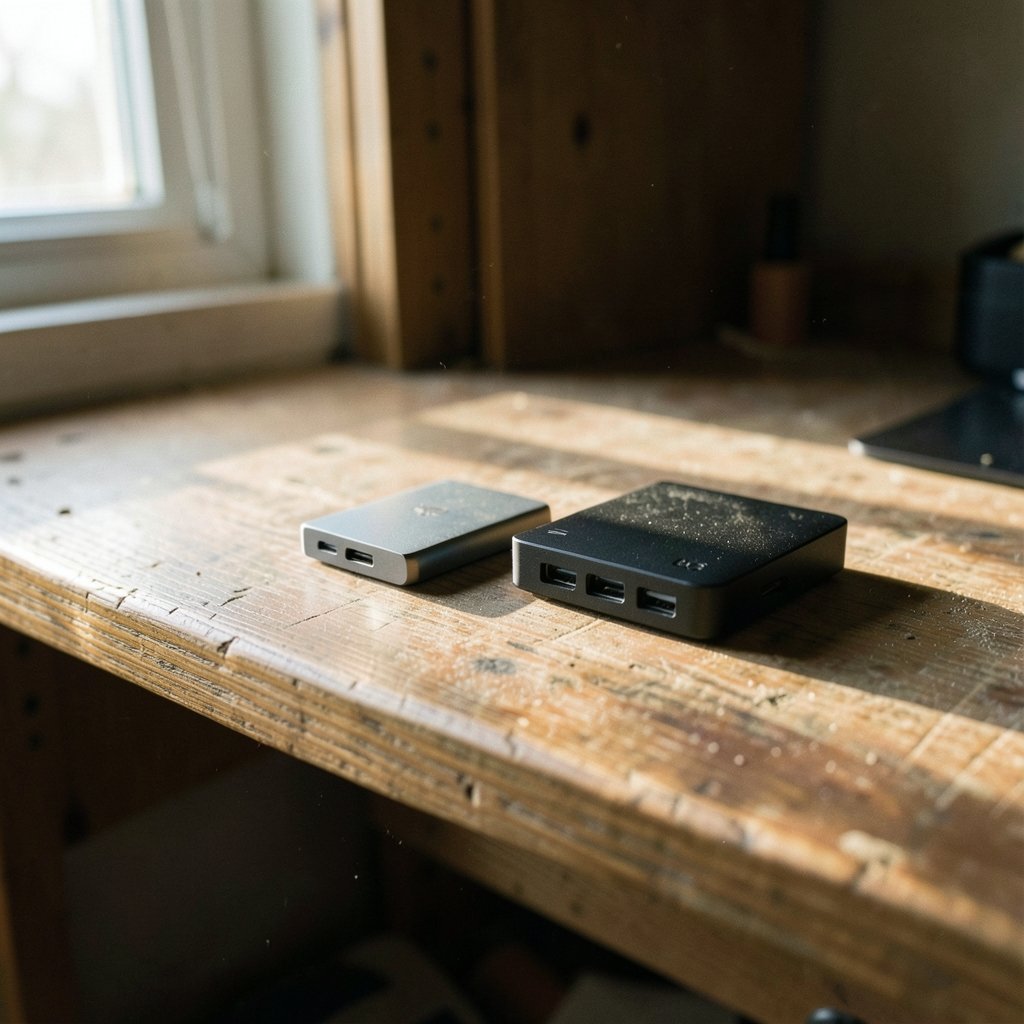
Picture this: you’re staring at two small boxes on a store shelf. One costs more and feels suspiciously light. The other is cheaper, heavier, and promises way more space. Which one actually deserves a spot in your bag? That question, external SSD vs external hard drive, has never been more relevant than in 2026, because prices, speeds, and capacity tiers have all shifted. The short answer is that neither wins outright. The longer answer depends on what you store, how often you move it, and how much you fear losing it.
The Core Difference in Plain Terms
An external SSD (solid-state drive) stores data on flash memory chips. No spinning platters, no moving read heads, no motor. An external HDD (hard disk drive) stores data magnetically on rotating platters with a mechanical arm that reads and writes it.
That single engineering difference drives everything else: speed, durability, price, capacity, and even how long your data survives on a shelf. If you want the deep technical background, the Wikipedia entry on solid-state drives covers the architecture well, and the hard disk drive article explains the mechanical side.
Speed: Where SSDs Leave HDDs in the Dust
This is the least controversial part of the comparison. Portable 2.5-inch hard drives typically sustain somewhere around 100 to 160 MB/s for large sequential transfers. Portable SSDs routinely beat that several times over, and on random small-file operations the gap becomes enormous, because a spinning platter has to physically move its head to find each tiny file.
The catch most buyers miss: the USB bridge chip often becomes the bottleneck, not the drive itself. A fast SSD squeezed through a slow USB enclosure will underperform. When shopping, check the rated interface. USB 3.2 Gen 2×2 tops out at 20 Gbps, while Thunderbolt and USB4 reach 40 Gbps. The USB Implementers Forum maintains the official spec and branding rules, which is worth a look because retailer listings are frequently misleading about which generation you’re actually getting. (About USB-IF)
In practice, here’s what the speed gap feels like:
| Task | External HDD | External SSD |
|---|---|---|
| Copying a 50 GB video project | Several minutes | Under a minute on fast USB |
| Opening a photo library | Noticeable lag | Near-instant thumbnails |
| Running apps directly off the drive | Painful | Comfortable |
| Backing up 500 GB of files | Slow but fine overnight | Quick |
If you edit video, work with large RAW photo catalogs, or run virtual machines from the drive, the SSD pays for itself in saved minutes. If you’re archiving last year’s documents, speed barely matters.
Durability: No Moving Parts Means Fewer Ways to Fail
Drop a hard drive while it’s spinning and you may hear the click of death. Drop an SSD and it will usually shrug it off, because there’s nothing mechanical to crash into the platter. For anyone who carries a drive between home, office, and client sites, that’s a real advantage.
But don’t oversell it. Both media types fail, and SSDs have their own failure modes: controller faults, firmware problems, and wear from repeated writes. The durability advantage is about shock and vibration tolerance, not immortality. A good backup habit beats a tough drive every time. If you haven’t sorted out a backup routine yet, this guide to the best external hard drives for backup walks through practical options, and pairing any drive with cloud storage such as the services compared in this iDrive vs Backblaze breakdown gives you a second copy that survives theft, fire, and coffee spills.
Price and Capacity: The HDD Still Wins on Bulk Storage
Hard drives remain cheaper per terabyte, especially at high capacities. That gap has narrowed as flash prices fell, but it hasn’t closed. Consumer portable SSDs commonly top out around 2 to 4 TB, while portable 2.5-inch HDDs reach 5 TB and desktop-sized externals go well beyond that.
So the math is simple for some buyers: if you need 8 TB of media archive on a tight budget, a hard drive is the only sensible answer. If you need 1 TB that fits in a shirt pocket and survives being tossed in a backpack, the SSD premium is easy to justify.
A common mistake here is buying the biggest cheap drive and using it as the only copy of family photos. Capacity without redundancy is a trap. Check current retail pricing before you commit, because flash pricing moves fast and last year’s advice may already be stale.
Real-World Use Cases: Match the Drive to the Job
When an external SSD is the right call
- Video and photo editing where scratch disks and project files need fast random access
- Travel and fieldwork, where shock resistance and pocketability matter
- Running portable apps or a bootable system from the drive
- Laptop users who want something that won’t drag on a USB-C cable
When an external HDD is the right call
- Bulk backups and Time Machine-style snapshots
- Media libraries: movies, music, and photo archives you read occasionally
- Cold storage of finished projects you rarely touch
- Budget-constrained builds where every dollar needs to buy maximum terabytes
Many people land on a hybrid: a fast SSD for active work and a big HDD for the archive. That’s usually the smartest split, and it’s the setup most working creatives end up with after a year or two of trial and error.
If you’re upgrading a laptop’s internal storage rather than buying an external, the process is different, and this walkthrough on how to clone a hard drive to an SSD in 2026 covers the migration steps without losing your data.
Long-Term Storage: The Detail Almost Everyone Forgets
Here’s a nuance that rarely makes it into buying guides: unpowered SSDs can lose data over long periods. Flash memory holds charge, and that charge slowly leaks when the drive isn’t powered. Standards bodies like JEDEC publish retention specifications, and those specs generally assume the drive gets powered on periodically so the controller can refresh cells.
Magnetic hard drives, by contrast, are the traditional choice for archival shelves, though they aren’t immune to bit rot either. The practical takeaway: if you’re parking a drive in a drawer for years, power it up occasionally and verify the files, whichever type you own. And follow the 3-2-1 rule: three copies, two media types, one off-site.
Interface and Compatibility Checklist
Before buying either type, confirm these details, because they cause more returns than any spec sheet:
- Check your port. USB-C doesn’t automatically mean fast. A USB-C port can still run at USB 2.0 speeds on older or budget hardware.
- Read the rated speed, not the marketing name. “USB 3.2” alone tells you almost nothing; the Gen number does.
- Confirm cable quality. A cheap cable can cap throughput below what both the drive and port support.
- Check power draw. Bus-powered drives are convenient; high-capacity desktop HDDs often need their own power brick.
- Verify file system compatibility if you move between Windows and macOS.
For a closer look at specific fast models, this roundup of the best external SSDs is a reasonable starting point, and it’s worth cross-checking against the manufacturer’s own spec page before you click buy.
What Actually Goes Wrong in Practice
A few patterns show up again and again among real buyers:
Buying speed you can’t use. People pay for a 20 Gbps SSD and plug it into a 5 Gbps port, then wonder why transfers crawl. Match the drive to your hardware.
Skipping the enclosure question. Some “external SSDs” are just internal drives in a third-party enclosure with an unknown bridge chip. Branded, sealed units usually have better firmware support.
Trusting one drive with everything. The single most common mistake is treating any external drive, SSD or HDD, as a permanent home for irreplaceable data. Drives get lost, dropped, and stolen. Backups are not optional.
Ignoring heat. Sustained large transfers can cause fast SSDs to throttle. Metal-bodied drives dissipate heat better than plastic ones.
Forgetting the cable. A drive is only as fast as its weakest link, and the bundled cable is often the weak link.
The Verdict for 2026
For most people, the honest recommendation is this: buy an external SSD for the data you actively use, and an external HDD for the data you’re keeping. The SSD wins on speed, portability, and shock resistance. The HDD wins on cost per terabyte and bulk capacity. Neither is obsolete, and anyone claiming otherwise is selling something.
If you can only buy one, ask yourself a single question: will this drive sit on a desk and hold a giant archive, or will it travel with you and hold work you need now? Desk and archive points to HDD. Travel and active work points to SSD. That one question resolves the decision more reliably than any spec table.
Frequently Asked Questions
Is an external SSD faster than an external hard drive?
Yes, substantially. Portable SSDs typically transfer large files several times faster than portable hard drives, and the advantage grows dramatically with many small files because there are no moving parts to reposition. Just remember that your USB port and cable can cap the real-world speed below what the drive is capable of.
How long will an external SSD hold data without being plugged in?
It varies by drive and storage conditions, but flash memory gradually loses charge when unpowered, and retention specs generally assume periodic power-on time. For long-term archival storage, power the drive up every few months and verify your files rather than assuming they’ll sit safely for a decade.
Are external hard drives still worth buying in 2026?
Absolutely, for the right jobs. Hard drives remain the cheapest way to buy large amounts of storage, which makes them ideal for backups, media libraries, and archives. They’re a poor choice for portable everyday work because they’re slower and more fragile when moved.
Can I edit video directly from an external drive?
You can, and many editors do, but an SSD is strongly preferred. Hard drives can struggle with the sustained read speeds and random access that editing software demands, especially with high-resolution footage. If you must edit from an HDD, use proxy files to reduce the load.
Do external SSDs need special care?
A few things help: avoid filling them completely, since flash performance degrades when nearly full; keep them away from extreme heat; eject them properly before unplugging; and don’t rely on any single drive as your only copy. Also check that your cable and port actually support the drive’s rated speed.
Which is better for backing up a laptop?
For frequent, incremental backups, an SSD makes the process faster and less painful, which means you’ll actually do it. For large one-time archives, an HDD gives you more space per dollar. The best answer is usually both: a fast SSD for regular snapshots and a spacious HDD for the deep archive, plus an off-site copy.
Conclusion
The external SSD versus external hard drive debate doesn’t have a single winner, and that’s fine. What matters is matching the tool to the task. SSDs bring speed, shock resistance, and pocket-sized convenience at a premium price. HDDs bring enormous capacity at a low cost per terabyte, with the tradeoff of mechanical fragility and slower transfers. Buy for how you’ll actually use the drive, keep at least two copies of anything irreplaceable, and verify your backups instead of assuming they worked. Do that, and either drive type will serve you well for years.



