

FaceTime handles a staggering volume of calls every day, yet when it breaks, it usually fails in one of a handful of predictable ways: the call won’t connect, the camera stays black, the microphone sounds muffled, or the app simply refuses to sign in. The good news is that most FaceTime problems trace back to a short list of causes — account issues, network blocks, date settings, permissions, or a genuine Apple outage. This guide walks through each one in the order that actually saves time, so you can stop guessing and start calling again.
Start With the Obvious: Is FaceTime Actually Down?
Before touching a single setting, rule out the possibility that the problem isn’t on your device at all. Apple runs a public System Status page that lists the health of its services, including FaceTime. If there’s a red or yellow indicator next to FaceTime, no amount of toggling will help — you simply have to wait.
This step gets skipped constantly. People reset their network settings, sign out of their Apple ID, and reinstall apps while Apple’s servers are having a bad afternoon. Check the status page first. It takes thirty seconds and can save an hour of frustration.
If the service is green, move on. The rest of this guide assumes the problem is local.
Confirm the Basics: Apple ID, Connection, and Region
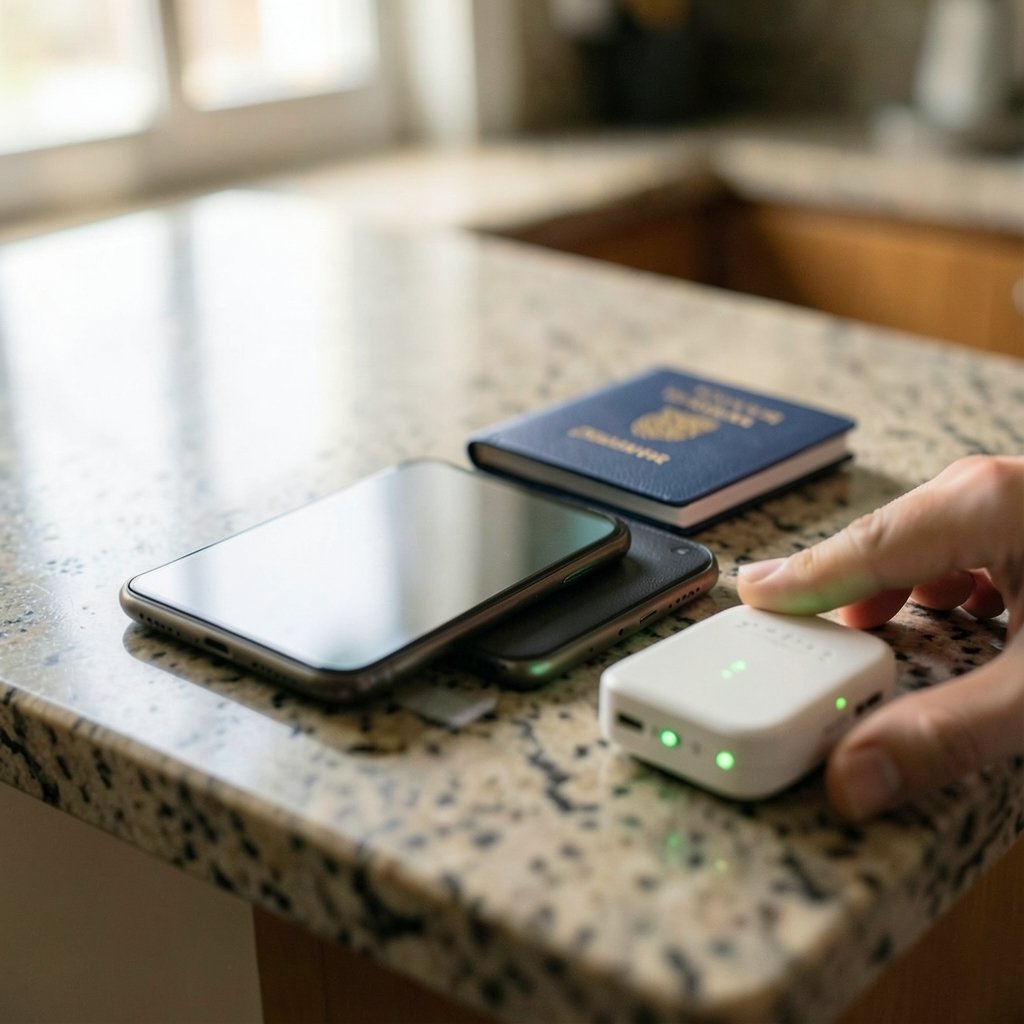
FaceTime is deceptively simple on the surface, but it depends on three foundational things being true at once.
You must be signed in with an Apple ID
FaceTime will not function without an Apple ID signed in on the device. If you recently changed your password, signed out for privacy, or set up a new device, this is the first thing to check. On iPhone or iPad, go to Settings > FaceTime and look at the Apple ID field at the top. On a Mac, open the FaceTime app and check FaceTime > Settings (or Preferences on older macOS versions). (FaceTime)
A common mistake: people sign out of iCloud thinking it’s unrelated, then wonder why FaceTime stops working. Signing out of iCloud generally signs you out of FaceTime too, because they share the same account.
You need a working Wi-Fi or cellular connection
FaceTime requires an active data connection. A Wi-Fi icon showing full bars doesn’t guarantee the connection actually reaches the internet — captive portals at hotels and airports are notorious for this. Try loading a webpage in your browser. If that fails, you have a connectivity problem, not a FaceTime problem, and the fix is to resolve the website that will not load before troubleshooting the app itself.
Toggling Airplane Mode on and off is a genuinely effective reset for cellular data issues. It forces the radio to re-register with the network.
FaceTime may be restricted where you are
Apple maintains a region-availability list, and FaceTime calling is unavailable or limited in certain countries due to local law. If you’re traveling or using a VPN that routes through a restricted region, FaceTime can fail even though everything on your device looks correct. This is worth checking before you spend time on deeper fixes.
Fix Sign-In and Account Errors
If FaceTime keeps asking for a password, loops on “Signing in,” or shows a spinning wheel indefinitely, the account layer is the culprit.
Sign out and back in
This is the single most effective fix for account-related FaceTime failures. Sign out of FaceTime specifically (not iCloud), restart the device, then sign back in. The restart matters — it clears cached authentication tokens that can get stuck.
Check two-factor authentication
FaceTime generally expects two-factor authentication to be enabled on the Apple ID. Accounts without it, or accounts in a partially configured state, can hit sign-in errors that look random. Verify the setting under Settings > [your name] > Password & Security.
Fix the date and time
An incorrect system clock breaks secure connections, including FaceTime’s authentication handshake. Set Settings > General > Date & Time > Set Automatically to on. If your clock is off by even a few minutes, sign-in can fail silently. This is one of the most overlooked causes and one of the easiest to fix.
Fix Camera and Microphone Problems
A call that connects but shows a black screen or produces no sound is a permissions issue nine times out of ten.
On iPhone and iPad
Go to Settings > Privacy & Security > Camera and confirm FaceTime is toggled on. Repeat for Microphone. If FaceTime doesn’t appear in the list at all, that usually means it hasn’t requested access yet — make a test call and accept the prompt.
On Mac
Open System Settings > Privacy & Security > Camera and Microphone, then enable FaceTime. On macOS, a firewall or security tool can also block FaceTime’s network access. Check System Settings > Network > Firewall and make sure FaceTime isn’t being denied. Apple publishes a ports-and-services reference for network administrators; if you’re on a corporate or campus network, that document is the one to hand to IT.
A practical tip: close other apps that grab the camera. Zoom, Teams, and browser tabs with active video calls can hold the camera exclusively, leaving FaceTime with a black frame.
Restart, Update, and Reset in the Right Order
When the simple fixes don’t land, escalate methodically rather than randomly.
- Restart the device. Power it fully off, wait a few seconds, and turn it back on. This clears a surprising number of transient failures.
- Update the operating system. Go to Settings > General > Software Update. Apple regularly patches FaceTime bugs, and running an outdated iOS or macOS version is a common reason calls fail between devices on different versions.
- Reset network settings. On iPhone: Settings > General > Transfer or Reset iPhone > Reset > Reset Network Settings. This wipes saved Wi-Fi passwords, so be ready to re-enter them — but it clears corrupted network configurations that can block FaceTime’s connections.
- Test on another network. Switch from Wi-Fi to cellular, or try a different Wi-Fi network entirely. If FaceTime works elsewhere, the problem is your router or ISP, not your phone.
That last step is diagnostic gold. It isolates the problem in under a minute.
When the Problem Is the Network, Not the Phone
Corporate firewalls, school networks, and some public Wi-Fi systems block the ports FaceTime needs. If calls fail only on one specific network, this is almost certainly what’s happening.
A quick workaround is to use a personal hotspot from another device. If FaceTime works over the hotspot but not the office Wi-Fi, you’ve confirmed a network block. In that case, contact the network administrator and point them to Apple’s official ports documentation rather than guessing at port numbers — they’ve changed across versions, and outdated forum posts circulate bad information.
Router-level fixes that sometimes help at home include restarting the router, disabling any “smart security” or parental-control features that inspect traffic, and checking whether the router’s firmware is current. If your broader internet connection feels flaky, it’s worth understanding what an IP address is and how it works so you can tell the difference between a device problem and an addressing problem.
Group Calls and Cross-Device Issues
Group FaceTime adds another layer. If one-on-one calls work but group calls fail, the likely causes are:
- An outdated OS on any participant’s device. Group FaceTime requires reasonably current software across the board. One person on a very old iOS version can break the whole call.
- Too many participants. Apple caps group calls, and the limit has shifted over time. If you’re near it, split the call.
- A participant with restricted settings. Screen Time restrictions can disable FaceTime entirely on a managed device.
If you’re troubleshooting a device that’s been modified or is running unofficial software, note that such setups frequently break Apple services in ways standard fixes won’t solve. The same principle applies to handheld gaming devices — see this guide on the Decky loader not working steam deck fix 2026 for how third-party modifications can interfere with core system services.
Screen Time and Managed Devices
Parents and IT departments both use restrictions that can silently disable FaceTime. On a personal device, check Settings > Screen Time > Content & Privacy Restrictions > Allowed Apps and confirm FaceTime is enabled. If the FaceTime toggle in Settings is greyed out, a restriction is almost always the reason.
On a work-managed device, a mobile device management profile can block FaceTime entirely. No user-level fix exists in that case — you need the administrator to change the policy.
A Quick Comparison of Fixes by Symptom
| Symptom | Most Likely Cause | First Fix to Try |
|---|---|---|
| “Signing in” loop | Account token or clock error | Sign out, restart, set time automatically |
| Call won’t connect | Network block or outage | Check Apple System Status, switch networks |
| Black screen on video | Camera permission or app conflict | Check Privacy settings, close other video apps |
| No audio | Microphone permission | Enable mic access for FaceTime |
| Grey toggle in Settings | Screen Time or MDM restriction | Check Content & Privacy Restrictions |
| Works on Wi-Fi, not cellular | Carrier data settings | Toggle Airplane Mode, reset network settings |
Common Mistakes That Make Things Worse
A few habits reliably prolong FaceTime problems.
Reinstalling the app on iPhone. FaceTime is a built-in system app on iOS and can’t truly be reinstalled. Deleting it just removes the icon; the underlying service remains. On Mac, removing and re-adding the app is a legitimate step, but it rarely fixes account issues.
Ignoring the other person’s device. Half of all “FaceTime isn’t working” complaints are actually the other party’s problem. Have them run through the same checks — especially the software update.
Changing five settings at once. If you toggle everything simultaneously and the call starts working, you’ll never know what fixed it. Change one thing, test, then move on. This discipline pays off the next time something breaks.
Assuming a restart is pointless. It sounds like generic advice, but a full power cycle clears memory leaks and stuck background processes that genuinely cause FaceTime failures. It’s not superstition; it’s the cheapest reset available.
Conclusion
FaceTime failures almost always come down to one of five things: an Apple outage, an account or authentication problem, a network block, a permissions issue, or outdated software. Working through them in that order — status page first, then account, then network, then permissions, then updates — resolves the vast majority of cases without any drastic measures.
The pattern to remember is diagnose before you reset. Every time you isolate a variable — a different network, a different device, a different account — you get closer to the actual cause instead of just cycling through fixes. And if none of it works, Apple Support can run diagnostics that see things you can’t from the settings menu. Most people never need to make that call, but it’s there when the checklist runs out.
Frequently Asked Questions
Why does FaceTime say “Signing in” and never finish?
This almost always points to an authentication problem. The three most common culprits are an incorrect system date and time, a stuck account token, and two-factor authentication not being properly configured. Set the clock to automatic, sign out of FaceTime, restart the device, and sign back in. That sequence clears the overwhelming majority of sign-in loops.
Does FaceTime work without Wi-Fi?
Yes. FaceTime works over both Wi-Fi and cellular data, so a Wi-Fi connection isn’t required as long as you have a strong cellular signal and your carrier plan allows it. If FaceTime fails on cellular but works on Wi-Fi, toggle Airplane Mode on and off, then check your carrier’s data settings.
Why is my FaceTime camera showing a black screen?
A black screen during a connected call is usually a permissions or app-conflict issue. Confirm FaceTime has camera access under your device’s Privacy settings. Then close any other app that might be holding the camera — video conferencing tools and browser tabs with active calls are frequent offenders. A restart clears the camera if it’s genuinely stuck.
Can Screen Time block FaceTime?
Yes. Screen Time’s Content & Privacy Restrictions include an Allowed Apps section where FaceTime can be switched off. When it’s disabled, the FaceTime toggle in Settings appears greyed out and cannot be changed until the restriction is lifted. On work-managed devices, a similar block can come from an administrator’s device management profile.
Why does FaceTime fail only on certain Wi-Fi networks?
Some networks — especially corporate, school, and public Wi-Fi systems — block the network ports FaceTime relies on. If calls work on cellular or another Wi-Fi network but fail on one specific network, a firewall block is the cause. A personal hotspot confirms it quickly, and the network administrator can lift the restriction.
Do both people need to update their devices for FaceTime to work?
For one-on-one calls, not always, though mismatched software versions do cause occasional failures. For group FaceTime, current software across all participants matters much more, and a single outdated device can break the call for everyone. If one-on-one calls work but group calls don’t, have every participant check for updates.



