

Roughly 17 billion devices connect to Wi-Fi around the world, and every one of them needs a password typed in at some point. That tiny moment of friction, standing in a hallway while a guest squints at the back of your router, is exactly what Apple set out to kill. Since iOS 11 arrived on September 19, 2017, iPhones have been able to hand a Wi-Fi password to another Apple device over the air, no typing required. The catch is that the feature only works when a handful of invisible conditions line up, and when they don’t, nothing happens at all. No error message. No hint. Just two people waving phones at each other like they’re trying to summon something.
This guide walks through the real mechanics, the setup that makes it work, and the fixes that actually solve the silent-failure problem.
What the feature actually does (and what it doesn’t)
Apple’s Wi-Fi sharing is a proximity handoff. When a second Apple device tries to join a network that your iPhone already knows, your iPhone offers to send the stored password over a peer-to-peer connection. The recipient never sees the password in plain text; it gets filled into the field automatically. That’s a genuinely elegant piece of design, and it explains why the feature feels like magic when it works.
It is also narrower than most people assume. The feature does not work between an iPhone and an Android phone. It does not work if either device is signed out of iCloud. It does not work over a cellular-only connection. And it does not create a guest credential. The password you share is the actual network password, which means the recipient can hand it to anyone else later. For a household of trusted people, that’s fine. For a rotating cast of contractors, delivery drivers, and party guests, it’s a real security consideration worth thinking through before you tap Share.
The setup checklist that makes sharing possible
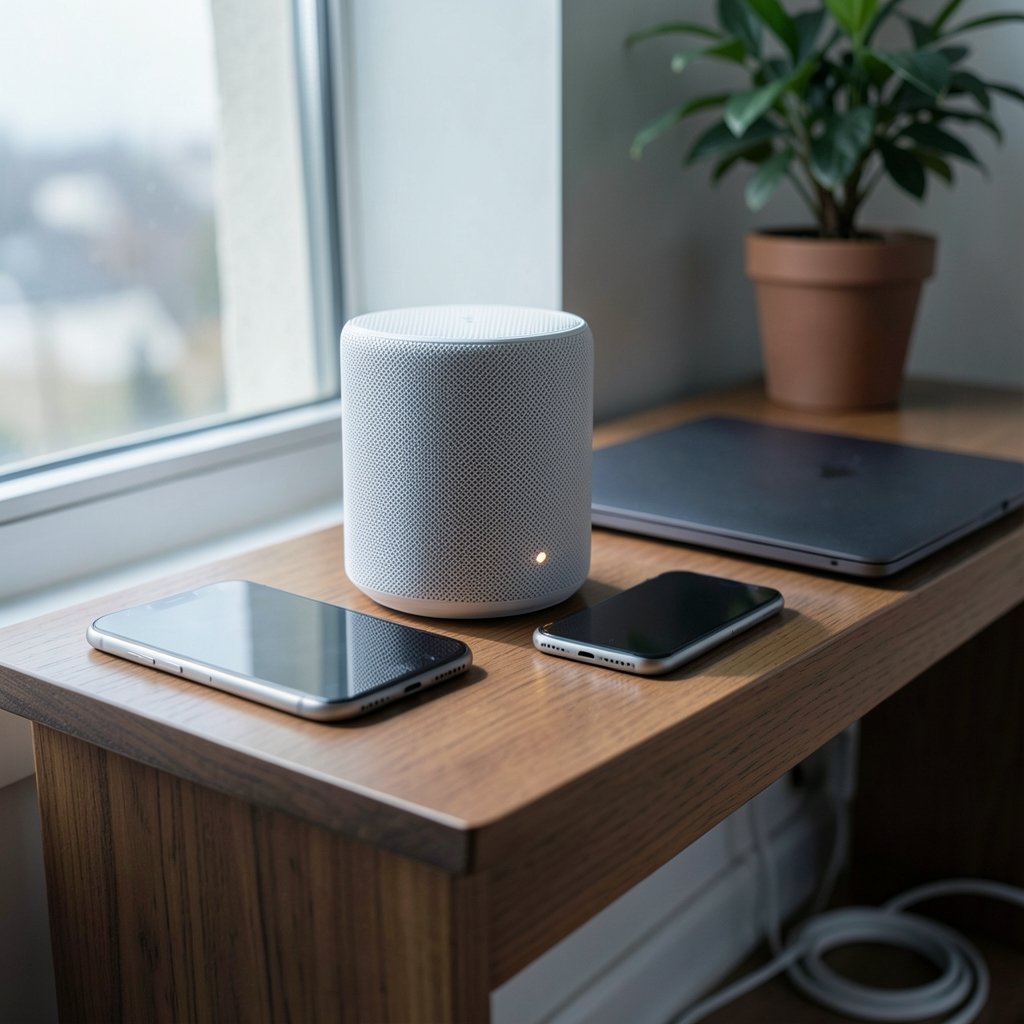
Almost every failed attempt traces back to one of five conditions. Get these right and the feature behaves reliably.
Both devices must be signed in to iCloud
The handoff travels through Apple’s ecosystem, so both the sharing iPhone and the receiving device need an active Apple ID signed in to iCloud. A guest device with iCloud disabled will never trigger the prompt, no matter how close the two phones get.
Wi-Fi and Bluetooth must both be on
This is the one people miss most often. Bluetooth does the discovery work; Wi-Fi carries the credential. Turn off Bluetooth to save battery and the feature quietly stops functioning. Personal Hotspot being active on either device can also interfere, so switch it off before you try.
The recipient needs to be at the password screen
The prompt only appears when the receiving device is actively asking for the password. That means opening Settings, tapping Wi-Fi, selecting the network name, and waiting on the password entry screen. If your guest taps the network and immediately starts typing, the offer may never surface.
The sharer usually needs the recipient in Contacts
Apple’s own documentation has been inconsistent on this point across iOS versions, but in practice the prompt appears far more reliably when the recipient’s Apple ID email address is saved in the sharer’s Contacts. If you’re sharing with someone new, add them first. It takes ten seconds and saves five minutes of confusion.
Both devices must be unlocked and nearby
Locked screens block the handoff. Keep both devices awake and within a few feet of each other. Bluetooth range is the practical limit here, and walls and bodies degrade it quickly.
| Requirement | Sharing iPhone | Receiving device |
|---|---|---|
| Signed in to iCloud | Yes | Yes |
| Wi-Fi enabled | Yes | Yes |
| Bluetooth enabled | Yes | Yes |
| Screen unlocked | Yes | Yes |
| Saved in Contacts | Recommended | Recommended |
| Personal Hotspot off | Yes | Yes |
| At password prompt | No | Yes |
Step-by-step: the standard method
- On the receiving device, open Settings, tap Wi-Fi, and tap the name of the network you want to join.
- Leave that device sitting on the password entry screen. Don’t type anything.
- Bring the sharing iPhone close, within a foot or two, and unlock it.
- Watch the sharing iPhone’s screen. A card should slide up offering to share the password for that network.
- Tap Share Password.
- The receiving device fills in the password and joins automatically.
The whole sequence takes about four seconds when conditions are right. The card on the sharing iPhone is easy to miss because it appears as a notification-style banner rather than a full-screen dialog. If you’re staring at the receiving phone, you’ll miss your cue entirely. Watch the phone that already has the network saved, not the one that needs it.
The proximity method introduced in iOS 17
iOS 17, released September 18, 2023, added a second path: bring the two devices close together and the sharing prompt can trigger through proximity alone, in the same spirit as AirDrop. In practice this behaves like a faster, more forgiving version of the original method. The underlying requirements haven’t changed, so if the standard method fails, proximity sharing will usually fail for the same reason.
Worth noting: Apple’s documentation on this feature has shifted with each release, and behavior after iOS 18 is best confirmed against current Apple Support pages rather than older tutorials. If you’re troubleshooting on a recent iOS build, check Apple’s official guidance first.
When nothing happens: the fixes that work
The feature’s failure mode is silence, which makes diagnosis frustrating. Work through this list in order.
Toggle Bluetooth off and on, on both devices. This resolves the majority of cases. Bluetooth discovery gets stuck more often than people realize.
Turn Personal Hotspot off on both phones. An active hotspot changes the radio state and can suppress the sharing prompt.
Unlock both screens and keep them awake. Auto-lock kicking in mid-attempt is a common culprit, especially if you’ve been troubleshooting for a while.
Add the recipient to Contacts. Use the exact Apple ID email tied to their iCloud account. A phone number alone sometimes isn’t enough.
Move away from other networks. If both devices are surrounded by a dozen saved networks, the prompt can target the wrong one. Step into a quieter spot.
Restart both devices. Unglamorous, effective.
Check that the network is one your iPhone has actually joined before. You can only share a password you already hold. If your iPhone has never connected to that network, there’s nothing to send.
If you’ve done all of that and still get nothing, fall back to reading the password aloud from Settings > Wi-Fi > the network’s info button. It’s less impressive, but it’s instant.
Sharing with Android and other non-Apple guests
There is no native way to share a Wi-Fi password from an iPhone to an Android phone. The feature is an Apple-to-Apple handoff, full stop. Third-party QR code apps exist, and many routers let you generate a guest QR code from the admin panel, but those are separate workflows with their own setup.
This is where a little planning pays off. If you host people often, set up a guest network on your router with a simple, rotating password. Guests get internet access; your main network stays closed. It solves the Android problem, the contractor problem, and the “friend of a friend needs the password” problem in one move. The iPhone feature is brilliant for the people in your life who already live inside Apple’s ecosystem, and irrelevant for everyone else.
A quick note on security
Every time you tap Share Password, you’re handing over the real credential, not a temporary token. Apple has not shipped a native guest-sharing feature on iPhone, so the password you send is the password that works forever until you change it. (Apple Support: Share your Wi-Fi password with others)
Two habits worth adopting: change your Wi-Fi password whenever a device leaves your household permanently, and keep your router firmware updated. Apple’s platform security documentation covers the encryption standards behind Wi-Fi on its devices, and those protections only help if the network itself is configured sensibly. For most households, a strong WPA3 password plus a separate guest network is the whole strategy. (Wikipedia: Wi-Fi)
Fitting this into the wider iPhone routine
Wi-Fi sharing is one of those small features that quietly improves daily life once you know it exists, alongside the other conveniences people discover months after buying a phone. If you’re still deciding which model to pick up, it’s worth checking current iPhone Philippines price listings before committing, and if you’re weighing options across the lineup, a guide to the best iPhone to buy helps narrow it down. Newer models also benefit from accessories that pair well with the feature’s proximity behavior, such as a reliable wireless charger for iPhone and Android sitting on the kitchen counter where guests tend to gather.
Once the phone is set up, the sharing habit becomes second nature. The trick is remembering that the prompt appears on your screen, not your guest’s.
Conclusion
Sharing a Wi-Fi password from an iPhone is a four-second interaction wrapped in a five-condition checklist. When iCloud, Wi-Fi, Bluetooth, proximity, and an unlocked screen all line up, the handoff is genuinely delightful. When one of them slips, the feature goes completely silent, which is why so many people assume it doesn’t work.
The practical takeaway is simple: set up the conditions before you need them. Keep Bluetooth on, add frequent guests to Contacts, run a guest network for everyone outside the Apple ecosystem, and remember that the prompt shows up on the phone that already knows the password. Do that, and the hallway password ritual disappears for good.
Frequently asked questions
Why isn’t the Wi-Fi password sharing prompt appearing on my iPhone?
The prompt appears on the device that already has the network saved, not the one trying to join. Confirm that device is unlocked, Bluetooth and Wi-Fi are both on, Personal Hotspot is off, and the receiving device is sitting on the password entry screen. Adding the recipient’s Apple ID email to Contacts resolves a large share of remaining cases.
Can I share a Wi-Fi password from an iPhone to an Android phone?
No. Apple’s Wi-Fi sharing only works between Apple devices signed in to iCloud. For Android guests, read the password aloud, generate a QR code through your router’s admin panel, or set up a dedicated guest network with a simple password.
Do both phones need to be signed in to iCloud?
Yes. The credential travels through Apple’s ecosystem, so both the sharing iPhone and the receiving device need an active Apple ID signed in to iCloud. A device with iCloud disabled will never trigger the prompt.
Does sharing a Wi-Fi password give away my actual network password?
Yes, and this matters. The feature sends the real network password, not a temporary guest credential. The recipient can reuse it or pass it on. If you share frequently with people outside your household, a separate guest network is the safer setup.
How close do the two iPhones need to be?
Within a few feet, ideally within arm’s reach. The handoff runs over Bluetooth and peer-to-peer Wi-Fi, both of which degrade quickly with distance and physical obstacles. Walls, pockets, and crowded rooms all reduce reliability.
What changed with Wi-Fi sharing in iOS 17?
iOS 17 added a proximity-based sharing method that triggers when the two devices are brought close together, similar to AirDrop. The underlying requirements stayed the same, so if the standard method fails, proximity sharing usually fails for the same reason.



