
A frozen taskbar is one of the most frustrating things Windows can throw at you. Your Start button, pinned apps, clock, and system tray all live there, so when it stops responding, the whole desktop feels broken. Here’s the reassuring part: the taskbar is powered by a small, restartable process called Explorer.exe, which means most taskbar failures can be fixed in under two minutes without reinstalling anything.
This guide walks through fixes in the order that actually works, from the instant restart to the deeper repairs you only need if the simple ones fail. It also flags the popular “fixes” that cause more harm than good, so you don’t waste an afternoon on a registry edit you’ll regret.
Why the Windows 11 Taskbar Stops Responding
The taskbar isn’t a single program. It’s a collection of components: the shell process (Explorer.exe), the Start menu experience host, the search host, and a stack of app packages that render the icons, flyouts, and widgets. When any one of those pieces hangs or gets corrupted, the symptom looks identical: you click, nothing happens, or the taskbar vanishes entirely and leaves a black strip.
Common triggers include:
- A hung Explorer.exe process after waking from sleep
- Corrupted user profile data in the AppData folder
- A failed or half-installed cumulative update
- A third-party shell extension or startup app conflicting with the shell
- Damaged system files that the shell depends on
Because the causes vary, the fix that works for one person often does nothing for another. That’s why working through a ladder of fixes, cheapest first, saves time.
Fix 1: Restart Windows Explorer (The Two-Minute Fix)
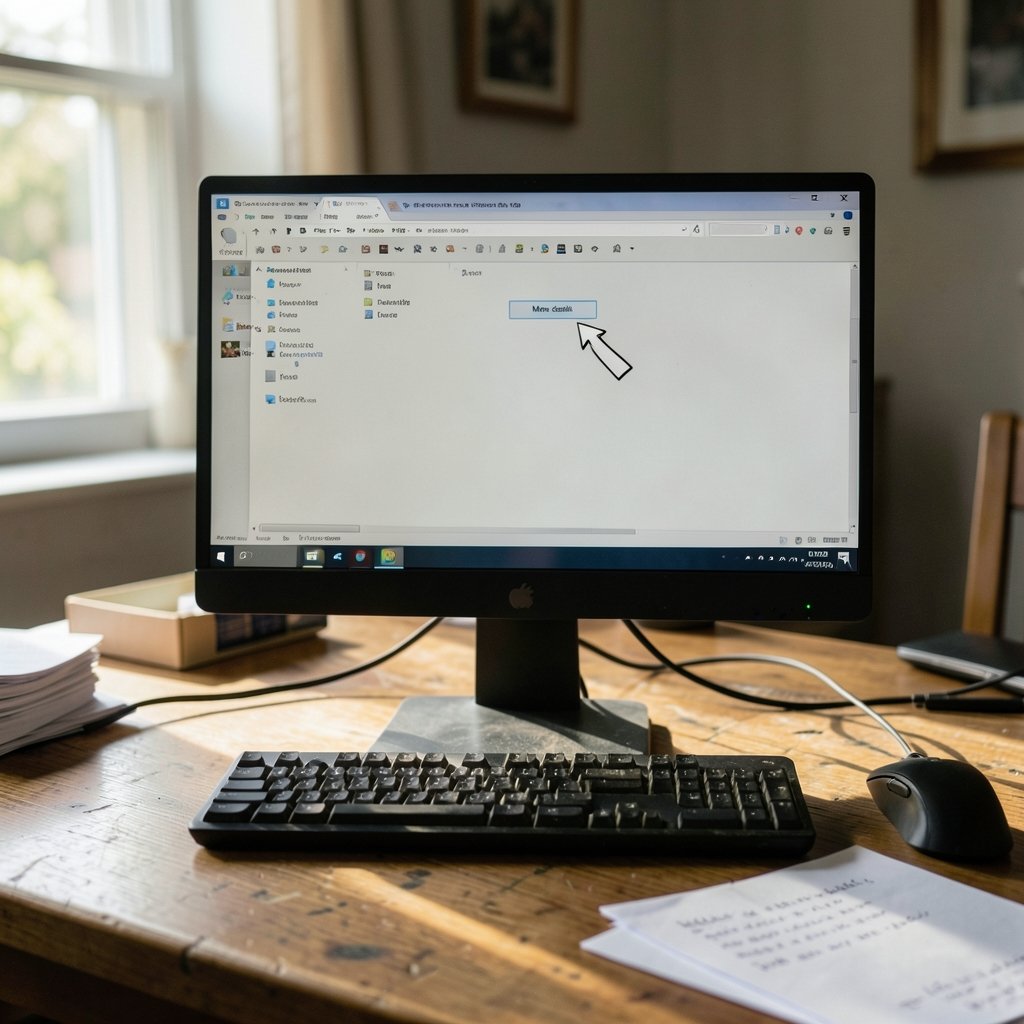
This resolves the majority of one-off taskbar freezes. It doesn’t require a reboot and doesn’t close your open apps. (Taskbar)
- Press Ctrl + Shift + Esc to open Task Manager.
- If you only see a compact window, click More details at the bottom.
- Open the Processes tab and scroll to Windows Explorer.
- Right-click it and choose Restart.
The taskbar disappears for a second or two, then comes back. If it returns working, you’re done. If it freezes again within minutes, the problem is deeper and you should keep reading. Learning a few of these Windows keyboard shortcuts everyone should know pays off here, since Task Manager and the Run dialog become your main tools.
If Task Manager itself won’t open, press Ctrl + Alt + Delete and choose Task Manager from the security screen, which bypasses the frozen shell.
Fix 2: Restart the Machine Properly
It sounds too simple, but a genuine restart clears stuck processes, releases locked files, and lets pending updates finish installing. The trap is Fast Startup, a Windows feature that makes “shut down” behave more like hibernate. A full restart flushes more than a shutdown does.
Use Start > Power > Restart rather than shutting the lid or hitting the power button. If the taskbar is too frozen to reach the Start menu, press Ctrl + Alt + Delete, click the power icon in the bottom-right corner, and choose Restart.
Fix 3: Check for Windows Updates
Microsoft ships taskbar and shell fixes inside cumulative updates regularly. If your build is behind, you may be running a known bug that’s already been patched.
- Open Settings > Windows Update.
- Click Check for updates and install everything offered, including optional updates.
- Restart when prompted.
You can also check Microsoft’s official Windows release health dashboard to see whether a taskbar issue is a documented known problem with a published workaround. That page is worth bookmarking, because it tells you whether you’re fighting your own PC or a Microsoft bug.
Fix 4: Run the System File Repair Tools
If the taskbar crashes repeatedly, corrupted system files are a likely culprit. Windows ships two repair tools for exactly this: DISM, which repairs the component store, and SFC, which replaces damaged protected files.
- Right-click Start and choose Terminal (Admin) or Windows PowerShell (Admin).
- Run `DISM /Online /Cleanup-Image /RestoreHealth` and wait for it to finish. This can take ten to twenty minutes.
- Then run `sfc /scannow` and let it complete.
- Restart the PC.
Run them in that order. DISM repairs the source image that SFC pulls replacement files from, so doing SFC first can fail on a damaged store. Microsoft documents both tools on Microsoft Learn, including the exact syntax.
One practical note: don’t close the window mid-scan, even if it looks stuck at a percentage for several minutes. Interrupting DISM can leave the component store in a worse state than you started with.
Fix 5: Test a New User Account
This is the fastest way to tell whether your profile is corrupted. If the taskbar works perfectly in a fresh account, the problem lives in your user profile, not in Windows itself.
- Open Settings > Accounts > Other users.
- Click Add account and create a local account (choose “I don’t have this person’s sign-in information” to avoid linking a Microsoft account).
- Sign out and sign in as the new user.
- Test the taskbar.
If it behaves, you have two options: migrate your files to the new profile, or repair the old one by renaming the corrupted folders. The blunt but reliable approach is to copy your Documents, Pictures, and Desktop contents to the new account and keep working there.
Fix 6: Boot Into Safe Mode
Safe Mode loads Windows with a minimal set of drivers and no third-party startup programs. If the taskbar works there, a background app is the culprit.
- Open Settings > System > Recovery.
- Next to Advanced startup, click Restart now.
- Choose Troubleshoot > Advanced options > Startup Settings > Restart.
- Press 4 or F4 for Safe Mode.
Once in Safe Mode, open Task Manager and disable startup items one at a time, rebooting between each, until you find the one breaking the shell. Shell extensions from cloud storage clients, older antivirus suites, and custom skinning tools are frequent offenders.
Fix 7: Re-Register the Shell Experience Packages
This is a community fix rather than an official Microsoft procedure, so treat it as a step to try after the official ones. It re-registers the app packages that draw the Start menu and taskbar.
Open Terminal (Admin) and run the PowerShell command that re-registers the ShellExperienceHost and StartMenuExperienceHost packages, then restart Explorer. Because the exact package names and syntax vary by build, copy the command from a current, reputable source rather than an old forum post, and create a restore point first. If you’re not comfortable in PowerShell, skip this step entirely and move to the next one.
Fix 8: Repair Your Windows Installation
When nothing else works, an in-place repair upgrade reinstalls Windows system files while keeping your apps and personal data. It’s the heavyweight option, and it resolves stubborn shell corruption that DISM can’t reach.
- Download the official Windows 11 installation media tool from Microsoft’s Windows 11 download page.
- Run it and choose to create installation media, or mount the ISO.
- Launch setup.exe from inside the running Windows session.
- Choose Keep personal files and apps when prompted.
This takes roughly an hour and needs about 20 GB of free space. Back up important files first, as you should before any major system operation.
What Not to Do
A few widely shared “fixes” deserve a warning.
| Popular fix | Why to be careful |
|---|---|
| Registry “tweaks” from random forums | Can break the shell entirely and are hard to reverse |
| Third-party “taskbar repair” tools | Often bundled with adware; Windows already has the tools you need |
| Deleting the entire AppData folder | Wipes app settings for all apps, including the taskbar |
| Disabling all services at once | Can leave Windows unable to boot normally |
The general rule: if a fix requires editing the registry or disabling core services, exhaust every official option first. Microsoft’s own troubleshooting hub at support.microsoft.com/windows is the safer starting point for anything shell-related.
How to Prevent It From Coming Back
Prevention mostly comes down to hygiene. Keep Windows Update current, since taskbar regressions are usually patched within a release cycle. Avoid stacking multiple utilities that hook into the shell, like several cloud-sync clients plus a custom start menu replacement. And run sfc /scannow occasionally, especially after a major update, so small corruptions get caught before they compound.
If you suspect malware is behind odd shell behavior, it’s worth learning how to check for viruses on a Windows PC properly rather than relying on a single scan. A clean free virus removal tool run in Safe Mode catches what normal-mode scans miss, since some malware hides from the shell it’s infecting.
When to Escalate
If the taskbar works in a new user account but not yours, profile repair is the answer. If it fails in Safe Mode too, system files or hardware are implicated, and an in-place repair upgrade is the logical next move. If it fails on a brand-new installation with fresh drivers, suspect hardware: failing RAM or a drive with bad sectors can corrupt system files faster than any repair tool can fix them.
Conclusion
A dead taskbar rarely means a dead PC. In most cases, restarting Explorer.exe brings it back in seconds, and if that doesn’t hold, the repair ladder, from Windows Update through DISM and SFC to a new user account, isolates the real cause. Work through the steps in order, avoid the tempting registry hacks, and you’ll usually land on a working taskbar without ever touching a reinstall. And if you do end up reinstalling, remember the small stuff: a few well-chosen shortcuts make the whole process noticeably less painful.
Frequently Asked Questions
Why does my taskbar keep freezing in Windows 11?
Repeated freezes almost always point to one of three things: a corrupted user profile, a conflicting startup app or shell extension, or damaged system files. Restart Explorer once to confirm it’s not a one-off, then test a new user account. If the taskbar works there, your profile is the problem.
Does restarting Explorer.exe lose my open work?
No. Restarting Windows Explorer only reloads the shell: taskbar, desktop icons, and File Explorer windows. Your open documents and browser tabs stay exactly as they were, which is why this is the safest first fix.
Will a Windows update fix the taskbar bug?
Often, yes. Microsoft ships shell and taskbar fixes in cumulative updates, and some taskbar problems are documented as known issues with published workarounds. Check Windows Update and the release health dashboard before trying anything invasive. (Taskbar)
Is it safe to use a third-party taskbar repair tool?
Generally, no. Most of these tools duplicate what DISM, SFC, and a new user account already do, and some bundle adware or make registry changes you can’t easily undo. Stick to built-in Windows tools first.
How do I know if my user profile is corrupted?
Create a fresh local account and sign in. If the taskbar behaves normally there but not in your original account, the profile is corrupted. The fix is to migrate your files to the new account or rebuild the old profile.
Can a virus cause the taskbar to stop working?
It’s possible, though less common than profile or file corruption. Malware that hooks into the shell can cause freezes and missing icons. Run a full scan in Safe Mode with a reputable tool, and check for unusual startup entries in Task Manager.



