

Apple has quietly made 128GB the new “bare minimum” for iPhones, yet a single 4K video can eat 400MB per minute, and a modest library of games and photos can push even a 256GB device toward the red zone. The result is a familiar message: “Storage Almost Full.” The good news is that most people can recover tens of gigabytes in under 20 minutes without losing a single memory. The trick is knowing where iOS hides the bloat and which “solutions” are actually traps.
This guide walks through the settings that matter, the myths that waste time, and the practical habits that keep an iPhone breathing roomy for years.
Start With the Storage Report, Not a Random App Deletion
Before touching anything, open Settings > General > iPhone Storage. This screen is the single most useful diagnostic tool Apple offers. It shows a ranked list of every app by size, plus the amount of free space left and a set of system recommendations.
Two numbers matter here. First, the total free space at the top. Second, the gap between an app’s “App Size” and its “Documents & Data.” That split is where casual users get confused. The app binary itself is often small, while the data behind it (cached videos, message threads, saved drafts) can be enormous. Deleting and reinstalling an app wipes both, so check the data figure before you act.
A practical habit: screenshot this screen once a month. Watching which apps creep upward tells you more about your storage habits than any single cleanup session. If you’re weighing a new phone purchase against a cleanup, the storage report gives you the honest answer about whether you actually need more capacity. It also pairs well with knowing the iPhone Philippines price landscape if you’re deciding whether to upgrade or simply manage what you own.
Offload Unused Apps: The Feature Most People Ignore
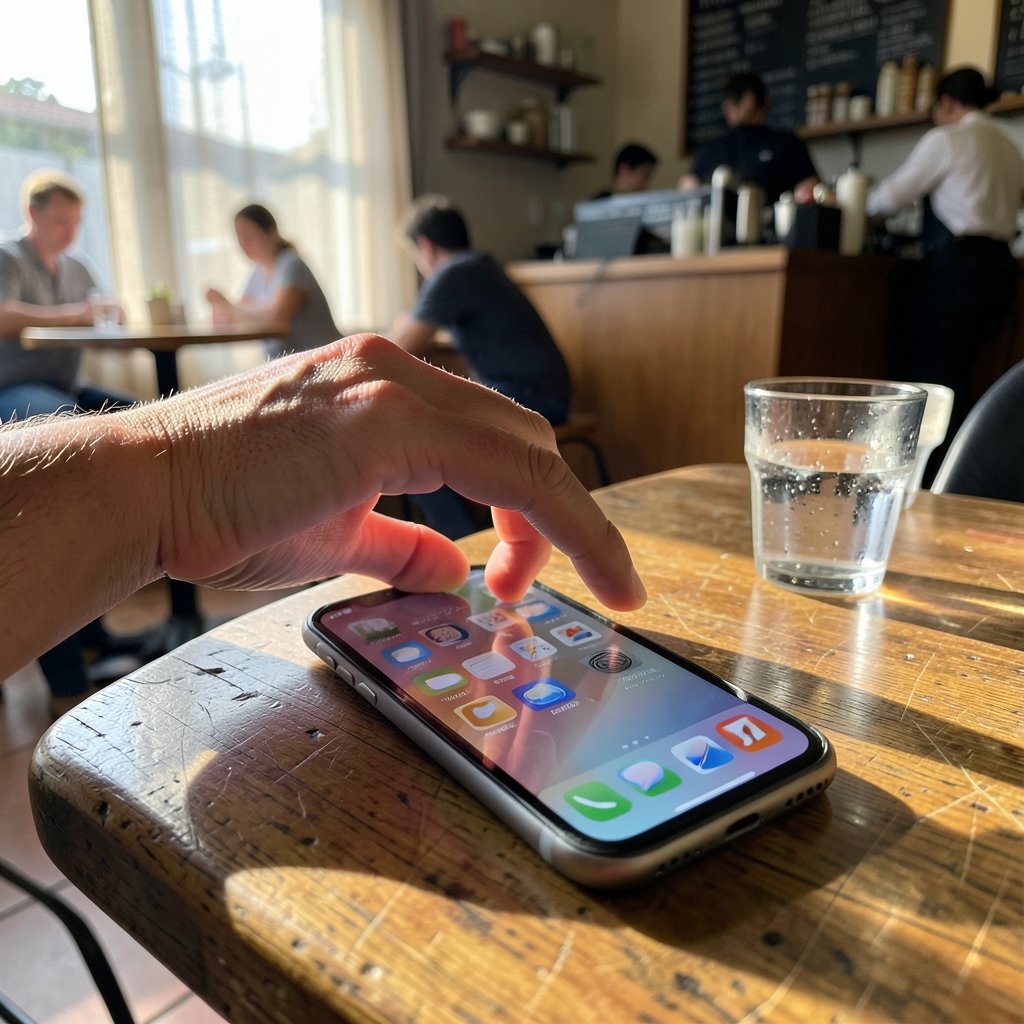
Apple introduced Offload Unused Apps with iOS 11 in 2017, and it remains one of the most underused tools on the device. When enabled, iOS removes an app’s binary while keeping its icon, documents, and login state. Tapping the icon later reinstalls the app and restores your data as if nothing happened.
Enable it under Settings > General > iPhone Storage. You can also offload individual apps manually from the same screen by tapping an app and choosing “Offload App.”
This is not the same as deleting. Deletion removes data too. Offloading is a pause button, and it’s ideal for the apps you use twice a year: the airline app, the hotel chain, the one game you keep meaning to finish.
Photos and Videos: Where the Real Gigabytes Live
For most people, the camera roll is the biggest single consumer of storage. Apple’s Optimize iPhone Storage setting (found under Settings > [your name] > iCloud > Photos) keeps full-resolution originals in iCloud and stores smaller, device-friendly versions locally. Full-size versions download on demand when you open or share a photo.
A few practical notes that trip people up:
- Optimize only works if you have enough iCloud storage to hold the originals. If your iCloud plan is full, the feature stalls.
- “Recently Deleted” holds items for 30 days. Emptying it under Photos > Albums > Recently Deleted can recover several gigabytes instantly.
- Burst photos and screenshots accumulate quietly. The Screenshots album is usually worth a five-minute purge.
- Live Photos double as short videos. Turning off Live Photo for future shots saves meaningful space over a year.
If you’re deciding whether a newer camera system justifies the storage pressure, it helps to check how much does the iPhone 17 cost before committing, since higher-capacity models carry a premium that a disciplined cleanup routine might make unnecessary.
Messages: The Silent Storage Hog
Text threads with years of photos and videos can quietly consume 10GB or more. iOS offers a direct tool: Settings > General > iPhone Storage > Messages, then tap Review Large Attachments. This surfaces the biggest videos and images in your conversations so you can delete selectively.
Two additional settings help long-term:
- Keep Messages (Settings > Messages > Keep Messages) can be set to 1 year instead of Forever.
- Auto-delete old audio messages after two minutes under Settings > Messages.
Be careful here. Deleting an attachment removes it from that conversation on that device. If the photo matters, save it to Photos or a cloud drive first. This is one of the most common mistakes people make during a cleanup panic: they bulk-delete attachments and later realize a family video is gone for good.
The iCloud Backup Confusion That Wastes Everyone’s Time
Here’s a misconception worth clearing up permanently: iCloud backups do not use iPhone storage. They live in iCloud. Deleting an old device backup frees iCloud space, not device space. People routinely delete backups expecting their phone to breathe easier, and nothing changes.
The reverse is also true. Buying more iCloud storage doesn’t directly add iPhone storage, though it enables Optimize iPhone Storage to work properly. The two pools are separate, and understanding that distinction saves a lot of frustration. (How to check the storage on your iPhone and iPad)
System Data: The Category Nobody Can Fully Tame
Scroll to the bottom of the iPhone Storage screen and you’ll find System Data, a catch-all bucket for caches, logs, and temporary files. Its size fluctuates, sometimes wildly, and Apple’s own guidance on managing it has shifted across iOS versions. There is no magic button.
What genuinely helps, in practice:
- Restarting the phone clears temporary files.
- Updating to the latest iOS resolves known cache bugs.
- Deleting and reinstalling a misbehaving app clears its private cache.
What doesn’t help: third-party “cleaner” apps promising to wipe System Data. Apple’s sandboxing means these apps can only delete data they can see, which is usually their own. Treat aggressive cleaner claims with skepticism. For broader context on how Apple structures device storage and privacy, the Wikipedia entry on iOS offers a useful overview of how the operating system has evolved.
Streaming, Gaming, and the Apps That Grow Quietly
Two categories deserve special attention.
Streaming apps (music, video, podcasts) cache downloaded content. Spotify and Apple Music both let you cap downloads or remove them per playlist. Podcast apps are notorious for keeping every episode you’ve ever played. Set episodes to delete after playing.
Games are the heaviest installs on most phones. A single title can exceed 10GB with assets. If gaming is central to your device use, it’s worth checking which titles are worth the space, and resources like this roundup of the best iPhone games can help you prioritize. Offloading a game you play monthly is almost always the right call.
Safari, Caches, and the Small Wins
Safari’s website data is usually modest, but clearing it under Settings > Safari > Clear History and Website Data is harmless and occasionally frees a gigabyte or two. Social media apps are bigger offenders: Facebook, Instagram, and TikTok all cache aggressively. Most have an in-app “clear cache” option buried in settings.
A quick table of typical recovery potential helps set expectations:
| Source | Typical Space Recovered | Effort |
|---|---|---|
| Recently Deleted photos | 1–10GB | Very low |
| Large message attachments | 2–15GB | Low |
| Offloading unused apps | 3–20GB | Very low |
| Streaming/podcast downloads | 1–8GB | Low |
| Game offloads | 5–20GB | Very low |
| Safari and app caches | 0.5–3GB | Low |
| System Data | Unpredictable | Medium |
A Realistic 20-Minute Cleanup Routine
For anyone who wants a repeatable process rather than a one-time purge, this sequence works well:
- Empty Recently Deleted in Photos.
- Enable Offload Unused Apps.
- Review Large Attachments in Messages.
- Turn on Optimize iPhone Storage (if iCloud has room).
- Cap podcast and music downloads.
- Offload games played less than weekly.
- Restart the phone and recheck the storage report.
Run it monthly and most phones never hit the warning threshold again. The discipline matters more than any single step. Consistency beats heroics when it comes to storage.
When to Stop Cleaning and Start Upgrading
There’s a point where cleanup stops paying off. If your photo library alone exceeds your device capacity, no amount of cache clearing fixes the math. At that stage, the honest options are a higher-capacity phone, an external drive for photo archives, or a disciplined cloud-first workflow. If you’re comparing models anyway, a guide to the best iPhone to buy can clarify which storage tiers make sense for your habits. And if you’re protecting a new device, the best iPhone 17 Pro cases are worth a look before the first drop. (iPhone)
For those who travel or work remotely, cloud-first habits pair naturally with practical logistics like finding storage unit deals for physical gear that no longer needs to live in a backpack. Digital and physical decluttering follow the same logic: keep what you use, archive what you don’t, and stop paying for space you’re not actively using.
Conclusion
Freeing up storage on an iPhone is less about willpower and more about knowing which levers actually move the needle. The storage report tells you the truth, Offload Unused Apps buys back space without risk, and Photos plus Messages almost always hold the biggest wins. Skip the cleaner apps, understand that iCloud backups are a separate pool, and accept that System Data is a category to manage, not conquer. A 20-minute monthly routine keeps a phone healthy for years, and when cleanup genuinely can’t keep up, upgrading with clear eyes beats fighting a losing battle.
Frequently Asked Questions
Does deleting apps free up more space than offloading them?
Yes, but it’s riskier. Deleting removes the app and all its data, while offloading removes only the app binary and keeps your documents and login state. Offloading is the safer default; delete only when you’re certain you don’t need the data.
Why doesn’t my iPhone storage increase after deleting iCloud backups?
Because iCloud backups live in iCloud, not on the device. Deleting them frees iCloud storage only. To free iPhone storage, focus on photos, message attachments, app data, and cached media.
Is it safe to delete System Data?
There’s no direct way to delete it, and Apple doesn’t recommend trying. Restarting the phone, updating iOS, and reinstalling misbehaving apps are the practical levers. Third-party cleaners rarely help and sometimes cause problems.
How much storage does Optimize iPhone Storage actually save?
It varies with library size, but people with large photo collections often recover 10–40GB. The feature requires enough iCloud space to hold full-resolution originals, so check your iCloud plan first.
Can I free up storage without deleting photos?
Yes. Empty Recently Deleted, enable Optimize iPhone Storage, offload unused apps, clear large message attachments, and cap podcast and music downloads. Most users recover meaningful space without touching a single photo.
How often should I clean up iPhone storage?
A quick monthly check of the storage report catches problems early. Deep cleanups two or three times a year are usually enough, especially if Offload Unused Apps stays enabled.
One last habit worth adopting: check the storage report before a big iOS update or a long trip, when free space matters most. Updates need room to download and unpack, and a nearly full phone can fail mid-install. Clearing a few gigabytes in advance avoids that headache entirely. And if you’re ever unsure whether a file is safe to remove, back it up first: storage is replaceable, but a lost photo or document usually isn’t. With those safeguards in place, cleanup becomes routine maintenance rather than a stressful emergency.



