Does your gaming laptop double as a space heater the moment a match starts? You’re not alone, and a cooling pad looks like the cheapest fix on the shelf. But here’s the uncomfortable truth: some pads genuinely drop temperatures, and others just add noise and a glowing fan you’ll never look at again. The difference usually comes down to details nobody prints on the box.
Quick Answer: What should I check before paying for gaming laptop cooling pads?
Before paying for a gaming laptop cooling pad, match the pad’s airflow to where your laptop actually pulls in air, because a fan blowing at a solid panel does nothing. Confirm the fan size and layout line up with your vents, then weigh noise, power draw, and physical fit against your desk setup.
Pads with speed control, adjustable tilt, and honest specifications tend to serve buyers better than pads with big airflow claims and no stated test method. Some laptops gain little from any pad because their thermal design limits them, so expectations matter as much as hardware.
Check vent placement, fan size and count, noise ratings, USB power and pass-through, footprint and tilt, build materials, return policy, and independent temperature data before you commit.
Why Most Cooling Pad Purchases Go Wrong
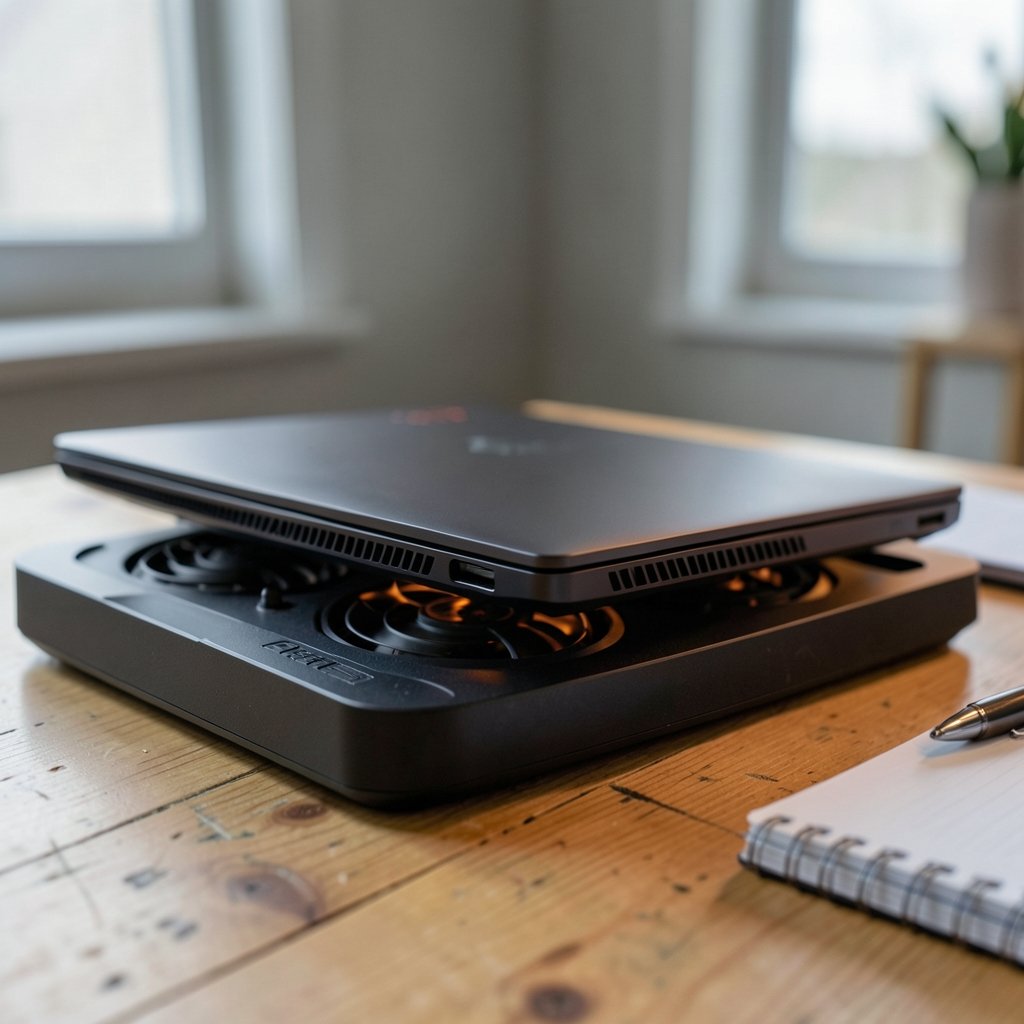
Walk through any electronics aisle and every box shouts numbers: 2,600 RPM, six fans, “ultra airflow.” What the box rarely tells you is where that air goes once it leaves the blades. A cooling pad is not a magic chiller. It is a fan tray that pushes room-temperature air toward your laptop’s underside. If your laptop’s intake vents sit at the rear hinge instead of the bottom panel, a pad full of fans may be pushing air against plastic.
That single mismatch explains most disappointing purchases. People buy on fan count, plug the pad in, run a game, and see temperatures barely move. Then they blame the pad. Sometimes the pad deserves it. Often the laptop’s vent layout was the real story all along.
There’s a second trap: marketing airflow figures are rarely measured to a published standard, so comparing CFM numbers across brands is close to meaningless. Two pads can claim the same airflow and behave completely differently. The practical move is to treat spec sheets as hints, not promises, and to lean on return policies and independent testing instead.
Check Where Your Laptop’s Vents Actually Sit
This is the step almost everyone skips, and it’s the one that decides whether a pad can help at all. Flip your laptop over. Look for the intake grilles, usually a mesh panel or a row of slots on the bottom. Then check the rear and sides for exhaust vents.
Now think about the pad you’re considering. If it has fans positioned to blow straight into your intake grilles, good. If its fans sit under a solid section of your laptop’s base, that airflow is wasted. If the pad’s raised lip or frame covers your rear exhaust, you may make things worse by trapping hot air.
A few practical rules that hold up in real use:
- Bottom-intake laptops benefit most from pads with fans placed to match the intake zone, not fans scattered edge to edge.
- Rear-exhaust laptops need a pad that leaves the hinge area open, even if that means a smaller pad.
- Side-exhaust models need clearance on the left and right edges, so oversized pads with tall side rails can backfire.
- Ventless-bottom designs (some thin gaming models pull air through the keyboard) gain little from any pad, and that’s worth knowing before you spend.
If you’re already the type to dig into compatibility details before buying, the same discipline applies here. It’s the same mindset as checking AMD vs Intel CPU compatibility before an upgrade — the spec sheet only helps once you know what your own machine needs.
Fan Size, Count, and the Airflow Numbers That Mislead
Bigger fans move more air at lower speeds, which usually means less noise for the same cooling. Small, fast fans can move a similar volume of air but tend to whine. A single 200mm fan and six 60mm fans are not interchangeable, even if the box math looks similar.
Static pressure matters too, though few pads mention it. A fan pushing air through a mesh surface and into a narrow intake needs pressure along with airflow volume. That is why some high-CFM pads feel weak in practice.
On the numbers themselves, be skeptical. CFM (cubic feet per minute) is a legitimate unit, but without a stated test method, brand figures aren’t comparable. The same goes for RPM, which tells you how fast a blade spins, not how much air reaches your vents. If a listing gives no measurement method at all, treat the number as decoration.
What actually works in practice: look for pads that publish airflow and noise together, prefer models with a physical speed dial over on/off switches, and check whether the fans are user-replaceable. A pad whose fans die in a year and can’t be swapped is a disposable purchase.
Noise Is the Trade-Off Nobody Warns You About
Every cooling pad review eventually mentions noise, and for good reason. Pushing more air requires more fan speed, and more fan speed means more sound. Many pads at full tilt are noticeably louder than the laptop’s own cooling system, which is a strange trade for a few degrees.
dB(A) ratings weight sound to match how human hearing works, so they’re more useful than raw decibels. If a pad lists a dB(A) figure, compare it to your laptop’s fan noise under load rather than to silence. A pad rated around 30 dB(A) sits in quiet-room territory; figures in the 40s start competing with game audio.
The practical fix is variable speed control. A pad you can dial down during quiet scenes and crank during a boss fight is more useful than one stuck at maximum. Look for a rotary dial or stepped switch, and check whether the lowest setting is actually quiet or just slightly less loud.
Power, Ports, and Cable Reality
Most cooling pads draw power over USB, which means they borrow from the same port you might want for a headset or controller. That’s fine on a desk with a powered hub. It’s less fine on battery, where every extra draw shortens runtime.
Check three things before paying:
- Connector type. USB-A is still common, but USB-C is increasingly standard. Make sure the pad’s plug matches a free port on your laptop or hub.
- Pass-through. Some pads include an extra USB port so you don’t lose one. Others simply consume a port. If your laptop is short on ports, this matters.
- Cable length and routing. Short cables force awkward desk layouts. Long ones tangle. Measure roughly where the pad will sit relative to your ports.
A handful of pads use external power adapters, which sidesteps the port issue entirely but adds a wall wart to your setup. Neither approach is wrong. Just know which one you’re buying.
Fit, Tilt, and Ergonomics
A cooling pad is also a laptop stand, whether the manufacturer admits it or not. That means fit and angle affect your wrists and neck as much as your temperatures. The pad’s surface should match or slightly exceed your laptop’s footprint so the machine doesn’t overhang and wobble.
Height and tilt are personal, but the usual guidance holds: a slight incline helps typing comfort, while aggressive angles push your wrists into extension. If you mostly play with an external keyboard, a steeper tilt is fine. If you type on the laptop itself, keep it modest.
Watch for pads that block rear exhaust or clamp the sides too tightly. And check the surface material. Hard plastic slides; rubberized pads grip. A pad that lets your laptop creep during intense sessions is a small but constant annoyance.
Build Quality and the Specs That Don’t Get Printed
Cheap pads flex, rattle, and develop bearing noise within months. Since you can’t test that in a product photo, look for clues: metal grilles instead of thin plastic mesh, rubber feet that won’t peel, and hinges that lock firmly on adjustable models.
Warranty length is a decent proxy for manufacturer confidence. A one-year warranty on a fan-heavy product is common; anything shorter deserves suspicion. And if the pad ships with a flimsy USB cable, budget for a replacement.
What Independent Testing Can and Can’t Tell You
Here’s the honest part: rigorous, repeatable temperature testing of cooling pads is scarce. Many reviews are affiliate-driven, which doesn’t make them wrong, but it does mean the incentive runs toward praise. When you find testing, look for a disclosed method: what laptop, what ambient temperature, what workload, how long, and how temperatures were recorded.
Without that detail, a “15 degrees cooler” claim is a story, not a measurement. A well-run test on a different laptop than yours also transfers imperfectly, because thermal designs vary so much. Use reviews to narrow the field, then rely on your own testing during the return window.
The same caution applies across the hardware world. Buyers weighing a gaming headset purchase in 2026 face the same flood of unverified claims, and the fix is identical: find disclosed methods, not marketing copy.
Return Policy: Your Real Safety Net
Because cooling performance is hard to predict from a listing, the return window is the most valuable feature a pad can have. Buy where returns are simple and the window is long enough for a proper test. Thirty days is comfortable. Fourteen is tight but workable.
When the pad arrives, test it properly. Run the same game or benchmark for 20 minutes without the pad, note the CPU and GPU temperatures and clock speeds, then repeat with the pad on. Compare like for like. If temperatures don’t improve and the noise is worse, send it back without guilt.
Keep the packaging until you’ve decided. And read the warranty terms before you need them, since return rights and warranty coverage are different things with different clocks.
A Quick Comparison of Pad Types
| Pad type | Best for | Watch out for |
|---|---|---|
| Flat multi-fan tray | Bottom-intake laptops, desk use | Fans that miss the intake zone |
| Tilted single large fan | Quiet cooling, typing comfort | Rear exhaust blockage at high tilt |
| Sealed or “vacuum” design | Specific laptop models with matching vents | Compatibility claims that don’t fit your model |
| Laptop stand with small fans | Portability and ergonomics first | Weak airflow, noise at high speed |
| External-powered pad | Port-starved laptops | Extra cable and wall adapter |
Conclusion
A cooling pad is a simple product wrapped in complicated marketing, and the checklist that actually protects your money is short. Find your laptop’s intake vents. Match the pad’s fan layout to them. Weigh noise against airflow and insist on speed control. Confirm the power and port situation. Check the footprint and tilt. Then buy somewhere with a generous return window and test it yourself within days.
Do that, and you’ll either end up with a pad that meaningfully lowers your temperatures or you’ll get your money back. Both are good outcomes. The only bad one is paying for six glowing fans that blow air at a solid sheet of plastic. If you’re the type who vets purchases carefully, the same instincts that guide a Rillabox order decision apply here: read past the headline claims, check the details that affect your specific setup, and keep the receipt until you’ve confirmed it works.
FAQ
Do cooling pads actually lower laptop temperatures?
They can, but the gains vary widely. A pad that feeds cool air into your intake vents can reduce temperatures by a noticeable margin under load. A pad that blows against a solid panel or blocks exhaust may change nothing or make things slightly worse. The result depends more on vent alignment than on fan count.
How many fans should a cooling pad have?
Fan count matters less than fan placement and size. One large fan positioned under your intake grilles often outperforms five small fans scattered across the surface. Look at the layout diagram and compare it to your laptop’s vent map before counting blades.
Are expensive cooling pads worth it?
Sometimes. Higher prices usually buy quieter bearings, better speed control, sturdier frames, and longer warranties, all of which affect daily use. They don’t automatically buy better cooling. A mid-priced pad with good vent alignment can beat a premium pad that doesn’t fit your laptop.
Can a cooling pad make my laptop louder?
Yes. Many pads at full speed are louder than the laptop’s own fans. That’s why variable speed control matters. You can run the pad gently during quiet moments and increase speed during heavy loads, rather than living with constant maximum noise.
Will a cooling pad work if my laptop pulls air through the keyboard?
Usually not much. If your laptop’s design draws air through the keyboard deck rather than the bottom panel, a pad has little path to help. In that case, a stand that improves airflow around the chassis and raises the screen may serve you better than a fan tray.
Does a cooling pad drain my laptop battery faster?
It can, since most pads draw power over USB from the laptop itself. The draw is modest, but on battery it adds up. If you play unplugged often, consider a pad with an external power adapter or accept the small runtime hit.