
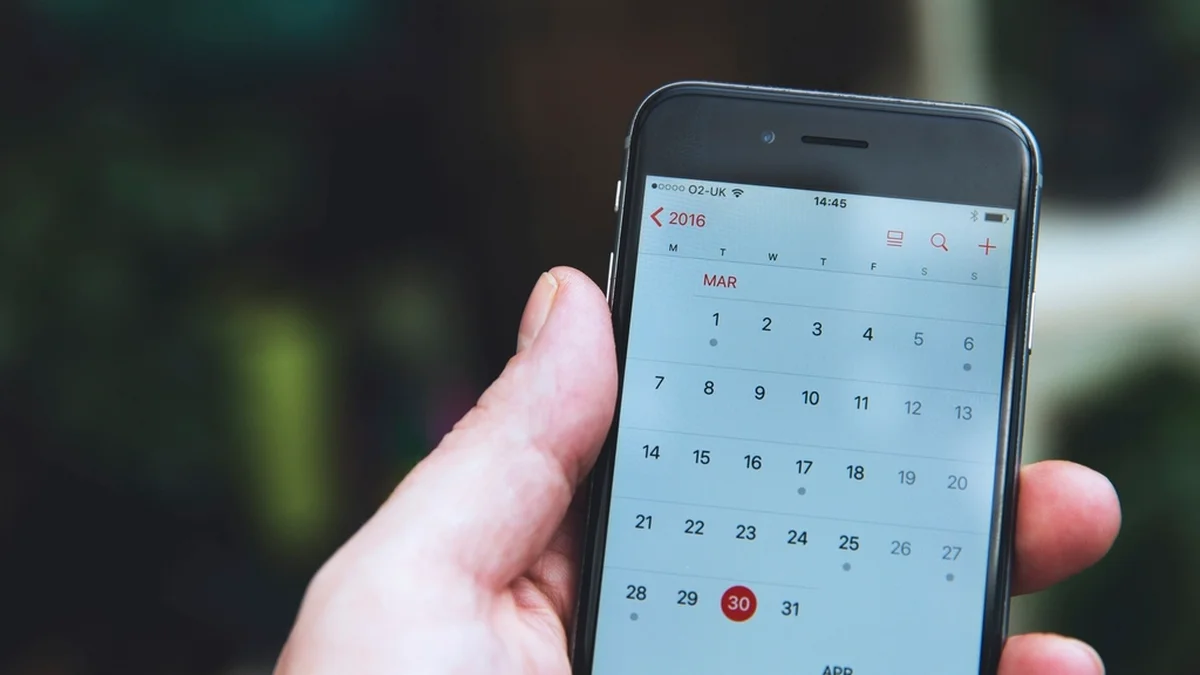
A missed appointment costs a service business twice: the empty slot earns nothing, and the time spent chasing the customer cannot be recovered. Most no-shows are not deliberate. People forget, lose the confirmation email, or mean to cancel and never get round to it. An automated reminder system fixes the forgetfulness without adding to the reception workload.
Automating reminders means setting up messages that go out on their own, at times you choose, through the channels your customers actually read. A text the day before and an hour before, an email with the details and a reschedule link, and a confirmation request the customer can answer with one tap. Once the rules are set, nobody has to remember to send anything, and nobody has to phone tomorrow’s customers at the end of the day.
This guide walks through the setup step by step: choosing channels, setting timing, writing messages people act on, adding rescheduling, connecting everything to the booking calendar, and testing it before it reaches real customers. If you are still deciding on the booking tool, start with our explainer on what appointment scheduling software is, which covers how booking, calendars and reminders fit together.
Key takeaways
- Text messages get read far more reliably than email, so SMS should carry the reminder that matters most, with email as the detailed backup.
- Two reminders work best for most businesses: one the day before and one an hour or two before the appointment.
- Every reminder should let the customer confirm, cancel or reschedule in one tap, or the slot stays blocked when plans change.
- Reminders only work when they pull live data from the booking calendar, so a changed booking must update the reminder automatically.
- Test the full sequence on your own phone before switching it on, including what happens when a customer replies, cancels or does nothing.
Step 1: Pick the reminder channels your customers actually read
The first decision is where the reminders go. Email is cheap and holds detail, but it is easy to miss: it lands in a crowded inbox and many people only check it at a desk. Text messages are the opposite. They arrive on the lock screen and get read within minutes. For a reminder whose whole job is to be seen in time, that difference matters more than any feature list.
Most businesses use both, with a clear division of labour. Email carries the full confirmation straight after booking: the service, the date and time, the address, what to bring, and the cancellation policy. Text carries the short reminders closer to the appointment: the time, the place, and a confirm or reschedule link.
Step 2: Set the timing that cuts no-shows without annoying people
Timing is where most reminder setups go wrong, usually by sending too much or too little. One reminder is rarely enough: a single message the day before is easily forgotten by the morning. Three or four messages feel like spam, and customers start ignoring them, which defeats the purpose. For most service businesses, two reminders hit the balance.

The first reminder should go out the day before, late morning or early afternoon, when people are planning tomorrow. It needs to arrive early enough that a customer who cannot come still has time to cancel and let the slot be rebooked. The second should arrive one to two hours before the appointment, short and practical: the time, the address or link, and nothing else.
Step 3: Write reminders customers can act on in one tap
A reminder fails if the customer reads it and still does nothing, so every message should make the next step obvious. Put the appointment time and date in the first line, not buried after a greeting. Name the service and the business, so the message makes sense on a lock screen without opening it. Then give one clear action: confirm, reschedule, or cancel.
Keep the wording short and plain. “Reminder: haircut with Anna, tomorrow at 10:30am at 14 High Street. Reply YES to confirm or tap here to reschedule.” That is the whole message, and it works because nothing in it needs thinking about. Avoid jargon, avoid long policy text in a text message, and avoid sending reminders that look like marketing. A reminder that opens with a discount reads as advertising, and customers treat it that way.
Step 4: Add confirmation and rescheduling links
The most valuable part of an automated reminder is not the message itself but what the customer can do with it. A confirm button turns a vague intention into a commitment: the customer has said they are coming, and the business can plan around it. A reschedule link turns a cancellation into a new booking instead of a lost one, because the customer picks another time while the appointment is still on their mind.
Set up the reply options so they need no account and no password. A text reply of YES, a tap on a confirm link, or a reschedule page that shows the next free slots are all fine. What does not work is a link that asks the customer to log in to an account they set up once and forgot. Test the links on a phone you do not use for work, because that is the closest test to a real customer’s experience.
Step 5: Connect reminders to the booking calendar
Reminders that run from a separate list will eventually send the wrong message to the wrong person, because the list and the diary drift apart. The reminder system must read from the same calendar the bookings live in, so a moved appointment moves its reminders with it, and a cancelled booking cancels its reminders too.
In practice this usually means using the reminder features inside the booking tool itself, rather than a separate messaging app. Booking tools that include reminders send them from the booking record, which is why the details stay accurate. Our roundup of the best appointment scheduling software compares the tools, and it is worth checking whether reminders are included in the plan or charged as an extra. Entry plans for small businesses commonly start from around $10 to $30 a month, with text credits sometimes billed separately, so check current pricing before you commit.
Step 6: Test the whole sequence before it goes live
Testing takes an afternoon and saves a week of confused customers. Book a test appointment under your own name and phone number, for each service type the business offers, and watch the whole sequence arrive. Check the confirmation email, the day-before text, and the hour-before text. Check the time, the date, the address, the staff name, and every link.
Then test the replies. Confirm one booking by text, reschedule another through the link, and cancel a third. Check that the diary updates in each case, that the freed slot appears as available again, and that no further reminders go out for the cancelled booking. Test the edge cases too: a booking moved to a different day, a booking made less than a day ahead, and a customer who replies with something unexpected, such as “running ten minutes late”.
Troubleshooting: when reminders go wrong
The most common failure is a reminder that never arrives. The usual cause is a wrong or outdated phone number, often from a booking taken by phone and typed in by hand. Ask for the number at booking and read it back. If texts arrive late, the cause is often a reminder tool that sends in batches rather than at the scheduled time, so check that before blaming the network.
Duplicate reminders usually mean two systems are sending at once: the booking tool and a separate reminder app, or an old manual routine that nobody switched off. Turn off every reminder source except one, and keep a written note of which system owns reminders, so a new member of staff does not switch a second one on. Reminders sent for cancelled appointments mean the cancellation did not reach the reminder system, which points back to the calendar connection in step five.
| Detail | What works |
|---|---|
| Main channel | Text message for the reminder, email for the full confirmation |
| First reminder | The day before, late morning or early afternoon |
| Second reminder | One to two hours before the appointment |
| Long appointments | Add a reminder three days before, to allow rebooking |
| Every message | Time, service and business name first, then one clear action |
| Replies | Confirm, reschedule or cancel in one tap, with no login needed |
| Biggest risk | Reminders sent from a list that no longer matches the diary |
Checklist: before you switch automated reminders on
Run through these checks with the team before the first real reminder goes out.
- Reminder channels are chosen by what customers read, with text carrying the time-critical message.
- Two reminders are set: the day before and one to two hours before, adjusted for early and long appointments.
- Every message shows the time, service and business name first, with a confirm or reschedule action in one tap.
- Rescheduling works without a login, and a freed slot appears as available again straight away.
- Reminders pull live data from the booking calendar, so moved and cancelled bookings update automatically.
- The full sequence has been tested on a real phone, including confirm, reschedule, cancel and no reply.
- Someone on the team owns reminders, and knows which system sends them and how to switch them off.
Frequently asked questions
How many reminders should I send before an appointment?
Two works for most businesses: one the day before and one an hour or two before. Add a third, three days before, only for long or high-value appointments that are hard to rebook.
Are text reminders better than email reminders?
For the reminder itself, yes. Texts are read within minutes and appear on the lock screen, while emails can sit unread for hours. Email is still the right channel for the full confirmation, with the address, policy and details that do not fit in a text.
What should an appointment reminder message say?
The time, date, service and business name in the first line, then one action: confirm, reschedule or cancel. Keep it short, use the customer’s name if it is accurate, and leave policies and marketing out of the text message itself.
Can customers reschedule from a reminder?
Yes, and they should be able to. A reschedule link that shows the next free slots turns a cancellation into a new booking. Make sure it works without a login, and set a cut-off a few hours before the appointment, after which customers are asked to phone.
Do automated reminders really reduce no-shows?
They reduce the no-shows caused by forgetting, which are the most common kind. They do not fix customers who never intended to come, or bookings made with a wrong number.
What happens if a customer replies to a reminder?
Simple systems accept a YES or NO reply and update the diary. Better ones pass anything unusual, such as “running late”, to a member of staff.
For businesses that want reminders to sit alongside documents, messages and payments for each client, our guide to what client portal software is explains how a portal extends the same idea beyond booking.
The bottom line
Automating appointment reminders is a small setup job with an outsized return: two well-timed messages, sent from the live booking calendar, with a confirm or reschedule action in one tap. Get the timing right for the service, write messages people can act on without thinking, and test the whole sequence, including the replies, before real customers see it.
The payoff is measured in the diary, not in the inbox. Fewer empty slots, more cancellations that arrive in time to be rebooked, and less of the team’s day spent phoning tomorrow’s customers.

