

How to Automate Shipment Tracking Updates With AI
Automating shipment tracking updates with AI means your customers hear about their parcel before they have to ask. Software watches the parcel, works out what has changed, and sends the right message at the right moment, so your team gets fewer “where is my order?” messages and nobody has to babysit the tracking page all day.
Tracking questions are the most common messages a shop receives after the sale, and the answers are usually the same handful of sentences. Automation takes over that repetitive part, while your team keeps the conversations that need a human.
This guide covers outbound tracking updates only: where a parcel is, when it will arrive, and what happens when plans change. Returns run on a different flow; our guide on how to automate returns processing with AI covers that job separately.
Key takeaways
- Automate the routine updates first: shipped, out for delivery, delivered, and delayed cover almost all messages.
- Write your message templates before you buy any tool, because the AI can only send messages you have actually approved.
- Send delay alerts early: a customer told in the morning is far calmer than one who finds out in the evening.
- Let the system handle routine statuses and send only failed deliveries, lost parcels, and angry customers to a human.
- Check the automation daily in the first week: one wrong rule can send hundreds of confusing messages.
Shipment tracking updates at a glance
| Detail | What to know |
|---|---|
| What it does | Watches parcel scans and sends proactive status messages |
| Best first step | List the tracking questions your team answers most often |
| Biggest time saver | Automatic “out for delivery” and “delivered” messages |
| Biggest risk | A wrong rule sending delay alerts for parcels that are fine |
| What stays human | Lost parcels, failed deliveries, and upset customers |
| Typical cost | From around $29 a month or per shipment; check current pricing |
Step 1: Map how tracking updates work today
Start with what your team actually does when a customer asks about a parcel. Pull the last month of tracking questions and sort them: “has it shipped?”, “when will it arrive?”, “it says delivered but I have nothing”, and “it has not moved in days”. Count each group. Most shops find that two or three question types cover most of the volume, and those are the updates worth automating first.
Step 2: Decide which updates to automate
Not every tracking event deserves a message. Customers want to know four things: that the parcel has shipped, that it is out for delivery, that it has arrived, and when something has gone wrong. Messages for every depot scan just train customers to ignore you. Pick the events that change what the customer should do or expect, and leave the rest silent.
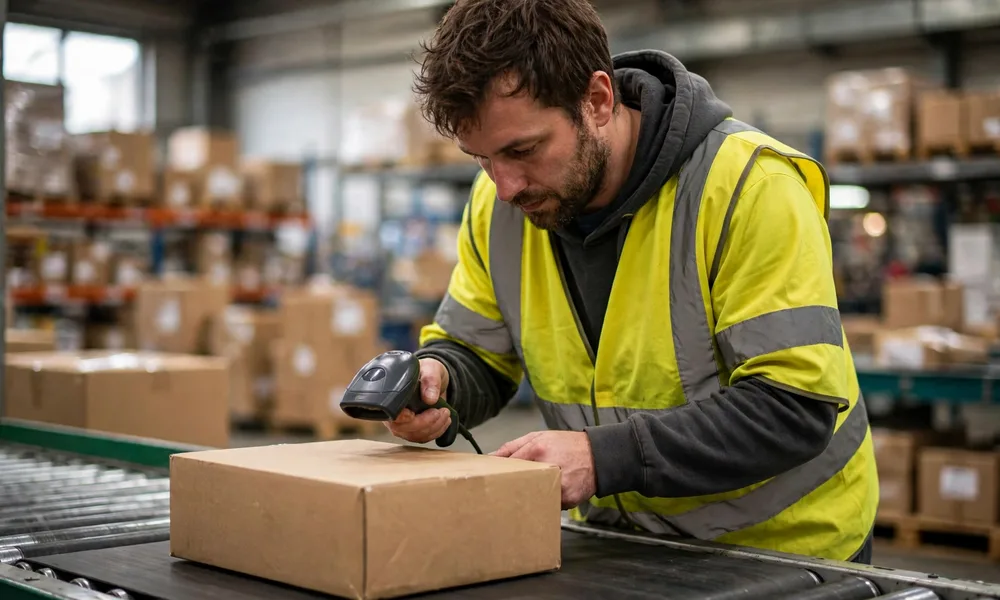
A typical starter set is: order shipped with tracking link, out for delivery on delivery day, delivered confirmation, delay alert when the parcel misses its expected date, and failed delivery attempt with the next steps. Also decide what the automation must never do: promise a date the carrier has not confirmed, mark a parcel delivered before the carrier scan says so, or message customers in the middle of the night.
Step 3: Pick a tool that fits your carriers and channels
With your update list in hand, choosing software gets much simpler. The first question is whether it connects to the carriers you actually use, because a tracking tool that cannot read your carrier’s feed is just another inbox. Check each carrier by name, and ask how often the tool pulls fresh scans. A feed that updates once a day cannot send a same-morning “out for delivery” message.
The second question is where the messages go. Email works for most shops, but SMS and messaging apps get read faster, so pick a tool that sends on the channels your customers use. If you run a delivery fleet of your own, look at the wider picture too: our roundup of the best software for trucking companies in 2027 covers tools that handle dispatch and fleet tracking alongside customer updates. Finally, check pricing at your real volume: many tools charge per shipment or per message.
Step 4: Connect your store, carriers, and order data
Once you have chosen a tool, connect it to your store and let it pull in recent orders, tracking numbers, and customer contact details. Check the data as it arrives: order numbers, delivery addresses, and phone numbers should all match what your shop shows. Fix wrong phone formats in your shop, not in the tracking tool, or SMS updates will fail silently.
Next, connect each carrier and confirm that tracking scans flow through. Pick a few live parcels at different stages and watch the tool pick up each scan, then compare what it shows with the carrier’s own tracking page: the status, the time, and the location should agree. Set time zones correctly too: a delivery estimate in the wrong zone is a delay alert waiting to happen.
Step 5: Write the messages customers actually want
A good tracking message answers three questions in two sentences: where is the parcel, when will it arrive, and what should the customer do next. Write each template in plain language, in your shop’s voice, and read it aloud before you approve it. If it sounds like a robot wrote it, rewrite it. Customers forgive a short delay, not a message that reads like a machine wrote it.
Every message needs the same building blocks: the order number, a tracking link, the expected delivery date, and a way to reach a human. The tracking link matters most, because it stops the customer asking for it. If you want a deeper look at building tracking into a wider automated flow, our guide on how to build an AI agent for order tracking shows how the pieces fit together.
Delay messages deserve the most care. Say what happened, what happens next, and when you will update them again. “Your parcel is delayed because of bad weather in the north. It is now expected on Thursday, and we will message you again if that changes.” That gives the customer a date to hold on to. Never blame the carrier by name, and never promise a new date you have not confirmed.
Step 6: Set delay and exception rules
Rules are what turn a tracking feed into useful messages, and they need to be written before you switch anything on. Start with the delay rule: a parcel counts as delayed when it has not moved for a set time, or its expected date has passed without a delivery scan. Pick numbers that fit your carriers. A parcel that normally takes three days should not trigger a delay alert after one quiet day.
Then set the exception rules. A failed delivery attempt should trigger a message with redelivery or collection options within the hour. A parcel marked delivered that the customer says never arrived should go straight to a human, with the tracking history attached, because an automated reply then feels like a brush-off. Flag parcels with no scan for several days so your team chases the carrier before any customer asks.
Step 7: Test with real parcels before you switch it on
Testing with made-up data proves nothing. Run it in test mode, or on a small group of real orders, and follow every message it sends. Check that each message goes to the right customer, at the right time, with the right parcel details. Check the timing too: an “out for delivery” message that arrives after the parcel does is worse than no message at all.
Step 8: Go live and watch the first week
Switch the automation on in stages rather than all at once. Start with the safest messages, usually shipped and delivered, and add out-for-delivery and delay alerts a few days later once the first two are working. Tell your team the switch-on date, so a customer who rings about a message gets a helpful answer.
Troubleshooting: when tracking automation goes wrong
If customers report updates for the wrong parcel, stop the automation and check the order matching first. The usual cause is a tracking number attached to the wrong order, or two orders sharing one tracking number after a split shipment. Fix the data, resend the correct message by hand, then switch it back on.
If delay alerts go out for parcels that arrive on time, your delay rule is too tight. Widen the quiet period before an alert fires, and check whether one carrier’s feed is slower than the others. A late feed makes every parcel from that carrier look delayed, so the fix may be a carrier-specific rule.
If messages stop arriving altogether, check the connection in this order: the carrier feed, the store connection, and the message channel. Feeds break most often, so build a daily check that confirms at least one fresh scan arrived in the last few hours. And if customers say the messages are confusing, do not rewrite the rules first: rewrite the words.
Checklist: before you automate tracking updates
Use these checks before you switch any tracking automation on.
- Your most common tracking questions are counted and ranked by volume.
- Your update list covers shipped, out for delivery, delivered, delayed, and failed delivery, and nothing else.
- Every carrier you use is connected and its feed updates often enough for same-day messages.
- Every template answers where the parcel is, when it arrives, and what the customer should do next.
- Delay and exception rules are written down, with a named person for each exception.
- Test messages have been checked on real parcels, including the awkward cases.
- Your team knows the switch-on date and what to tell customers who ring about a message.
- A daily feed check catches a dead carrier connection within hours, not days.
Frequently asked questions
What is the difference between tracking automation and a tracking page?
A tracking page waits for the customer to come and check it. Tracking automation sends the update without being asked, which is why it cuts support messages.
Do customers actually want automated tracking messages?
Yes, when the messages are short, accurate, and on time. Customers dislike messages that arrive late, repeat the same status, or promise dates that turn out to be wrong.
How much does it cost to automate shipment tracking updates?
Most tools start from around $29 a month or charge per shipment. Check current pricing at your real parcel count before you sign up.
Can AI tracking updates work with more than one carrier?
Yes, and most shops need it to. The tool pulls scans from each carrier into one feed and sends the same style of message whichever carrier holds the parcel. Check each carrier by name before you buy.
What happens when a parcel goes missing?
The automation should flag the parcel for your team and tell the customer you are looking into it, with a date for the next update. Lost parcels are a human job.
Will automation stop customers from contacting us?
It will cut the routine questions sharply, usually by half or more once it is running well. It will not stop the hard ones: a customer with a missing parcel wants a person, not another status message.
The bottom line
Automating shipment tracking updates with AI is a small job with an outsized payoff: fewer repetitive questions, calmer customers, and a team that spends its time on the parcels that genuinely need help. What matters is the preparation: counting your questions, choosing the updates worth sending, writing honest messages, and setting rules that fail gracefully.
Start with the shipped and delivered messages, add delay alerts once the basics are steady, and review the rules every month. The parcels keep moving either way; the difference is whether your customers hear it from you first, or have to ask.


