To reset iPhone, first decide which kind of reset you need, because the word covers four very different things. A soft reset simply restarts the phone and deletes nothing. A factory reset, called Erase All Content and Settings, wipes every photo, app, message and account and returns the phone to its factory state. Between them sit smaller resets for network settings, keyboard dictionary, home screen layout and location privacy, which fix specific problems without touching your data.
Most iPhone problems do not need a factory reset at all. A frozen screen, a crashing app, Wi-Fi that will not connect or a phone that feels slow after an update will usually be fixed by a restart, a settings reset or a software update. A factory reset is the right move when you are selling or giving the phone away, when a serious fault survives everything else, or when you want a clean start. The steps below work on iPhones running iOS 26 in 2026, including the iPhone 17 range, and on older models back to the iPhone 8.
This guide walks through each reset in order, from the safest to the most destructive, so you can stop at the mildest one that fixes your problem. Read the backup warning before any factory reset: erasing is permanent once it starts.
Key takeaways
- A soft reset restarts your iPhone and deletes nothing, so always try it first.
- A factory reset erases everything permanently, so back up your iPhone before you start.
- Reset All Settings fixes many faults while keeping your photos, apps and files.
- You need your Apple Account password to sign out and to switch off Activation Lock before erasing.
- If the screen is frozen or the phone will not turn on, recovery mode on a computer can still restore it.
At a glance: which reset do you need?
| Reset type | What it erases | When to use it | Time needed |
|---|---|---|---|
| Soft reset (force restart) | Nothing | Frozen screen, crashing app, sluggish phone | About 2 minutes |
| Reset All Settings | Settings only | Odd behaviour after an update, settings conflicts | About 5 minutes |
| Reset Network Settings | Wi-Fi, mobile and VPN settings | Wi-Fi, Bluetooth or mobile data problems | About 5 minutes |
| Erase All Content and Settings | Everything | Selling the phone, serious fault, clean start | 15 to 30 minutes |
| Recovery mode restore | Everything | Phone will not start, forgotten passcode, failed update | 30 to 60 minutes |
Step 1: Soft reset your iPhone
A soft reset, also called a force restart, cuts power to the phone and starts it again. It does not delete any data, close your accounts or change a single setting, which is why it is always the first thing to try. It clears temporary memory, stops a stuck process and reloads iOS from scratch, and that alone fixes a surprising number of problems.
On an iPhone 8 or later, including every Face ID model and the iPhone 17 range, press and quickly release volume up, press and quickly release volume down, then press and hold the side button until the Apple logo appears. The phone will take a minute or two to restart fully.
On an iPhone 7 or 7 Plus, hold volume down and the sleep/wake button together until the Apple logo appears. On an iPhone 6s or first-generation SE, hold home and sleep/wake together. If the logo does not appear after 30 seconds, charge the phone for 15 minutes and try again.
After the restart, test the problem that brought you here. If it is gone, you are done. If the phone freezes again within minutes, move on to the settings resets below.
Step 2: Factory reset your iPhone (erase all content and settings)
A factory reset wipes your iPhone completely. Photos, videos, messages, apps, accounts, passwords, health data and settings are all deleted, and the phone restarts at the Hello setup screen, exactly as it was when it was new. Do not start this step until you have a backup you have actually checked, because once the erase begins there is no way to stop it or recover the data.
Before you erase, back up your iPhone to iCloud or a computer and confirm it finished recently and includes your photos. Make sure you know your Apple Account password, and write down any two-factor codes you will need afterwards. If you are selling the phone, remove it from your Apple Account as well, so the new owner is not blocked by Activation Lock.
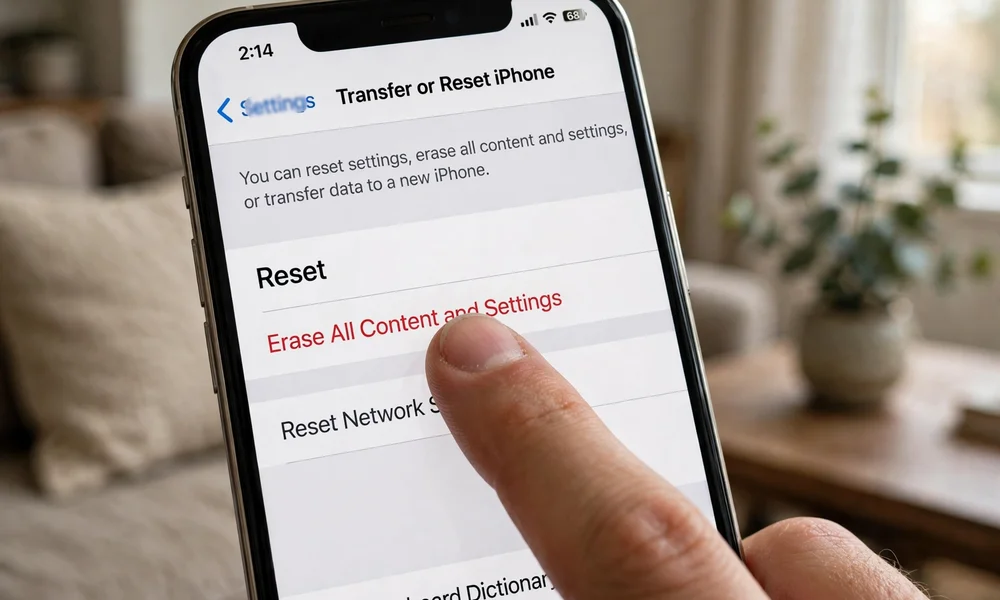
To erase the phone, open Settings, tap General, then Transfer or Reset iPhone. Tap Erase All Content and Settings, then Continue. Enter your passcode, then your Apple Account password to sign out of iCloud and switch off Find My. Tap Erase iPhone to confirm, and the phone will restart and wipe itself in 10 to 20 minutes.
When the Hello screen appears, the phone is empty. If it is your phone, follow the setup assistant and restore from your backup. If you are selling it, stop at the Hello screen and check the phone no longer appears in your Find My device list.
Step 3: Reset settings without erasing your data
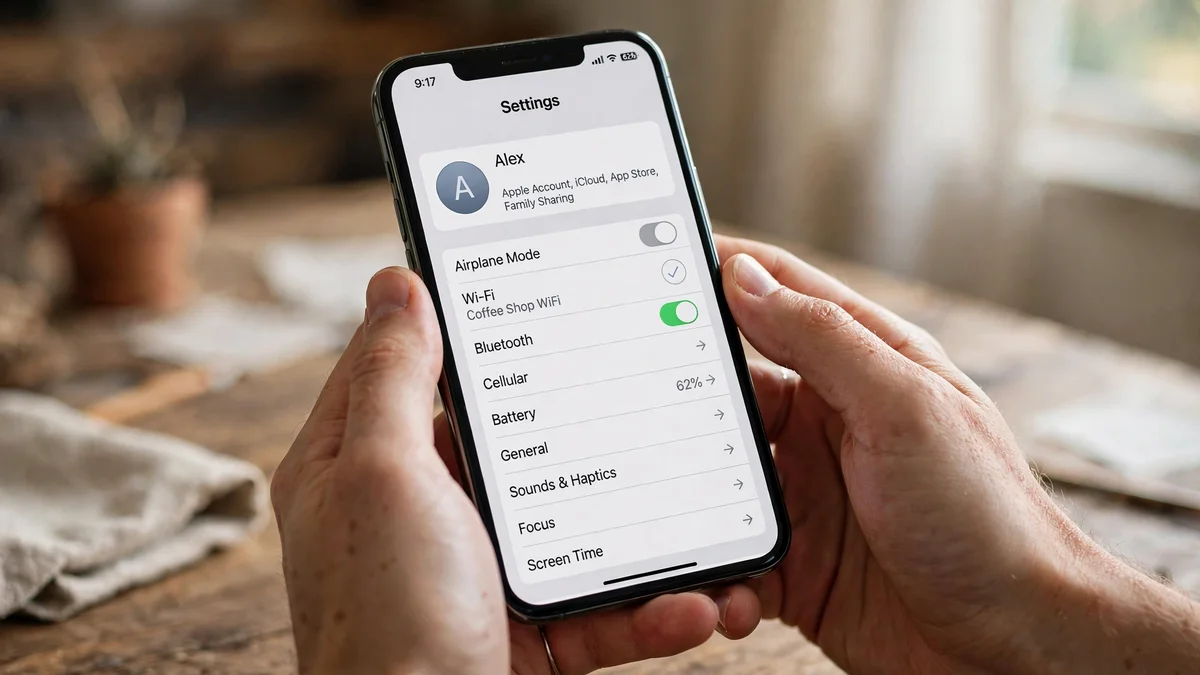
Sometimes the problem is a setting, not the phone itself. The settings resets fix that without deleting a single photo or app. Open Settings, tap General, then tap Transfer or Reset iPhone, then tap Reset. You will see a short list of options, and each one does something different.
Reset All Settings returns every setting to its factory default, including Wi-Fi passwords, wallpaper and notification preferences, while your apps, photos, messages and files stay exactly where they are. This is the best choice when the phone behaves oddly after an iOS update. You will need to rejoin your Wi-Fi networks afterwards.
Reset Network Settings is the narrower fix for connection problems. It forgets every Wi-Fi network and password, deletes VPN and mobile settings, and clears Bluetooth pairings, then restarts the phone. Use it when Wi-Fi keeps dropping, mobile data will not connect, a Bluetooth accessory refuses to pair, or a VPN will not stay connected. Rejoin your home Wi-Fi network first, then re-pair your headphones or car.
The smaller options solve single-purpose problems. Reset Keyboard Dictionary clears words your keyboard has learned, Reset Home Screen Layout restores the built-in apps to their original positions, and Reset Location and Privacy makes every app ask for permissions again.
Step 4: Reset an iPhone with a computer using recovery mode
Recovery mode is the fallback when the phone will not respond to buttons, will not turn on past the Apple logo, or you have forgotten the passcode. It lets a Mac or Windows PC reinstall iOS from scratch. You will need a computer, a charging cable and an internet connection, and the process erases the phone, so a backup matters here too if one exists.
Connect the iPhone to the computer and open Finder on a Mac, or iTunes on Windows. Then put the phone into recovery mode with the same button sequence as a force restart, but keep holding the side button past the Apple logo until the recovery mode screen appears. On an iPhone 7, hold volume down and sleep/wake together; on an iPhone 6s or earlier, hold home and sleep/wake together.
When the computer offers Update or Restore, choose Update first. This reinstalls iOS without erasing your data and fixes many failed updates and boot loops. If it fails, repeat the process and choose Restore instead, which erases the phone and installs a fresh copy of iOS. The download can take 15 to 30 minutes.
After a restore, set the phone up as new or restore from your backup. If it asks for the previous owner’s Apple Account, that is Activation Lock, and only the original owner can remove it. Never buy a phone that is still signed into someone else’s account.
Troubleshooting reset problems
If the phone will not restart at all, charge it for at least 30 minutes with a known-good cable and charger, then try the force restart sequence again. A very flat battery may not show the charging symbol for several minutes, so do not assume the phone is dead.
If the erase will not start because you forgot your passcode, recovery mode is the only route, as described in step 4, and it will erase the phone. If you forgot your Apple Account password, reset it from another device before you erase. If the phone is stuck on the Apple logo, leave it plugged in for an hour, then try recovery mode with the Update option.
If your storage is still full after a reset, wait for photos and messages to finish syncing back from iCloud, then check Settings, General, then iPhone Storage to see what is taking space, and clear the cache on your iPhone to remove temporary files. If an app keeps crashing, delete it and reinstall it from the App Store.
Checklist: before you reset your iPhone
- Back up your iPhone to iCloud or a computer and confirm the backup finished.
- Write down your Apple Account password and your passcode before you erase.
- Sign out of iCloud and switch off Find My if you are selling or giving the phone away.
- Charge the battery to at least 50 percent or keep the phone plugged in during the reset.
- Move photos, files and two-factor codes you need to another device first.
- Remove the SIM card or transfer your eSIM if the phone is going to a new owner.
Frequently asked questions
Does resetting an iPhone delete everything?
A soft reset deletes nothing. A factory reset deletes everything on the phone. Reset All Settings only deletes settings, and Reset Network Settings only deletes connection settings.
How long does a factory reset take?
The erase itself usually takes 10 to 20 minutes, and setup takes another 10 to 15 minutes. Restoring from an iCloud backup can take 30 minutes to several hours, depending on how much data you have and your Wi-Fi speed.
Can I reset my iPhone without the passcode?
Yes, but only with a computer in recovery mode, and the process erases the phone. You will still need the Apple Account password afterwards, because Activation Lock asks for it during setup.
Will a factory reset remove Activation Lock?
No. Activation Lock stays on until the owner signs out of iCloud or removes the phone from their Apple Account. A factory reset does not remove it, because it stops a stolen phone from being wiped and reused.
Should I reset my iPhone before selling it?
Yes, always. Back up your data first, sign out of iCloud, then use Erase All Content and Settings, and leave the phone at the Hello screen. Remove the phone from your Apple Account and take the SIM card out before you hand it over.
Why is my iPhone slow after a reset?
A phone is often slow for a few hours after a reset because it is downloading apps and restoring photos from iCloud in the background. Leave it plugged in on Wi-Fi overnight. If it is still slow after a day, record your screen on iPhone to capture the lag for support.
The bottom line
Resetting an iPhone is a ladder, and the right move is almost always the lowest rung that works. A soft reset fixes most freezes and crashes in two minutes and costs you nothing. A settings reset sorts out the stubborn faults that survive a restart. A factory reset is the last resort, and it demands a checked backup and your Apple Account password before you tap Erase.
If you are selling the phone, the factory reset is non-negotiable, and signing out of iCloud matters just as much as the erase. If you are keeping it, try the gentle resets first and only reach for recovery mode when the phone will not respond at all.