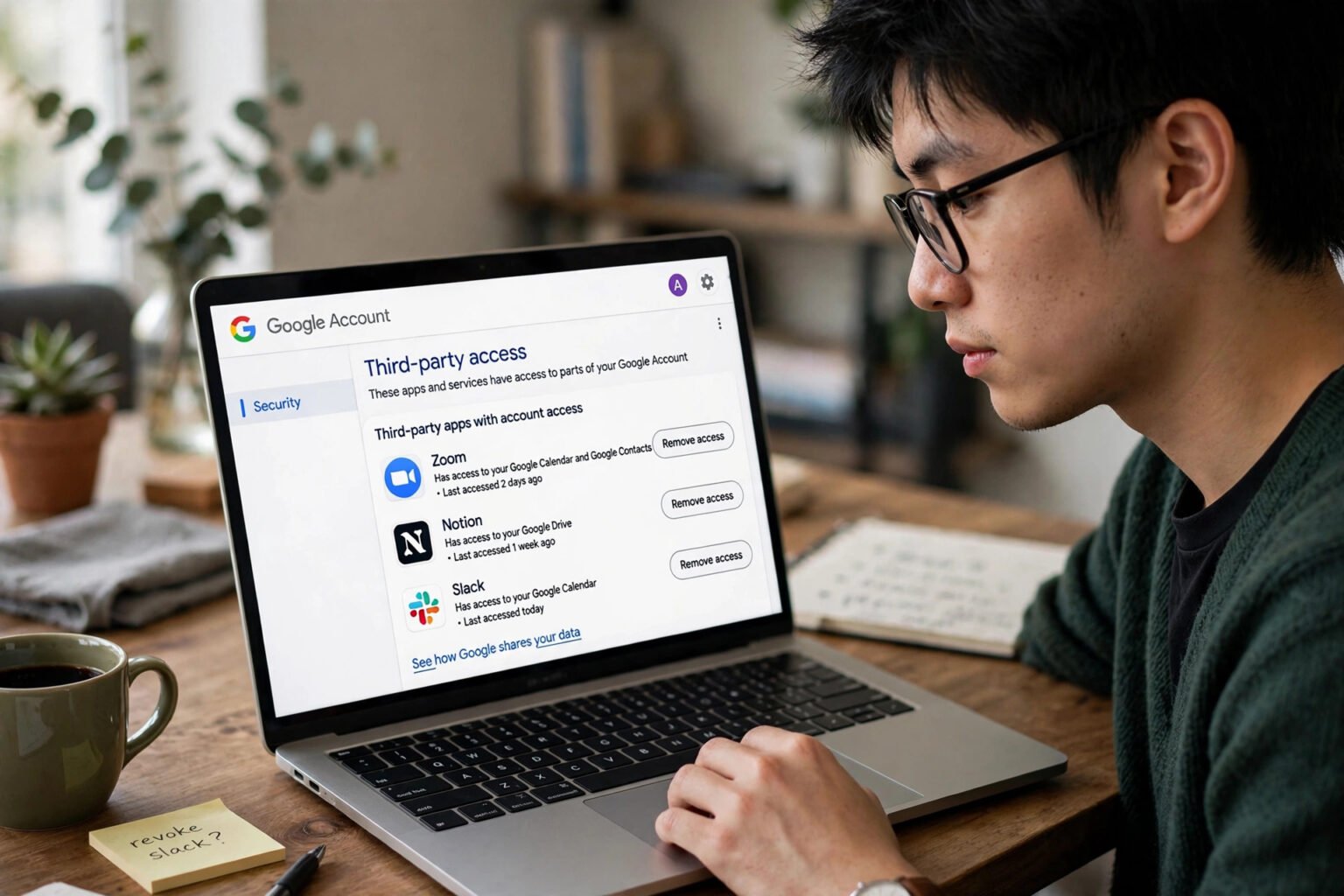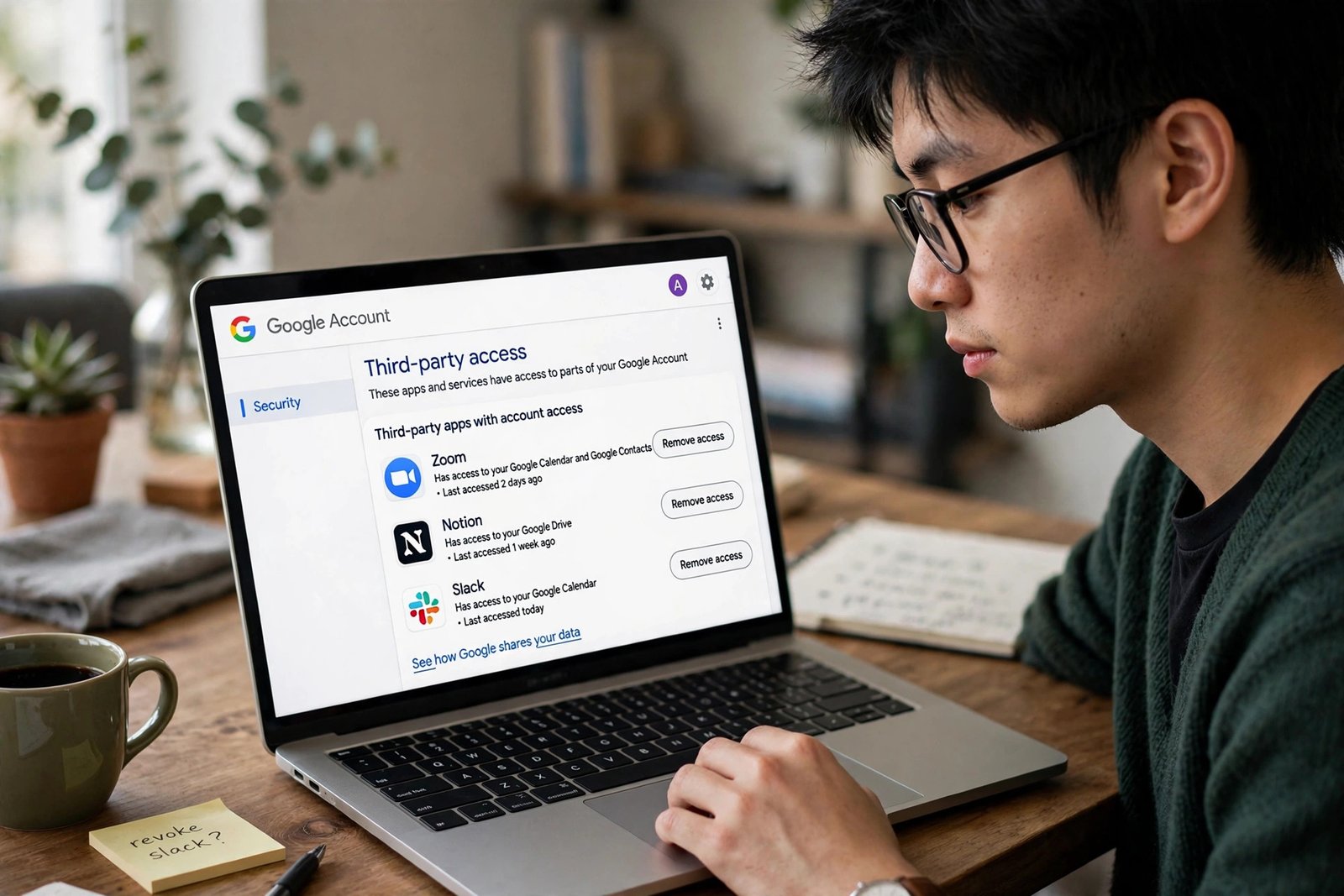
Learning how to stop AI agents accessing your email files and accounts starts with one step: find every connection you granted, then remove the ones you no longer need. You can stop an AI agent by disconnecting it inside the AI tool, revoking its permission at Google or Microsoft, and checking that no scheduled task still holds the same access.
That sounds straightforward, and each step is. The difficulty is that access is rarely held in one place: an agent can be connected in ChatGPT, authorised in Google, and given a task to watch your inbox. Removing one link may leave the others active.
Key takeaways
- Disconnect inside the AI tool, then revoke the permission at Google or Microsoft.
- Read the OAuth scopes before you allow them. "Read, compose, and send emails" is not read-only.
- Use the least access that does the job: read-only where possible.
- Revoking stops future access. It does not delete data the agent already copied.
- Never connect a work mailbox, a shared drive or a finance account to a personal AI agent without approval.
What an AI agent can actually reach once connected
An AI agent is different from an ordinary chatbot. A chatbot answers in the chat window. An agent can take multi-step actions: search your inbox, open files, check your calendar, draft replies, and, in some tools, send messages. Once you connect Gmail, the agent can generally reach what that Google account can open. OpenAI states that ChatGPT can access information needed for the supported requests you make, subject to your Google account permissions. It gets the scope you granted, applied to the whole account.
The same applies to files. Connect Google Drive and the agent may be able to search, open, create, update, share, move or delete files, depending on the scopes granted. You ask an agent to "find the invoice from last month" and it may search every folder you can open. With write access, it can also archive or trash messages.
Best for a first clean-up: start with email and files, then move on to calendar and contacts.
How OAuth permissions work
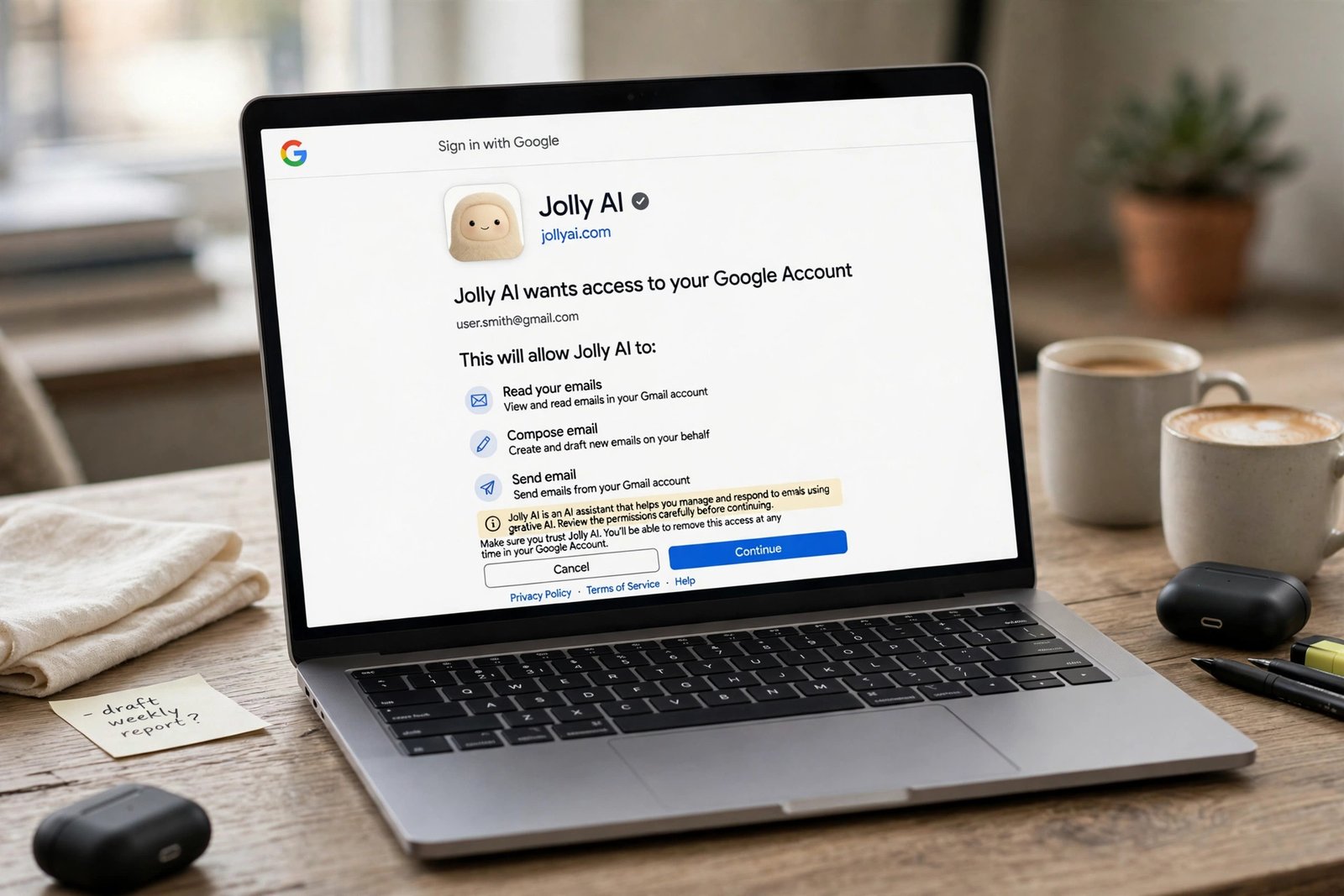
Most AI connections use OAuth, the standard that lets you grant an app access without handing over your password. When you click "Sign in with Google", Google shows a consent screen listing the permissions, called scopes, that the app requests. Clicking Allow issues a token that lets the app act within those scopes until you revoke it.
Changing your password does not normally revoke an OAuth token. Uninstalling an app or logging out of the AI tool does not reliably revoke it either. The token lives with the provider, so that is where it must be removed.
The consent screen is the contract, so read it slowly. Google describes the Gmail scope used by ChatGPT, gmail.modify, as "Read, compose, and send emails from your Gmail account". That is wide for a task that may only need reading. There is no read-only toggle in that connector, so use a custom connector scoped to gmail.readonly, or do not connect Gmail at all.
Scopes are also coarser than most tasks: the scope for creating a draft can also allow sending. If the screen asks for more than the job needs, stop.
Prompt injection makes this more important. NIST describes agent hijacking as indirect prompt injection: malicious instructions hidden in an email or a file may redirect the agent. A read-only agent can still leak data if tricked; a read-write agent can also send mail or move files. See what prompt injection is and how to avoid it.
What to allow, and what to never allow
Use this table before you connect anything.
| Permission level | What it allows | When to allow it | When to refuse it |
|---|---|---|---|
| Read-only | Search, view and summarise; no changes | Summarising your own documents | If the account holds client, legal, health or finance material |
| Draft for review | Read, then write drafts you check first | Email replies you will read first | If drafts could be sent automatically |
| Act with approval | Send, move or delete, only after you approve each action | Routine clean-up you check step by step | If prompts are easy to rubber-stamp |
| Full access | Act without asking, including sending and deleting | Almost never; only in a throwaway account | Work mail, shared drives, finance or health accounts |
Least privilege is the guide: give each agent only the minimum access it needs. OWASP puts it plainly: grant agents the minimum tools required for their specific task. If a tool will not let you narrow the permission, use a separate account or a short extract. That approach is covered in how to use AI safely at work without sharing private data.
Review and revoke access in Google
Google keeps third-party access at myaccount.google.com/connections, also reached through your Google Account, then Security, then "Your connections to third-party apps & services".
- Open the connections page. Go to myaccount.google.com/connections and sign in. Repeat for each Google account.
- Read the list. "Sign in with Google" usually means the app can identify you. "Access to your Google Account" can reach Gmail, Drive, Calendar, Contacts or Photos, including editing or deleting them.
- Click each app, then See details. Google shows the permissions and the date granted. Look for "read, compose, and send" and "see, edit, create, and delete".
- Remove anything you do not recognise or no longer use. Select Remove access, or Delete all connections, and confirm.
- Check agent access and Drive apps separately. For agent access, choose Stop using. In Drive, go to Settings, then Manage apps, and choose Disconnect from Drive.
- Check the AI tool as well. In ChatGPT, go to Settings, then Apps or Plugins, select the Google app and choose Disconnect. OpenAI states that disconnecting does not automatically delete existing chats or saved memories.
Revoking stops future access, but it does not erase data the service already copied. Contact the developer to ask for deletion.
Review and revoke access in Microsoft, Apple and other accounts
Microsoft keeps personal-account permissions at account.microsoft.com, under Privacy, then "Apps and services that can access your data". Open the list, select Edit on an app, and choose Remove these permissions. Uninstalling an app is not the same action. For a work or school Microsoft account, some grants may have been approved by an administrator, and only an administrator can revoke them. If you see an app you do not recognise on a work account, report it to IT.
Apple keeps a similar list for Sign in with Apple and iCloud data: on iPhone, go to Settings, tap your name, then Sign-In & Security, then Sign in with Apple. Slack, GitHub, Notion and Dropbox each have a connected-apps page. If you connected the same agent to several services, revoke it in each one.
Read-only versus write access
Read-only access is the safest useful level for most people. It lets an agent search, view and summarise without changing anything: enough for finding a document, summarising a thread, or drafting a reply you will send yourself.
Write access changes the risk. The agent can send as you, archive or delete mail, move or share files, and change settings. If you need write access, keep it narrow and short-lived: connect it for one task, approve each action, then disconnect it.
Scheduled tasks deserve a separate check. Some tools run a task when a new email arrives, or at a set time each day. That task may keep watching your inbox after you have stopped using the agent, so delete any task you no longer need.
Best for most people: read-only access to one personal account, drafts for review, and no write access to a work mailbox.
What to never connect to a personal AI agent
Some accounts should not be connected to a personal AI agent at all, even with read-only access. The risk is not only what the agent might do, but what it might read, remember or pass on.
- Never connect a work or school mailbox without your organisation’s approval.
- Never connect a shared Drive or team workspace that holds other people’s data.
- Never connect a password manager, a finance or banking app, a tax account, a health record or a legal case file.
- Never connect an admin account for a website or cloud console.
If the work needs AI help, use a copy, an extract or a redacted version instead. Uploading a full document carries its own risks, as explained in is it safe to upload documents to AI chatbots. Replace names with roles and account numbers with placeholders. If the full file is needed, use the work-approved tool.
The same caution applies to new agents that promise to "read everything and do everything". A new tool with no track record and a request for full Gmail and Drive access is a wide-open door. Decline it.
A monthly check you can finish in ten minutes
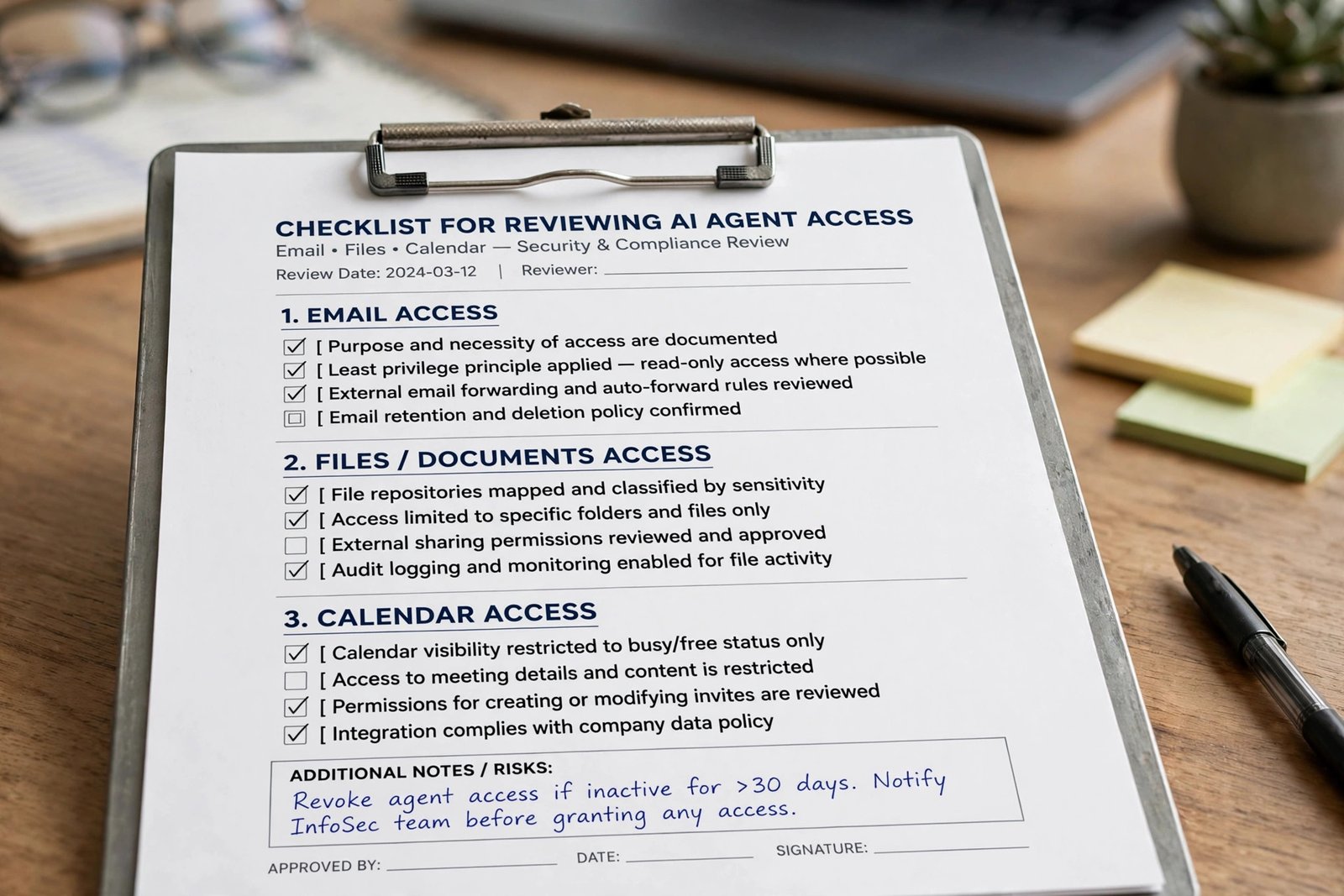
Use this checklist once a month, and after any breach, new tool trial or job change.
- List every AI tool you use. Include chatbots, agents and browser extensions.
- Open Google connections and Microsoft app permissions. Remove anything you do not recognise or no longer use.
- Disconnect inside each AI tool. In ChatGPT, check Settings, then Apps or Plugins. Remove the connection there as well as at the provider.
- Delete standing tasks. Pause or delete any task that watches your inbox, calendar or files.
- Check Memory. In ChatGPT, go to Settings, then Personalization, and review Memory. Disconnecting does not delete chats or memories by itself.
- Act fast if anything looks wrong. Revoke the app, change the password, turn on two-step verification, and check recent sign-in activity. Report it to IT if it is a work account.
Keep a note of what you removed and when.
Frequently asked questions
Does deleting an AI app remove its access to my email?
No. Deleting an app does not reliably revoke the OAuth token Google or Microsoft issued. Remove the permission at myaccount.google.com/connections or account.microsoft.com, and disconnect the app inside the AI tool as well.
Does revoking access delete data the agent already copied?
No. Revoking stops future access, but it does not erase data the service already copied. Contact the developer to ask for deletion. In ChatGPT, disconnecting a Google app also does not delete existing chats or saved memories.
Can I give an AI agent read-only access to Gmail?
It depends on the tool. ChatGPT’s Gmail connector uses the gmail.modify scope, described as "Read, compose, and send emails", so there is no read-only toggle in that connector. Use a custom connector scoped to gmail.readonly, or paste a short extract instead.
How often should I check connected apps?
Check monthly, and after any new connection, breach notice or job change. Old connections are the main problem: apps you tried once and left with wide access.
What should I do if I see an app I do not recognise?
Revoke it at once, then change the password and turn on two-step verification if it is off. Check recent sign-in activity. If it is a work account, tell IT the same day.
The bottom line
Stopping AI agents is not a single setting. It is a short routine: disconnect inside the tool, revoke at Google or Microsoft, delete standing tasks, and check Memory. Start today. Open myaccount.google.com/connections, remove anything you do not recognise or no longer use, then disconnect the same app inside the AI tool. Repeating that ten-minute check monthly keeps those doors closed.