Learning how to update your drivers is one of the simplest ways to keep a Windows computer running well, and most people only need about twenty minutes to do it properly. A driver is the small piece of software that lets Windows talk to a piece of hardware, from the graphics card and the Wi-Fi adapter to the printer and the sound chip. When that software is out of date, the hardware can slow down, drop connections, or stop working altogether.
Most drivers update themselves through Windows Update, but the ones that matter most for performance, especially graphics drivers, often need a manual check. Manufacturers release new versions to fix bugs, close security holes, and improve speed in new games and apps, so a driver that is a year old can quietly hold a computer back.
This guide walks through the full process in six steps, from checking what you have installed to verifying the update worked. It covers Windows 10 and Windows 11, explains when to use Windows Update and when to go to the manufacturer, and shows what to do if an update makes things worse instead of better.
Key takeaways
- Update graphics, network, and audio drivers first, since those cause most slowdowns and connection problems.
- Always create a system restore point before updating, so you can undo a bad driver in minutes.
- Windows Update handles most drivers, but graphics drivers are usually newer on the manufacturer’s own site.
- Never download drivers from random third-party sites; use Windows Update, Device Manager, or the hardware maker.
- If a new driver breaks something, roll it back in Device Manager instead of reinstalling Windows.
At a glance: driver updates
| Method | Best for | Time needed | Difficulty |
|---|---|---|---|
| Windows Update | Most drivers at once | 10 to 20 minutes | Easy |
| Device Manager | One specific device | 5 minutes | Easy |
| Manufacturer website | Graphics and network drivers | 10 to 15 minutes | Moderate |
| Manufacturer app | Automatic graphics updates | 5 minutes after setup | Easy |
| Optional updates | Drivers Windows holds back | 5 to 10 minutes | Easy |
Step 1: Check which drivers you have installed
Before changing anything, find out what hardware your computer actually has and which driver versions are running. That way you can tell whether an update is really available and whether the new version installed correctly afterwards. Guessing wastes time and can lead to installing the wrong driver for the wrong model.
Press the Windows key and X together, then choose Device Manager from the menu. The window lists every device by category: Display adapters, Network adapters, Sound, video and game controllers, and more. Click the small arrow next to a category to expand it and see the exact device names, such as the model of your graphics card or Wi-Fi adapter.
Right-click any device and choose Properties, then open the Driver tab. You will see the driver provider, the date, and the version number. Note the version for the devices you plan to update, so you have a clear before-and-after comparison. Pay special attention to the display adapter, the network adapter, and the audio device, since those three cause the most trouble when they fall behind.
Step 2: Create a restore point before you change anything
A restore point is a snapshot of your system settings and drivers that Windows can return to if an update goes wrong. It takes about two minutes to create and it is the single best safety net in this whole guide. Skip it and a bad driver can cost you an afternoon of troubleshooting.
Open the Start menu, type “create a restore point”, and open the System Properties window that appears. On the System Protection tab, check that protection is turned on for your main drive; if it is off, select the drive, click Configure, and turn it on. Then click Create, give the point a name such as “Before driver updates”, and wait for the confirmation message.
While you are here, it is worth knowing what else affects how a computer feels day to day. If programs feel slow even after drivers are current, the amount of memory installed may be the real limit, and our guide to what RAM is and how much memory you need explains how to judge that.
Step 3: Update drivers through Windows Update
Windows Update is the safest place to start because Microsoft tests these drivers against your exact version of Windows. Open Settings, go to Windows Update, and click Check for updates. Install anything offered, then restart the computer if asked. Many driver updates arrive bundled with these regular updates and need no further action.
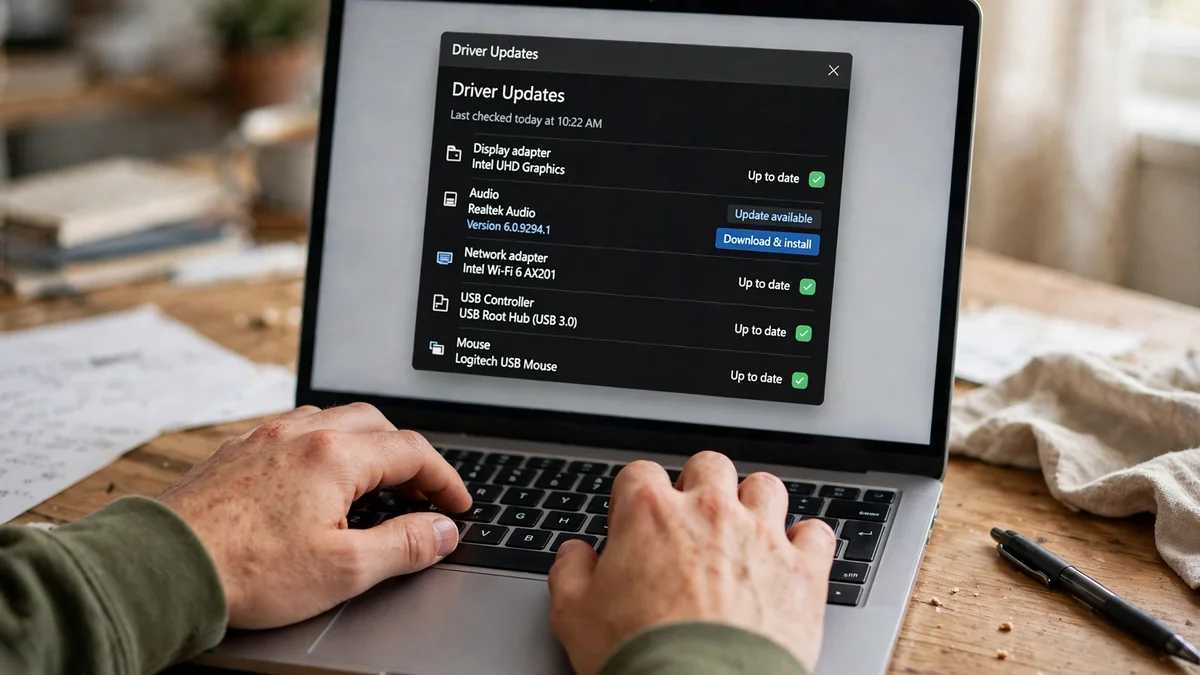
After the main updates finish, check the optional updates section, where Windows keeps drivers it does not install automatically. In Windows 11, go to Settings, then Windows Update, then Advanced options, then Optional updates, and open Driver updates. Tick the drivers you want, click Download and install, and restart if prompted.
Start with the display, network, and audio drivers, then come back for the rest.
Step 4: Update your graphics driver from the manufacturer
Graphics drivers deserve special attention because they change far more often than other drivers and bring the biggest performance gains. A new graphics driver can fix stuttering in a game, improve video playback, and repair display glitches that Windows Update has not caught up with yet. The manufacturer releases these updates directly, so its site is usually weeks or months ahead of Windows Update.
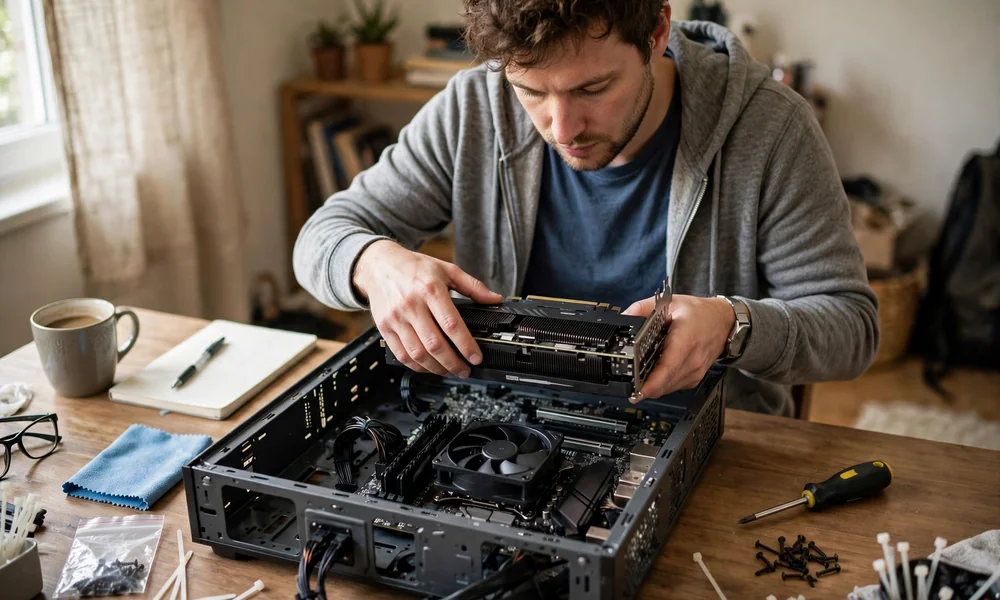
First, confirm which graphics card you have from Device Manager, under Display adapters. Then visit the support or drivers page of the card maker, such as NVIDIA, AMD, or Intel, and search for your exact model. Download only the driver that matches your card and your version of Windows. Run the installer, choose the clean installation option if one is offered, and let it finish before restarting the computer.
Some makers also offer a companion app that checks for new graphics drivers automatically and notifies you when one appears. If you play games or edit video, installing that app is worth it, since it turns this step into a one-click job next time. To understand what the hardware inside your computer does and why its driver matters so much, read our guide to what a CPU is and how it works.
Step 5: Update network, audio, and other drivers
With the graphics driver done, work through the remaining devices that affect daily use. Network drivers matter most if Wi-Fi drops, speeds are lower than expected, or Bluetooth devices keep disconnecting. Audio drivers matter if sound crackles, the microphone stops working, or headphones are not recognised. Both are worth updating at least twice a year.
For a laptop, the laptop maker’s support page is the best source, because it lists drivers tested for that exact model. Search for your model number, usually printed on a sticker on the base or shown in Settings under System and About, and download the network and audio drivers listed. For a desktop, use the motherboard or device maker’s site instead. Install one driver at a time and restart when the installer asks.
Device Manager can also update a single driver directly. Right-click the device, choose Update driver, then Search automatically for drivers, and Windows will look online for a newer version. This works well for printers, webcams, and USB devices, but it often reports that the best driver is already installed even when the manufacturer has a newer one.
Step 6: Restart and verify the update worked
Restart the computer after the last driver installs, even if no installer asked you to. Some drivers only finish loading at startup, and a restart clears out the old driver files still held in memory. Skipping it is the most common reason an update seems to have done nothing.
After the restart, open Device Manager again and check the driver version and date on each device you updated. The version number should match the one you downloaded, and the date should be recent. Then test the hardware in normal use: play a video, join a video call, connect to Wi-Fi, and print a test page. If everything works, delete nothing and keep the restore point for a week in case a problem shows up later.
If a device still shows the old version, the installer may have failed silently. Run it again as an administrator by right-clicking the installer and choosing Run as administrator. Laptop owners can also reduce wear on their hardware between updates, and our guide on how to extend your laptop battery life covers the settings that help.
Troubleshooting: when a driver update goes wrong
Most driver updates go smoothly, but a few cause new problems, and the fixes are usually quick. If the screen goes black or flickers after a graphics update, wait two minutes, then restart the computer; if the problem remains, boot into Safe Mode, open Device Manager, right-click the display adapter, choose Properties, open the Driver tab, and click Roll Back Driver.
If Wi-Fi disappears after a network driver update, the same roll-back step works for the network adapter. If the roll-back button is greyed out, uninstall the device from Device Manager, restart, and let Windows reinstall the driver it shipped with. Then download the previous version from the manufacturer and install that instead.
When Windows insists the best driver is already installed but you know a newer one exists, that message only means Windows Update has nothing newer. Download the driver from the manufacturer and install it manually. If a driver installer refuses to run, check that you downloaded the version for your exact Windows edition and that no other installer is still running.
Checklist: before you update your drivers
- Note the current driver version and date for the devices you plan to update.
- Create a system restore point and confirm it finished successfully.
- Download drivers only from Windows Update, Device Manager, or the hardware maker’s official site.
- Match every download to your exact device model and Windows version.
- Install graphics drivers first, then network and audio, one at a time.
- Restart after updating and verify each new version in Device Manager.
Frequently asked questions
How often should I update my drivers?
Check every two to three months, and check graphics drivers monthly if you play games or edit video. There is no need to update daily, and you should not install a new driver the moment it appears unless it fixes a problem you actually have.
Is it safe to update all drivers at once?
It is safe when you have a restore point, but updating one category at a time is easier to troubleshoot.
Should I use driver updater software?
Generally no. Most third-party driver updater tools bundle unwanted software, push wrong drivers, or charge for updates you can get free from the manufacturer.
Do I need to update drivers on a new computer?
Yes, check once after setup. A new computer can sit in a warehouse for months, so its drivers are often several versions behind on the day you first switch it on.
What happens if I install the wrong driver?
The device may stop working or behave oddly, but the hardware itself is rarely damaged. Roll the driver back in Device Manager, or uninstall it and restart so Windows reinstalls the correct one.
Can outdated drivers cause a slow computer?
Yes, especially graphics and storage drivers. Outdated graphics drivers cause stuttering and slow video, while outdated storage drivers can make the whole system feel sluggish when opening files and apps.
The bottom line
Updating your drivers is a short maintenance job with an outsized payoff: smoother video, steadier Wi-Fi, working audio, and fewer crashes. Start with Windows Update, check optional updates, then get the graphics driver from the manufacturer, and finish with a restart and a quick version check.