
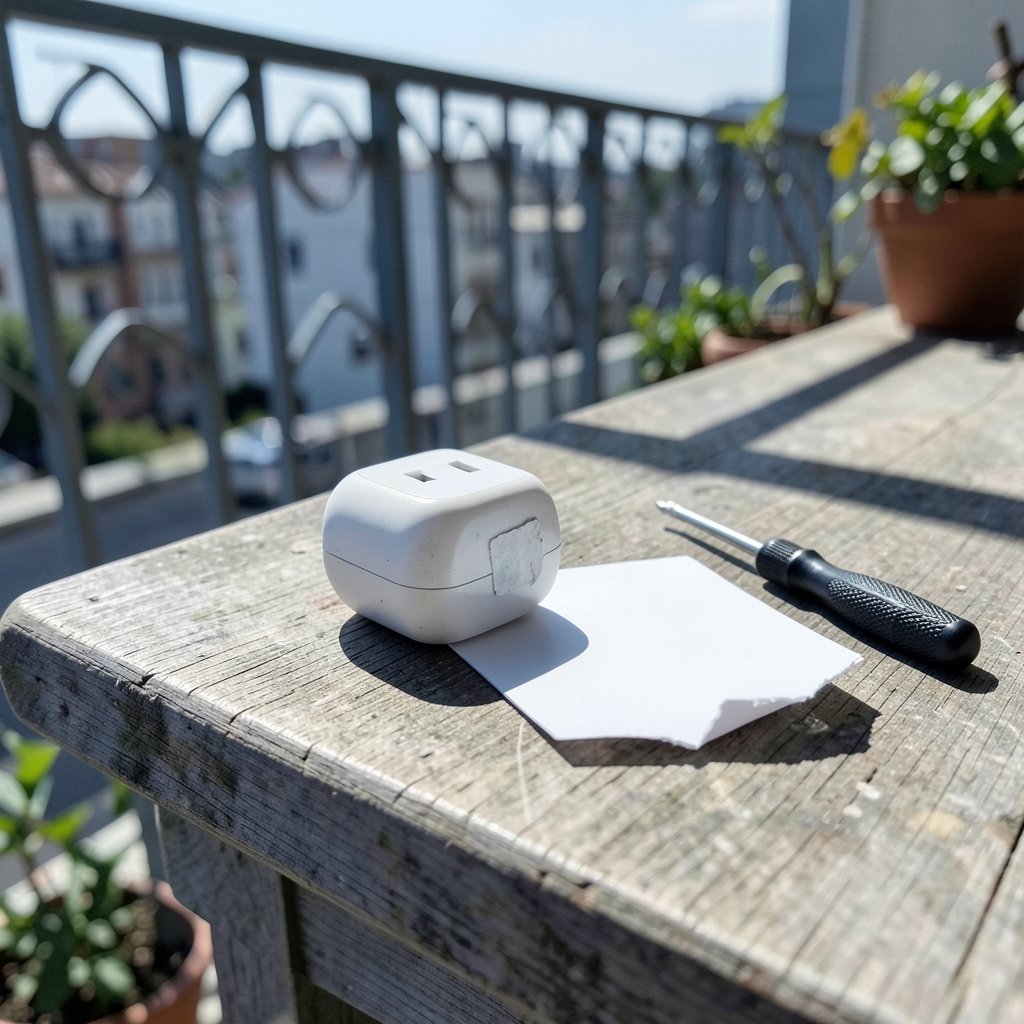
What happens when your smart home device is sitting on the shelf, you finally decide to set it up, and the little card with the Matter pairing code has vanished? Maybe the sticker peeled off. Maybe the box went out with the recycling. Maybe a toddler found the manual and turned it into origami. Whatever the reason, a lost pairing code feels like a dead end. The good news: it usually isn’t. There are several paths back to a working device, and most people give up before trying the easiest one. (Matter)
This guide walks through what the pairing code actually does, which recovery routes work in practice, and where people waste hours on the wrong fix. It also covers the mistakes that turn a 10-minute problem into a replacement purchase.
What the Matter Pairing Code Actually Does
Every Matter device ships with a setup payload: a QR code and an 11-digit manual pairing code. Both encode the same information. The code exists so a controller (Apple Home, Google Home, Amazon Alexa, Home Assistant, SmartThings) can commission the device onto a network and add it to a “fabric” — the trust group that controls it.
Here’s the key point most people miss: the pairing code is a commissioning credential, not a daily-use password. It matters at setup. Once a device is commissioned and joined to a fabric, day-to-day control runs through the fabric, not the code. If your device is already working and you’ve just lost the card, you have no problem at all. The code only becomes urgent in three situations:
- You never commissioned the device and now want to.
- You factory reset it and need to re-add it.
- You want to add it to a second platform and the first one is gone.
The Matter 1.0 specification, published in October 2022 by the Connectivity Standards Alliance, established this commissioning model. Later spec versions added refinements, but the core logic — code at setup, fabric afterward — has stayed stable. The official Matter specification) is worth a skim if you want the technical detail, though the practical advice below covers what most households actually need. (Matter (standard)))
The Easiest Fix: Check Whether You Still Need the Code
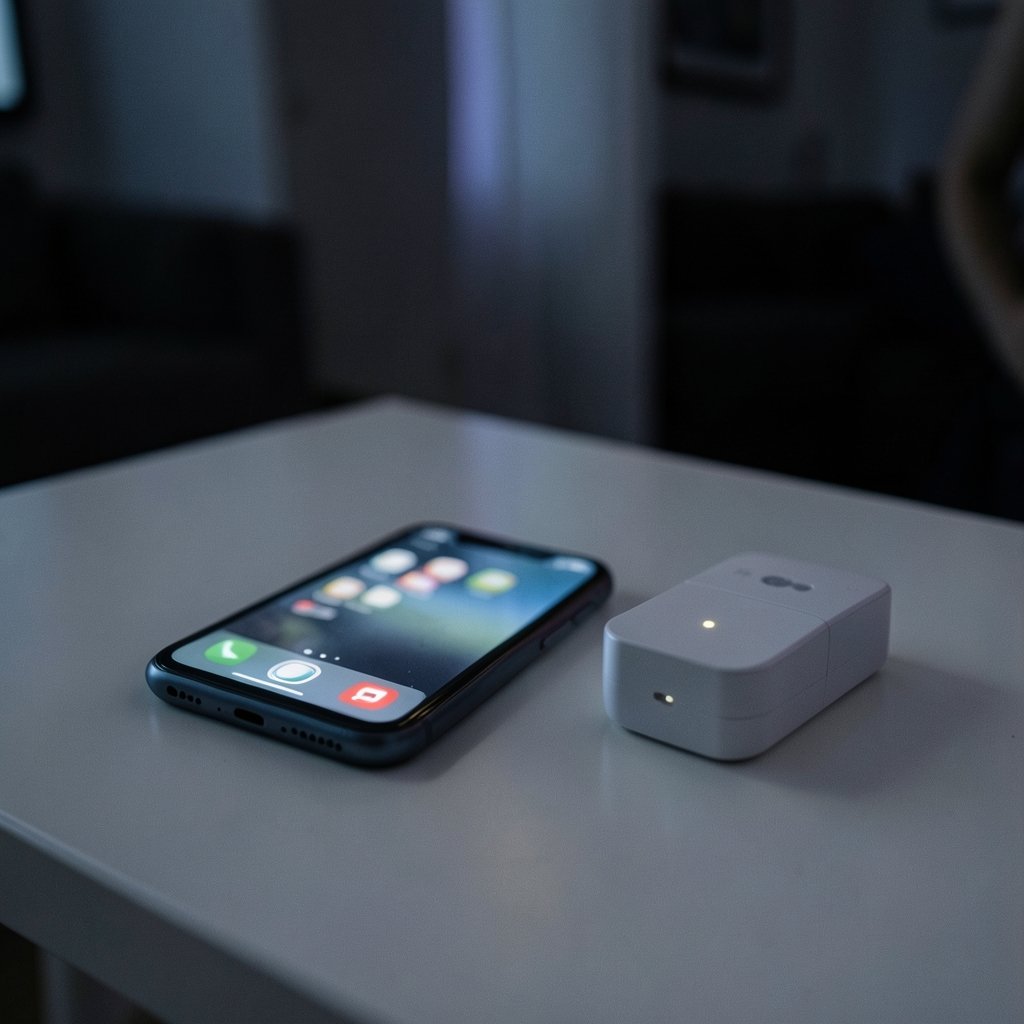
Before hunting for recovery tools, confirm the device is already commissioned. Open your smart home app and look for the device. If it’s listed and responding, stop. You don’t need the code.
If you’re adding a second controller — say the device runs in Apple Home and you want it in Google Home too — you don’t need the original code either. Use multi-admin, the Matter feature that lets an existing administrator open a commissioning window and share the device with another platform. The exact menu differs by app, but the pattern is consistent: open the device’s settings in your current app, find the option to share or add another admin, then scan the new QR code the app generates. That generated code is temporary and replaces the lost one for this purpose.
This is where a lot of frustration starts. People assume a lost card means a full reset, so they factory reset a perfectly working device and then discover they still need the original code to re-add it. Don’t reset anything until you’ve confirmed you have no other option. That single rule saves more devices than any recovery trick.
When the Device Was Never Set Up
If the device has never been commissioned, the original setup code is normally required. There’s no universal backdoor — the security model depends on it. But “normally required” isn’t “always unrecoverable.” Try these in order, cheapest first:
- Check the device itself. Many manufacturers print the QR code and manual code on the underside, back panel, or inside the battery compartment. Pull the battery tray out and look. It’s surprising how often the code is right there.
- Check the app or account. Some ecosystems and vendor apps cache the setup payload when a device is added, or display a device-specific code in the product’s settings page. Look under device details before assuming it’s gone.
- Check your purchase records. Retailer order histories, email receipts, and product registration emails sometimes include the setup code or a photo of the label.
- Contact the manufacturer. Support teams can often confirm whether your specific model supports code regeneration or a replacement onboarding path. This is vendor-specific and not guaranteed by the standard, so treat any promise as model-dependent until confirmed.
A practical tip from the field: photograph the pairing label the moment you unbox a Matter device and store it in a notes app or cloud folder. It takes 15 seconds and eliminates this entire problem class. If you’re the type who manages a lot of hardware, keeping device credentials organized pays off — the same discipline that makes a solid code editor setup useful for developers applies to smart home gear: label everything, store it where you’ll find it.
What a Factory Reset Does and Doesn’t Do
Factory resetting a Matter device returns it to a commissionable state. It clears the fabric memberships and wipes configuration. What it does not do, in most cases, is restore the printed pairing code. After a reset, the device is ready to be added again — but you still need a valid setup code to do it.
This creates a trap. A user loses the code, resets the device hoping to start fresh, and ends up with a device that’s now unconfigured and still codeless. The reset made things worse, not better.
| Situation | Is the original code needed? | Best first move |
|---|---|---|
| Device already works, card lost | No | Leave it alone |
| Adding a second platform | No | Use multi-admin sharing |
| Never commissioned, card lost | Usually yes | Check device label, app, receipt |
| Reset performed, card lost | Usually yes | Contact vendor for recovery options |
| Device shows code on screen or in app | No | Retrieve from device or app |
Only reset as a last resort, and only after you’ve confirmed a recovery path exists for your model.
Recovery Options by Device Type
Recovery is not uniform across Matter devices. Behavior depends heavily on the vendor and firmware, and claims in either direction — “the code can always be recovered” or “a lost code always means replacement” — are both overstated. Here’s a realistic breakdown.
Devices with a display or companion app. Some smart displays, hubs, and app-managed devices can display or regenerate their pairing code. If your device has a screen, dig through its settings menu before anything else.
Devices with a physical reset button and re-pairing mode. Many devices enter a pairing mode after a long button press and broadcast a new commissionable state. Whether that state requires the original code or generates a fresh one is vendor-specific. Check the manual — or the manufacturer’s support site — for your exact model.
Devices with no recovery path. Some budget devices genuinely have no way to recover a lost code. In that case, replacement is the honest answer. It stings, but it’s better than hours of fruitless troubleshooting.
If you’re weighing ecosystems and want to avoid this problem in the future, it helps to understand how different platforms handle device management. A comparison like EmuDeck 2.7 vs ES-DE 3.5 vs RetroDeck by device in 2026 shows the same principle at work in another corner of the device world: platform choice shapes how much control you keep and how recoverable your setup is.
Common Mistakes That Make It Worse
A few recurring errors account for most of the frustration in this space.
Resetting before checking. Covered above, but it bears repeating. The reset is irreversible in terms of fabric membership, and it rarely solves the code problem.
Assuming the QR code and manual code are different credentials. They encode the same payload. If you have one, you have the other — you just need a scanner that reads the QR or a way to type the 11 digits. If the QR is damaged but the digits are legible, type them manually.
Trusting a random third-party “code recovery” tool. No legitimate tool can extract a pairing code from a device you don’t control. Anything claiming otherwise is a scam or a security risk. Stick to vendor support and official platform apps.
Ignoring the second-hand market problem. Buying a used Matter device without the original code is a gamble. Ask the seller for a photo of the label before paying. If they can’t provide it, assume the device may be unusable.
Forgetting that firmware matters. Behavior added after Matter 1.0 — including enhanced commissioning features — may not apply to older devices that never received updates. Check your device’s firmware version before assuming a newer recovery method will work.
Prevention: The 15-Second Habit That Ends This Problem
The single most effective fix is prevention, and it costs almost nothing. When a new Matter device arrives:
- Photograph the QR code and manual pairing code before unboxing is finished.
- Store the photo in a labeled folder or notes app entry with the device name and purchase date.
- Register the product with the manufacturer if they offer it — registration records sometimes help support verify your ownership later.
- Keep the original packaging for the return window, then recycle it.
For households with many devices, a simple spreadsheet of device names, ecosystems, and code photos beats any app. It’s unglamorous, and it works. The same organizational mindset that makes picking the best code editor for Mac a deliberate choice rather than an accident applies here: small upfront decisions save large downstream headaches.
When to Replace Instead of Recover
Sometimes replacement is the right call. Consider it when:
- The manufacturer confirms no recovery path exists for your model.
- The device is out of warranty and a replacement costs less than the time you’d spend troubleshooting.
- The device is a used purchase with no verifiable code and no seller support.
Before you buy a replacement, check whether the model supports multi-admin sharing and code display in its app. Those two features sharply reduce the odds of landing in this situation again. Also check whether your platform has published guidance — the Matter standard’s documentation and your platform’s support pages are the authoritative sources, and they’re updated more often than forum threads.
One more angle worth mentioning: if you’re troubleshooting connectivity issues alongside the code problem, it helps to rule out network basics first. Knowing how to find your IP address on any device can confirm whether a device is even reaching your network, which separates a pairing problem from a Wi-Fi problem. And if you’re curious how modern devices handle on-device processing, what AI inference is and why it matters explains why some smart devices behave differently after firmware updates.
Conclusion
A lost Matter pairing code is a setback, not a death sentence — unless you make it one by resetting a working device. The order of operations matters: confirm the device isn’t already commissioned, try multi-admin sharing if you’re adding a second platform, check the device label and app before assuming the code is gone, and only then contact the manufacturer. Reset last, replace last.
The bigger lesson is procedural. Pairing codes are setup credentials, and setup credentials should be recorded the moment they arrive. Photograph the label, store it somewhere searchable, and the next time a device needs re-adding, you’ll spend 30 seconds instead of an afternoon. That habit, more than any recovery trick, is what keeps a smart home running smoothly.
Frequently Asked Questions
Can I recover a lost Matter pairing code?
Sometimes, but not always. Check the device label, the vendor’s app, and your purchase records first. Some devices can display or regenerate their code through an app or screen. Others have no recovery path, in which case replacement may be the only option. Recovery depends heavily on the manufacturer and firmware version.
Do I need the pairing code if my device already works?
No. The pairing code is used at commissioning. Once a device is on a fabric, daily control runs through the fabric, not the code. If your device is responding in your smart home app, losing the card changes nothing.
How do I add a Matter device to a second platform without the original code?
Use multi-admin. Open the device’s settings in the app that currently controls it, find the option to share or add another administrator, and scan the temporary QR code the app generates. That code replaces the lost one for this purpose, and you never need the original card.
Does a factory reset restore the pairing code?
Usually not. A reset returns the device to a commissionable state and clears fabric memberships, but it typically doesn’t bring back the printed code. You’ll still need a valid setup code to re-add the device, which is why resetting before confirming a recovery path often makes things worse.
Can I buy a used Matter device without the pairing code?
It’s risky. Without the original code, the device may be impossible to commission unless the seller can provide a photo of the label or the vendor offers a recovery method. Always ask for a photo of the QR code and manual code before paying. If the seller can’t provide one, assume the device may be unusable.
What should I do the moment I unbox a new Matter device?
Photograph the QR code and manual pairing code before anything else, and store the image in a labeled folder or notes app with the device name. It takes about 15 seconds and eliminates the entire lost-code problem. Register the product with the manufacturer too, since registration records can help support verify ownership later.



