
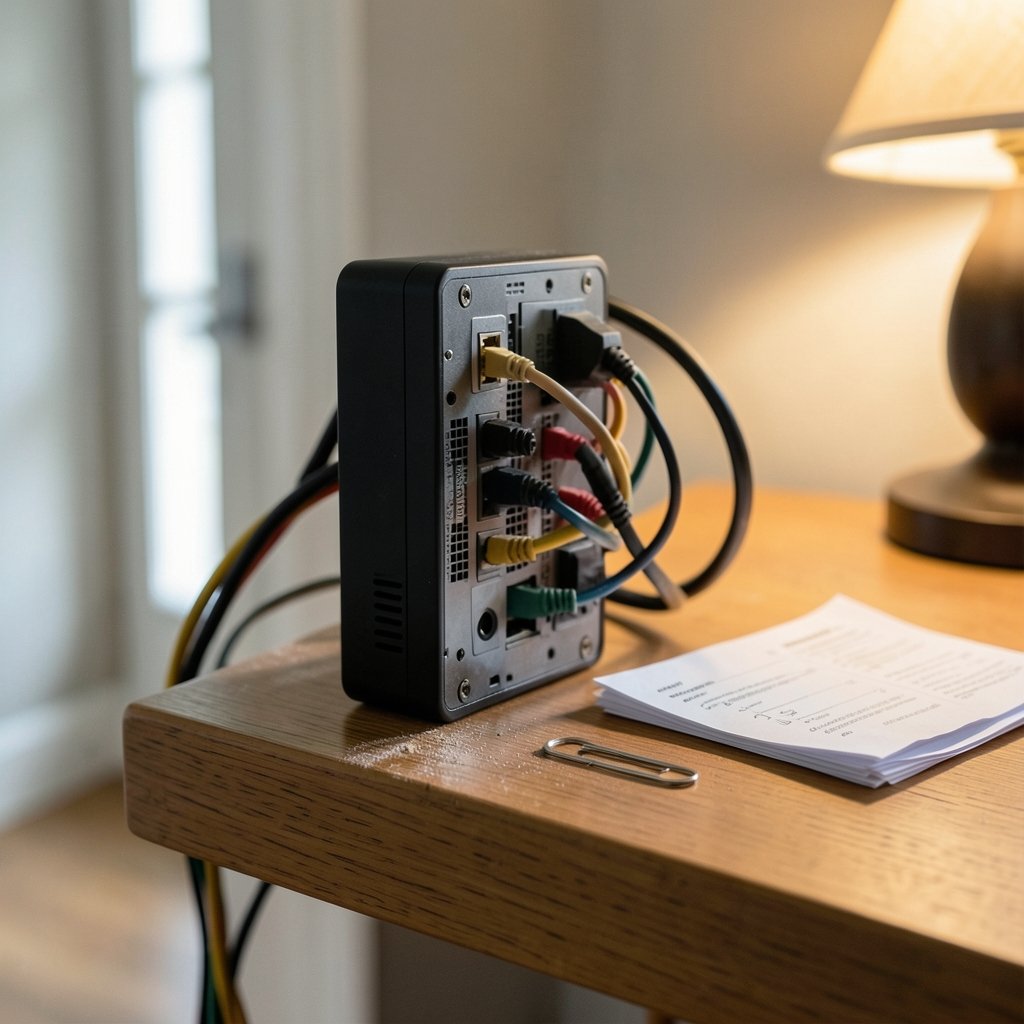
When the Wi-Fi drops for the third time during a video call, does your first instinct tell you to jab a paperclip into the back of the router and start over? That urge is understandable, but it is also how a lot of people accidentally erase their internet settings and spend an evening on hold with their provider. Resetting a router is a simple job, but there are two very different kinds of reset, and picking the wrong one turns a two-minute fix into a two-hour project. This guide walks through both, explains when each one makes sense, and covers the mistakes that trip up even careful people.
First, Know Which Reset You Actually Need
The word “reset” gets used for two operations that do not do the same thing. Mixing them up is the single most common mistake.
A soft reset is really just a reboot. You cut the power, wait, and plug it back in, or you click a restart button in the admin panel. Your Wi-Fi name, password, and provider login all survive. A factory reset wipes the device back to how it left the factory. Every custom setting disappears, including your network name, your Wi-Fi password, port forwarding rules, parental controls, and often the login details your internet provider requires.
| Feature | Soft reset (reboot) | Factory reset |
|---|---|---|
| What it does | Restarts the device | Erases all settings |
| Keeps Wi-Fi name and password | Yes | No |
| Keeps ISP login details | Yes | Usually no |
| Time to complete | About 1 minute | 15–45 minutes |
| Best for | Slow speeds, frozen pages, random drops | Forgotten admin password, selling the router, persistent firmware glitches |
The rule of thumb is simple: try a reboot first, almost every time. A factory reset is the last resort, not the opening move.
Try a Power Cycle Before Anything Drastic
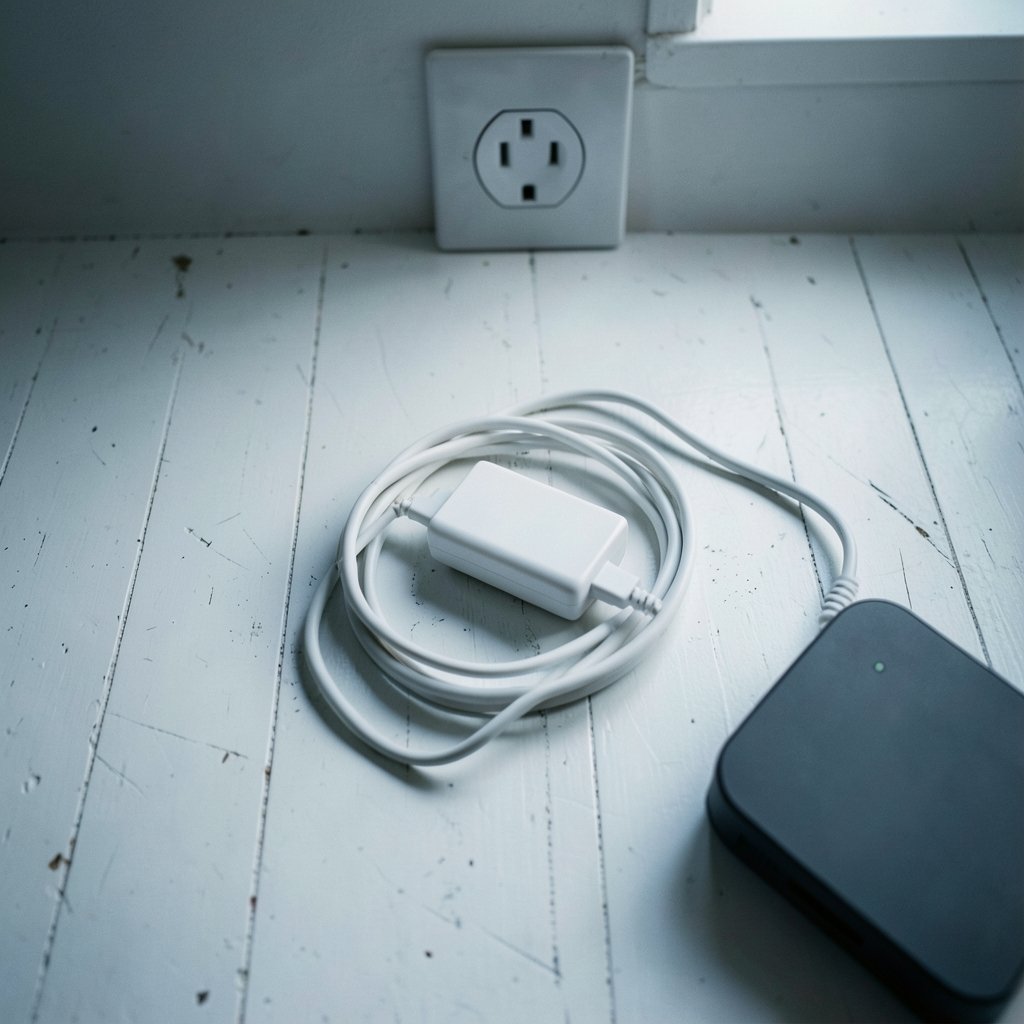
Before touching any button, unplug the router’s power adapter from the wall. Wait at least 30 seconds, then plug it back in and give it two to three minutes to reconnect. This clears temporary memory glitches and forces a fresh connection to your provider. In practice, this alone fixes a surprising share of “the internet is broken” complaints, and it costs you nothing.
If the router has a power switch, flip it off and on instead. If the device feels hot, give it a few extra minutes powered down. Heat is a quiet cause of repeated dropouts, and a router crammed into a closed cabinet will keep misbehaving no matter how many times you reset it.
For a gentler option, log into the admin page and look for a restart or reboot option in the system menu. That does the same job as unplugging, without anyone crawling behind the desk. If you cannot get past the login screen, the guide on how to log into your router settings and fix common login problems covers the usual culprits, from wrong IP addresses to forgotten passwords.
How to Do a Factory Reset Properly
When a reboot does not help, or you genuinely need a clean slate, here is the sequence that works.
- Find the reset button. It is usually a small recessed pinhole on the back or bottom, sometimes labeled Reset or Restore. Some models use a normal button you hold down instead.
- Keep the router powered on. A factory reset needs electricity. Do not unplug it first.
- Press and hold with a paperclip or SIM tool. Hold for about 10 seconds, though the exact time varies by model, commonly anywhere from 5 to 15 seconds. Watch for the lights to blink or flash all at once, which signals the wipe has started.
- Release and wait. The router will reboot on its own. Give it two to five minutes. Do not power it off mid-process, because an interrupted reset can leave the firmware corrupted.
- Reconnect to the default network. The router comes back with its factory Wi-Fi name, printed on a sticker on the device, and often no password or a default one shown on that same sticker.
- Set it up again. Open the admin page, create a new admin password, set your Wi-Fi name and password, and re-enter any provider credentials if your connection type needs them.
A factory reset is a true return to defaults, which is exactly why the reconfiguration step matters. The device forgets everything you taught it.
The Settings You Will Have to Rebuild
People rarely regret the reset itself. They regret what they forgot to write down. Before you press that button, make a quick list of anything you customized:
- Wi-Fi network name and password, including any separate guest network
- Admin username and password, if you changed them from the defaults
- Provider login details, such as PPPoE username and password, if your connection uses them
- Port forwarding rules for game consoles, security cameras, or a home server
- Static IP reservations for printers, smart TVs, and other fixed devices
- Parental controls and access schedules, which vanish completely
If you can still log in, take screenshots of each settings page. It takes five minutes and saves an evening of guesswork. If you cannot log in, check the sticker on the router for the default credentials and try those before resetting.
Why a Reset Sometimes Does Not Fix the Problem
A factory reset restores settings, not hardware. If the router is genuinely failing, a reset buys you a few calm days at best. Watch for these signs that the device itself is the problem:
- The router drops connections even after a fresh reset with no custom settings.
- The power light flickers or never settles into a steady state.
- The case runs hot to the touch, or you smell something warm and plasticky.
- Speeds collapse whenever more than one person is online.
That last symptom deserves special attention. Sometimes the router is fine and the problem is bufferbloat, the latency spike that happens when one device saturates the connection and everything else queues behind it. A reset will not touch that, but the guide to testing and fixing bufferbloat to cut latency under load explains how to diagnose and tame it.
It is also worth knowing that a reset does not make your connection faster in any magical way. If the router’s processor is struggling to keep up with gigabit traffic, the fix is a setting or a new device, not a wipe. The explainer on router hardware offloading and why your CPU is not doing the work covers that trade-off in plain terms. (Router (computing)))
Do Not Skip the Security Steps After a Reset
Here is where a lot of people go wrong. They reset the router, confirm the internet works, and walk away, leaving the device on its factory defaults. That is a real risk, because default admin credentials are widely documented and easy to look up. Anyone on your network, or within Wi-Fi range if the network is open, can log in and change your settings.
After the reset, do these four things in order:
- Change the admin password to something long and unique, not the one printed on the sticker.
- Set a strong Wi-Fi password using WPA2 or WPA3 security, and give the network a name that does not reveal your address or surname.
- Turn off WPS, the push-button pairing feature. It is convenient, but the known weaknesses in Wi-Fi Protected Setup make it a feature many security guides recommend disabling.
- Check for firmware updates in the admin panel and install any that are offered. Updates patch security flaws that a reset cannot fix.
If children use the network, this is also the moment to rebuild the restrictions you lost. The walkthrough on setting up parental controls on your router step by step covers schedules, blocked categories, and per-device rules.
Resetting a Router You Are Selling or Replacing
If the router is leaving your home, a factory reset is not optional. It is the only way to be sure the next owner cannot recover your Wi-Fi password or admin login. Run the reset, confirm the device comes back with its default network name, and then unplug it. Do not reconnect it to your provider first, because that can push old settings back onto the device.
The same logic applies to a router you are handing to a family member. Wipe it, hand it over with the sticker credentials intact, and let them set their own passwords.
Common Mistakes That Cause Extra Work
A few habits cause most of the frustration around router resets.
- Holding the button too briefly. A quick tap often does nothing. Hold for the full count, and watch the lights rather than guessing.
- Unplugging during the reset. Cutting power mid-wipe can brick the firmware and turn a reset into a replacement.
- Resetting before checking the provider. Sometimes the outage is on the provider’s side. A quick check of their status page saves a pointless wipe.
- Forgetting the provider login. If your connection uses PPPoE, the router will show “no internet” after a reset until those credentials go back in. Have them ready.
- Skipping the admin password change. This is the mistake with the longest consequences.
One more practical note: if the reset button feels stuck or the pinhole is clogged with dust, do not force it with a knife. A bent paperclip or a wooden toothpick works better, and a damaged button means a trip to the manual or a call to support. When a reset goes sideways and the router will not come back online, the guide on how to reset your router properly without losing your internet walks through the recovery steps in order.
It also helps to understand what the device is actually doing when it reboots. A router is a small computer that directs traffic between your devices and the wider network, and like any computer it keeps a working configuration in memory. A reset clears that configuration back to the factory baseline, which is why the difference between a reboot and a wipe matters so much. For a plain-language overview of the role these devices play, the explanation of what a router does) is a useful starting point, and the general concept of a factory reset covers why devices behave the way they do afterward.
Conclusion
Resetting a router is not complicated, but it rewards a little patience. Start with a power cycle, because it solves most problems and costs nothing. Move to a factory reset only when you have a real reason, and treat it as a project rather than a button press: write down your settings, hold the button for the full count, let the device finish rebooting, and then rebuild your network with a fresh admin password and current firmware. Do that, and the reset becomes a clean fix instead of the start of a long evening.
Frequently Asked Questions
How long should I hold the reset button on a router?
Most models need about 10 seconds, though the range runs from roughly 5 to 15 seconds depending on the brand. Watch the front lights: when they blink together or flash rapidly, the wipe has started and you can let go. If nothing happens after 15 seconds, check the manual, because a few models use a button you press once rather than hold.
Will resetting my router delete my internet service?
No. Your provider account and the service itself are unaffected. What you lose is the router’s configuration, which can include the login details your provider requires, such as a PPPoE username and password. Have those handy before you reset, or the router may come back online with no internet access until you re-enter them.
What is the default password after a factory reset?
It is almost always printed on a sticker on the back or bottom of the router, alongside the default Wi-Fi network name. Common defaults include “admin” for both the username and password, but you should change it immediately after logging in. Leaving the factory password in place is one of the easiest ways to get your network compromised.
Does a reset make Wi-Fi faster?
Usually not on its own. A reboot can clear a temporary glitch and restore normal speeds, but a factory reset does not add bandwidth or improve the hardware. If speeds are consistently poor, the cause is more likely an old device, interference, or bufferbloat, and those need different fixes than a wipe.
Can I reset my router without losing my settings?
Not with a factory reset, which by definition erases everything. A reboot or power cycle keeps your settings intact and is the right first step for most problems. If you need a full wipe, take screenshots of your settings pages first so you can rebuild them quickly afterward.
What should I do if the router will not connect after a reset?
Give it a full five minutes, then reconnect to the default network name on the sticker and open the admin page. Re-enter your provider credentials if your connection type needs them, and check that the cable from your modem or wall socket is firmly seated. If the router still shows no internet, contact your provider to confirm there is no outage on their end before assuming the device has failed.



