
A recent survey by the Wi-Fi Alliance found that the average American household now runs more than a dozen connected devices, from phones and laptops to thermostats and doorbells. That number keeps climbing, and it explains why so many people feel their once-speedy internet has slowed to a crawl. The good news? You don’t need to be an IT professional to build a reliable home network. With a little planning and a handful of smart choices, most homes can get better coverage, stronger security, and fewer dropped connections in a single afternoon.
This guide walks through the practical side of setting up a home network, from picking the right hardware to locking down your router. It focuses on what actually works in the real world and the mistakes that trip people up along the way.
Start With a Clear Picture of What You Need
Before buying anything, figure out what your network actually has to do. A one-bedroom apartment with two people has very different needs than a three-story house with a home office, a gaming setup, and a dozen smart devices.
Ask yourself a few questions:
- How many devices connect at once during peak hours?
- Where are the dead zones, and where does the signal need to reach?
- Do you work from home, stream in 4K, or game competitively?
- How large is the space, and what building materials sit between rooms?
Concrete walls, metal appliances, and even fish tanks absorb Wi-Fi signals. A router that works great in an open-plan home can struggle badly in a house with thick interior walls. Mapping your space and your usage before you shop saves money and frustration later.
Choose the Right Hardware
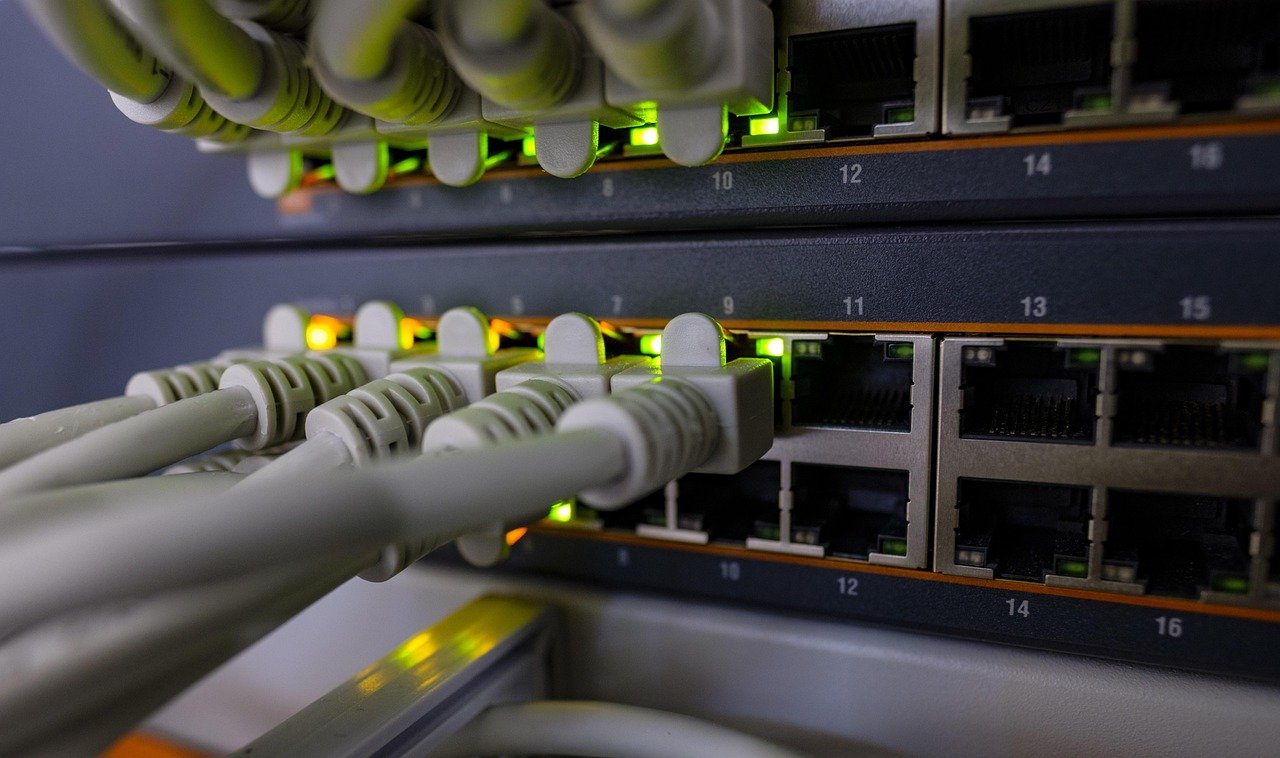
The router your internet provider hands you is often adequate but rarely great. Many ISP-supplied units are built to a budget and struggle with large homes or heavy device loads. You have three main paths:
| Option | Best For | Trade-offs |
|---|---|---|
| ISP-provided router | Small apartments, light use | Limited range, few features |
| Standalone router | Most homes, good balance | Coverage depends on placement |
| Mesh system | Large or multi-story homes | Higher upfront cost |
A mesh system uses several small nodes placed around the house to create a single, seamless network. It costs more than a single router, but it eliminates dead zones far more effectively in bigger homes. For most people in a mid-sized house, a solid standalone router placed centrally will do the job just fine.
Modem and Router: Know the Difference
The modem connects your home to your internet provider. The router distributes that connection to your devices and manages traffic between them. Many ISPs now combine both into one box. If you buy your own equipment, make sure you know which piece you’re replacing, and check whether your provider requires a specific modem type.
Place the Router Where It Counts
This is the single most overlooked step, and it costs nothing to fix. Router placement affects coverage more than most people realize.
A few practical rules:
- Put the router as close to the center of your home as possible.
- Raise it off the floor, ideally on a shelf or mounted at chest height.
- Keep it away from metal, microwaves, cordless phones, and thick walls.
- Avoid tucking it into a cabinet or behind the TV.
Installing a router in a basement corner because that’s where the cable comes in is a classic mistake. If the incoming line is stuck in a bad spot, a long Ethernet cable to a better location is often worth the effort. If you’re extending coverage to a garage or backyard office, treat it like any other connectivity project and plan the cable run carefully.
Connect and Configure the Router
Once the hardware is in place, the setup itself is straightforward. Most routers walk you through it, but here’s the general sequence.
- Connect the modem to the router using an Ethernet cable, usually into the WAN or Internet port.
- Power everything on and wait for the indicator lights to settle.
- Open the router’s admin page in a browser. The address is printed on the router or in its manual, commonly something like 192.168.0.1 or 192.168.1.1.
- Log in with the default credentials, then immediately change the admin password.
- Name your network (SSID) and set a strong Wi-Fi password.
- Choose WPA3 security if your devices support it, or WPA2 as a fallback.
- Update the firmware before you do anything else.
That last step matters more than most people think. Router firmware fixes security holes, and an out-of-date router is an easy target. Set a reminder to check for updates every few months, or enable automatic updates if your router offers them.
Lock Down Your Network
A home network is only as safe as its weakest setting. The Wi-Fi Alliance maintains the WPA3 security standard, which is the current gold standard for home wireless encryption. If your router supports it, use it.
Beyond encryption, a few habits go a long way:
- Change default passwords on both the admin panel and the Wi-Fi network.
- Disable WPS, the push-button pairing feature that’s convenient but has known weaknesses.
- Turn off remote administration unless you genuinely need it.
- Create a guest network for visitors and smart devices.
- Keep firmware current across all your gear.
If you want a deeper walkthrough of the security side, this guide on how to secure your home wi fi network covers router hardening and device-level tips in more detail. The short version: treat your router like the front door to your home, because in many ways it is. (Home network)
Put Smart Devices on Their Own Network
Smart plugs, cameras, and doorbells are convenient but often have weaker security than phones and computers. Isolating them on a separate guest or IoT network limits the damage if one gets compromised. It also keeps your main network cleaner and easier to troubleshoot.
Understand the Basics of IP Addressing
You don’t need a networking degree, but a little knowledge helps when something breaks. Every device on your network gets an IP address. Most home routers use DHCP to hand these out automatically, so devices just work when they connect.
Two terms worth knowing:
- Private IP addresses are the ones inside your home, like 192.168.x.x. They aren’t visible on the public internet.
- Public IP address is the single address your provider assigns to your home connection.
If a device can’t get online but others can, the usual fix is to restart it or release and renew its IP address. If several devices drop at once, the router is usually the culprit, so a simple power cycle often resolves it.
Test and Troubleshoot Your Network
Once everything is running, verify the setup instead of assuming it works. Walk around the house with your phone and check signal strength in each room. Run a speed test near the router and again in the farthest corner.
Common problems and fixes:
| Symptom | Likely Cause | Fix |
|---|---|---|
| Slow speeds everywhere | Old router or congested channel | Update firmware, switch channels |
| Dead zone in one room | Poor placement or interference | Reposition router or add a mesh node |
| Devices drop randomly | Overloaded router or interference | Reduce device load, move router |
| Can’t reach admin page | Wrong address or IP conflict | Check router label, restart device |
If you’re extending coverage across a large property or building a dedicated workspace, the same planning principles apply as with any home addition contractors project: map the space, plan the wiring, and build for future needs rather than just today’s.
Set Up a Guest Network and Parental Controls
Most modern routers let you spin up a guest network in a couple of clicks. It gives visitors internet access without exposing your main devices. It’s also useful for smart home gadgets that don’t need to talk to your laptop.
Parental controls and scheduled downtime are built into many routers too. If you want to limit screen time or block certain categories of sites, these tools are a simple first line of defense. Just don’t rely on them as your only safeguard.
Keep Your Network Healthy Over Time
A home network isn’t a set-and-forget project. Devices accumulate, firmware ages, and new security threats appear. A little maintenance keeps things running smoothly.
- Reboot the router every month or so to clear memory and refresh connections.
- Check for firmware updates quarterly.
- Review connected devices to spot anything unfamiliar.
- Re-run speed tests after adding new gadgets.
If you’re building out a smart home alongside your network, it helps to think about which devices will carry the load. A guide to the best smart speakers for home automation can help you plan for voice control without overwhelming your bandwidth. (How To Secure My Home Wi-Fi Network)
Common Mistakes to Avoid
Even careful setups hit snags. Here are the ones that show up most often:
- Skipping the firmware update. It’s the easiest security win and the most frequently ignored.
- Leaving default passwords in place. This is the single biggest home network risk.
- Hiding the router in a closet. Convenience for the eye, disaster for the signal.
- Buying a mesh system for a small apartment. Overkill that costs more than it needs to.
- Ignoring the guest network. Every visitor and smart plug deserves its own lane.
Avoiding these alone puts your network ahead of most households.
Conclusion
Setting up a home network isn’t complicated, but it rewards a bit of thought. Start with your needs, choose hardware that fits your space, and place the router where the signal can travel. Then lock it down with strong passwords, current firmware, and a guest network for everything else. Test the result, troubleshoot the weak spots, and do a little maintenance now and then.
Do those things and you’ll end up with a network that’s fast where it matters, stable when it counts, and secure enough that you don’t have to think about it. That’s the real goal: a home network that just works, quietly, in the background, while you get on with your day.
Frequently Asked Questions
How much does it cost to set up a home network?
Costs vary widely. If you use the router your internet provider supplies, setup can be essentially free. Buying a solid standalone router typically runs from modest to mid-range, while a mesh system for a large home costs more. The biggest variable is coverage area, not brand.
Do I need a mesh system or is one router enough?
For apartments and smaller homes, a single well-placed router is usually plenty. Mesh systems shine in multi-story houses, long layouts, or homes with thick walls that block signals. If you have more than one persistent dead zone, mesh is worth the investment.
How do I make my Wi-Fi password secure?
Use a long passphrase of at least 12 characters mixing letters, numbers, and symbols. Avoid names, birthdays, and dictionary words. Never reuse your Wi-Fi password for other accounts, and change it if you ever suspect someone has been borrowing your connection.
Why is my Wi-Fi slow in some rooms but fast in others?
Distance and physical obstacles are the usual culprits. Walls, floors, metal, and appliances all weaken signals. Repositioning the router to a more central, elevated spot often fixes it. If not, adding a mesh node or a wired access point closes the gap.
Should I hide my Wi-Fi network name?
Hiding the SSID offers little real security and can cause connection headaches for your own devices. A strong password and modern encryption (WPA3 or WPA2) protect you far better. Most security professionals recommend leaving the network visible and focusing on password strength instead.
How often should I update my router’s firmware?
Check every few months, or enable automatic updates if your router supports them. Firmware updates patch security flaws and improve stability. An out-of-date router is one of the most common weak points in a home network, so treat updates as a routine task rather than an occasional one.



