A single 49-inch super-ultrawide display packs the same horizontal real estate as two 27-inch monitors side by side, yet it does it without a bezel running down the middle of your spreadsheet. That one detail explains why the ultrawide vs dual monitor debate refuses to die. Both camps have loud defenders, and both camps are partly right. The honest answer depends less on raw specs and more on how you actually work: how many windows you juggle, whether you share your screen on calls, how deep your desk is, and what your budget looks like. (Ultrawide monitor)
This guide breaks down the real trade-offs, the ergonomic questions worth asking, and the mistakes people make when they buy first and think second.
The core difference in one glance
An ultrawide monitor is a single panel with a wide aspect ratio, usually 21:9 (think 3440×1440) or the much wider 32:9 (5120×1440). A dual monitor setup is two standard 16:9 displays sitting next to each other. The total horizontal space can be nearly identical. The experience is not.
| Factor | Ultrawide (single) | Dual monitors |
|---|---|---|
| Bezel in the middle | None | One physical gap |
| Cables and power | One set | Two sets |
| Cost per inch of screen | Usually higher | Usually lower |
| Mixed orientation | Not possible | Easy (one landscape, one portrait) |
| Failure and replacement | Whole panel goes | Swap one monitor |
| Window snapping | Zones or third-party tools | Native OS snapping |
| Immersion for video and games | Strong | Weaker |
Neither column is a knockout. The table just shows where each setup asks you to compromise.
Why the bezel matters more than people expect
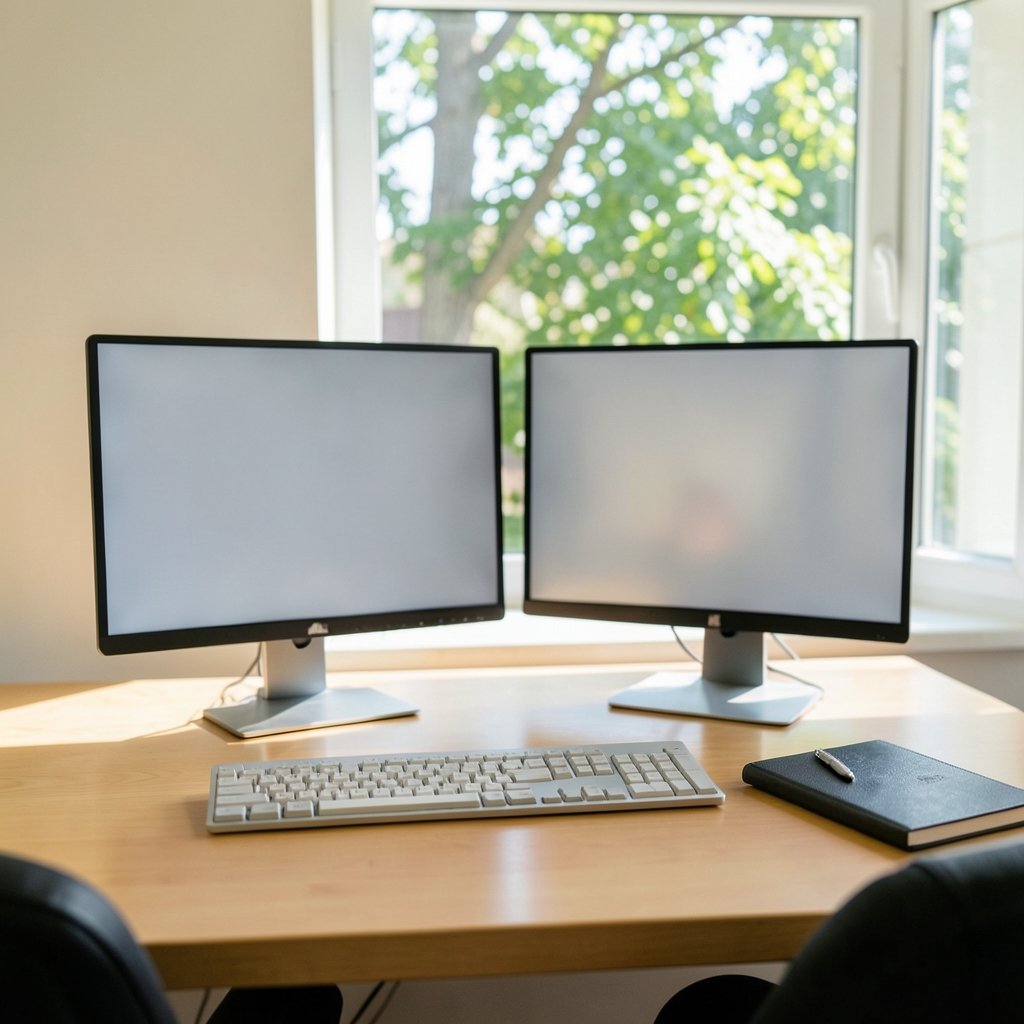
New buyers often shrug at the center bezel. Then they drag a wide spreadsheet across both screens and hit the gap. Cursor jumps, columns split, and a chart gets sliced in half. On an ultrawide, that problem simply doesn’t exist. One continuous surface means a timeline, a video editor, or a wide dashboard reads as a single object rather than two halves stitched together.
That said, the bezel is a genuine productivity feature for some people. It creates a mental boundary between work and reference material. Many writers keep notes on one screen and their draft on the other, and the physical split reinforces the separation. If you have ever lost track of which window had focus, you know how useful a hard visual border can be.
Ergonomics: what actually matters
Screen size gets all the attention, but placement decides whether you finish the day with a stiff neck. Two principles matter most, and both come from standard computer-workstation ergonomics guidance:
- Top of the screen at or slightly below eye level so your neck stays neutral.
- Viewing distance of roughly 20 to 40 inches, close enough to read without leaning in.
The OSHA computer workstations guidance covers monitor height, distance, and glare without picking a winner between ultrawide and dual setups. That is telling. The ergonomic risk comes from how you arrange the screens, not the count.
Here is where ultrawides get tricky. A very wide panel forces a choice: sit close and swivel your head constantly, or sit far back and lose text legibility. A 49-inch super-ultrawide at arm’s length means the far edges sit well outside your central vision. Curvature helps. Panels in the 1800R to 1000R range bend the edges toward your eyes, which reduces the head-turning. It does not eliminate it. Dual monitors have the same problem in a different shape: if both screens sit flat in a straight line, the outer edges are equally far from your gaze. Angling them inward in a shallow V fixes it.
A practical tip that saves necks: measure your desk depth before buying. A display that leaves you less than 20 inches of viewing distance will push you into a lean, no matter how good the panel is.
Pixel density and text clarity
Bigger is not sharper. Pixel density, measured in pixels per inch (PPI), decides how crisp text looks. A 34-inch 3440×1440 ultrawide lands at roughly the same pixel density as a 27-inch 2560×1440 monitor, which most people find comfortable. Step up to a 49-inch 5120×1440 super-ultrawide and density stays reasonable because the resolution scales with the width.
The trap is buying a huge panel with a modest resolution. A 34-inch 2560×1080 ultrawide stretches too few pixels across too much glass, and small text turns fuzzy. For document-heavy work, prioritize resolution over diagonal inches. If crisp text is your top priority, the same logic that guides buyers of UHD monitors applies here: more pixels per inch beats more inches every time.
Window management: the hidden skill
A wide canvas is only useful if you can divide it fast. Modern operating systems have caught up. Windows 11 Snap Layouts lets you hover the maximize button and pick a zone layout, and macOS offers Stage Manager and Mission Control for juggling windows. Third-party tools go further: FancyZones in Microsoft PowerToys and Rectangle on macOS let you define custom grid zones and snap windows into them with a keystroke.
Dual monitors have an advantage here that is easy to overlook: the operating system treats each screen as its own workspace, so maximizing a window on one screen never disturbs the other. On a single ultrawide, a maximized window swallows everything. You must rely on snapping zones instead of the maximize button. It works, but it is a habit change, and some people never adjust.
The practical fix is to set up zones once and stick to them. A common ultrawide layout is a wide main column plus two narrow reference columns. Learn the keyboard shortcuts and the setup feels natural within a week.
Cables, docks, and desk chaos
One monitor means one power cable, one display cable, and one arm or stand. Two monitors mean double the cables, double the power bricks, and either a dual monitor arm or two stands eating desk space. If your desk is shallow or you work in a shared space, that clutter adds up.
There is a second-order benefit too. A single ultrawide connects through one port, which matters if you switch between a work laptop and a personal machine. Docking and cable management get simpler. Anyone who has spent twenty minutes tracing which DisplayPort cable feeds which screen will appreciate the difference. The same principle applies to any peripheral setup: fewer moving parts means fewer things to troubleshoot, an idea that shows up in everything from portable monitor picks for remote work to how a browser juggles tabs on limited screen space.
Cost: where dual monitors quietly win
Dual monitors usually cost less for the same total screen area. Two solid 27-inch QHD panels often undercut a single premium 34-inch ultrawide, and they give you more total pixels. They are also cheaper to repair or upgrade: if one dies, you replace one. With an ultrawide, a single dead pixel or a failed backlight means the whole panel goes.
Ultrawides hold value in other ways. You skip the second stand or arm, you skip a second cable run, and you get a cleaner desk. For people who bill by the hour, the time saved on setup and cable wrangling is real money, even if it never shows up in a spec sheet.
Common mistakes buyers make
These come up again and again in forums and reviews:
- Buying width without resolution. A wide panel with too few pixels produces soft text. Check PPI, not just inches.
- Ignoring desk depth. A 49-inch screen on a 24-inch-deep desk forces you to sit too close. Measure first.
- Skipping the monitor arm. The included stands on large ultrawides are often shallow and wobbly. A proper arm transforms the experience.
- Forgetting about screen sharing. On video calls, an ultrawide shared at full width makes text tiny for everyone else. Learn to share a single window instead.
- Assuming one setup fits every task. A coder, a video editor, and a customer support rep have genuinely different window habits.
Matching the setup to the work
The right choice tracks your daily window pattern more than your taste in hardware.
| Your typical day | Better fit | Why |
|---|---|---|
| Wide timelines, spreadsheets, video editing | Ultrawide | Continuous canvas, no center gap |
| Coding with docs and chat on the side | Either, leaning ultrawide | Zone layouts handle three columns well |
| Reference material in portrait orientation | Dual | One screen can rotate vertically |
| Frequent screen sharing on calls | Dual | Easier to share one clean screen |
| Tight budget, maximum pixels | Dual | Lower cost per pixel |
| Minimal cables and clean desk | Ultrawide | Single cable, single stand |
A hybrid worth mentioning: an ultrawide plus a cheap secondary monitor in portrait. It gives you the seamless wide canvas and a dedicated vertical strip for chat or logs. It costs more than either pure option, but some workers swear by it.
What the working reality looks like
Reviews and user reports converge on a few patterns. People who switch to ultrawide rarely miss the bezel, and many say they stopped alt-tabbing as much because everything fits at once. People who stay on dual monitors cite the price, the flexibility of mixed orientations, and the comfort of knowing a single failure won’t take down their whole workspace.
Curvature is the detail that surprises newcomers most. On panels 34 inches and wider, a curved screen feels strange for the first day and invisible by the end of the week. Flat ultrawides exist, but at close viewing distance the edges of a flat wide panel sit farther from your eyes, which can cause subtle distortion when you drag windows across.
One more reality check: more screen does not automatically mean more focus. A wider canvas invites more open windows, and more open windows invite distraction. The workers who get the most from either setup are the ones who decide in advance which zones hold which apps and resist filling every inch. That discipline matters more than the hardware, a theme that echoes through research on how tools shape attention, including findings on AI creating more work rather than less. New capability rarely reduces the load on its own.
Conclusion
There is no universal winner in the ultrawide vs dual monitor question, and anyone who claims otherwise is selling something. Ultrawides win on immersion, cable simplicity, and that uninterrupted canvas for wide content. Dual monitors win on cost per pixel, flexibility, mixed orientations, and graceful failure. The deciding factors are concrete: your desk depth, your budget, the resolution you can afford, and whether your work lives in wide single objects or in separate side-by-side tasks.
If you can, test both before committing. Sit at a friend’s desk, borrow a screen for a week, or buy from a retailer with a generous return window. The setup that fits your window habits will feel obvious within days. The one that doesn’t will nag at you every time you drag a window across the gap.
Frequently asked questions
Is an ultrawide better than two monitors for productivity?
Neither is universally better. Ultrawides remove the center bezel and simplify cabling, which helps with wide timelines, spreadsheets, and video editing. Dual monitors offer more total pixels for the money, easier portrait orientation, and independent replacement if one screen fails. Match the setup to your window habits.
What size ultrawide equals two monitors?
A 49-inch 32:9 super-ultrawide (5120×1440) matches the combined width of two 27-inch 16:9 QHD monitors. A 34-inch 21:9 ultrawide (3440×1440) sits closer to one and a half standard widescreen monitors, so it replaces a dual setup only if you work in fewer, wider windows.
Do ultrawide monitors cause neck strain?
They can if placed poorly. Very wide panels push the edges outside your central vision, so you swivel your head more. Keep the top of the screen at or slightly below eye level, sit roughly 20 to 40 inches back, and choose a curved model at 34 inches and above to bring the edges toward your eyes.
Can I use one ultrawide and one regular monitor together?
Yes, and many workers do. A common hybrid pairs a 34-inch or 49-inch ultrawide with a cheaper secondary screen rotated to portrait for chat, logs, or reference documents. It costs more than either pure setup but covers both wide-canvas and vertical-strip needs.
How do I split an ultrawide into two screens?
Use built-in window management: Windows 11 Snap Layouts or macOS Stage Manager and Mission Control. For finer control, third-party tools like FancyZones in Microsoft PowerToys or Rectangle on macOS let you define custom zones and snap windows with keyboard shortcuts.
Is a curved ultrawide worth it for office work?
For panels 34 inches and wider, yes for most people. Curvature in the 1800R to 1000R range bends the edges toward your eyes, reducing distortion and head movement at close viewing distance. It feels odd for a day and then becomes invisible. Flat ultrawides suit users who sit farther back or do mostly single-window work.