
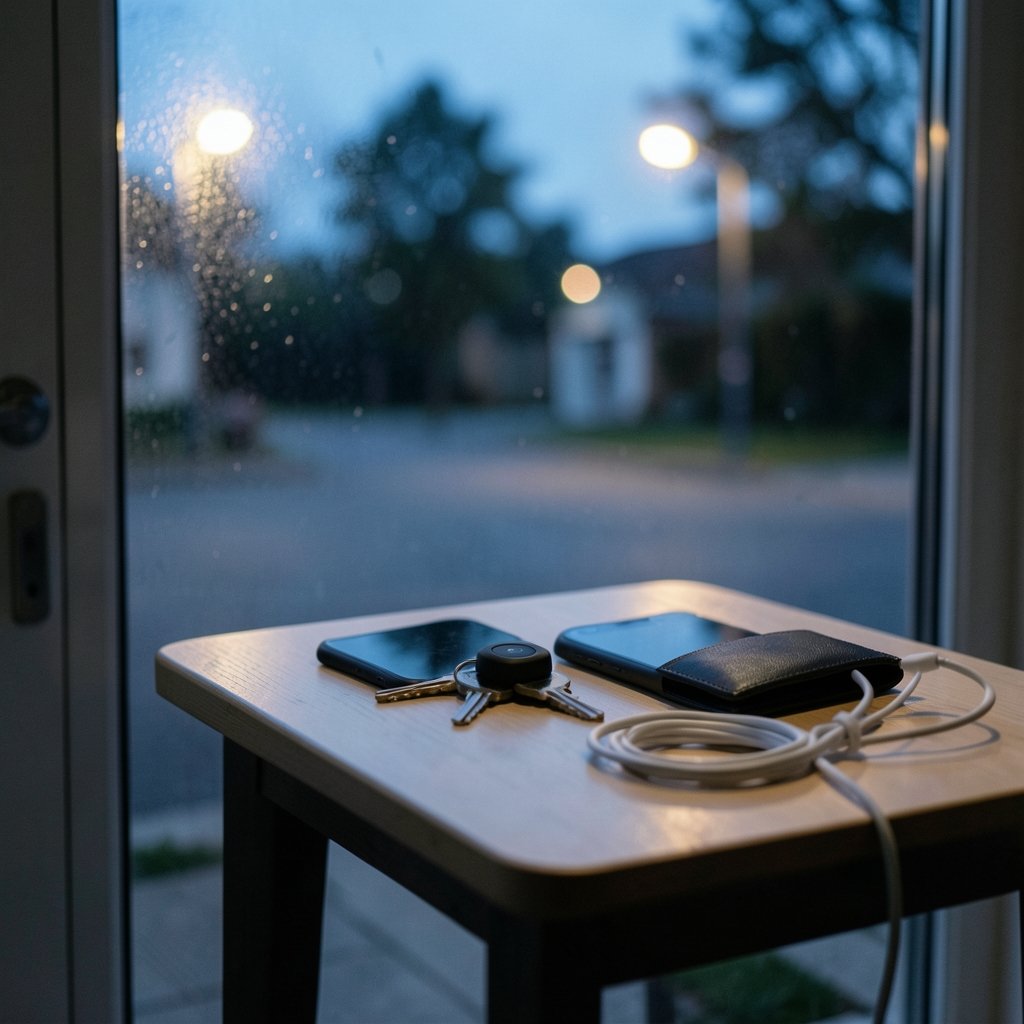
Quick Answer: How do i update bluetooth tracker safely without losing data?
Updating a Bluetooth tracker safely means letting the manufacturer’s official app or your phone’s operating system handle the firmware push, rather than hunting for a manual update button that usually does not exist. For most consumer trackers, updates arrive silently through the companion app or the paired phone, and the realistic risk is losing pairing or ownership registration, not files. (Learn About Bluetooth)
The process differs by device type. Item trackers like AirTag, Tile, and SmartTag update automatically, while Bluetooth headphones, bike computers, and car accessories often need a vendor app and a stable connection. Before starting, check battery level, connection range, app version, account credentials, and whether a factory reset is required, since those factors decide whether the update finishes cleanly or leaves the device stranded.
Bluetooth has become one of the most common wireless standards on earth, with billions of enabled devices shipping every year, and a growing share of them are small trackers clipped to keys and bags. That popularity creates a quiet problem: owners rarely think about firmware until something goes wrong. The good news is that updating a Bluetooth tracker is usually less dramatic than people fear, as long as you understand what “data” actually means on these devices. (Bluetooth)
What “Losing Data” Really Means for a Tracker

The phrase gets used loosely, and that looseness causes most of the confusion. A Bluetooth item tracker does not store photos or documents. It holds a pairing relationship, an ownership registration tied to your account, and sometimes a cloud history of where it has been.
So when someone worries about losing data during an update, they are usually worried about one of three things: the tracker forgetting its link to their phone, the ownership record being wiped so the device looks like a stranger’s, or location history disappearing from the vendor’s app. None of these are catastrophic, but all of them are annoying, and all of them are avoidable with a little preparation.
It helps to separate two very different product categories before going further. Consumer item trackers, the kind that attach to keys and wallets, generally have no user-facing firmware update flow at all. Bluetooth accessories with firmware, such as headphones, fitness sensors, and bike computers, do have update menus, and those are the devices where an interrupted update can genuinely brick hardware.
How Trackers Actually Receive Updates
Most people expect a settings screen with an “update firmware” button. For trackers, that screen usually does not exist, and searching for it wastes time. Updates are pushed in the background, typically through the phone’s operating system or the vendor’s companion app.
Apple’s trackers are the clearest example. Firmware arrives automatically through a paired iPhone or iPad, and the owner has no manual trigger. This has been a long-standing point of frustration for users who want to force an update, but it also means there is very little an owner can do to break the process. The device simply receives the new firmware when conditions are right.
Tile and Samsung trackers follow a similar pattern through their companion apps and the SmartThings Find ecosystem. The practical takeaway is consistent across brands: keep the app installed, keep the phone connected to the internet, and keep the tracker within range. That is the entire update strategy for most item trackers.
Why the Phone Matters More Than the Tracker
Here is the part that surprises people. The tracker is often not the device doing the heavy lifting. Your phone downloads the firmware and relays it over Bluetooth Low Energy. If the phone is low on storage, running an outdated app, or logged out of the account, the update stalls.
In practice, the single most effective thing an owner can do is make sure the companion app is current and the account is signed in before expecting any firmware change. That is a mundane tip, but it solves a large share of “my tracker won’t update” complaints.
A Safe Update Routine That Works in Practice
For Bluetooth accessories that do expose a firmware update, the routine below prevents almost every failure mode. It is boring by design, and boring is exactly what you want during a firmware write.
- Charge the device and the phone. A dying battery mid-write is the leading cause of corrupted firmware. Aim for at least half a charge on both.
- Stay close. Keep the device within a meter or two of the phone. Walls and pockets add interference.
- Update the companion app first. An outdated app can fail to hand off the firmware correctly.
- Note your account credentials. If the update forces a re-login, you want the password ready, not guessed.
- Keep the screen awake and the app in the foreground. Backgrounding an app mid-update is a classic mistake.
- Do not power off or reset the device until the app confirms completion.
- Test the connection afterward by playing audio, syncing a ride, or checking the tracker’s location.
That last step gets skipped constantly, and it is the one that reveals whether the update actually took. A device that reconnects but behaves oddly may need a second update pass or a re-pair.
Common Mistakes People Make
The most frequent error is treating a firmware update like a quick app install. People start it while walking out the door, then wonder why the device is unresponsive an hour later. Firmware writes are not interruptible in the way app downloads are.
The second mistake is factory resetting a device to “fix” a failed update. A reset often clears the pairing and ownership record, which is precisely the data loss people were trying to avoid. Reset only when the manufacturer’s support documentation explicitly says to.
The third mistake is assuming a behavior change means data loss. Anti-stalking firmware updates have altered how trackers alert nearby phones, and those changes look alarming if you were not expecting them. A tracker that suddenly chirps more often is usually working as designed, not broken.
Matching Your Device to the Right Method
Different hardware needs different handling, and a single set of instructions cannot cover all of it. The table below maps the common categories to their realistic update path and risk.
| Device type | Typical update path | Main risk if interrupted | What to do first |
|---|---|---|---|
| Item tracker (keys, wallet) | Automatic via phone OS or app | Lost pairing or ownership record | Confirm app login and internet |
| Bluetooth headphones | Vendor app or phone settings | Bricked firmware, no audio | Charge fully, stay close |
| Fitness and bike sensors | Vendor app | Corrupted calibration data | Sync existing data to cloud |
| Car head unit | USB or Wi-Fi update | Unresponsive infotainment system | Park, engine on or charger connected |
| Smart home Bluetooth gear | Hub or vendor app | Device drops off the network | Note network credentials |
The pattern is clear: the more complex the device, the more the update depends on a stable power source and a stable connection. Trackers are forgiving. Head units are not.
Backing Up Before You Touch Anything
For trackers, “backup” mostly means recording account details and confirming the device is registered to you. Take a screenshot of the device’s settings page showing its name, serial number, and current firmware version. If something goes wrong, that screenshot is your evidence for a support ticket.
For accessories with real data, such as ride history on a bike computer or saved routes on a head unit, sync to the vendor’s cloud service before updating. Most companion apps have a sync option buried in settings. Use it. Cloud sync is the closest thing to a backup these devices offer.
It is also worth knowing where your device’s data physically lives. Many trackers rely on crowd-sourced networks and cloud infrastructure rather than on-device storage, which is why the topic of what an AI data center actually does has become relevant to ordinary gadget owners. The location pings your tracker reports are processed somewhere, and that somewhere is a server farm.
When an Update Goes Wrong
If the app freezes mid-update, do not panic and do not immediately reset. Wait several minutes, then close and reopen the app. Many devices recover on their own once the connection re-establishes.
If the device disappears from the app entirely, check whether it still appears in your phone’s Bluetooth settings. A device that shows up there but not in the companion app usually just needs re-pairing, which is a two-minute fix rather than a disaster.
If the device is completely unresponsive, consult the manufacturer’s support pages before doing anything drastic. Some devices have a documented recovery mode involving a specific button sequence. Others need a service center. Guessing at button combinations is how a recoverable device becomes an unrecoverable one.
The Privacy Angle Nobody Mentions
Firmware updates increasingly carry privacy and security patches, and skipping them has real consequences. Bluetooth Low Energy has had its share of security research over the years, and vendors patch vulnerabilities through the same update channel. A tracker that never updates is a tracker running old code.
That is a genuine reason to keep the companion app installed even if you rarely open it. Uninstalling the app stops the update pipeline entirely, and the device quietly falls behind on security fixes.
Practical Tips From Everyday Use
A few habits make the whole process smoother. Update at home, on Wi-Fi, with the phone plugged in. Do it when you have ten spare minutes rather than during a commute. Keep a note of which app manages which device, because owners with several gadgets routinely forget.
If you are the type who likes tinkering with new tools, the same discipline applies to other software. Learning how to use AI for data analysis or experimenting with an AI image generator without a prompt both reward patience and a stable setup, just like a firmware write does.
And if your motivation for updating is better home monitoring rather than tracking keys, it is worth comparing the best outdoor security cameras without subscription before buying, since firmware support varies widely across brands.
Conclusion
Updating a Bluetooth tracker safely comes down to understanding what kind of device you own and letting the official channel do its job. Item trackers update themselves through your phone or the vendor app, and the real risk is a lost pairing or ownership record rather than vanished files. Accessories with firmware menus need a charged battery, a close connection, a current app, and patience.
The mistakes are predictable: starting an update on the move, factory resetting to fix a stall, and mistaking a behavior change for data loss. Avoid those three, keep the companion app installed so security patches keep arriving, and screenshot your device settings before anything changes. That is a five-minute routine that protects you from nearly every problem this topic produces.
FAQ
Do Bluetooth trackers update automatically?
Most consumer item trackers do. Firmware is delivered through the paired phone’s operating system or the vendor’s companion app without any manual trigger. Owners typically cannot force an update, which is frustrating but also means there is little they can do to break the process.
Will updating my tracker delete my location history?
Usually not. Location history lives in the vendor’s cloud account rather than on the tracker itself, so a firmware update does not touch it. What can disappear is the pairing relationship if the update is interrupted or the device is reset, which is why you should avoid resetting unless support tells you to.
How long does a firmware update take?
Item tracker updates happen in the background over hours or days and you will not notice them. Accessories with visible update screens usually finish in five to fifteen minutes. If an update appears stuck for more than half an hour, close and reopen the app before trying anything more drastic.
Can a failed update brick my tracker?
It is rare for simple item trackers, which have limited firmware and recover gracefully. It is a real risk for headphones, bike computers, and car head units, where a power loss mid-write can leave the device unresponsive. Charging fully and staying close prevents most of these failures.
Should I factory reset to force an update?
No. A reset often clears pairing and ownership registration, which is the exact data loss people want to avoid. Reset only when the manufacturer’s own support documentation instructs it, and expect to re-pair and re-register the device afterward.
Does the companion app need to stay installed?
Yes, if you want continued updates. The app is the delivery channel for firmware and security patches. Uninstalling it does not break the tracker immediately, but the device stops receiving fixes and slowly falls behind on the security side.



