A modem is the device that connects your home to the internet. It turns the signal arriving through your cable, fibre or phone line into digital data your devices can use, and sends your data back the same way. Without one, there is no connection to share.
Most people have one without ever noticing it: the small box your provider installed, sitting beside the router with a few blinking lights. It works quietly for years and only gets attention when those lights change colour or the internet stops.
This guide explains what a modem does, how it translates signals, the main types in use today, and how it differs from a router, plus when it needs replacing and what to check first when your connection drops.
Key takeaways
- A modem connects your home to your internet provider by translating signals into digital data.
- It is not a router: the modem brings the internet in, and the router shares it between your devices.
- Cable, fibre and DSL modems each work with a different kind of line, and they are not interchangeable.
- Your modem sets the ceiling on your connection speed, so an old one can hold back a faster plan.
- Most connection problems start at the modem, and its status lights are the fastest clue to what is wrong.
At a glance: the modem in brief
| Detail | What is known |
|---|---|
| What it is | A device that translates signals between your provider’s network and your home network |
| Main job | Connecting your home to the internet |
| How it connects | Cable, fibre, DSL phone line, or mobile signal |
| Typical home setup | One modem, linked to a router, serving the whole household |
| Key standards | DOCSIS 3.0 and 3.1 for cable, GPON for fibre, VDSL for DSL |
| Typical lifespan | About 3 to 5 years before speed and security support fall behind |
| Price range | Basic cable modems from around $50, fibre and DOCSIS 3.1 models from $100 and up |
| Not the same as | A router, a WiFi extender, or a network switch |
What a modem actually is
The word modem is short for modulator-demodulator. It modulates digital data into a signal that can travel over a cable or phone line, and demodulates incoming signals back into digital data. Your devices speak in ones and zeroes; the lines outside carry analogue waves, radio signals or pulses of light, and the modem translates between the two.
Every connection needs this translation: cable networks were built for television, phone lines for voice calls, and fibre lines carry light rather than electricity. The modem is the adapter that lets a home network use all of them.
A modem has one job and one connection to the outside world. It usually has a single ethernet port for the device behind it, normally your router. It does not create WiFi, give your devices addresses, or decide where data goes inside your home. Those are the router’s jobs.
Many providers now supply a combined modem-router unit, called a gateway. It does both jobs in one box but hides the distinction between them. If you want more control, you can often put it into bridge mode and connect your own router behind it.
How a modem works
When you open a website, your request travels from your device to the router, then to the modem, which converts it into a signal suited to your line: radio frequencies on cable, electrical pulses on DSL, or flashes of light on fibre. Your provider routes it onward to the website.
The reply follows the same path in reverse. The provider sends the data back down your line, the modem converts it into digital form, and it passes the data to the router, which delivers it to the device that asked for it. The round trip usually takes a few dozen milliseconds, which is why a page appears almost instantly.
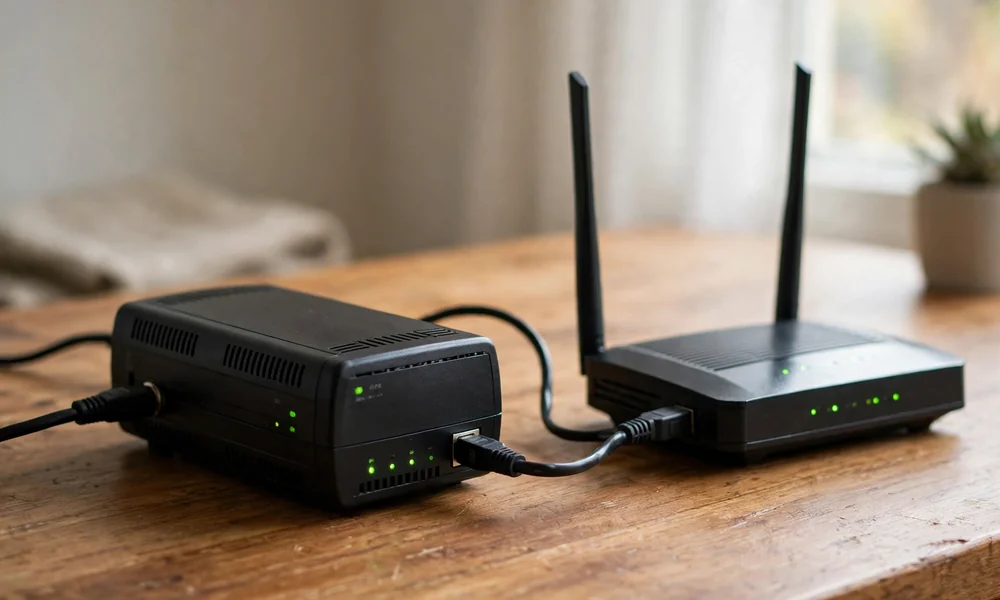
The modem also manages the connection itself. When it starts up, it contacts your provider, proves it is authorised, and agrees on the speed and channel settings. The lights on the front show this: power, connection and activity lights that settle into a steady pattern when everything works. A blinking or red light tells you where the problem sits.
Speed limits are set by the modem and the line together. A DOCSIS 3.0 cable modem cannot reach the speeds of a DOCSIS 3.1 model on the same line, even if your plan allows it. Upgrading a plan sometimes means upgrading the modem too, and that is why checking your internet speed is the simplest way to see whether you are getting what you pay for.
Types of modems
Cable modems are the most common type in homes with a cable television line. They connect to the coaxial cable socket and use the DOCSIS standard to carry internet data alongside television signals. DOCSIS 3.1 is the current standard for fast plans; older 3.0 models top out at lower speeds.
Fibre modems, often called optical network terminals, connect to a fibre line and convert pulses of light into electrical signals. They are usually installed by the provider and support the fastest home connections, often a gigabit or more. You cannot swap a fibre terminal for a cable modem; the line type decides the hardware.
DSL modems work over a traditional phone line and are still common in areas without cable or fibre. They are slower than cable or fibre, with speeds that fall as the distance to the provider’s equipment grows. Satellite and mobile modems serve homes beyond the reach of wired lines, using a dish or a cellular signal instead.
Some modems are built into the router, and some routers have a modem slot for a SIM card. These combinations are convenient, but they make upgrades harder: when one half becomes outdated, you replace the whole unit. Separate devices cost more up front and let you upgrade each part on its own.
Benefits and risks
The main benefit of a good modem is a connection that simply works. It holds a stable link to your provider, handles the full speed of your plan, and recovers quickly from brief outages.
The risk of an old modem is quiet underperformance. It may cap your speed, drop the connection at busy times, or lose support for your provider’s newest features. Because a modem has no screen, these problems are easy to miss: the internet feels slow and the router gets the blame, when the modem is holding things back.
There is also a security angle. A modem with outdated firmware can have known weaknesses, and a rented modem you never update depends on your provider to patch it. Buying your own puts updates in your hands, but means checking for firmware updates yourself and confirming the model is approved for your provider first.
Where modems are used
In homes, the modem is the starting point of the network. It usually sits near the cable or phone socket, connected to the router by a short ethernet cable, and it serves every device in the household through that one link. When the internet stops for every device at once, the modem is the first thing to check.
Small businesses use the same setup, often with a backup connection. A shop might run a cable modem as its main link and a mobile modem as a fallback, so card payments keep working if the main line fails. Remote workers in rural areas rely on mobile or satellite modems where no wired line exists.
Modems also appear in less obvious places. Security cameras, alarms and smart meters use cellular modems to report back without a wired connection, and vehicles use them for navigation and diagnostics.
Modem vs router
The simplest way to remember them: the modem connects you to the internet, and the router connects your devices to each other and to that connection. One brings the signal in, the other shares it out.
A useful test is to connect a laptop directly to the modem with a cable. If it gets online, the modem and the line are fine, and the problem is in the router or the WiFi. If it stays offline, the modem or the line is at fault.
Buying decisions follow the same split. You replace a modem when your plan outgrows it, when your provider upgrades its network, or when the connection keeps dropping. You replace a router when WiFi coverage is poor or too many devices slow the network down. To judge the router half of the pair, our guide to what a router does covers it in the same plain terms.
Checklist: choosing and setting up a modem
- Match the modem to your line type: cable, fibre, DSL or mobile, as they are not interchangeable.
- Check your provider’s approved list before buying, so the modem is authorised on your account.
- Match the modem’s standard to your plan: DOCSIS 3.1 for fast cable plans, and a gigabit port for gigabit fibre.
- Place the modem near the line socket with good ventilation, and keep its cables secure and untangled.
- Note the status lights when everything works, so you can spot a change when something fails.
- Restart the modem first when the internet drops, and wait two minutes before testing again.
Frequently asked questions
Do I need a modem if I have WiFi?
Yes. WiFi is only the wireless link between your devices and your router. Behind the router there still has to be a modem connecting your home to the internet, whether it is a separate box or built into the same unit as the router.
Can a modem increase my internet speed?
No, a modem cannot exceed the speed of your plan or your line. It can remove a cap: an old modem can hold you below the speed you pay for, so replacing it can restore your full speed.
Should I rent a modem or buy my own?
Renting is simpler, and the provider replaces it if it fails, but the monthly fee adds up and the model is usually basic. Buying your own costs more up front and often pays for itself within a year or two, if the model is approved for your provider.
How often should I replace my modem?
Every three to five years is a reasonable rule. Replace it sooner if your provider upgrades its network standard, if you move to a faster plan it cannot support, or if the connection drops often despite a healthy line.
Why do my modem lights keep blinking?
Some blinking is normal: the activity light flickers as data moves. A connection light that never settles, or a red light, means the modem cannot hold its link. Restart it once, check the cable is tight, and call your provider if it continues.
What is the difference between a modem and a gateway?
A gateway is a modem and a router combined into one box. It does both jobs, but you have less control over each half. If you want your own router, you can usually put the gateway into bridge mode so it acts as a modem only. For the wireless side, our guide to how WiFi works explains the radio part in plain language.
The bottom line
A modem is the translator between your home and the internet. It converts the signal on your cable, fibre or phone line into data your devices can use, holds the connection to your provider, and sets the ceiling on the speed you can reach. It is a quiet box with a simple job.
When you do, remember the split: the modem brings the internet in, and the router shares it out. Match the modem to your line and your plan, keep its firmware updated, and replace it when it can no longer keep up.