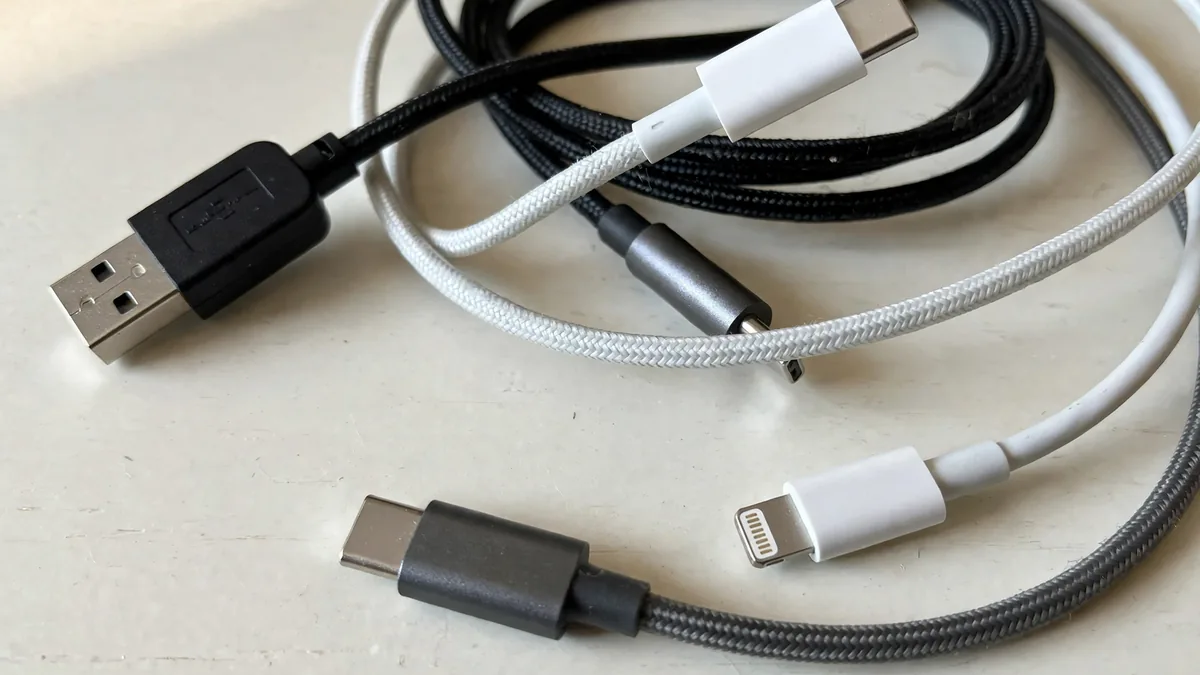
A USB cable is a wire that carries power and data between devices, and it is the most common connector in everyday technology. The letters stand for Universal Serial Bus, a standard created in the 1990s to replace the tangle of different plugs that computers once needed. One cable can charge your phone, move photos to a laptop, or connect a keyboard.
Not all USB cables are equal, even when they look identical. Two cables with the same USB-C plugs can differ hugely: one may carry 240 watts and transfer data at 40 gigabits per second, while the other charges slowly and moves data at a fraction of that speed. The difference lies inside the cable, in the wires, the shielding, and the small chip in the connector.
That gap between what a cable looks like and what it does causes most of the confusion around USB. People buy a cheap cable, find their phone charges slowly or their external drive crawls, and blame the device. This guide explains the USB cable types in use today and what to look for when you buy.
Key takeaways
- A USB cable carries both power and data, but the connector shape does not guarantee speed or wattage.
- USB-C is the standard connector in 2026, used by phones, tablets, laptops and accessories alike.
- Data speed depends on the USB version inside the cable: USB 2.0 moves 480 Mbps, USB4 reaches 40 Gbps.
- Power delivery depends on the cable’s wattage rating, from 15 watts on basic cables up to 240 watts on the best USB-C cables.
- Buy certified cables from known brands, match the cable to the job, and replace any cable that feels hot, frays or disconnects at random.
USB cables at a glance
| Detail | What to know |
|---|---|
| What it is | A cable that carries power and data over the USB standard |
| Main connector today | USB-C, reversible and used on almost all new devices |
| Older connectors | USB-A, Micro-USB, Mini-USB and Lightning |
| Slowest data speed | USB 2.0 at 480 Mbps |
| Fastest data speed | USB4 at 40 Gbps |
| Power range | From 7.5 watts on basic cables to 240 watts on USB-C EPR cables |
| Typical lengths | 0.5 to 2 metres; longer cables can slow charging and data |
| What to check before buying | Connector type, data speed, wattage rating and certification |
What a USB cable actually is
Inside the plastic or braided sleeve of a USB cable are several thin copper wires, each with a job. Two wires carry power, two carry data, and faster cables add extra wires for the high-speed data lanes behind USB 3 and USB4, wrapped in shielding that blocks interference.
The connector at each end is more than a plug. In a USB-C cable, it contains a small chip that identifies the cable to the devices at both ends, reporting its maximum current so a laptop knows whether it can draw 100 watts through it or only 15. Cheap cables sometimes skip the chip or report the wrong rating.
How a USB cable works

When you plug a USB cable in, the two devices first talk to each other. The device that supplies power, usually a charger or a laptop, asks the other device what it needs. The cable’s chip reports what it can carry, and the two agree on a voltage and a current. This negotiation is called the USB Power Delivery handshake.
Power then flows as direct current from the source to the device. A basic cable delivers 5 volts at up to 3 amps, which is 15 watts. A Power Delivery cable can raise the voltage to 9, 15 or 20 volts, pushing the wattage to 45, 65, 100 or even 240 watts, which is what lets a single USB-C cable charge a laptop.
Data travels separately from power, on its own wires. In USB 2.0, data moves at up to 480 megabits per second. USB 3 added extra pairs that raised the speed to 5 gigabits per second, and USB4 added more lanes to reach 40 gigabits per second. A USB4 cable plugged into a USB 2.0 port still runs at USB 2.0 speed.
USB cable types and connectors
USB-C
USB-C is the small oval reversible connector that has become the standard on phones, tablets, laptops, headphones and game controllers. It plugs in either way up, and it is the only connector that supports the full range of USB speeds and the highest power levels, up to 240 watts.
USB-A
USB-A is the familiar rectangular plug found on older chargers, laptops, desktop computers and car ports. It is one-way, so it only fits in one orientation, and it tops out at USB 3 speeds and modest power levels. USB-A is fading from new devices, but it remains common on chargers.
Micro-USB and Mini-USB
Micro-USB was the standard phone connector before USB-C, and it still appears on older Kindles, Bluetooth speakers and budget gadgets. Mini-USB is older still and is now rare, found mainly on old cameras. Both are slower and less durable than USB-C.
Lightning
Lightning was Apple’s proprietary connector for iPhones and iPads until the iPhone 15 switched to USB-C. Older iPhones and many Apple accessories still use it. A Lightning cable carries power and data like any USB cable, but only Apple devices accept it, and its data speed is limited to USB 2.0.
Speeds and power ratings explained
USB 3.0 became USB 3.1 Gen 1, then USB 3.2 Gen 1, all meaning 5 gigabits per second. The speeds themselves are what matter: 480 Mbps for USB 2.0, 5 Gbps for USB 3.2 Gen 1, 10 Gbps for USB 3.2 Gen 2, 20 Gbps for USB 3.2 Gen 2×2, and 40 Gbps for USB4.
Power ratings are simpler but just as important. A cable rated for 60 watts can charge most phones and small laptops, a 100-watt cable covers larger laptops, and a 240-watt cable covers gaming laptops. A cable with an electronic marker chip is required for anything above 60 watts. Using a 15-watt cable on a laptop that wants 65 watts will not damage it, but the laptop will charge very slowly or drain even while plugged in.
When you are shopping, the best USB-C cables in 2027 roundup lists current models with their speeds and wattage clearly stated. A cable that lists both a data speed and a wattage rating is usually a better buy than one that mentions neither.
Choosing the right cable for each job
Charging a phone
For a phone, a USB-C to USB-C cable rated for at least 25 watts covers fast charging on most Android phones, and 20 watts covers iPhones. A length of 1 metre is the sweet spot: long enough to use the phone while it charges, short enough to avoid noticeable power loss.
Charging a laptop
A laptop needs a cable rated for the wattage of its charger, usually 45, 65 or 100 watts. Check the number on your charger and buy a cable rated at or above it. A 240-watt cable is overkill for most laptops, but it is the safe choice if you want one cable for several devices.
Moving photos and files
Data transfer is where the USB version matters most. Moving a phone’s photo library to a computer over a USB 2.0 cable can take an hour; the same transfer over a USB 3 cable takes minutes. The guide to how to transfer photos from iPhone to a computer walks through the process.
Benefits and risks of USB cables
The benefit of the USB standard is that one cable type now does almost everything. A single USB-C cable can charge a phone in the morning, run a laptop in the afternoon and connect a drive in the evening. That means fewer cables in a drawer and less electronic waste.
The risk is that the standard’s flexibility creates confusion and a market for bad cables. A cable that claims 100 watts but uses thin wires and no marker chip can overheat, and a cable that claims USB 3 speeds but is wired for USB 2.0 will waste your time. Look for the USB-IF certified logo on the packaging.
Physical wear is the other risk. Cables fail where the wire meets the connector, because that is where bending concentrates. A cable that only works when held at an angle, or that gets warm during normal charging, should be replaced. Keeping cables loosely coiled and pulling them out by the plug extends their life.
USB cables in everyday use
Cable clutter is the other everyday problem. Keeping one fast USB-C cable at the desk, one in the bag and one by the bed covers nearly every situation, and the best cable management in 2027 roundup covers the clips and boxes that keep them tidy.
USB-C vs older USB cables
USB-C beats every older connector on three counts: it is reversible, it carries more power, and it supports the fastest data speeds. USB-A is stuck at lower power and speed, Micro-USB is fragile and slow, and Lightning only works with Apple devices. Older cables still have one advantage, ubiquity: USB-A ports are everywhere, so a USB-A to USB-C cable remains useful as a backup.
Checklist: buying a USB cable
- Match the connectors at both ends: USB-C to USB-C for most new devices, USB-A to USB-C for older chargers.
- Check the data speed: USB 2.0 for charging only, USB 3.2 or USB4 for moving large files.
- Check the wattage: at least 25 watts for phones, 65 watts or more for laptops.
- Look for USB-IF certification and a real specification on the packaging, not just a fast-charging claim.
- Pick a length that fits the job, usually 1 metre, and avoid very long cables for fast charging or data.
- Choose braided cables for bags and travel, and replace any cable that frays, overheats or disconnects randomly.
Frequently asked questions
Can any USB-C cable fast-charge my phone?
No. Fast charging needs a cable rated for the wattage your phone and charger use, usually 20 to 45 watts. A basic 15-watt cable will charge the same phone slowly even with a fast charger.
Does a USB-C cable carry video?
Some do and some do not. A cable must support DisplayPort Alt Mode or Thunderbolt to carry video to a monitor, so check the packaging for video support before buying one for a display or docking station.
Why is my USB cable charging slowly?
The most common causes are a low-wattage cable, a weak charger, a long cable, or a dirty port. Try a shorter, higher-rated cable and a different charger.
Are expensive USB cables worth it?
Sometimes. A certified cable from a known brand is worth paying for when you need high wattage or fast data, because cheap cables often fail to meet their claims. For basic overnight charging, an inexpensive certified cable is fine.
How long should a USB cable last?
A well-made cable lasts two to five years of daily use. Replace it as soon as it frays, only works at an angle, or feels warm during normal charging.
Can I use a USB-C cable with a USB-A charger?
Yes, with a USB-A to USB-C cable. It will work for charging and data, but it is limited to the speeds and power the USB-A port supports.
The bottom line
A USB cable looks like a simple wire, but it is really a small system: copper wires for power and data, shielding against interference, and a chip that negotiates how much power can flow. The connector shape tells you where the cable fits, and the speed and wattage ratings tell you what it can do.
Buy for the job. A short, certified USB-C cable rated for 60 watts and USB 3 speeds covers a phone, a tablet and most laptops, and a 100-watt cable covers the rest. Keep one at the desk, one in the bag and one by the bed.