
Quick Answer: How do I set up Xbox Series X for the best performance?
Getting the best performance from an Xbox Series X means matching the console’s output to your TV’s real capabilities and then clearing away the bottlenecks that slow games down. The main levers are display settings, HDMI input mode, power preferences, network setup, and storage choices, all found in the console’s settings menu and your TV’s picture menu. (Set up your Xbox console)
Most of the work happens in two places: the Xbox’s TV & display options and the TV’s own Game Mode and HDMI settings. A console left on default settings often runs below what the hardware can do, especially on a 120 Hz panel.
Before changing anything, check the TV’s refresh rate and HDMI version, the cable in use, whether the panel supports VRR and HDR, your router’s location, and how much free internal storage remains.
Why Default Settings Rarely Deliver Peak Performance
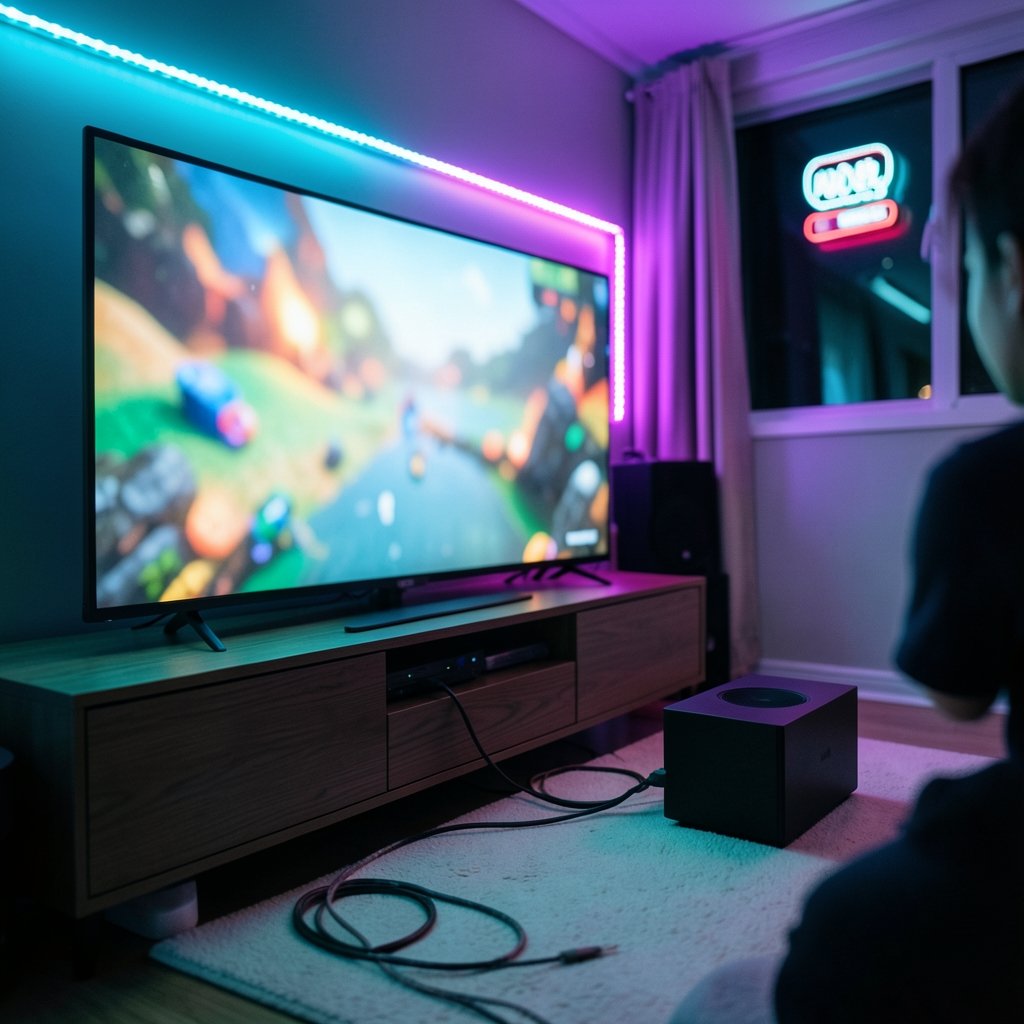
Here’s a number worth chewing on: the Xbox Series X can push 4K at up to 120 frames per second over HDMI 2.1, yet a large share of owners never see that output because a single toggle is switched off or the wrong HDMI port is in use. The console ships ready to negotiate with whatever display it finds, and that negotiation is conservative by design. It has to work on a ten-year-old 1080p set as well as a brand-new OLED.
That flexibility is a feature, not a flaw, but it means the out-of-box experience is a compromise. The console will happily run at 60 Hz on a 120 Hz TV for months without complaint. Nothing breaks. Nothing warns you. The performance is simply left on the table.
The good news is that almost every meaningful adjustment lives in one of two menus, and none of it requires opening the console or buying anything beyond, at most, a certified cable.
Step 1: Match the Console to Your Display
The first stop is Settings > General > TV & display options. This is where the console reports what it thinks your TV can handle, and where you confirm or correct it.
Resolution and refresh rate
Set Display to the highest resolution your TV supports natively, then open Refresh rate and choose 120 Hz if the option appears. If it doesn’t appear, the console hasn’t detected a 120 Hz-capable signal, which almost always traces back to the HDMI port or the cable.
The video modes checkboxes
Scroll to Video modes and work through the toggles. Allow 4K, Allow HDR10, and Allow Dolby Vision should be on if your TV supports them. Allow variable refresh rate is the one people skip, and it’s arguably the most important for smooth play, because it lets the display sync to the game’s frame rate instead of stuttering when frames dip.
One caveat worth flagging: whether Dolby Vision runs at 120 Hz varies by display and firmware, and reports on this have conflicted over the years. If enabling Dolby Vision knocks you back to 60 Hz, test both configurations and keep whichever feels better in motion.
Auto low latency mode
Leave Auto low latency mode enabled. It tells the TV to switch into its low-latency picture preset the moment a game launches, which is exactly the behavior you want without thinking about it.
Step 2: Fix the TV Side, Which Is Where Most Setups Fail
The console can only send what the TV agrees to accept. This is the single most common mistake: people tune the Xbox meticulously and never touch the television.
Use the right HDMI port
On many TVs, only one or two ports support full HDMI 2.1 bandwidth. Others are capped at 4K60 or lack VRR entirely. Check the TV’s manual, find the high-bandwidth port, and use it. This one change makes 4K120 and VRR available on sets where they seemed unavailable.
Turn on Game Mode and the deep-color setting
Enable Game Mode on the TV’s picture menu. It cuts the processing that adds input lag. Then look for a setting named something like HDMI Ultra HD Deep Color, Input Signal Plus, or Enhanced format and switch it on for that input. Without it, the TV may refuse the wider signal the console is trying to send.
Cable reality check
The cable in the box is fine for most setups. For 4K at 120 Hz over longer runs, a certified HDMI 2.1 cable is the safe bet. A marginal cable produces symptoms that look like console faults: flickering, dropped signal, or settings that silently revert.
| Symptom | Likely cause | Fix |
|---|---|---|
| 120 Hz option missing | Wrong HDMI port or cable | Move to the 2.1 port, swap cable |
| Screen flickers on game launch | Marginal cable or bandwidth | Certified HDMI 2.1 cable |
| Picture looks washed out | HDR off or deep color disabled | Enable HDR10 and deep color |
| Sluggish controller response | TV processing active | Turn on Game Mode |
Step 3: Tune Power and Startup Behavior
Under Settings > General > Power options, you’ll find a trade-off rather than a clear winner. Instant-On wakes the console in seconds and allows background downloads, but it draws more standby power. Energy-saving shuts down fully, cutting that draw at the cost of slower cold boots and no overnight updates.
For most people chasing responsiveness, Instant-On is the practical pick. If electricity use matters more than a twenty-second wait, energy-saving is the greener choice. Neither affects in-game frame rates; this is purely about how quickly the machine is ready.
Also check Sleep mode timer settings and make sure the console isn’t set to turn off mid-download.
Step 4: Storage Decisions That Affect Load Times
Internal storage on the Series X is a fast custom SSD, and games built for the console are designed around it. The Seagate Storage Expansion Card plugs into the back and runs games at comparable speeds, which makes it the clean solution when the internal drive fills up.
USB external drives are a different story. They’re excellent for storing and playing backward-compatible titles, but Series X|S-optimized games generally must run from the internal SSD or the expansion card. Moving a big title to a USB drive to “speed things up” does the opposite.
A practical habit: keep the internal drive for the two or three games you’re actively playing, and archive everything else. Free space also leaves room for updates, and a full drive creates its own kind of slowdown.
Step 5: Network Setup for Online Play
Wired Ethernet beats Wi-Fi for consistency, full stop. If a cable run is impossible, prefer the 5 GHz band and keep the console in line of sight of the router where you can.
In Settings > General > Network settings, run the detailed network statistics and note the latency figure. Anything consistently above roughly 100 ms of ping will be felt in competitive shooters regardless of download speed. Router-side quality-of-service rules that prioritize the console can help in busy households.
Download speed matters mostly for how long updates take, not for how the game plays. Don’t overspend on bandwidth when latency is the thing you actually feel.
Step 6: Controller and Accessory Checks
Small things add up. Update controller firmware through Settings > Devices & connections > Accessories, because updates occasionally improve wireless stability. Keep the controller charged; a low battery can introduce input quirks. And if you use a headset, confirm it’s set as the default audio output so the console isn’t routing sound to the TV and adding a layer of latency.
Common Mistakes That Undo Good Settings
Three errors show up again and again. First, tuning the console while the TV sits in a picture preset that overrides everything, like a “vivid” or “cinema” mode with heavy motion smoothing. Second, assuming a settings guide from 2021 still matches today’s dashboard; menu labels have shifted across updates, so verify each option on your current firmware rather than trusting a screenshot. Third, enabling every video mode at once without testing, which can produce a configuration the TV technically accepts but renders poorly.
The fix for all three is the same: change one setting, launch a demanding game, observe, then move on.
When to Consider a Different Console
If the goal is pure performance per dollar and the library matters less, it’s worth knowing how the alternatives stack up. The PS5 vs Xbox Series X price comparison shows how close the two flagship machines sit on cost, while the Xbox Series X price vs PS5 breakdown digs into bundle and storage differences. For buyers weighing a mid-cycle upgrade, the PS5 Pro vs Xbox Series X analysis is the relevant read. And if a cheaper entry point is the priority, it helps to know how much is an Xbox Series S before committing, since the Series S trades resolution for price. Anyone curious about the living-room PC angle should also see how the Steam Machine vs Xbox Series X shapes up. (Xbox Series X and Series S)
A Realistic Before-and-After Expectation
It’s worth being honest about what tuning delivers. Correct settings won’t turn a 60 fps game into a 120 fps game; frame rate is decided by the developer’s targets and the hardware. What proper setup does is remove artificial ceilings: the wrong port capping refresh rate, a disabled toggle blocking HDR, TV processing adding lag, a marginal cable causing dropouts.
In practice, the difference between a default setup and a tuned one is most visible in fast games, where VRR smooths out frame dips and Game Mode makes aiming feel direct. In slower, cinematic titles, the gap is smaller. Set expectations accordingly and the results will feel like a genuine upgrade rather than a disappointment.
Conclusion
Setting up an Xbox Series X for peak performance is less about secret tricks and more about removing mismatches. Confirm the display settings, use the right HDMI port, switch on Game Mode and deep color, pick a power mode that suits your habits, keep fast storage free for active games, and wire the network when you can. Do those things once, verify them after major system updates, and the console will run as intended. The hardware is capable; the setup is what lets it show.
Frequently Asked Questions
Does Game Mode on my TV actually reduce input lag?
Yes, meaningfully. Game Mode disables or shortens the video processing chain, and on most sets it’s the single biggest lag reduction available. The trade-off is usually a slightly less “processed” picture, which most players stop noticing within a session.
Why is the 120 Hz option missing on my Xbox Series X?
The console only offers it when the whole chain supports it: a 120 Hz-capable TV, an HDMI 2.1 port, and a cable with enough bandwidth. Check the port first, then the cable, then the TV’s enhanced-signal setting for that input.
Should I enable variable refresh rate if my TV supports it?
For most players, yes. VRR lets the display adapt to the game’s frame rate, which smooths out the dips that cause visible stutter. If a particular game misbehaves with VRR on, you can disable it per-title, but the default should be on.
Does an external USB drive slow down my games?
It can, for optimized titles. Games built for the Series X expect the internal SSD’s speed, and running them from USB storage isn’t supported in most cases. Use USB drives for archiving and backward-compatible games, and keep current titles on the internal drive or expansion card.
Will changing power mode improve frame rates?
No. Instant-On and Energy-saving affect startup speed and standby power consumption, not in-game performance. Choose based on whether you value fast resume and background downloads or lower electricity use.
How often should I recheck these settings?
After major system updates and whenever you change TVs, receivers, or cables. Dashboard labels shift between firmware versions, and a TV replacement resets the whole negotiation. A two-minute check after any hardware change prevents months of running below capability.



