

Roughly 7 out of 10 smartphones on the planet run Android, which means billions of people share the same handful of headaches: a battery that dies by lunch, apps that close on their own, storage that fills up out of nowhere. The good news is that most of these problems have simple fixes you can do yourself in a few minutes. The catch is knowing which fix applies to your situation, because menu names differ between Samsung’s One UI, Google’s Pixel interface, and the many other Android skins out there. This guide walks through the most common complaints, what usually causes them, and the steps that genuinely help. (Android (operating system)))
Why Android Phones Develop Problems in the First Place
Android is open, which is its strength and its weakness. Manufacturers layer their own software on top, carriers add apps, and hundreds of third-party apps run in the background. That flexibility means small conflicts pile up over time. A recent software update can change how battery management works. A new app can hold a wake lock that keeps the processor busy. Cached data grows until storage runs low.
The other factor is age. Lithium-ion batteries lose capacity gradually, so a phone that lasted a full day in year one may struggle in year three. Understanding whether a problem is software or hardware is the first step, because no amount of cache clearing will fix a worn-out battery. As a general rule, if a problem appeared suddenly after an update or an app install, it’s software. If it crept in slowly over months, hardware or accumulated clutter is more likely.
Battery Draining Too Fast
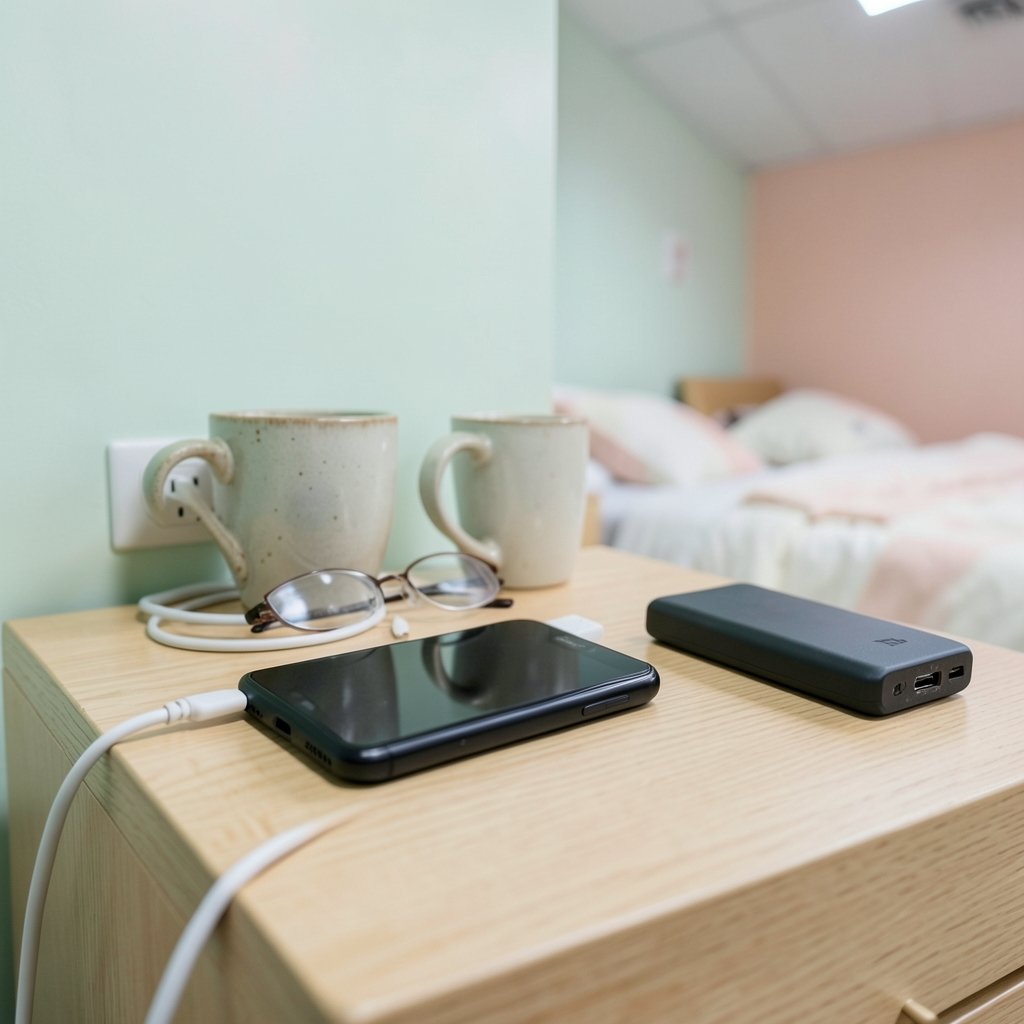
This is the number one complaint, and it’s often exaggerated by a single culprit. Before assuming the battery is dying, check the built-in battery usage screen. On most phones it lives under Settings > Battery > Battery usage, where you can see which apps consumed power over the last 24 hours. If one app sits at the top while you barely used it, that’s your problem.
Fixes that work
- Open battery usage and identify the top offender, then restrict its background activity.
- Turn off always-on display and reduce screen timeout to 30 seconds.
- Lower screen brightness or enable adaptive brightness.
- Disable background sync for apps you don’t need updated constantly.
- Check for a pending system update, since manufacturers often patch battery bugs.
A common mistake is installing a “battery booster” app from the Play Store. These usually make things worse, because they run constantly in the background and often show ads. Android already manages memory and background apps well; you don’t need help.
If battery life dropped sharply right after a system update, give it a week. The phone re-learns your usage patterns and re-optimizes apps, and things often settle. If the drain persists and the phone is more than two years old, check battery health in settings (Samsung exposes this; Pixel users can use the battery information screen). A replacement battery is usually cheaper than a new phone.
Apps Crashing or Showing “Keeps Stopping”
When an app closes itself or throws a “keeps stopping” message, the cause is almost always corrupted cache or a bad update. The fix is quick.
- Go to Settings > Apps, find the app, and tap Storage & cache.
- Tap Clear cache first and reopen the app.
- If it still crashes, tap Clear storage (this erases the app’s data, so you’ll log in again).
- Uninstall and reinstall the app as the final step.
If many apps crash at once, the problem is usually the system, not the apps. Restart the phone, then check for updates to both Android and Google Play services. In rare cases, a factory reset is the cleanest path, but back up first.
Storage Full When You Haven’t Downloaded Anything
Storage fills up silently. Photos, WhatsApp media, cached podcasts, and app data all accumulate. The fix is to look before you delete.
Open Settings > Storage to see a breakdown by category. Photos and videos usually lead. Google Photos’ “free up space” feature removes local copies of photos already backed up to the cloud, which can recover several gigabytes in one tap. Then check Apps and sort by size; social media apps often hold 1–3 GB of cache each.
A practical habit: clear cache in your heaviest apps once a month. It takes two minutes and prevents the “insufficient storage” warning that blocks updates and new photos. For a deeper look at keeping your device lean, see this guide to the best android phone 2026 options, many of which ship with more generous base storage.
Phone Overheating
Warm is normal. Hot enough to be uncomfortable is not. Overheating usually comes from three sources: charging while gaming, a thick case that traps heat, or a runaway background app.
Try these in order:
- Remove the case while charging or gaming.
- Close navigation and hotspot when not in use.
- Check battery usage for an app running in the background.
- Avoid charging in direct sunlight or on a bed.
If the phone gets hot while idle, that’s a red flag. Boot into safe mode (hold the power button, then long-press “Power off” and tap safe mode) to see whether a third-party app is responsible. In safe mode, only pre-installed apps run. If the heat stops, an installed app is the culprit and you can uninstall recent additions one by one.
Wi-Fi and Bluetooth That Keep Dropping
Network glitches are frustrating because they feel random. Most are fixed by a simple sequence.
- Toggle airplane mode on for 10 seconds, then off.
- Forget the network and reconnect.
- Restart the router.
- Reset network settings under Settings > System > Reset options > Reset Wi-Fi, mobile & Bluetooth.
That last step erases saved networks and paired devices, so you’ll re-enter passwords, but it clears corrupted connection profiles. If only one network drops and others are fine, the router is the problem, not the phone. Bluetooth issues often trace back to a paired device that’s misbehaving; unpair it and pair again. (Use Strong Passwords)
Slow Performance and Lag
A phone that lags isn’t necessarily old. Background apps, a nearly full storage drive, and animation settings all contribute. Start with storage: Android slows noticeably when free space drops below about 10 percent. Then check for rogue apps using safe mode as described above.
Two settings help more than people expect. Reducing animation scale under developer options makes the interface feel snappier without changing actual speed. And disabling or uninstalling carrier bloatware frees memory. For a broader look at how hardware choices affect long-term speed, the best android phones 2026 roundup covers which models hold up best over time.
Phone Stuck on Boot or Showing “No Command”
This is the scary one. A phone stuck on the logo, or showing a black screen with “No command,” is usually stuck in recovery mode. The first fix is a forced restart: hold the power button for 15–20 seconds. If that fails, try the button combination for your model (often power plus volume down).
If the phone boots but loops, a factory reset from recovery is the escalation path, and it erases everything. Only attempt it if you have backups. If the phone won’t respond at all and won’t charge, the issue may be hardware and needs a service center. Don’t keep pressing random button combinations; look up the exact sequence for your model first.
Security Worries and Suspicious Apps
Android’s open app ecosystem means you should stay alert. Signs of a problem include sudden battery drain, pop-up ads outside the browser, unfamiliar apps you didn’t install, and data usage spikes. Check Settings > Apps and sort by install date to spot anything you don’t recognize. Google Play Protect scans installed apps and is enabled by default; keep it on.
For a sense of how the two major platforms differ on privacy and protection, this comparison of android vs iphone security key differences is a useful primer. The practical takeaway: install from the Play Store, review app permissions, and remove apps you no longer use.
Touchscreen and Charging Port Problems
A screen that ignores taps or registers phantom touches is often caused by a dirty screen, a cheap screen protector, or a third-party charger feeding inconsistent power. Clean the glass with a microfiber cloth, remove the protector to test, and try the original charger.
Charging problems are usually lint. The port collects pocket debris, and a wooden toothpick (never metal) can gently lift it out. If the cable wiggles loosely, the port may be worn and need replacement. Wireless charging is a handy workaround; the best wireless chargers for iphone and android guide covers models that work reliably across brands.
When to Stop Troubleshooting and Get Help
Some problems aren’t worth fixing yourself. If the phone has physical damage, water exposure, or a swollen battery (the back panel bulges), stop using it and seek service immediately. A swollen battery is a safety issue, not a software bug.
Similarly, if a factory reset doesn’t fix a persistent crash loop, the fault is likely in the hardware or the firmware image, and only a service center or manufacturer reflash will resolve it. Knowing when to hand it over saves hours of frustration.
Conclusion
Most Android problems fall into a short list: battery drain, app crashes, storage pressure, overheating, connectivity drops, and the occasional boot loop. Nearly all of them respond to the same first steps: check battery usage, clear app cache, free up storage, restart, and update. The fixes are free, and they work on almost any brand. What matters is doing them in order and knowing when a problem is hardware rather than software. A few minutes of diagnosis beats an hour of random button-pressing, and it usually keeps a perfectly good phone out of the drawer for another year or two.
Frequently Asked Questions
Why does my Android battery drain so fast after an update?
System updates often reset background app optimization, and the phone needs a week or so to re-learn your usage. Check Settings > Battery > Battery usage for a single app at the top, restrict its background activity, and wait a few days before assuming the battery is failing.
How do I fix an app that keeps stopping on Android?
Clear the app’s cache first under Settings > Apps > Storage & cache. If that doesn’t help, clear its storage (you’ll need to log in again), and as a last resort uninstall and reinstall it. If many apps crash at once, restart the phone and check for system updates.
Is it safe to use battery booster apps?
No, generally not. They run in the background, consume resources, and often display ads, which can make drain worse. Android already manages background apps and memory on its own, so the built-in battery settings are the better tool.
Why does my phone say “insufficient storage” when I have free space?
Android needs a buffer of free space to update apps and write temporary files, so it warns early. Clear app caches, remove downloaded media you’ve already backed up, and check Settings > Storage for large apps. Freeing even a couple of gigabytes usually clears the warning.
What should I do if my Android phone won’t turn on?
Hold the power button for 15–20 seconds to force a restart. If that fails, charge it for 30 minutes with a known-good cable and try again. A phone stuck in recovery mode may need a factory reset, and one that shows no signs of life at all likely has a hardware fault.
Does safe mode really help diagnose problems?
Yes. Safe mode disables all third-party apps, so if a problem disappears there, an installed app is the cause. You can then uninstall recent apps one at a time to find the culprit. It’s one of the fastest ways to separate software problems from hardware ones.



