Cursor can feel familiar to a VS Code user, but extension availability and setup still need a quick check. Cursor is a separate editor built on the VS Code codebase, so your existing workflow may carry over without every tool moving with it. Open VSX is a public extension registry that Cursor uses to offer third-party extensions.
You can bring settings across with an import, then install or check extensions separately. The import transfers a snapshot of selected setup details; it does not keep later changes in sync. This gives you a practical way to start while keeping your project and tools in view.
Use the import to save time, then test the extensions and settings your development workflow depends on. Treat the import as a starting point, then verify the tools you rely on.
Key Takeaways
- Cursor is a separate editor that shares much of VS Code’s code foundation.
- Cursor uses Open VSX for third-party extensions.
- Importing settings is a one-time transfer, not ongoing settings sync.
- Check important extensions in Cursor before relying on them.
- Keep VS Code available while you test the same project in Cursor.
VS Code Extensions Cursor Setup 2026: What Actually Transfers
Cursor shares much of VS Code’s editing foundation, but the two editors do not share one extension catalog. Familiar does not mean identical: each editor keeps its own installation, settings, and extension list.
The shared codebase makes the editing environment feel familiar. You will recognize many menus, commands, and ways to work with code. That common base does not merge installs or registries. Cursor and Visual Studio Code (VS Code) remain separate apps, and an extension installed in one is not automatically installed in the other.
Many popular VS Code extensions are available in Cursor, but Open VSX does not carry every Microsoft Marketplace extension. An extension might also appear under a different publisher or behave differently after installation. Check each tool your project relies on rather than assuming it transfers.
Shared code makes Cursor feel familiar, but extension availability and behavior can still differ.
If an extension is missing, the registry may not list it. If it installs but does not work, the issue may involve compatibility or project setup. Your code and editor tools are separate parts of the move, so test them in the project you use each day.
A code editor comparison for 2026 can help you weigh Cursor’s AI-focused workflow against VS Code’s broad tool library. The right fit depends on the extensions and habits your development work needs.
Check the availability of any extension your project depends on before changing editors.
Install an Extension in Cursor
An extension that appears in Cursor’s catalog takes only a search and one Install click to add. The quickest route is the Extensions view, which installs the selected tool directly in Cursor.
You do not need to install VS Code first. A VS Code extensions setup in Cursor in 2026 can start with the official macOS desktop download if you use a Mac. Cursor provides a macOS desktop download on its official download page.
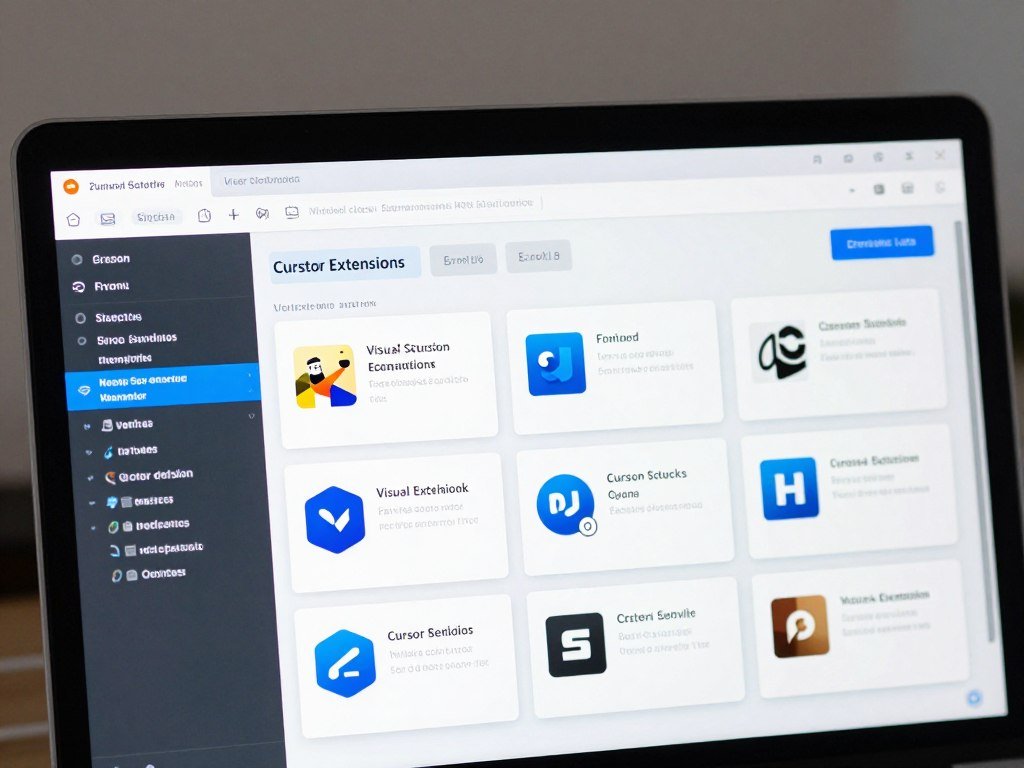
- Open Extensions with Cmd+Shift+X on Mac, or Ctrl+Shift+X on Windows and Linux.
- Search the catalog by the extension name you need.
- Choose the intended result and click Install.
The extension activates immediately after installation. This adds it to Cursor, not to Visual Studio Code. If you use both editors, each needs its own extension install and configuration.
Search by the tool’s full name when several listings look alike. A close match in the result list may come from another publisher or offer different features. Cursor’s installed list gives you a quick way to confirm that the extension was added to the right editor.
Confirm the extension appears in Cursor’s installed list before opening your project.
Import VS Code Settings With One Click
Cursor’s built-in VS Code Import is in the account area of Cursor Settings. One-click import can bring key parts of an existing setup into the new editor.
Open Cursor Settings with Cmd/Ctrl+Shift+J, then follow the menu path. The import transfers extensions, themes, settings, and keybindings.
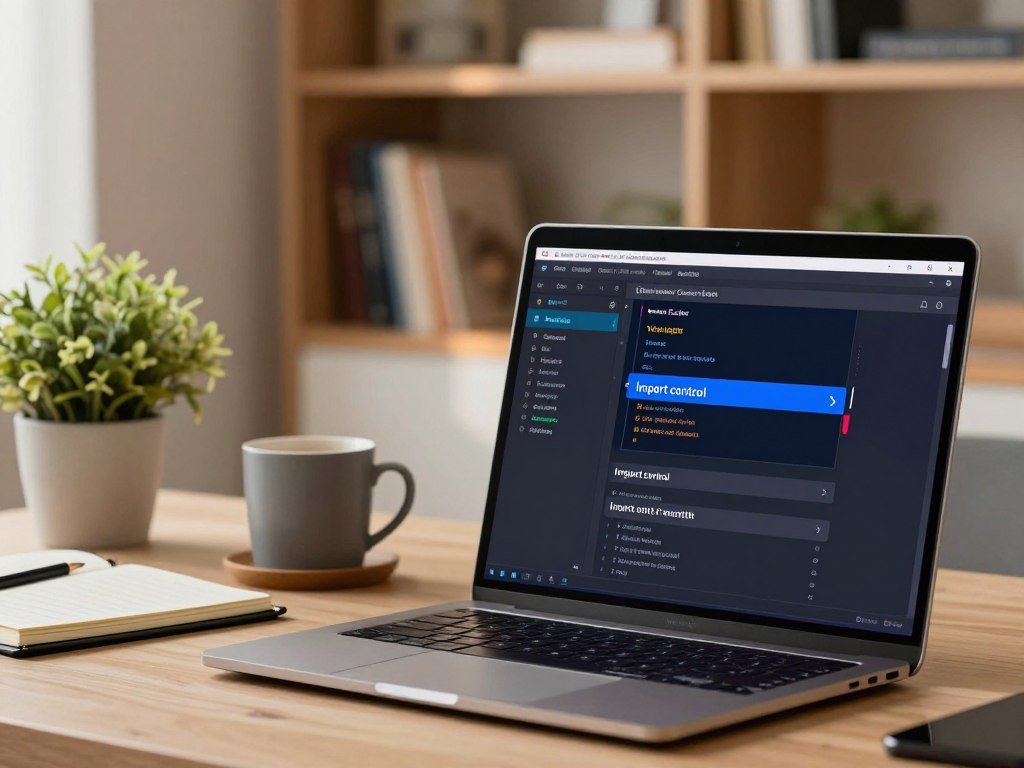
Find the VS Code Import control
Use these steps on the computer where Cursor and VS Code are available. The import reads the local VS Code setup and adds its selected items to Cursor.
- Open Cursor Settings with Cmd/Ctrl+Shift+J.
- Navigate to General, then Account.
- Choose VS Code Import, then select Import.
Know what the import brings over
The transfer includes extensions, themes, settings, and keybindings. Imported extensions still need to be checked in Cursor, since they may not all exist in its catalog.
This is a one-time import, not continuous synchronization. Changes you make in VS Code later will not automatically update Cursor. The account menu gets the initial setup into place, while your later edits remain local to each editor.
A broader overview of Cursor as an editor can help you understand how its AI features fit alongside imported tools. That distinction is useful when deciding which parts of your old setup you want to keep.
Review the imported settings and installed extensions in Cursor before relying on them in a project.
Move a VS Code Profile Manually
A profile file or Gist gives you a portable alternative to importing the current VS Code setup in place. A saved profile can help when you want a chosen configuration or need to move it between machines.
In VS Code, run the command “Preferences: Open Profiles (UI).” Use the profile’s three-dot menu to export it locally or to a GitHub Gist. In Cursor, open the Profiles UI and import a file or GitHub Gist URL.
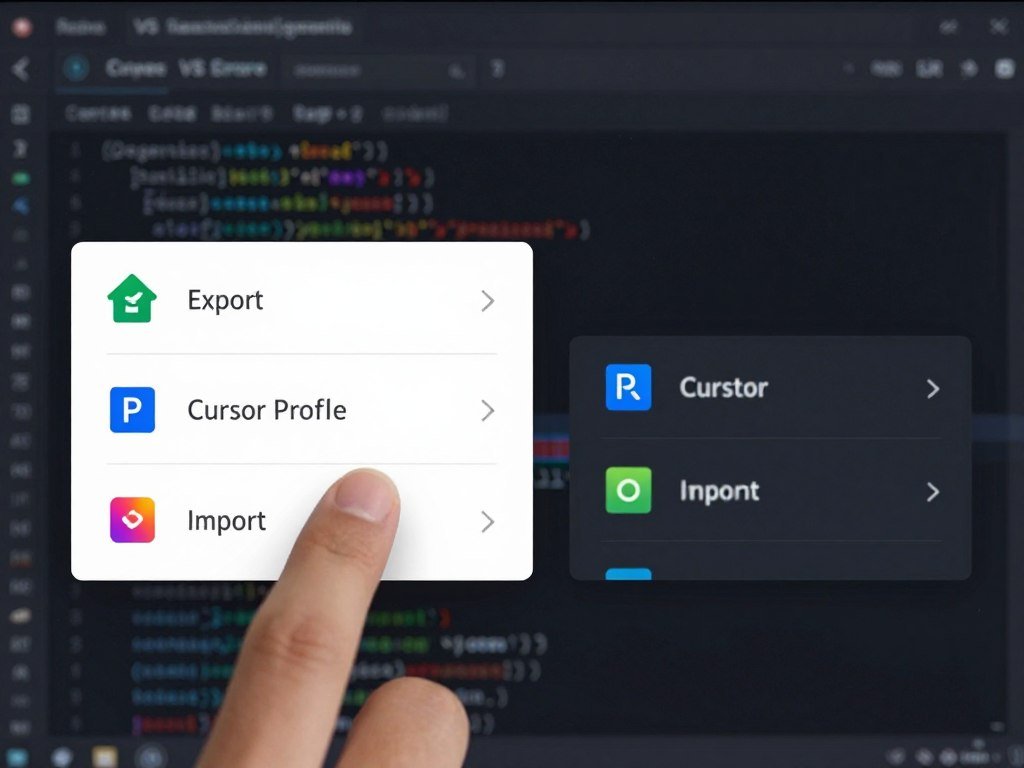
A VS Code profile can be exported to a GitHub Gist for import into Cursor. Pick a local file when you want a file you can keep or transfer yourself. Choose a Gist when you want a web-based route for the profile.
| Export choice | VS Code action | Cursor import |
|---|---|---|
| Local file | Export from the profile’s three-dot menu | Import the saved file in Profiles UI |
| GitHub Gist | Export the profile to a GitHub Gist | Paste the Gist URL in Profiles UI |
The profile route differs from the built-in account import because you choose and export a specific profile. It gives you a portable copy instead of relying on the setup currently open in VS Code. Keep track of which profile you exported if you maintain separate work and personal settings.
After importing, select the profile in Cursor’s Profiles UI so it becomes the active profile.
Why Cursor Uses Open VSX Instead of the VS Code Marketplace
Cursor’s Extensions view uses Open VSX, not the Visual Studio Code Marketplace. They are separate catalogs, so a listing in one does not ensure it appears in the other.
Cursor does not query Microsoft’s Marketplace for its third-party extensions. Open VSX supplies the catalog used by Cursor, while Microsoft’s editor uses the Visual Studio Code Marketplace. Availability differs between the two registries.
| Registry | Used by | Practical result |
|---|---|---|
| Open VSX | Cursor | Cursor lists extensions available in this catalog |
| Visual Studio Code Marketplace | Microsoft’s editor | Some listings are not available in Open VSX |
That split explains why you may find an extension in VS Code but not in Cursor. The catalogs have their own listings and coverage, even when an extension name looks familiar. Search the registry Cursor uses when the tool does not show up in its Extensions view.
Do not treat the code marketplace name as proof that both editors offer the same tools. A project may need an extension that only appears in the Microsoft catalog, while another extension has a listing in both. Confirm the specific tool rather than judging by the editor brand.
Search Open VSX directly when an extension does not appear in Cursor.
Check Availability and Publisher Before Installing
Check the publisher as well as the extension name before you install. A familiar name alone does not confirm that a listing comes from the same publisher or contains the same code.
Open the extension listing and read its publisher, description, and supported features. This matters most when you recognize a name from Microsoft’s catalog. Matching publisher.extension names do not prove that the publisher or code is identical across registries.
Confirm the extension listing
Compare the listing’s details with the tool you intend to use. Check the publisher and extension name, then read the description for signs that the features match your needs. A shared name across catalogs is not enough to confirm a match.
The extension setup and marketplace guide explains how catalog differences affect migration. It can help you assess whether an Open VSX listing is the same tool you know from another editor.
Choose a trusted publisher or replacement
Anysphere publishes first-party replacements for some widely used extensions that are unavailable on Open VSX. Compare a replacement’s stated features with the workflow you need before adding it.
Cursor’s marketplace proxy runs automated malware and supply-chain analysis before offering extensions for installation or serving them as downloads. That check does not remove the need to assess a publisher or listing yourself.
| Choice | What to check | When it fits |
|---|---|---|
| Open VSX listing | Publisher, description, and stated features | The catalog lists the extension you need |
| Anysphere replacement | Replacement name and feature match | The original extension is unavailable |
| Manual VSIX | Official publisher channel and compatibility | A trusted compatible package is available |
Install only from a publisher you trust, even when the displayed extension name looks identical.
What to Do When an Extension Is Missing or Won’t Work
A missing listing points to registry availability, while a failed activation points to compatibility or setup. Those are different problems, so check the catalog before testing the extension in a project.
Cursor regularly rebases on the VS Code codebase and often uses a slightly older VS Code version. An extension may need an API or feature that Cursor does not yet have. An available extension can still behave differently from its VS Code version.
- Confirm the exact extension name and publisher.
- Check whether its listing exists in Open VSX.
- Verify that Cursor is current.
- Test whether the issue is limited to one project.
If the listing is absent, Cursor cannot install it through its normal catalog view. If the extension is installed but fails to activate, focus on its version needs and the project where it runs. A workspace setting or project-specific setup can affect how an extension starts.
Test one project that shows the failure and one project where the extension should work, if available. This helps separate a project issue from a wider compatibility problem without changing several settings at once.
If the extension still fails after these checks, keep the failing project and extension details together for troubleshooting.
Keep Keyboard Shortcuts Familiar
Most familiar VS Code shortcuts remain available in Cursor, so you can keep your usual navigation habits. The shared defaults reduce the need to relearn common editor actions.
Cursor shares VS Code’s default keyboard shortcuts. Custom keybindings transfer when you import settings, so your own navigation choices can come along too. Review custom bindings that conflict with commands already assigned in Cursor.
Cmd/Ctrl+Shift+P opens the Command Palette in both editors. Use it to find commands by name when a menu or key combination feels different. The same shortcut can make the switch between apps less disruptive.
Extension keybindings may vary because extensions can differ across catalogs or versions. Do not assume every extension uses the same binding in both editors. Check Cursor’s keyboard shortcut settings when a command does not respond as expected.
If you imported personal keybindings, test the actions you use most during normal development. A conflict can make an existing command harder to reach, even when the new binding seems valid on its own.
Test your most-used custom keybindings in a project before removing the VS Code setup.
Change Cursor’s Activity Bar to Vertical
Cursor places the activity bar horizontally by default, but you can switch it to a vertical layout. The vertical view may feel closer to the arrangement you used in VS Code.
Use the Command Palette to find the relevant activity bar setting, then open it in Settings UI. Change the orientation to vertical. Restart Cursor for the new layout to take effect.
The horizontal arrangement is Cursor’s default, so the vertical option is a deliberate interface change. Use the Settings UI to check the current choice if the bar still appears in its old position after you change it.
A restart applies the new orientation across the editor window. Save any open work before restarting, especially if a project is in the middle of a build or another long task.
Restart Cursor after changing the setting so the new orientation appears.
Use Cursor and VS Code on the Same Project
You can keep VS Code available while trying Cursor on the same project. Both applications can open the same folder without changing the project’s files just by switching editors.
Each editor keeps its own configuration and installed extensions. Open your project folder in Cursor, make a small change, and save it. Then open the same folder in VS Code to see that the shared project files reflect the change.
The project files are shared, but each editor’s tools remain separate. This lets you compare how your workflow feels in Cursor while retaining access to extensions and settings you still need in VS Code.
For a Mac-specific comparison of editors, see this guide to code editors for Mac. It can help you decide which app fits your development habits, while the same project gives you a direct test.
Switch back and forth with care if both apps have the project open. Check the file’s saved state before making a second edit in the other editor, so you do not lose track of which copy is current.
Save or commit project changes before switching editors so the shared files stay easy to track.
Keep Settings in Sync Across Editors
Cursor does not automatically mirror settings you change later in VS Code. The built-in import makes a one-time transfer, so you need another method to limit configuration drift.
A shared settings file can keep selected preferences aligned across editors. This approach may involve changing file paths or creating links. Back up both original settings files before changing paths or creating links.
Use a shared settings file
Choose which settings you want to share before changing files. Keep a separate backup of each editor’s current settings, then set up the shared file or link. This method needs care when a setting is not supported in both editors.
VS Code also has its own sync feature for its settings across devices. Its Settings Sync documentation explains how you can choose what it syncs and manage conflicts. That service does not make VS Code and Cursor share settings automatically.
Repeat a one-time import when settings change
For a simpler routine, repeat the import after meaningful changes in VS Code. It takes another manual step, but you avoid changing settings paths or managing a shared file.
Neither approach updates every change without action. A shared file needs maintenance when editor settings diverge, while a repeated import can leave Cursor behind until you run it again.
| Approach | How it works | Main trade-off |
|---|---|---|
| Shared settings file | Both editors read selected shared settings | Needs backups and path maintenance |
| Repeat the import | Import again after VS Code changes | Cursor can drift between imports |
Back up both editors’ settings before setting up a shared file.
Understand Cursor’s Free and Paid Plans
Cursor’s Free plan costs $0 per month, and its limit is on Agent and Chat usage. You can begin without a paid plan when you need the editor and its extensions.
A VS Code extensions setup in Cursor in 2026 can start on Free. Its limited usage applies to Agent and Chat, not the basic act of installing an extension. Paid plans add usage or other features.
| Plan | Price per month | Included usage or features |
|---|---|---|
| Free | $0 | Limited Agent and Chat use |
| Plus | $8 | Base usage pool for Cursor models; no third-party models |
| Premium | $30 | 4x Plus usage, Cloud Agents, Automations |
| Super | $100 | 15x Plus usage; priority model access at peak times |
| Ultra | $200 | 50x Plus usage |
Paid-plan usage refreshes weekly and is shared across covered Cursor and Grok products. Premium and higher plans do not include third-party model use in that pool.
On Premium and higher, third-party models use prepaid credit at API list price outside the plan usage pool. This is a separate cost from the plan price. Keep that distinction in mind if your workflow depends on a third-party model.
Check the plan’s usage terms if you expect to use third-party models.
Install a VSIX Only When You Need One
Use a VSIX only when the extension you need is unavailable through Cursor’s normal listing. A VSIX is a packaged extension file, and installing one is a fallback rather than the usual route.
Before installation, verify the publisher and check that the package works with your Cursor version. A file from an unofficial source may not be the extension you expect. Only use a compatible VSIX from a trusted publisher’s official distribution channel.
- Obtain the compatible VSIX from the publisher’s official distribution channel.
- Use Cursor’s extension installation-from-file command or UI, if available.
- Confirm the extension appears in Cursor’s installed list.
Cursor’s Extensions view supports searching and installing listed extensions. A separate file route may help when a needed extension is not available through that listing and the publisher offers a compatible package.
Check the package name and publisher before opening it. A file extension alone does not prove that the package is safe or compatible with your setup.
If you cannot verify the publisher or package, do not install that file.
Is Cursor AI a VS Code Extension?
Cursor the editor and the Cursor AI extension listed for VS Code are different products. Cursor is a standalone editor, not an extension that turns VS Code into the Cursor app.
Cursor has its own editor window and configuration. The separate listing appears in the Visual Studio Code Marketplace under the name Cursor AI. Do not mistake that listing for the Cursor desktop editor.
Cursor the standalone editor
The Cursor editor is built on the VS Code codebase and runs as its own application. You can use it without installing VS Code, unless you need VS Code as the source for an import or profile export.
This distinction also helps when you compare editor choices. The separate app has its own setup and extension environment, while an extension listing runs inside VS Code.
The separate Cursor AI listing for VS Code
The Visual Studio Marketplace listing named Cursor AI requires Visual Studio Code 1.60.0 or higher, an internet connection, and an OpenAI API key. Its listed requirements apply to that extension, not to Cursor the editor.
The listing says it sends code snippets to OpenAI’s API for processing. Review that data handling before installing the extension, especially if you work with private code or team projects.
Check the extension’s publisher and data-handling terms before giving it access to code.
Finish With a Reliable Extension Setup
Before relying on the new setup, test it in the project where you need it. A project check can reveal a missing tool or setting before it interrupts your work.
The extension list and Cursor’s AI features are separate parts of your setup. Check both instead of treating an available AI feature as proof that every extension transferred.
- Compare the important extensions in your working extension list.
- Open the project and confirm the extensions behave as expected.
- Test the imported settings and keybindings you use most.
- Confirm Cursor’s AI features remain available in your workflow.
Test the setup in the project where you depend on it, not just in an empty editor window. A language tool may load in one folder but need project files or settings to work in another.
Keep the extension list separate from Cursor’s AI features, and check each one in your working project.
Write down the extension names you rely on and the settings that matter to your work. That record makes it easier to rebuild your setup if you switch machines or need to set up Cursor again.
Keep a copy of the working extension list so the setup is easier to repeat on another machine.
Conclusion
A dependable Cursor setup starts with importing what transfers and checking what does not. Cursor and VS Code share a familiar foundation, but each keeps a separate extension environment.
Bring over the settings you need, check important extensions in Cursor, and test them in the project where you rely on them. That small trial can show whether the setup fits your daily development work.
Open your main project in Cursor and confirm the extensions you rely on work before making it your primary editor.
FAQ
Does Cursor need VS Code installed to use its extensions?
No, Cursor is a separate editor and can use its own extensions without VS Code installed. VS Code is only needed as the source for an import or profile export. If you do not have VS Code on the computer, you can still install available extensions through Cursor’s catalog. Your Cursor setup remains separate from any VS Code installation on another device.
Why can I find an extension in VS Code but not in Cursor?
Cursor uses Open VSX, while Microsoft’s editor uses the Visual Studio Code Marketplace. The two catalogs do not have identical coverage, so an extension may appear in one and not the other. Search Open VSX for the tool’s exact name and publisher. If it is absent, look for a trusted replacement or a compatible package from its publisher.
Are extension IDs from Open VSX and the Microsoft Marketplace always the same publisher and code?
No, a matching publisher.extension name does not prove that both listings come from the same publisher or contain the same code. Separate catalogs can have listings that look alike. Read the publisher name and listing details before installing. Compare the features with the extension you know, rather than relying on an ID or familiar title alone.
Can I install an extension in Cursor from a VSIX file?
Yes, Cursor can install a VSIX through its extension installation-from-file command or UI, when that option is available. A VSIX is a packaged extension file, so check that it supports your Cursor version. Use a trusted publisher’s official distribution channel and confirm the installed extension appears in Cursor’s list. Treat a VSIX as a fallback, not your first choice.
Does Cursor’s Free plan cost anything to install extensions?
No, Cursor’s Free plan costs $0 as of October 2026, and its stated limit applies to Agent and Chat usage. Installing an extension through Cursor’s catalog is separate from those usage limits. Paid plans change access to usage and features, not whether Cursor is a standalone editor. Review the plan terms if your work depends on AI model use.
What does the Cursor AI extension for VS Code need?
The Visual Studio Marketplace listing requires Visual Studio Code 1.60.0 or higher, an internet connection, and an OpenAI API key. The listing also says it sends code snippets to OpenAI’s API for processing. That product is separate from the Cursor desktop editor. Review its publisher and data-handling terms before giving it access to your code.