
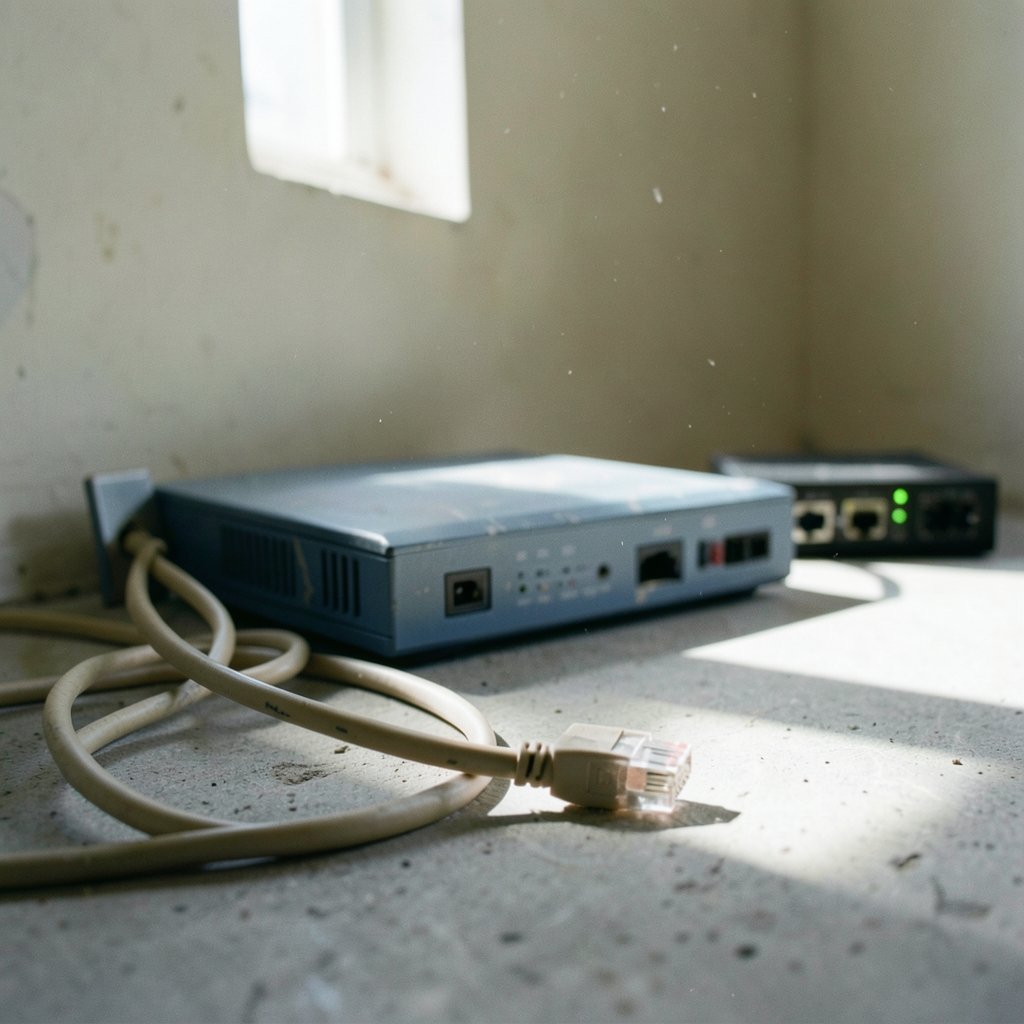
A wired connection should be the most reliable way to get online. Yet a dead Ethernet port is one of the most common complaints in tech support queues, and it usually strikes at the worst possible moment. The good news is that most wired connection failures come down to a short list of causes: a loose cable, a disabled adapter, a failed DHCP lease, or a driver that quietly stopped working after an update. Working through them in order takes minutes, not hours.
This guide walks through the fixes in the order a technician would try them, from the physical layer up to software settings. It also covers the mistakes that send people down dead ends, so you can skip them entirely.
Start With the Physical Layer
Before touching any settings, confirm the hardware is actually connected. It sounds obvious, and that is exactly why people skip it. A cable that looks seated can still be a millimeter out of the jack, and a switch port can be dead without any visible sign.
Check these in order:
- Reseat both ends of the cable. Unplug it from the computer and the router or switch, then push it back in until it clicks.
- Look at the link lights. A working connection shows a steady or blinking LED at the network port and usually at the switch too. No lights at all points to a physical problem, not a software one.
- Swap in a known-good cable. Cables fail more often than people expect, especially ones that get bent, stepped on, or coiled tightly. A cheap cable tester settles the question in seconds.
- Try a different port on the router or switch. Ports die. Moving to another one is free and fast.
If you are buying a replacement, the category rating matters more than the brand. A Cat6 cable handles gigabit speeds over typical home distances without drama, and it costs barely more than older Cat5e. Spending up on exotic cabling rarely helps a home setup, but buying the cheapest possible cable often backfires.
Check That the Adapter Is Enabled and Recognized
Once the hardware checks out, the next stop is the operating system. A network adapter can be disabled by a stray click, by a failed update, or by a power management setting that turned it off to “save energy.”
On Windows, open Device Manager and expand Network adapters. Look for three things:
- A down-arrow icon means the device is disabled. Right-click and choose Enable device.
- A yellow warning triangle means a driver problem. Right-click, choose Update driver, and let Windows search.
- A missing adapter entirely suggests a hardware or BIOS-level issue rather than a driver glitch.
On Linux, run `ip link` in a terminal to list interfaces. If the Ethernet interface shows as DOWN, bring it up with `sudo ip link set dev eth0 up`, replacing `eth0` with your actual interface name. The `ethtool` command will then report link status and negotiated speed, which tells you whether the hardware sees a connection at all.
One frequently missed setting lives under the adapter’s Properties > Power Management tab in Windows. Unchecking “Allow the computer to turn off this device to save power” resolves a surprising number of intermittent dropouts, particularly on laptops that switch between battery and mains power.
Diagnose the IP Address and DHCP Lease
A connection can be physically fine and still fail because the computer never received a usable IP address. The classic symptom is an address starting with 169.254.x.x. That range is what Windows assigns itself when it cannot reach a DHCP server, and it means the machine is talking to nothing.
The fix is usually a lease renewal. Open a command prompt as administrator and run:
- Run `ipconfig /release` to drop the current address.
- Run `ipconfig /renew` to request a fresh one.
- Run `ipconfig /all` to check that the new address, router address, and DNS servers look correct.
If the address stays in the 169.254 range, the problem sits between the computer and the router. Try a different cable and port again, and check whether the router’s DHCP service is actually running. Some routers let you cap the number of leases, and a house full of phones, tablets, and smart plugs can exhaust that pool.
Setting a static IP temporarily is a useful diagnostic. If a manually configured address lets you ping the router but DHCP does not, the fault is in the DHCP service, not the cable or adapter.
Reset the Network Stack
When the adapter is enabled and the cable is good but nothing works, a corrupted network stack is a strong suspect. Windows accumulates odd states over time, and a reset clears them without a full reinstall.
Run these commands in an elevated command prompt, then reboot:
- `netsh winsock reset` rebuilds the Windows Sockets catalog.
- `netsh int ip reset` rewrites the TCP/IP registry settings.
- `ipconfig /flushdns` clears a stale DNS cache that can make working connections appear broken.
On Linux, `sudo systemctl restart NetworkManager` achieves much the same effect. On macOS, deleting the Ethernet service in System Settings > Network and adding it back forces the system to rebuild its configuration.
A related trap is DNS. If pages fail to load but pinging a numeric address like 8.8.8.8 works, DNS is the culprit rather than Ethernet itself. That is the same failure pattern behind many cases where a website will not load even though the connection is fine. Switching to a public resolver such as Cloudflare or Google DNS usually clears it up immediately.
Update or Roll Back the Driver
Drivers cause a huge share of wired connection failures, and the timing is usually telling. If Ethernet died right after a Windows update, a driver regression is the likely cause. If it faded gradually, an outdated driver is more probable.
The reliable approach is to get the driver from the network adapter manufacturer rather than relying on Windows Update, which often ships older generic versions. Intel, Realtek, and Broadcom all publish current drivers and diagnostic utilities on their support pages.
If a recent update broke the connection, rolling back is faster than hunting for a fix. In Device Manager, open the adapter’s properties, go to the Driver tab, and click Roll Back Driver if it is available. This reverts to the previous version and often restores the link instantly.
A useful habit: keep a copy of the working driver on a USB stick. When Ethernet fails, Wi-Fi may be down too, and you cannot download a driver without a connection.
Rule Out Speed and Duplex Mismatches
On managed switches and older hardware, a speed and duplex mismatch produces a connection that technically works but performs terribly or drops constantly. One side negotiates 1 Gbps full duplex while the other is stuck at 100 Mbps half duplex, and packets collide endlessly.
The telltale signs are high latency, frequent retransmissions, and a link that connects and disconnects. Most modern gear handles auto-negotiation correctly, but if you have manually forced a speed on one end, force the same setting on the other. Better yet, set both ends back to auto-negotiation and let them agree.
This problem shows up most often in offices and home labs with secondhand enterprise switches. If your connection quality is erratic rather than completely dead, check this before replacing hardware. The same principle applies when diagnosing general network sluggishness, which is why a proper Ethernet cable for gaming matters for latency-sensitive setups where every millisecond counts. (Ethernet)
When the Problem Is the Router or the Wider Network
Sometimes the computer is fine and the fault sits upstream. A router that has been running for months can develop memory leaks, stale NAT tables, or a hung DHCP service. A full power cycle, unplugging for thirty seconds rather than just pressing the button, clears most of these.
If other devices on the same network also lost connectivity, the problem is almost certainly the router or the internet service itself. Check whether the router’s status page shows a WAN connection. If it does not, the issue is with your provider or the line, and no amount of local troubleshooting will help. Understanding what an IP address is and how it works makes this diagnosis much faster, because you can tell at a glance whether the router holds a public address or nothing at all.
To separate local from upstream problems, ping the router’s address, then ping a public address. If the router answers but the public address does not, the router’s uplink is down. If neither answers, the problem is on your side of the router.
Common Mistakes That Waste Time
Most failed troubleshooting sessions share a handful of avoidable errors.
Reinstalling the OS too early. People jump to a clean install before testing a different cable. Always work from the physical layer upward, because it is faster and cheaper.
Trusting the “connected” status. Windows will happily report a connection while the adapter has no usable IP address. Check the actual address, not the icon.
Ignoring the second device. If a laptop works on the same cable and port, the fault is in the desktop’s adapter or software. Testing with a second device takes two minutes and eliminates half the possibilities.
Downloading “driver updater” tools. These utilities frequently install the wrong driver or bundle unwanted software. Get drivers directly from the hardware vendor.
Forgetting BIOS and firmware. On desktops with add-in network cards, the card can be disabled in BIOS. On routers, outdated firmware causes intermittent wired failures that look like cable problems.
Conclusion
Ethernet failures almost always trace back to something simple, and the fix rarely requires replacing hardware. Work through the layers in order: cable and link lights first, then adapter status, then IP configuration, then drivers and the network stack. Each step eliminates a category of cause, so you never repeat the same test twice.
The single most useful habit is to test one variable at a time. Swap the cable, then test. Change the port, then test. When people change three things at once, they learn nothing and often introduce a second fault while chasing the first.
Keep a known-good cable and a copy of your adapter driver on hand, and most wired outages become a five-minute inconvenience rather than an afternoon lost. And when the connection is genuinely fine but something else is misbehaving, the problem usually lives in software, whether that is a misbehaving background service or a device that needs a fresh start.
Frequently Asked Questions
Why does my Ethernet show connected but there is no internet?
A “connected” status only means the link is up between your computer and the router. It says nothing about whether you have a valid IP address or working DNS. Run `ipconfig /all` and check for a 169.254.x.x address, which signals DHCP failure. If the address looks correct, test DNS by pinging a numeric address directly.
How do I know if my Ethernet cable is broken?
Check the link lights first. If the port shows no light with one cable but lights up with another, the first cable is bad. A cheap cable tester confirms it definitively by checking each of the eight wires for continuity. Cables fail most often at the connectors, where repeated bending breaks internal strands.
Can a bad driver cause Ethernet to stop working completely?
Yes. A corrupted or incompatible driver can make the adapter disappear from the system entirely or refuse to establish a link. If the failure started right after a Windows update, use the Roll Back Driver option in Device Manager. Otherwise, download the current driver from the adapter manufacturer’s support page.
Why does my Ethernet keep disconnecting and reconnecting?
Intermittent drops usually point to a failing cable, a loose connector, or a power management setting that turns the adapter off to save energy. Disable “Allow the computer to turn off this device to save power” in the adapter properties. If the drops persist, check for a speed and duplex mismatch on both ends of the link.
Should I use a static IP to fix Ethernet problems?
Only as a diagnostic, not as a permanent fix for most home networks. Setting a static address tells you whether DHCP is the problem. If a manual address works but automatic assignment does not, the fault is in the router’s DHCP service. For everyday use, automatic assignment avoids address conflicts.
Does restarting the router actually fix wired connection issues?
Often, yes. Routers accumulate stale connection tables and can hang after long uptimes. A full power cycle, unplugging the device for about thirty seconds, clears that state. If other devices on the network also lost connectivity, the router or your internet provider is the likely cause rather than your computer.



