

Roughly two-thirds of PC gamers now keep a gamepad within arm’s reach of their keyboard. That number would have sounded absurd a decade ago, when mouse and keyboard loyalists treated controllers as a console-only accessory. But the last few years changed the math. More console ports arrive with native gamepad support, more PC players stream to TVs and handhelds, and more titles simply feel better with analog sticks in hand.
The catch? “Best” depends entirely on what you play. A fighting game player, a racing fan, and someone grinding through a Soulslike have wildly different priorities. This guide breaks down the real contenders, the specs that matter, and the mistakes that cost people money.
Why PC Controller Support Is Better Than Ever
The single biggest reason controllers work so well on PC today is XInput, Microsoft’s controller API. Any pad that speaks XInput is recognized instantly by Windows and by the overwhelming majority of games. Plug it in, and it just works. No drivers, no mapping software, no headaches. (The Best PC Controllers)
The other shift is Steam Input, Valve’s built-in remapping layer. It lets you use almost any controller, including Nintendo-style pads, and remap buttons, tune dead zones, and even build custom touchpad layouts. For players who like tinkering, it’s a genuine superpower.
What hasn’t changed is that not every game plays nicely with every pad. Older DirectInput titles can ignore modern controllers entirely, and some launchers still fight over which device gets priority. Knowing this upfront saves hours of frustration.
The Main Contenders at a Glance
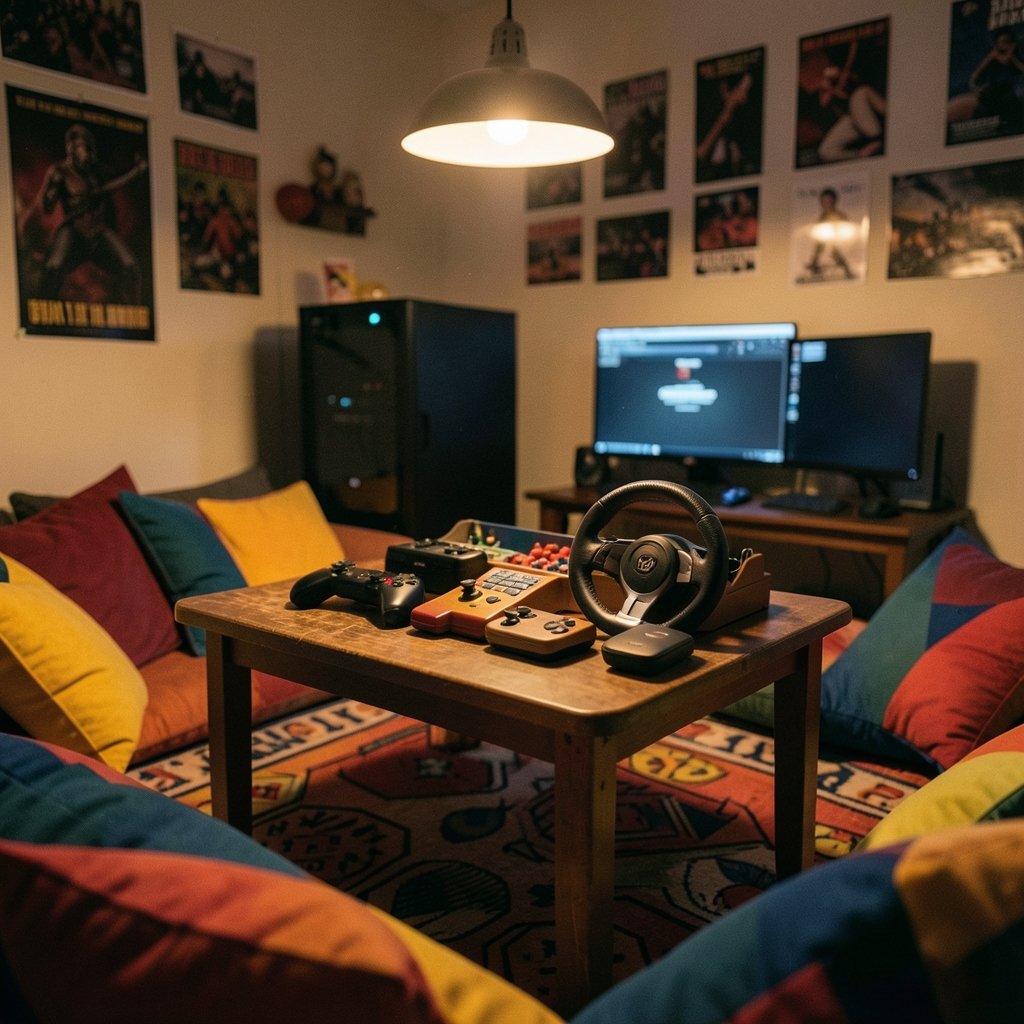
Here’s the honest comparison most buyers need before spending anything:
| Controller | Connection | Best For | Watch Out For |
|---|---|---|---|
| Xbox Wireless Controller | Bluetooth, USB-C, Xbox Wireless adapter | Plug-and-play on Windows | Stick drift over time |
| Sony DualSense | USB-C, Bluetooth | Adaptive triggers and haptics in supported games | Full features often need a wired link |
| 8BitDo Pro 2 / Ultimate | USB-C, Bluetooth | Retro and multi-platform flexibility | Occasional firmware quirks |
| PowerA Enhanced Wired | USB-A wired | Budget buyers who hate charging | No wireless at all |
| Steam Controller (used) | Wireless dongle | Trackpad-heavy strategy games | Discontinued, hard to find |
That table is a starting point, not a verdict. Each row deserves context.
Xbox Wireless Controller: The Default Choice for Good Reason
If someone wants a controller that works in five seconds with zero setup, the Xbox pad is the answer. Windows treats it as a native device because Microsoft designed the ecosystem around it. Button prompts in games match the physical buttons. The ergonomics suit most hand sizes, and the textured grips on recent revisions are a small but welcome upgrade.
The weaknesses are real, though. Stick drift is the recurring complaint, and it tends to appear after heavy use rather than out of the box. Battery life on AA-powered models depends entirely on what you load into them, and rechargeable packs add cost. If you’re weighing this against other peripherals, it pairs naturally with a solid best xbox controller pick for players who want the safest option. (Game controller)
Practical tip: buy a play-and-charge kit or a set of quality rechargeable AAs on day one. The “I’ll deal with batteries later” plan always ends in a mid-boss dead controller.
Sony DualSense: The Feature-Rich Option
The DualSense brings adaptive triggers and detailed haptics that genuinely change how some games feel. When a title supports it properly, drawing a bow or accelerating a car has texture that other pads can’t match.
The wrinkle is support. Those flagship features often require a wired USB-C connection on PC, and the list of games that implement them fully is smaller than the marketing suggests. Over Bluetooth, you’re usually getting a standard controller experience. That’s fine, but it’s worth knowing before you pay a premium.
For players who split time between a PlayStation and a PC, the DualSense is the obvious dual-purpose buy. For PC-only players, it’s a luxury rather than a necessity.
8BitDo and Third-Party Pads: The Value Play
8BitDo carved out a loyal following by offering excellent build quality at prices that undercut the majors. The Pro 2 and Ultimate lines cover everything from retro platformers to modern shooters, and many models include Hall-effect sticks, which use magnetic sensors instead of physical contact and are marketed as drift-resistant.
That’s a meaningful selling point. Traditional potentiometer sticks wear down as the resistive track degrades. Hall-effect designs sidestep that specific failure mode, though they aren’t indestructible.
The trade-off is polish. Firmware updates matter more with third-party pads, and the occasional game won’t recognize them without Steam Input in the middle. If you enjoy a bit of configuration, they’re fantastic value. If you want zero fiddling, stick with first-party.
Wired vs. Wireless: What Actually Matters
The latency debate gets overheated. For casual and most competitive play, a good wireless connection is indistinguishable from wired in practice. The bigger differences are practical:
- Wired means no charging, no pairing, and no interference. It also means a cable across your desk.
- Wireless means freedom and cleaner setups, at the cost of battery management and occasional signal hiccups.
One underrated factor: cable quality. A flimsy charge-only cable will cause dropouts that look like controller faults. If you’re troubleshooting, a proper best ethernet cable for gaming mindset applies here too — good cabling removes a whole category of phantom problems. And if you play online competitively, your network matters far more than your pad’s polling rate, so it’s worth checking what counts as the best internet for gaming in your area before blaming the controller.
Matching the Controller to the Genre
This is where most buying advice falls short. The right pad for a racing sim is wrong for a fighting game.
Shooters and Competitive Play
Mouse and keyboard still dominate here, and that’s not snobbery — it’s precision. If you insist on a gamepad, prioritize trigger feel and stick tension. Loose sticks make fine aim miserable. A well-tuned best budget gaming monitor for competitive play will do more for your aim than any controller upgrade, honestly.
Fighting Games
Fighting game players are famously picky. Many use pads with precise, clicky d-pads, and some swear by arcade sticks or leverless controllers. A mushy d-pad is a dealbreaker. Test the d-pad before committing.
Racing and Driving
Analog trigger travel is everything. You need gradual throttle and brake control, not an on/off switch. The Xbox and DualSense triggers both handle this well; cheap third-party pads often don’t.
Platformers, RPGs, and Soulslikes
Comfort wins. Long sessions punish awkward grips. This is where ergonomics and weight distribution matter more than any spec sheet number.
Ergonomics and Build Quality: The Overlooked Factors
Specs get all the attention, but the things that actually determine whether you enjoy a controller are boring: grip shape, weight, and button travel.
A few practical rules learned from watching people cycle through pads:
- Match the pad to your hand size. Large-handed players often find compact third-party pads cramped.
- Check the weight. Very light pads feel cheap and can cause fatigue from over-gripping; very heavy ones tire wrists.
- Look at the shoulder buttons. They take more abuse than any other input and fail first on budget models.
- Consider repairability. Some pads use standard screws and sell replacement parts; others are sealed units.
If you’re building a full setup around a controller, it’s worth making sure the rest of the chain holds up. A weak power supply or a cramped case can make even a great gaming PC feel sluggish, so pairing a controller purchase with a sensible best gaming pc under 1000 build keeps the whole system balanced.
Common Mistakes Buyers Make
A short list of traps that catch people repeatedly:
- Buying on brand alone. A name on the box doesn’t guarantee a good d-pad or durable sticks.
- Ignoring the return window. Stick drift sometimes shows up within weeks. Test thoroughly and return fast if it does.
- Skipping firmware updates. Third-party pads in particular ship with outdated firmware that causes connection drops.
- Assuming Bluetooth is universal. Some pads pair fine with Windows but misbehave in specific launchers.
- Forgetting about the adapter. Xbox Wireless works best with Microsoft’s official adapter on desktop PCs; Bluetooth is fine but less stable in crowded signal environments.
Setting Up Your Controller Properly
Getting a new pad running well takes about ten minutes and pays off for years.
- Update Windows and your controller firmware. Both matter more than people expect.
- Calibrate in Steam Input even if you don’t use Steam exclusively — it reveals dead zone and drift issues early.
- Test every button and both sticks in a simple game or a controller-testing tool.
- Set dead zones per game rather than globally; shooters and racing games want different values.
- Label your cables. It sounds silly until you’re swapping three USB-C cords mid-session.
One more note on online play: if you’re getting disconnected in multiplayer and suspect foul play, it’s worth learning what does ddos mean in gaming so you can tell a targeted attack apart from ordinary lag. Controllers get blamed for a lot of network problems they had nothing to do with.
The Verdict: Which Controller Should You Buy?
For most people, the answer is refreshingly simple. The Xbox Wireless Controller remains the safest pick because it works everywhere, feels good in most hands, and requires no software gymnastics. It’s the default for a reason.
If you want premium features and don’t mind checking compatibility lists, the DualSense delivers experiences nothing else matches when a game supports it. If value and drift resistance top your list, 8BitDo’s Hall-effect models punch well above their price. And if you simply refuse to charge anything, a solid wired PowerA pad will serve you for years.
The honest truth is that no controller is perfect. Every option involves a trade-off between convenience, features, and longevity. The best controller for PC gaming is the one that matches your genres, fits your hands, and survives daily use — and that’s a question only you can answer once you know what to look for.
Frequently Asked Questions
Is an Xbox or PlayStation controller better for PC gaming?
For pure plug-and-play convenience, Xbox wins. Windows recognizes it natively, and in-game button prompts match. PlayStation’s DualSense offers better haptics and adaptive triggers, but those features often need a wired connection and only work in supported titles.
Do I need a special adapter to use a controller on PC?
Usually no. Most modern controllers connect over Bluetooth or USB-C and work immediately. An Xbox Wireless Adapter can improve stability on desktop PCs, especially in rooms crowded with wireless signals, but it’s optional for most setups.
Are Hall-effect joysticks really drift-proof?
They’re drift-resistant, not drift-proof. Hall-effect sensors use magnets instead of physical contact, which removes the wear that causes traditional stick drift. Other failure points still exist, but the most common long-term problem is largely addressed.
How much should I spend on a PC controller?
Budget wired pads work fine for casual play. Mid-range options around the price of a first-party wireless pad offer the best balance of features and durability. Premium models mainly add haptics, build materials, and extras most players won’t use daily.
Can I use a controller for competitive shooters?
You can, but mouse and keyboard generally offer more precise aim. If you prefer a gamepad, choose one with tight stick tension and responsive triggers, and accept that some lobbies will put you at a disadvantage against mouse users.
Why does my controller disconnect randomly?
Common causes include outdated firmware, low batteries, USB power-saving settings, and interference from other wireless devices. Try a wired connection first to isolate the problem, then update firmware and disable USB selective suspend in Windows power settings.



