
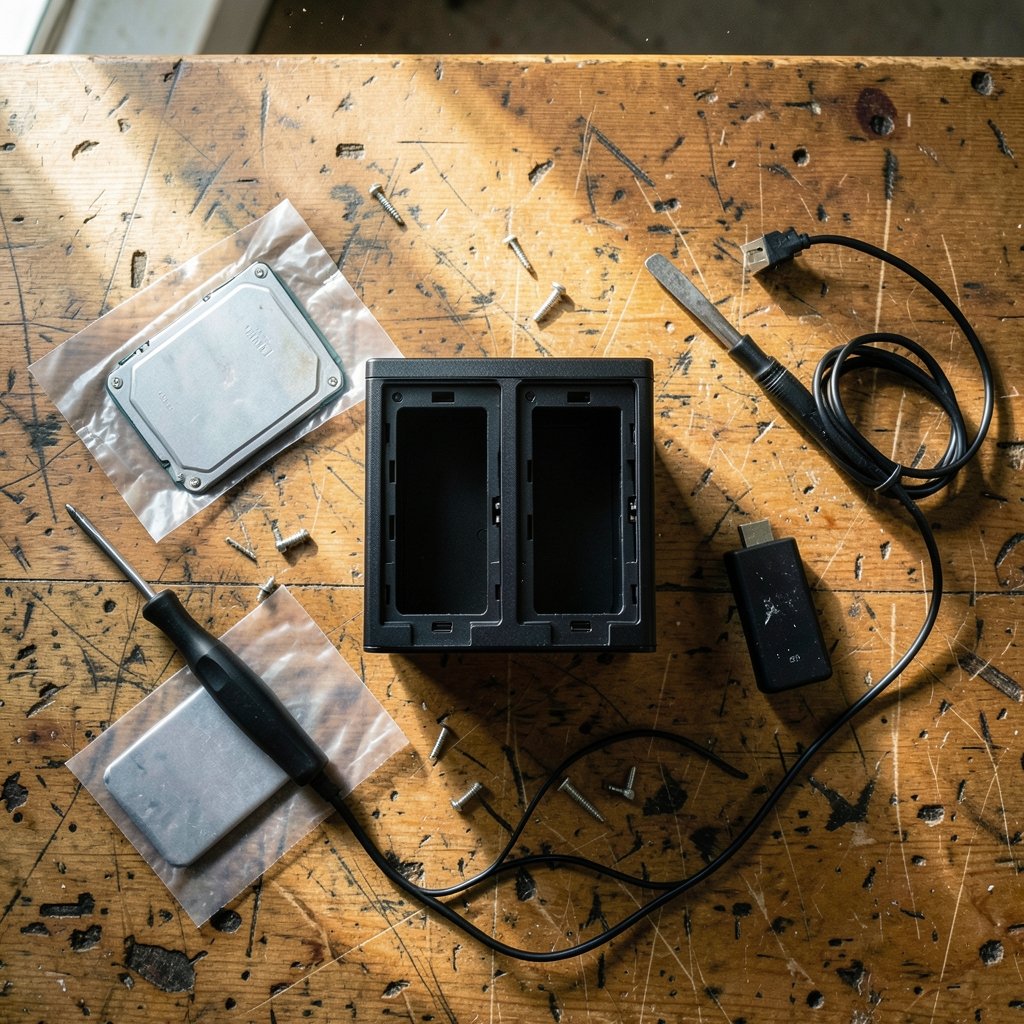
Quick Answer: How do i update nas storage safely without losing data?
The safe path is to back up first, verify that the backup restores, and only then touch firmware, disks, or array settings. In practice that means working through your vendor’s documentation (Synology Knowledge Center, QNAP Support, TrueNAS Docs), keeping a second copy off the device, and changing one thing at a time.
Minor patches and major version upgrades carry very different risk levels, and so do a single-drive swap and a full RAID expansion. Snapshots and replication add rollback protection, but they live on the same box and are not a substitute for an off-device copy. (RAID)
Before starting, check your model’s compatibility list, current firmware version, free space for a rebuild, array type and RAID level, UPS status, and whether your backup has actually been test-restored.
Most NAS data loss does not happen because a drive fails. It happens because someone updated firmware, swapped a disk, or rebuilt an array without a working backup in place. The storage industry’s long-standing 3-2-1 rule exists for exactly this moment: three copies of the data, on two different types of media, with one copy off-site. If that sounds excessive for a home box holding family photos, consider that a degraded RAID array plus a rebuild is one of the most common ways people lose everything at once. The update itself is rarely the villain. The missing backup is.
This guide walks through the whole sequence: what to back up, how to verify it, how to approach firmware and major version upgrades, how to replace or expand drives without drama, and the mistakes that quietly ruin weekends.
Before anything else: build a backup you can actually restore

A backup that has never been restored is a hope, not a plan. The first step is a full copy of the NAS data onto a separate device, ideally two: an external USB drive or second NAS on-site, plus cloud or off-site storage for the irreplaceable files. If you are weighing those two destinations, this breakdown of cloud storage vs local storage key differences covers speed, cost, and recovery tradeoffs in plain terms.
Then verify. Open a sample of files from the backup, check file counts and total size against the source, and restore at least one folder to a scratch location. A backup job that reports “completed” can still have skipped locked files, symlinks, or open databases. Verification is the step almost everyone skips and the one that matters most.
Two practical notes. First, snapshot and replication features (Btrfs snapshots, ZFS snapshots) are excellent rollback tools for accidental deletions and bad updates, but they sit on the same hardware. They protect against mistakes, not against theft, fire, ransomware, or a failed rebuild. Second, if the data includes databases, virtual machines, or mail stores, stop those services or use application-aware backup so the files are consistent.
Firmware updates: the routine task with the sharpest edges
Firmware updates are the most common “safe” maintenance job on a NAS, and vendors publish release notes and procedures for every model. Read them for your exact version rather than assuming the update is cosmetic. Some releases change the storage pool format, drop support for older expansion units, or require a minimum free space.
A sensible sequence looks like this:
- Confirm the backup is complete and verified.
- Read the vendor’s release notes for your model and current version.
- Connect the NAS to a UPS so a brownout cannot interrupt the write.
- Install the update and let the device reboot fully without power-cycling it.
- Check the logs, confirm volumes mounted, and test access to a few shares.
- Keep the previous firmware file if the vendor allows rollback.
The honest caveat: vendor advice on when to apply updates shifts over time, and some administrators deliberately wait for a point release and read community reports before jumping. That is a judgment call, not a rule. What is not a judgment call is having the backup ready before you click install.
Major version upgrades versus minor patches
Not all updates are equal. A minor patch fixes bugs and closes security holes; a major release can change the user interface, the package ecosystem, and sometimes the underlying filesystem behavior. Treat them differently.
| Update type | Typical risk | Sensible approach |
|---|---|---|
| Minor patch | Low | Apply promptly after backup, especially for security fixes |
| Major version | Moderate to high | Back up, read release notes, wait for early reports, upgrade when you have time to troubleshoot |
| Filesystem or pool format change | High | Full verified backup plus a tested rollback plan before starting |
| Drive firmware | Moderate | One drive at a time, never during a rebuild |
For major upgrades, block out real time. An upgrade that finishes in twenty minutes can still leave packages broken or permissions scrambled, and discovering that at midnight before a workday is miserable. If the NAS hosts anything shared, tell the other users first.
Replacing or expanding drives without losing the array
Adding capacity is where confidence gets people into trouble. The rules are simple but unforgiving.
Replace drives one at a time and let each rebuild finish completely before pulling the next. Rebuilding stresses every remaining drive at full load for hours or days, and a second failure during that window is the classic data-loss scenario. Never pull two drives “to save time.”
Check the vendor’s compatibility list before buying. NAS-specific drives differ in ways that matter, and the CMR versus SMR distinction has burned plenty of buyers who saved a few dollars per disk. Guidance on which drives qualify has shifted by vendor and year, so verify the current list for your model rather than trusting an old forum post.
Also confirm free space and array health before starting. A RAID 5 array with one failed disk and no spare is not the moment to experiment. If the array is already degraded, fix that first, with the backup in hand.
What actually goes wrong in practice
Patterns repeat. These are the failure modes worth designing around.
Rebuilding without a backup. The single biggest cause of catastrophic loss. RAID is redundancy, not backup, and a rebuild touches every block on every drive.
Skipping the restore test. People discover their backup excluded a critical folder only after the source is gone.
Interrupting a firmware write. A power cut mid-update can leave a device unbootable. A UPS is cheap insurance.
Mixing drive types mid-array. Performance and reliability can degrade, and some combinations are simply unsupported.
Upgrading during a busy week. Major releases need breathing room for troubleshooting.
Ignoring logs. Warnings about reallocated sectors or SMART attributes are early notice. Read them before they become an emergency.
If the NAS also feeds other systems, such as analytics jobs or camera recordings, plan the maintenance window around them. Teams running AI for data analysis on stored datasets should pause jobs and confirm checkpoints before any storage change, and anyone recording footage to a NAS should note that outdoor security cameras without a subscription often write directly to network shares, so a reboot means a gap in coverage.
Snapshots, RAID, and backups: know which job each one does
Confusion here causes most of the heartbreak. These three technologies solve different problems.
| Technology | Protects against | Does not protect against |
|---|---|---|
| RAID | A single drive failure | Deletion, ransomware, fire, theft, controller failure |
| Snapshots | Accidental changes, bad updates, quick rollback | Device loss, full volume failure, off-site events |
| Backup (3-2-1) | Nearly everything, if verified | Nothing, if never tested |
Snapshots are genuinely useful during an update: take one immediately before, and rollback becomes a five-minute operation if something misbehaves. But keep the off-device copy current regardless. The same logic applies to any always-on service you run alongside storage, including the infrastructure behind an AI data center, where redundancy layers are designed to fail independently on purpose.
A realistic maintenance checklist
Print this, or keep it somewhere you will actually look.
- Full backup completed and verified by test restore.
- Off-site or cloud copy current for irreplaceable data.
- UPS connected and healthy.
- Vendor release notes read for your exact model.
- Compatibility list checked for any new drives.
- Snapshot taken immediately before the change.
- One change at a time, with rebuilds allowed to finish.
- Logs reviewed after reboot; access tested from a client.
- Previous firmware or configuration exported and stored elsewhere.
- Notes written down: what changed, when, and what broke.
That last item sounds fussy until the second update six months later, when you cannot remember which drive you replaced or why a share behaves oddly. (NIST Cybersecurity Framework)
Conclusion
Updating NAS storage safely is less about technical wizardry and more about discipline. Back up, verify the backup, read the vendor’s notes for your exact model, and change one thing at a time. Keep snapshots for quick rollbacks and a genuine off-device copy for everything else. Replace drives one at a time and let rebuilds finish. Use a UPS. Read the logs. None of this is glamorous, and all of it works. The people who lose data are rarely the ones who skipped a step out of laziness; they are the ones who assumed RAID was a backup or that a “completed” job meant the files were safe. Check both assumptions before the next update, and the update itself becomes the boring part, which is exactly what you want.
FAQ
How long does a NAS firmware update usually take?
Most minor updates finish within fifteen to thirty minutes including reboot, while major version upgrades can take considerably longer, especially if packages need reinstalling or the volume needs checking. Plan a window with slack rather than assuming a quick restart.
Can I use the NAS while it is rebuilding an array?
You can, but performance will drop noticeably and the array stays vulnerable until the rebuild completes. Avoid heavy writes, pause large backup jobs, and do not start another disk swap until it finishes.
Is RAID enough protection if a drive fails?
No. RAID protects against a single drive failure, not against deletion, ransomware, power events, or a second failure during a rebuild. A verified off-device backup is the only layer that covers those cases.
Do snapshots replace a backup?
They do not. Snapshots live on the same device and roll back changes quickly, which makes them ideal before an update, but they disappear with the hardware. Keep an independent copy elsewhere.
What should I check before buying replacement drives?
Confirm the drive appears on your NAS vendor’s compatibility list, verify whether it uses CMR or SMR recording, match capacity and interface to your array, and buy from a seller with a clear return policy.
What if the NAS will not boot after an update?
Stay calm and avoid repeated power cycles. Check the vendor’s recovery documentation for your model, try the documented reset or recovery mode, and if the data matters more than the device, pull the drives and mount them in a compatible enclosure or replacement unit rather than experimenting further.
Document the baseline. Before any change, record the current firmware version, drive models and serial numbers, array configuration, and share permissions. A screenshot of the storage manager screens costs nothing and answers most “what was it before?” questions later.
Watch the rebuild percentage, not the clock. Vendors estimate rebuild times optimistically. Let the array report healthy and fully synchronized before touching the next drive, even if that means waiting an extra day.
Keep spare capacity, not spare urgency. Having one compatible drive on the shelf means a failure is a swap rather than a shopping trip, but never use an untested drive as your first line of defense.
With the checklist followed and the notes written down, the next update is routine — and routine is the goal.



