
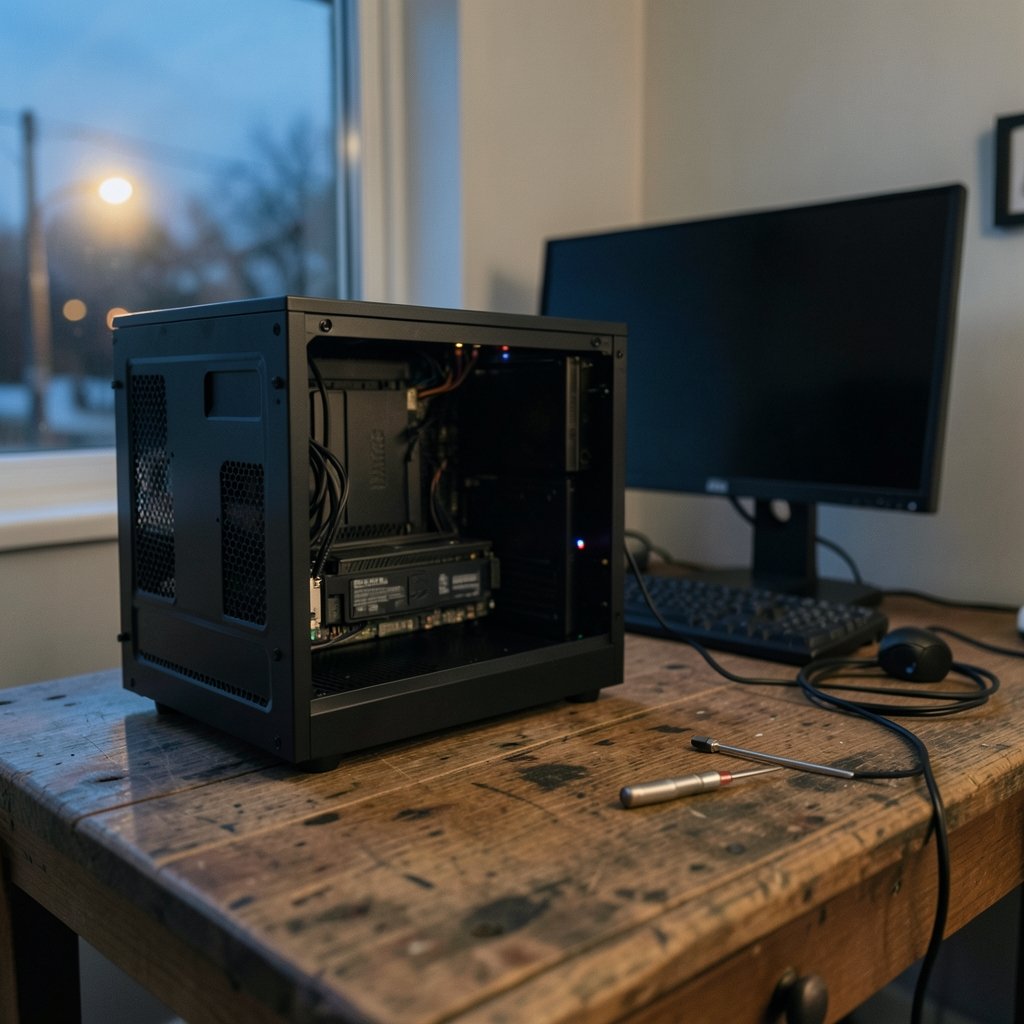
A graphics card is often the most expensive single part inside a desktop PC, and it is also the part most likely to show dramatic, scary symptoms: black screens, rainbow-colored artifacts, fans that scream, or a PC that refuses to display anything at all. The good news is that a large share of GPU failures are not actually dead hardware. Many are driver problems, loose cables, dust buildup, or power delivery issues that cost little or nothing to fix.
This guide walks through the most common graphics card problems, what usually causes them, and the practical steps that actually work. It also covers the mistakes people make most often, so you can skip straight to the fix that solves the issue instead of guessing.
Why Graphics Cards Fail in Predictable Ways
A GPU sits at the intersection of heat, power, and software. It draws hundreds of watts under load, runs hot, and depends on drivers that change constantly. That combination means most problems fall into a few buckets: thermal issues, power problems, driver and software conflicts, physical connection faults, and genuine hardware failure.
Understanding which bucket you are in matters, because the troubleshooting steps for each are very different. A card that crashes only during games is behaving differently from one that shows artifacts on the desktop, and a card that never displays anything at all is a different problem again. Pay attention to when the problem happens. That single detail narrows the cause faster than any diagnostic tool.
Symptom One: No Display or a Black Screen
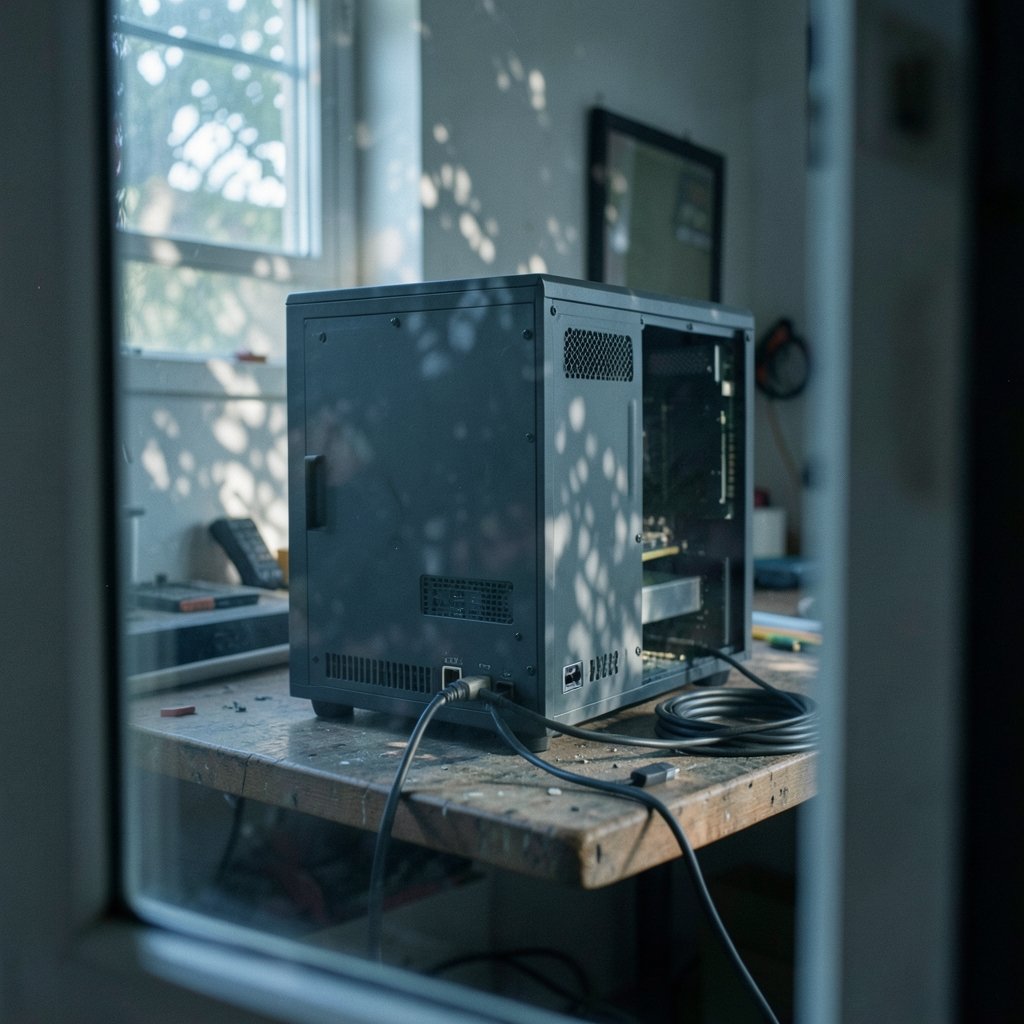
A black screen with no signal is the most alarming symptom, but it is often the simplest to fix.
Check the cable and the port first
The most common mistake is plugging the monitor cable into the motherboard’s video output instead of the graphics card. On a system with a discrete GPU, the motherboard port may run off integrated graphics or may be disabled entirely. Move the cable down to the card’s own ports. Also confirm the monitor is set to the correct input, and try a different cable if one is available. A failing DisplayPort or HDMI cable can mimic a dead GPU perfectly. (Graphics processing unit)
Reseat the card and its power connectors
Loose seating in the PCIe slot causes intermittent or total display loss. Power down, unplug the PSU, and remove the card. Check the slot for dust, then push the card back in firmly until the retention clip clicks. Do the same with every PCIe power connector, including each individual plug on multi-connector adapters. If you are installing a card for the first time, a step-by-step GPU upgrade and install graphics card guide 2026 covers the physical steps in the right order. (NVIDIA GeForce Graphics Cards)
Test with integrated graphics or Safe Mode
If the system boots fine on integrated graphics but not on the discrete card, the card, its power, or its driver is the problem. If it boots in Safe Mode but not normally, software is the likely culprit. That distinction saves a lot of time.
Symptom Two: Visual Artifacts, Flickering, and Strange Colors
Artifacts are the classic sign of a GPU in distress. They show up as colored blocks, checkerboard patterns, flickering lines, or textures that load incorrectly.
Rule out the driver
Driver corruption produces artifacts that look identical to hardware failure. A clean reinstall using a driver removal utility, followed by a fresh download from the card maker, resolves a surprising number of these cases. Do not install the new driver over the old one. Remove the old one completely first.
Check temperatures
Overheating causes artifacts, throttling, and crashes. Dust-clogged heatsinks are the usual reason. Compressed air through the fins, a check that all fans spin freely, and a sensible fan curve in the card’s control software often bring temperatures back to normal. Repasting the GPU is an option for older cards, but it voids the warranty on many models, so treat it as a last resort.
Consider memory errors
Artifacts that persist after a clean driver install and good temperatures point toward VRAM problems. Memory errors are not user-fixable in most cases, but they are worth confirming before you replace the card, since the same visual glitches can come from a failing monitor or a marginal cable.
Symptom Three: Random Crashes and Shutdowns Under Load
If the PC crashes only during gaming or heavy rendering, the problem is usually power or heat, not the GPU itself.
Suspect the power supply
An aging or undersized PSU is one of the most overlooked causes of GPU instability. Modern cards draw large transient power spikes that a tired unit cannot handle, so the system shuts down or restarts. The practical test is to try a known-good power supply with adequate wattage. If the crashes vanish, the PSU was the problem all along.
Watch the temperatures under load
Use monitoring software to log GPU temperature, hotspot temperature, and clock speeds during a stress test. If the card hits its thermal limit and clocks drop sharply, cooling is inadequate. Case airflow matters here. A card crammed against a solid front panel will run hot no matter how good its own cooler is.
Update the motherboard BIOS and chipset drivers
Sometimes a card is fine but the platform is not. BIOS and chipset updates fix GPU detection and stability issues on certain boards. Check the motherboard maker’s support page for your exact model.
Symptom Four: Fans That Are Too Loud or Never Spin
Fan behavior confuses a lot of people. Many modern cards stop their fans entirely at idle, which is normal and by design. Fans that never spin under load are a real problem. Check the fan curve in the vendor software and confirm no cable is obstructing the blades.
Constant full-speed fans usually mean the card is not being detected properly by its control software, or that a temperature sensor has failed. A clean driver install and a firmware check are the first steps. Grinding or rattling noises point to a worn bearing, which often means a fan replacement.
Symptom Five: Poor Performance and Low Frame Rates
Performance that drops over time is rarely the card dying. It is usually one of these:
| Symptom | Likely cause | First fix |
|---|---|---|
| Frames drop after 20 minutes | Thermal throttling | Clean dust, improve airflow |
| Low frames from day one | Wrong GPU in use | Force the discrete GPU in settings |
| Stutter and micro-freezes | Outdated or conflicting drivers | Clean driver reinstall |
| Low scores in benchmarks only | Power limit or settings | Check power plan and limits |
A common mistake is assuming a new card will fix slow performance when the real bottleneck is the CPU, the RAM, or a monitor cable running at the wrong refresh rate. Confirm the card is actually being used by the game before spending money. It is also worth noting that a gaming PC and a family game night have very different hardware demands; if you are shopping for lighter entertainment, a look at best card games is a more sensible purchase than a new GPU.
Symptom Six: The Card Is Not Detected at All
When the system does not see the card in Device Manager, work through the physical layer first: reseat the card, reseat the power cables, and try a different PCIe slot if you have one. Then check the BIOS to confirm the slot is enabled and set as the primary display output.
If the card appears with a warning icon, the driver is the issue. If it does not appear at all in any slot, on any system, the card itself is likely faulty. Testing it in a second PC is the cleanest way to confirm.
Mistakes People Make When Troubleshooting
A few habits cause more harm than good.
- Changing five things at once. Change one variable, test, then move on. Otherwise you never learn what fixed it.
- Skipping the cable and monitor check. It feels too simple to be the answer, but it frequently is.
- Ignoring the power supply. People replace the GPU when the PSU was failing.
- Downloading drivers from random sites. Use the card maker’s official page only.
- Never cleaning the case. Dust is the cheapest problem to prevent and one of the most common causes of overheating.
- Overlooking the rest of the system. Sometimes the GPU is fine and something else is struggling. The same principle applies to everyday problems: if you want to know how to stop snoring at night home remedies, you fix the actual cause rather than the symptom, and PC troubleshooting works the same way.
When to Repair and When to Replace
Repair makes sense when the fault is software, cooling, cabling, or power delivery. Those fixes are cheap and often permanent. Replacement makes sense when the card shows artifacts across multiple systems, is not detected in any slot, or has physical damage such as a cracked PCB or a burnt power connector.
Warranty coverage is worth checking before any DIY repair. Many cards carry multi-year warranties, and opening the cooler often voids them. If the card is under warranty, contact the manufacturer first.
Preventing Problems Before They Start
Most GPU problems are preventable with a little routine care. Clean the dust filters every few months. Keep the case on a hard surface rather than carpet. Make sure the PSU has headroom above the card’s rated draw. Update drivers deliberately rather than constantly, and keep a known-good driver version on hand in case a new release misbehaves. Monitor temperatures occasionally so you notice a slow climb before it becomes a crash.
Conclusion
Most graphics card problems look worse than they are. Black screens, artifacts, crashes, and loud fans usually trace back to a short list of causes: a loose cable, a dusty cooler, a tired power supply, or a corrupted driver. Working through those in order, changing one thing at a time, solves the majority of cases without spending a cent. Genuine hardware failure does happen, but it is far less common than the internet makes it seem. Start with the simple checks, stay methodical, and most cards will keep running for years.
Frequently Asked Questions
How do I know if my graphics card is dying?
The strongest signs are artifacts that appear in every operating system and on every monitor, a card that is not detected in multiple systems, and crashes that continue after a clean driver install and confirmed good temperatures. Isolated crashes or a single black screen are usually not hardware failure.
Can a bad power supply damage a graphics card?
A failing PSU can cause instability, random shutdowns, and in rare cases damage to components. If your system crashes under load, testing with a known-good power supply is one of the most useful diagnostic steps you can take.
Why does my GPU crash only during games?
Games push the card to its highest power draw and temperature, so crashes that appear only under load usually point to thermal throttling, an inadequate power supply, or an unstable overclock. Check temperatures and power delivery first.
Is it safe to repaste a graphics card?
It is physically safe if done carefully, but it voids the warranty on many models and carries a real risk of damage if you are inexperienced. Try cleaning, fan curve adjustments, and better case airflow first.
How often should I update GPU drivers?
Update when a new driver fixes a problem you have, adds support for a game you play, or addresses a security issue. Constantly chasing every release adds risk without much benefit, so keeping a stable version is often the smarter choice.
Can dust really cause GPU problems?
Yes. Dust blocks heatsink fins and fan blades, which raises temperatures and triggers throttling, artifacts, and crashes. Regular cleaning is the cheapest and most effective maintenance you can do for any graphics card.



