
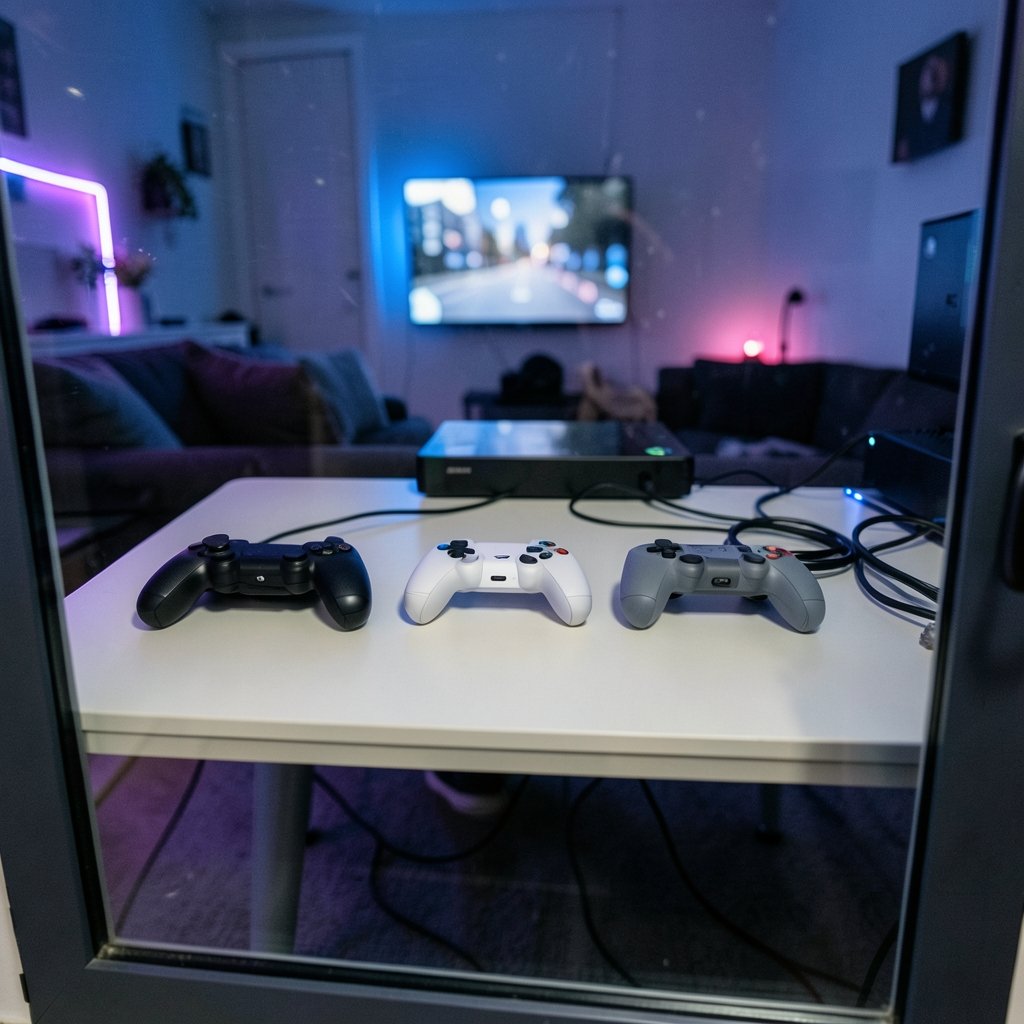
Quick Answer: What are the best gaming controllers for beginners?
The best gaming controller for a beginner is usually the Xbox Wireless Controller, because it works natively on Xbox consoles and Windows PCs and is supported by most PC games through the XInput API. Beginners on PlayStation should start with the DualSense, and Switch owners with the Nintendo Switch Pro Controller.
Alternatives exist for tighter budgets and multi-platform play. 8BitDo makes third-party controllers that support several platforms, and wired models cost less while avoiding battery concerns.
Before buying, compare platform compatibility, connection type (wired or wireless), button layout, ergonomics and hand size, stick technology, and price.
Why the First Controller Matters More Than You Think
Ever watched someone buy a controller, take it home, plug it in, and discover half their games ignore it? It happens constantly. The controller is the one piece of gaming gear you physically touch for every single hour of play, yet it is also the piece beginners research least. People spend weeks comparing graphics cards and then grab whatever controller is on the shelf.
That order is backwards. A controller that fits your hands and speaks the right language to your games will do more for your enjoyment than ten extra frames per second. This guide keeps things practical: which controllers actually work for beginners, where the traps are, and what to check before you spend money.
Start With Your Platform, Not the Controller
Here is the single biggest beginner decision, and it has nothing to do with brand loyalty. Platform compatibility decides everything else. A controller bought for one console may not work fully on another, and retailer listings are famously optimistic about this. Check the manufacturer’s official compatibility documentation instead of trusting the box.
| Your main platform | The safe beginner pick | Why it works | |
|---|---|---|---|
| Xbox Series X | S or Xbox One | Xbox Wireless Controller | Native support, no setup, XInput standard on PC |
| PlayStation 5 | DualSense | Full feature support on PS5, basic support on PC | |
| Nintendo Switch | Switch Pro Controller | Native pairing, comfortable for long sessions | |
| Windows PC (mixed storefronts) | Xbox Wireless Controller | Most games detect it automatically via XInput | |
| Several platforms at once | 8BitDo multi-platform models | One controller, multiple devices, budget pricing |
If you are still assembling your setup, the practical advice in this step-by-step first build guide pairs well with choosing a controller, since port selection on your case and motherboard affects how you connect everything.
The Xbox Wireless Controller: The Beginner Default
The current Xbox Wireless Controller design arrived in November 2020 alongside the Series X|S consoles, and it remains the easiest recommendation for most beginners. It works natively on Xbox consoles and Windows PCs through Xbox Wireless, Bluetooth, or a USB-C cable. On Windows, most modern games support it through XInput, the Microsoft API that handles controller input, so it usually just works the moment you plug it in.
That “just works” quality is worth more than any spec sheet feature. Beginners do not want to spend their first evening in a settings menu. The button layout is also the de facto standard on PC, which means tutorials, button prompts, and community advice all assume you are holding one.
The trade-offs are real but modest. The controller runs on AA batteries unless you buy a rechargeable pack, and the D-pad, while improved, is not the favorite of fighting-game players. Neither issue matters much for someone playing their first hundred hours of games.
The DualSense: Great on PS5, Uneven on PC
Sony’s DualSense shipped with the PlayStation 5 in November 2020 and is the obvious choice if a PS5 is your main machine. Adaptive triggers and haptic feedback are genuinely impressive, and first-party games use them well.
On PC, the story gets murkier. The DualSense connects over USB or Bluetooth, but support for its advanced features varies by game and launcher. Some titles implement the full experience; others treat it as a generic gamepad. That inconsistency is not a dealbreaker, but beginners should know that the fancy features are a bonus on PC, not a guarantee.
One practical tip from experience: if you play on PC and also own a PS5, keep the DualSense paired to the console and use a separate controller for the computer. Re-pairing the same controller between devices every session gets old fast.
The Switch Pro Controller: Comfortable, With a Catch
The Nintendo Switch Pro Controller launched in March 2017 and remains the best way to play docked Switch games for most people. It is comfortable, has excellent battery life, and pairs over Bluetooth with PCs and mobile devices too.
The catch is the button labeling. Nintendo swaps the positions of A/B and X/Y compared with Xbox layouts, so the button marked “A” on a Nintendo pad sits where an Xbox player expects “B.” Beginners switching between platforms find this genuinely confusing for the first week or two. It fades with practice, but it is worth knowing before you blame yourself for pressing the wrong button.
Budget and Multi-Platform Options Worth Knowing
8BitDo has built a solid reputation for third-party controllers that support multiple platforms at prices well below first-party hardware. Models in the Pro 2 and SN30 Pro lines are frequently recommended as budget-friendly beginner picks. Model names and firmware features change often, so verify the current lineup and compatibility notes before buying.
One emerging feature deserves a mention with a caveat. Hall-effect sticks, which use magnetic sensing and are marketed as drift-resistant, became a selling point in third-party controllers roughly between 2023 and 2025. The pitch is appealing, since analog stick drift is the classic way controllers die. But long-term durability data is limited and mostly comes from vendors, so treat hall-effect claims as promising rather than proven.
Wired or Wireless? The Trade-Off Beginners Overthink
Wired USB connections generally avoid latency and battery concerns and often cost less. Wireless adds convenience and a cleaner desk. The latency differences between a good wired and a good wireless connection are small and depend on the game, so do not let anyone tell you wireless is unplayable. It is not.
What actually matters in practice is simpler. Wireless controllers need charging, and a controller that dies mid-boss-fight teaches harsh lessons. Wired controllers need a cable long enough to reach your seat, and cheap cables fail at the connector first. Pick based on how you sit and how often you remember to charge things, not on millisecond charts.
The Mistake Almost Every Beginner Makes
The most common first-controller mistake is not buying the wrong brand. It is buying a generic or older controller that presents as DirectInput on Windows instead of XInput. Modern games expect XInput, and a DirectInput device may simply not be detected or may need third-party remapping tools to function. The controller looks fine, the price looks great, and then nothing works.
The second most common mistake is skipping ergonomics. Hand size and grip style matter more than brand for comfort, and there is little rigorous public research comparing controller ergonomics across models, so most ergonomic claims are anecdotal. The practical fix is to hold a controller before committing, or buy from a retailer with a fair return policy. A controller that cramps your hands after an hour is a bad controller for you, no matter what a review says.
It also helps to read up on common controller problems and how to fix them yourself before you assume a new purchase is faulty. Stick drift, pairing failures, and dead buttons often have simple fixes.
Accessibility Controllers Deserve a Place in This Conversation
Beginners with motor impairments should know that first-party accessibility hardware exists. Microsoft’s Xbox Adaptive Controller, announced in 2018, and Sony’s Access Controller, released in December 2023, are official accessibility controllers designed for players who need alternative input arrangements. These are worth checking on the manufacturers’ official accessibility pages rather than store listings, since configuration options and compatible accessories matter more than price alone.
Matching a Controller to Your Setup
If you are building a full setup on a budget, controller money competes with everything else. A few practical pairings:
- Console-first beginner: buy the first-party controller for your console and stop there.
- PC beginner on a budget: an Xbox Wireless Controller plus a long USB-C cable covers nearly everything.
- Multi-device household: one 8BitDo multi-platform pad plus the console’s pack-in controller is a sensible split.
- Laptop gamer: check the best gaming laptops under 1000 that actually fit a budget before spending heavily on accessories, since built-in Bluetooth quality varies.
If your controller plans include fighting games, racing titles, or retro emulation, it is also worth reading a practical buying guide on whether a gaming monitor is worth it for beginners, because display response and controller input feel connected in ways new players notice immediately.
How to Test a New Controller in Ten Minutes
- Connect it and confirm the platform detects it without extra software.
- Open a game you know and check that every button registers correctly.
- Test the analog sticks for smooth movement and a clean return to center.
- Hold it for a full session before deciding; comfort problems show up late.
- Confirm the return window and keep the packaging until you are sure.
That five-step check catches most duds before the return period expires, which is the only warranty that matters in the first month.
Conclusion
For most beginners, the answer is refreshingly simple: buy the first-party controller that matches your main platform, and if that platform is a PC, make it the Xbox Wireless Controller. It is the path of least resistance, it is supported by the widest range of games, and it removes the setup friction that kills early enthusiasm.
From there, the refinements are personal. PlayStation owners get the DualSense and its clever triggers. Switch owners get the Pro Controller and its comfortable grip. Budget-minded and multi-platform players get capable third-party options from 8BitDo, provided they verify compatibility first. Whatever you choose, check platform support, connection type, button layout, and hand fit before you pay. Get those four right and your first controller will quietly do its job for years.
Frequently Asked Questions
Can I use a PlayStation controller on a Windows PC?
Yes. The DualSense connects to Windows over USB or Bluetooth and works as a gamepad in many titles. The caveat is that advanced features like adaptive triggers and haptics are supported on a per-game and per-launcher basis, so expect a standard controller experience in some titles and the full feature set in others.
Is a wired controller better than a wireless one for beginners?
Not inherently. Wired connections generally avoid latency and battery concerns and often cost less, while wireless adds convenience. The differences in latency are small and game-dependent. Beginners should choose based on how they sit, how far away their screen is, and whether they reliably remember to charge devices.
Why does my new controller not work with some PC games?
The likely culprit is the input API. Most modern Windows games use XInput, while older or generic controllers may present as DirectInput and go undetected. Checking whether a controller is XInput-compatible before purchase solves this problem in advance, and remapping tools can rescue DirectInput devices afterward.
Are hall-effect analog sticks worth paying extra for?
They are a reasonable bet but not a proven one. Hall-effect sticks use magnetic sensing and are marketed as drift-resistant, which addresses the most common controller failure. However, long-term durability data is limited and largely vendor-claimed, so treat the feature as a bonus rather than a guarantee.
Do I need a different controller for each console?
Often, yes, at least for full feature support. A controller bought for one console may not work fully on another, and retailer listings tend to overstate compatibility. Multi-platform third-party controllers can cover several devices, but always confirm details in the manufacturer’s official compatibility documentation.
What should I check first before buying a beginner controller?
Start with platform compatibility, then work through connection type (wired or wireless), button layout, ergonomics and hand size, stick technology, and price. Compatibility is the one factor that can make every other feature irrelevant, so confirm it before anything else.



