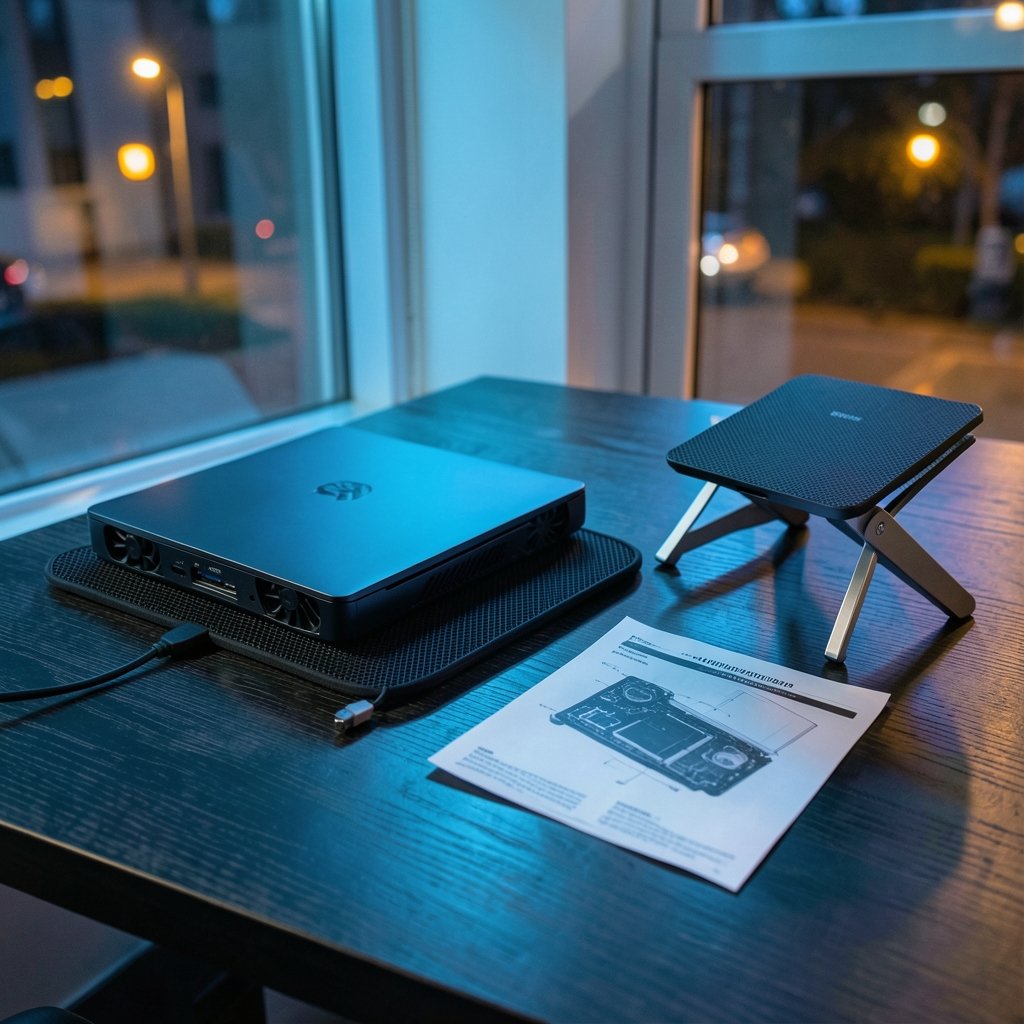
Quick Answer: How do I choose gaming laptop cooling pads?
Choosing a gaming laptop cooling pad starts with matching the pad’s fans to your laptop’s intake vents, because airflow only helps when it reaches the places that draw air in. From there, weigh fan size and airflow against noise, and decide between USB-powered pads and models with their own power adapter.
Alternatives worth knowing include simple stand-style risers that only improve angle and clearance, and repasting or internal cleaning, which address heat at the source rather than from outside. A pad is an accessory, not a cure for a chassis that vents poorly.
Before buying, compare vent alignment, supported laptop size and weight, fan size and rated airflow, noise level, power source, height adjustment, dust filtering, and port clearance.
Why a Cooling Pad Is Not a Magic Fix

A cooling pad works by pushing forced air across the underside of a laptop and toward its vents. That is the whole mechanism. It does not replace a heatsink, it does not fix dried thermal paste, and it cannot rescue a chassis with badly placed intakes.
This matters because shoppers often expect a pad to drop temperatures dramatically. In practice, laptop cooling is limited first by the internal heatsink and fan design, then by paste and dust, and only after that by external airflow. A pad can lower surface temperatures and shave heat off some components, but gains vary widely between models. Anyone promising a fixed number of degrees for every laptop is guessing.
The practical takeaway: buy a pad to support a laptop that already cools reasonably well, not to compensate for one that does not. If a machine throttles hard under load, cleaning the vents and fans is the first move, not shopping.
Start With Your Laptop’s Vents, Not the Pad
Before comparing specs, flip the laptop over. Where does air enter? Most gaming laptops draw in through grilles on the bottom, often toward the rear or across the middle. Some pull air through the keyboard deck or side intakes instead.
That layout decides everything. A pad whose fans sit under a solid plastic panel does almost nothing. A pad that channels air toward the actual intake grilles, or seals around them, tends to help more. Flat pads with fans in the wrong position are the most common mismatch people make.
Three quick checks:
- Photograph the bottom of the laptop and mark where the grilles are.
- Look at the pad’s fan positions in product photos and compare.
- Check reviews that mention your specific laptop model rather than the pad alone.
Laptops with bottom intakes are the best candidates. Machines that vent mostly out the rear or sides benefit less from a pad and more from simply raising the back edge for clearance.
Fan Size, Airflow, and the CFM Trap
Vendors love quoting airflow in CFM, or cubic feet per minute. Bigger numbers look better. The problem is that cooling-pad airflow figures are rarely measured to a shared standard, so comparing CFM across brands is unreliable at best.
What you can judge more confidently:
| Spec | What it tells you | What to watch |
|---|---|---|
| Fan diameter | Larger fans move more air at lower RPM | Small, fast fans get noisy |
| Fan count | More fans can spread airflow | Placement matters more than count |
| Rated RPM | Higher speed means more airflow | Higher speed also means more noise |
| Rated airflow (CFM) | Rough indicator only | Not standardized across brands |
| Noise (dB(A)) | Relative loudness | Measurement distance varies |
A useful rule of thumb from acoustics: roughly a 10 dB increase is perceived as about twice as loud. So a pad rated 10 dB higher than another will sound noticeably louder, not slightly. Treat vendor dB figures as indicative, since test distance and method differ.
For most people, two large fans at moderate speed beat five tiny fans screaming at maximum. If you game with headphones, noise matters less; if you share a room or record audio, it matters a lot.
Power Source: USB or Its Own Adapter?
USB-powered pads draw current from the laptop itself. That means a small hit to battery life and a share of your USB power budget, which can matter on laptops already running hubs and accessories. If you are already thinking about port budgets, this connects to how laptop dock charging wattage and USB PD tiers carry overhead that eats into what is available.
Pads with their own AC adapter avoid drawing from the laptop and usually push more air. The trade-off is another cable and another wall wart.
A simple comparison:
| Power type | Pros | Cons |
|---|---|---|
| USB from laptop | One cable, portable, simple | Draws laptop power, often weaker fans |
| USB from a wall charger | No laptop draw, still portable | Needs a separate adapter |
| Dedicated AC adapter | Strongest airflow, no laptop draw | Bulkiest, least travel-friendly |
For desk setups, a dedicated adapter is often the better call. For travel, USB is hard to beat.
Noise, Ergonomics, and the Details People Skip
Noise is the spec buyers regret ignoring. Check reviews that mention sound at low and high settings, and look for pads with speed control. A pad stuck at full blast is a nuisance in a quiet room.
Height and angle adjustment helps ergonomics and sometimes airflow, but tilting a laptop can change how its internal fans draw air, and the effect is model-specific. Try a couple of angles rather than assuming the steepest is best. Good posture habits matter here too, which is why ergonomics guidance keeps coming back to screen height and wrist angle.
Dust filters and easy-clean grilles are underrated. Clogged vents are a leading cause of overheating over time, and most laptop makers recommend periodic cleaning. A pad you can open and wipe saves hassle.
Compatibility deserves a real check: supported laptop size (commonly 15.6 to 17.3 inch classes), weight capacity, and whether the pad’s frame blocks rear ports, the power jack, or a rear exhaust. A pad that covers your HDMI port is a daily annoyance.
Finally, think about the whole desk. A cooling pad is one part of a setup that may include a monitor, dock, and external drives. If you are building that out, the same logic that applies to choosing a gaming monitor whose panel matches the games you actually play applies here: match the gear to your real use, not to the spec sheet.
Matching the Pad to Your Laptop Class
Different machines need different pads.
Thin gaming laptops with bottom intakes and high internal heat often gain the most from a pad that directs air at the grilles. They also tend to be light, so weight capacity is rarely an issue.
Large 17-inch desktop replacements need a wide pad with strong airflow and a sturdy frame. Cheap plastic flexes under the weight.
Laptops with rear or side exhaust only get modest gains. A simple riser may be enough.
Budget machines are often the best value case for a pad, since they frequently have less sophisticated cooling. If you are shopping at the lower end, pairing a modest pad with a sensibly priced machine is smart, and a guide to budget gaming laptops that actually fit your budget helps you avoid overspending on the laptop itself.
Mistakes That Waste Money
The most common error is buying on looks. RGB lighting sells pads; vent alignment cools laptops. Check the fan layout first.
The second is expecting a miracle. If a laptop hits 95°C under load, a pad might shave a few degrees. It will not transform the machine. Independent thermal testing generally shows modest reductions with wide variation by model.
The third is ignoring maintenance. A dusty pad blowing into a dusty laptop is a losing battle. Clean both.
The fourth is buying for the wrong reason. If the laptop is loud and hot because it is aging, a repaste and fan clean will do more than any accessory. If you are choosing a machine in the first place, it pays to pick a gaming laptop that actually keeps its cool rather than fixing a bad thermal design later.
A Practical Buying Checklist
Work through this in order:
- Photograph your laptop’s underside and note intake positions.
- Measure the laptop’s footprint and weight.
- Shortlist pads whose fans align with those intakes.
- Filter by supported size and weight capacity.
- Compare fan diameter and count before CFM claims.
- Read noise reports at low and high settings.
- Decide between USB power and a dedicated adapter.
- Check port and exhaust clearance.
- Confirm height adjustment and dust filtering.
- Read at least a few reviews mentioning your laptop model.
That sequence takes fifteen minutes and prevents most returns.
When a Cooling Pad Is the Wrong Purchase
Sometimes the honest answer is no. If the laptop vents only out the rear, if it already runs cool, or if the heat problem traces to dust and old paste, a pad adds cost and clutter for little gain.
The same principle applies across tech buying: match the tool to the actual problem. Students weighing big purchases often benefit from the same discipline, whether they are comparing machines or deciding between study abroad destinations that fit their budget and goals. A practical laptop buying guide that saves you money makes the same point: spend where it changes your experience, skip where it does not.
If you edit video or render for hours, sustained thermals matter more, and the cooling conversation overlaps with choosing the best laptop for video editing, where sustained performance beats peak specs. For buyers curious about newer hardware, coverage of Colorful’s AMD gaming laptop with Radeon 8060S and 128GB memory shows how internal design choices shape what external cooling can achieve.
Conclusion
Choosing a gaming laptop cooling pad comes down to fit, not flash. Match the fans to your laptop’s intakes, favor large fans at moderate speed over small ones at maximum, decide early between USB power and a dedicated adapter, and check noise, clearance, and dust filtering before you buy. Expect modest gains and treat the pad as support for a healthy laptop rather than a repair for a struggling one. Do that, and a cooling pad earns its place on your desk instead of gathering dust beside it.
FAQ
Do cooling pads actually lower laptop temperatures?
They can, but usually by a modest amount, and results vary widely by laptop. The gain depends on whether the pad’s fans line up with the intake vents and whether the laptop’s internal cooling is already adequate. Expect support, not transformation.
How many fans should a cooling pad have?
Fan placement matters more than fan count. Two or three large fans aligned with your laptop’s intakes generally beat five small fans in the wrong spots. Check product photos against your laptop’s underside before buying.
Is a louder cooling pad always more effective?
No. Higher fan speed usually means more airflow and more noise, but noise is not proof of cooling. A well-placed large fan at moderate speed can outperform a small, screaming one. Look for speed control so you can balance the two.
Can a cooling pad damage my laptop?
A well-made pad poses little risk. Watch for pads that block rear exhausts or ports, and avoid anything that flexes badly under weight. Also keep the pad clean, since blowing dust into vents works against you.
Should I use a cooling pad on a laptop with rear-only vents?
It helps less. If air only leaves through the rear, a pad’s upward airflow has limited effect. A simple riser to improve clearance and angle may be the better, cheaper choice.
Does a cooling pad help battery life?
Indirectly, yes. Lower internal temperatures can reduce thermal throttling, letting the laptop run more efficiently. But a USB-powered pad draws from the battery, so on battery power the net effect is often a wash.