Quick Answer: Which gaming laptop cooling pads are best for competitive gaming?
The best cooling pads for competitive gaming are the ones that lift your laptop, feed cool air to its intake vents, and stay quiet enough to ignore. In practice, that means a sturdy elevated stand with large, low-RPM fans rather than a flashy pad with a dozen tiny ones.
Alternatives worth knowing exist: a plain laptop stand plus an external fan can match a cheap pad, and vacuum-style side coolers work only if your exhaust vents line up with them. Some laptops gain little from any pad because their chassis pulls air from the rear instead of the bottom.
Before buying, compare height adjustment, fan size and noise rating, USB power draw, build material, vent alignment with your specific model, and return policy.
Why Thermals Decide Close Matches
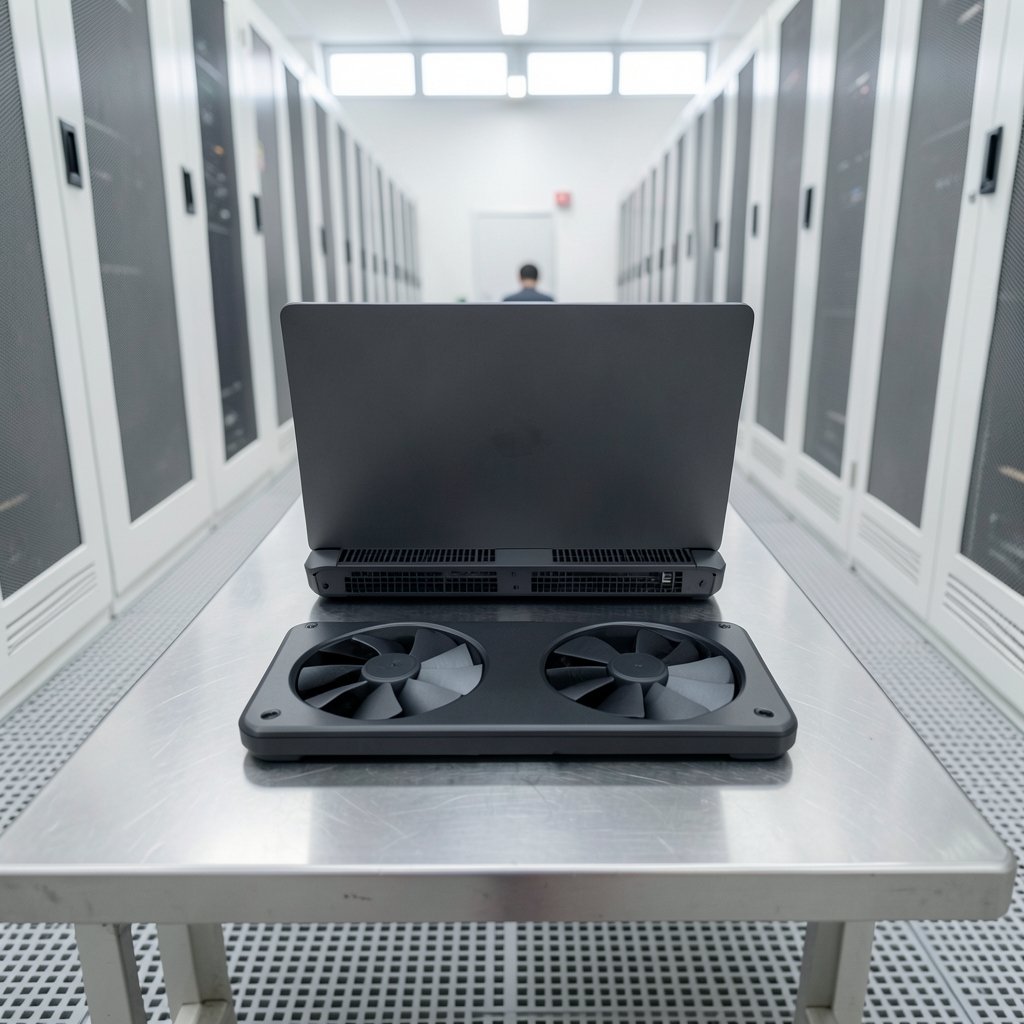
Ever lost a firefight because your frame rate dipped at the worst possible moment? That stutter usually isn’t your internet. It’s heat.
When a laptop’s processor or graphics chip hits its temperature limit, it slows itself down to stay safe. This is called thermal throttling, and it’s a well-documented behavior in modern CPUs. The result isn’t a crash. It’s worse: frame times get uneven, input feels mushy, and your aim suffers right when the round is on the line.
A cooling pad is one of the cheapest tools against that. But here’s the honest part: it’s a supporting actor, not a hero. Reviews and teardowns consistently find that elevation and airflow do most of the work. Fan count, RGB lighting, and marketing badges contribute far less than a clear path for air.
If you’re building out a competitive setup, thermals are one piece of a bigger puzzle. Monitor choice matters just as much for reaction time, which is why a guide to the best gaming monitors for competitive play pairs well with any cooling upgrade. And if you’re still deciding what to play on, the breakdown of which gaming consoles actually fit your needs is a useful counterpoint before you spend on laptop accessories.
What a Cooling Pad Can and Cannot Do
Setting expectations correctly saves money. A cooling pad is not a magic temperature eraser.
What it can do: raise the laptop so the bottom intake breathes, push fresh air into the chassis, and reduce how often the fans spin up to maximum. In many reviews, measured improvements land in the single digits in degrees Celsius. Sometimes more. Sometimes almost nothing.
What it cannot do: fix a chassis with a poor internal design, replace thermal paste, or overcome a dust-clogged heatsink. If your laptop exhausts heat from the rear and sides and draws air from the back edge, an under-laptop pad has little to grab onto.
That design dependency is the single biggest mistake buyers make. They read “up to 20°C cooler” on a box, buy the pad, and feel nothing. The claim isn’t necessarily a lie. It’s just measured on a different laptop, in a different room, under a different load.
A simple test before you buy: flip your laptop over. Find the intake grilles. If they’re on the bottom, a pad will likely help. If they’re mostly on the sides or rear, prioritize a stand that lifts the rear edge instead.
The Features That Actually Matter
Strip away the spec sheet noise and a short list remains.
| Feature | Why it matters | What to look for |
|---|---|---|
| Fan size | Bigger fans move more air at lower RPM | 140mm or larger, few in number |
| Noise level | Competitive players need audio cues | Low-RPM mode, decibel ratings |
| Height and angle | Elevation drives airflow and posture | Adjustable legs, 7 to 15 degrees |
| Vent alignment | Air must reach your intakes | Match fan positions to your laptop’s grilles |
| Power source | USB pads draw from your laptop | Separate adapter or powered hub |
| Build rigidity | Wobble ruins mouse precision | Metal frame or stiff plastic |
Fan size deserves special attention. A single large fan spinning slowly usually beats five small ones screaming at full tilt. It moves comparable air with far less noise, and noise matters more than people think. Many competitive players wear headsets, so pad noise fades into the background. But if you stream, share a room, or play without a headset, a loud pad becomes a genuine annoyance.
Power draw is the sleeper issue. A USB-powered pad pulls current from the same ports your mouse, keyboard, and headset use. On a laptop with limited ports or a weak hub, that can cause dropouts or charging slowdowns. A powered hub or a pad with its own adapter sidesteps the problem entirely.
Ergonomics also deserve a mention. Raising the screen helps your neck. Angling the deck can hurt your wrists if you type on the laptop itself. For competitive play with an external keyboard and mouse, elevation is almost always a win. For mixed use, check that the angle stays comfortable.
Matching the Pad to Your Laptop
There is no universal best pad, and anyone claiming otherwise is selling something. The right pick depends on your machine.
Thin gaming laptops with bottom intakes benefit most. They run hot by design and have little internal headroom. A raised stand with two large fans is often enough.
Bulky desktop-replacement laptops already have bigger heatsinks and stronger fans. Gains from a pad tend to be smaller, though elevation still helps.
Laptops with rear or side exhaust need a different approach. A vacuum-style cooler that clips onto a side vent can work, but only if the vent placement matches. If it does not match, it can work against the intended airflow path.
Older laptops with dust buildup will see the biggest relative improvement from anything that improves airflow, but the real fix is cleaning the heatsink. A pad buys time, not a cure.
If you’re weighing a laptop against a full desktop for competitive play, the tradeoffs run deeper than cooling. A comparison of a PS5 Pro versus a gaming PC setup lays out where each platform wins, and thermals are one reason desktops stay popular for long sessions.
Practical Setup Tips That Beat Fancier Hardware
Before spending on a premium pad, try the free stuff. These steps routinely deliver more than an upgrade.
- Raise the rear edge. A book or two under the back feet can drop temperatures noticeably by opening the bottom intake.
- Clear the surface. Playing on a bed or carpet suffocates the vents. A hard, flat desk is non-negotiable.
- Clean the vents. Compressed air through the exhaust grilles every few months removes the dust blanket that throttling feeds on.
- Cap your frame rate. Locking frames slightly below your average reduces heat output and smooths frame times. Many competitive players do this deliberately.
- Adjust fan curves. Manufacturer software often ships with conservative curves. A slightly more aggressive profile can hold clocks steadier.
- Watch ambient temperature. A hot room raises everything. Summer sessions throttle more than winter ones, pad or no pad.
That last point surprises people. A pad pushing 30°C room air into a laptop does less than the same pad in a 20°C room. Cooling is relative, always.
Where the Pad Fits in a Full Competitive Setup
A cooling pad is one link in a chain. Latency, display, network, and peripherals all shape how a match feels.
Network stability is a good example. No amount of cooling saves you from a lag spike, and the wired-versus-wireless question has a clear practical answer in most cases. The breakdown of Ethernet versus Wi-Fi for gaming explains why a cable still wins for consistency. If you prefer cloud streaming, the choice between Xbox cloud gaming and PS Plus Premium changes how much local heat your machine generates in the first place, since the heavy lifting happens elsewhere.
Peripherals and software budgets compete for the same money, too. If you’re weighing where each dollar goes, a look at which game key site fits your buying habits is a reminder that small savings add up toward hardware that actually moves the needle.
And if you’re comparing portable options, the roundup of handheld gaming consoles and which one fits shows how thermal design shapes performance in small chassis across the board. The same physics applies. Small body, tight airflow, throttling risk.
Common Mistakes Buyers Make
A few patterns show up again and again.
Buying on fan count. More fans rarely means better cooling. It often means more noise.
Ignoring vent layout. The pad must feed your specific intakes. Check before you buy, not after.
Trusting peak temperature claims. Marketing numbers come from ideal conditions. Real-world gains are usually smaller and vary by model.
Skipping the return window. Because results are model-specific, buy somewhere with a generous return policy. Test under real load for a week. Keep it only if you can measure a difference.
Forgetting the desk. A great pad on a soft surface is wasted. Hard, flat, and clear is the baseline.
Overlooking noise in shared spaces. If others share your room, a quiet pad with a low-RPM mode is worth more than a slightly cooler loud one.
How to Measure Whether It’s Working
Don’t rely on vibes. Measure.
Run your most demanding game for 20 minutes with monitoring software open. Note the average CPU and GPU temperatures and, more importantly, the clock speeds. Then repeat with the pad in place. If clocks hold higher and frame times flatten, the pad is earning its spot. If nothing changes, return it.
Frame time consistency matters more than peak frame rate for competitive play. A steady 120 frames per second feels better than a spiky 144. Cooling helps precisely because it reduces the spikes.
Conclusion
The best cooling pad for competitive gaming isn’t the one with the most fans or the loudest marketing. It’s a sturdy, adjustable stand with a couple of large, quiet fans positioned to feed your laptop’s actual intakes, powered in a way that doesn’t starve your peripherals.
Start with the free fixes: raise the rear edge, clear the vents, cap your frame rate, and play on a hard surface. Then, if you still see throttling under load, buy a pad with a return policy and measure the difference yourself. Thermals are a supporting character in competitive play, but a well-chosen pad keeps your hardware from writing a plot twist you didn’t ask for.
Frequently Asked Questions
Do cooling pads really lower laptop temperatures?
Yes, but usually modestly. Most independent testing shows single-digit Celsius improvements, with bigger gains on laptops that draw air from the bottom. Elevation and airflow do most of the work, so a simple stand can capture much of the benefit.
How many fans should a gaming cooling pad have?
Fewer, larger fans generally beat many small ones. Two or three 140mm fans moving air slowly will often outperform five or six tiny high-RPM fans while producing less noise. Focus on airflow and quiet operation rather than the fan count on the box.
Will a cooling pad make my laptop quieter?
It can, indirectly. By helping the chassis stay cooler, the laptop’s own fans may run at lower speeds for longer. However, the pad’s fans add their own noise, so choose a model with a low-RPM mode if quiet operation matters to you.
Can a cooling pad damage my laptop?
Not typically, but placement matters. Vacuum-style side coolers can interfere with airflow if they do not align with your exhaust vents, and forcing air the wrong direction can hurt rather than help. Under-laptop pads that simply improve airflow are low risk.
Is a laptop stand just as good as a cooling pad?
Often, yes. A stand that raises the rear edge and opens the bottom intake captures most of the thermal benefit. A pad adds active airflow on top of that, which helps most on hot-running thin laptops under sustained load.
Do I need a cooling pad for cloud gaming?
Usually not for heat reasons. With cloud gaming, the heavy processing happens on remote servers, so your laptop generates far less heat. A pad may still help ergonomics and airflow, but thermal throttling is much less of a concern.