Quick Answer: What are the best portable gaming monitors for beginners?
The best portable gaming monitors for beginners are 15- to 16-inch IPS models with a 120 Hz or 144 Hz refresh rate, USB-C with DisplayPort Alt Mode, and a price that leaves room for a decent stand or case. Beginners should shop by panel type and port support first, then compare refresh rate, brightness, weight, and VESA mounting before paying for extras.
OLED and VA panels are worth considering too, but they trade cost, burn-in risk, or off-axis color for deeper blacks and faster pixel response. A 60 Hz panel can work fine for casual play, yet most beginners notice smoother motion right away at 120 Hz and above.
Before buying, check panel type, refresh rate, response time claims, USB-C power delivery support, brightness, size and weight, VESA holes, warranty length, and whether independent reviews back up the spec sheet.
Why a Portable Monitor Changes How You Play
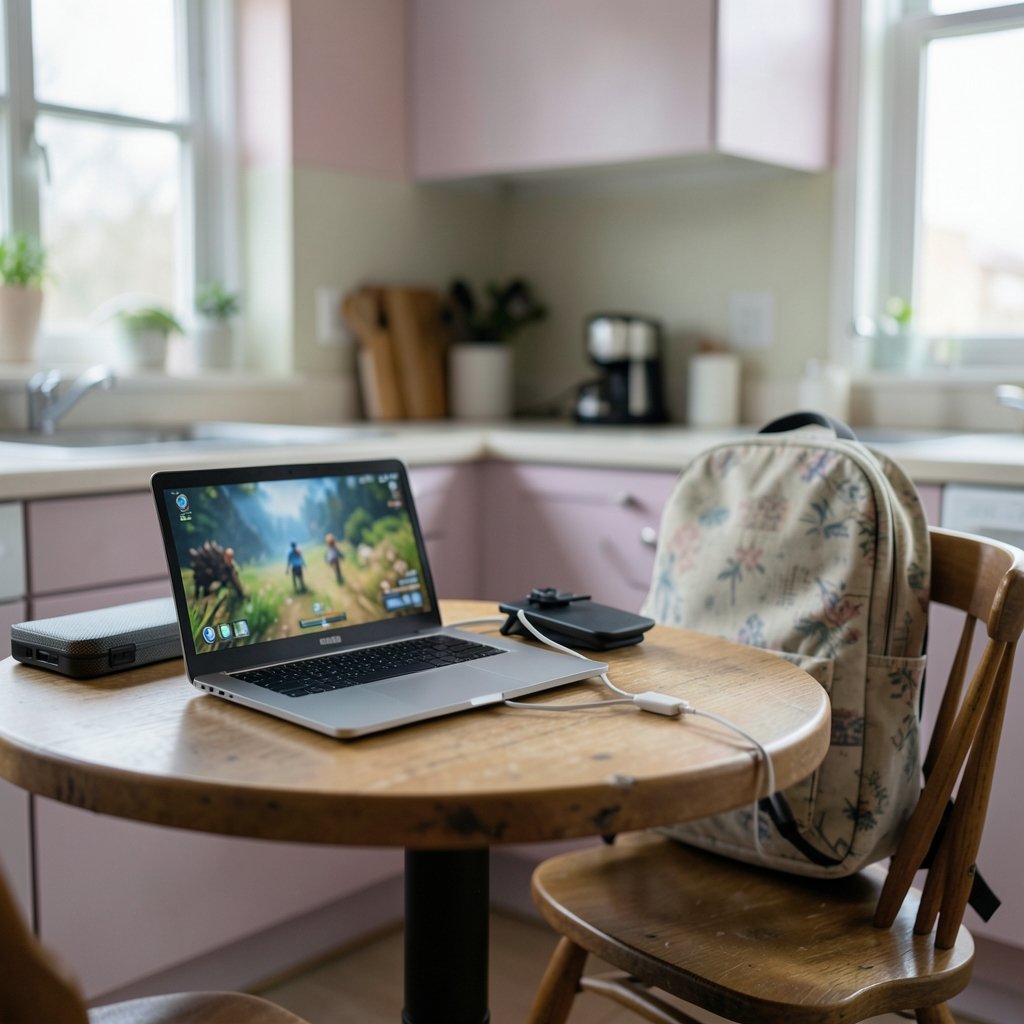

Ever tried to game on a laptop screen propped on a kitchen table while the sun glares through the window? It works, sort of. Then a portable monitor shows up, and suddenly the same laptop feels twice as usable. That is the appeal: a second screen that folds into a backpack, plugs in with one cable, and turns a cramped setup into something you actually want to sit in front of.
Beginners often assume portable monitors are toys. Some are. But the category has matured, and the gap between a $90 panel and a $300 one is enormous. Knowing which specs matter, and which are marketing noise, saves both money and frustration. If the goal is winning rounds rather than just having a screen, it helps to read up on which gaming monitors for competitive gaming actually win you matches before committing.
Start With the Panel: IPS, VA, or OLED
The panel is the single biggest decision, and it shapes everything else.
IPS is the safe default for beginners. Colors stay consistent when viewed off-angle, which matters when two people crowd around a 15-inch screen. Contrast is modest, so dark scenes look a little gray, but IPS panels are cheap, reliable, and widely available in portable sizes.
VA panels push contrast higher, so blacks look deeper. The trade-off is slower pixel response and color shift when viewed from the side. On a small screen you tilt toward yourself, that shift is less of an issue, but fast-paced games can smear.
OLED delivers near-instant response and true blacks. It also costs more and carries some burn-in risk if static elements sit on screen for hours. For beginners on a budget, OLED is a nice-to-have, not a requirement.
| Panel | Strength | Weakness | Best For |
|---|---|---|---|
| IPS | Wide viewing angles, good color | Modest contrast | Most beginners |
| VA | Deep blacks, high contrast | Slower response, off-axis shift | Story games, dark rooms |
| OLED | Instant response, true black | Price, burn-in risk | Enthusiasts with budget |
Lighting in the room changes this calculus more than people expect. A glossy OLED in a bright room can look worse than a matte IPS panel, which is why it pays to understand how OLED and mini LED gaming monitors handle room lighting changes before choosing a panel type.
Refresh Rate and Response Time: Read Past the Hype
Beginners see “1 ms” on a box and assume every monitor with that number performs the same. They do not. Response time figures are measured differently across brands, and a “1 ms MPRT” claim is not the same as true pixel response. The honest advice: treat spec-sheet numbers as a starting point, then check independent reviews.
Refresh rate is more straightforward. Portable gaming monitors commonly advertise 60 Hz to 144 Hz. At 60 Hz, motion looks fine for slow games but blurry in fast ones. At 120 Hz and 144 Hz, panning and aiming feel noticeably smoother. Most beginners notice the jump immediately, even without a trained eye.
A practical rule: if the budget allows only one upgrade, pick refresh rate over resolution. A 1080p panel at 144 Hz beats a 4K panel at 60 Hz for most gaming, and it is far easier to drive from a laptop or handheld.
Connectivity: The One-Cable Dream and Its Catches
USB-C with DisplayPort Alt Mode is the feature that makes portable monitors feel magical. One cable carries video, and often power, from a laptop or handheld to the screen. No dongle, no wall wart, no cable spaghetti.
The catch is that not every USB-C port supports video output or supplies enough wattage. A port that charges a phone may not push a display signal. Beginners should confirm the exact port spec on their host device before buying, and keep a mini-HDMI cable as a backup. USB Power Delivery governs charging, and if the host cannot supply enough power, the monitor may dim or drop out mid-session.
A second catch: bus-powered monitors draw current from the host, which drains laptop batteries faster. For long sessions, a small external adapter is worth the extra bulk.
Size, Weight, and the Stand Problem
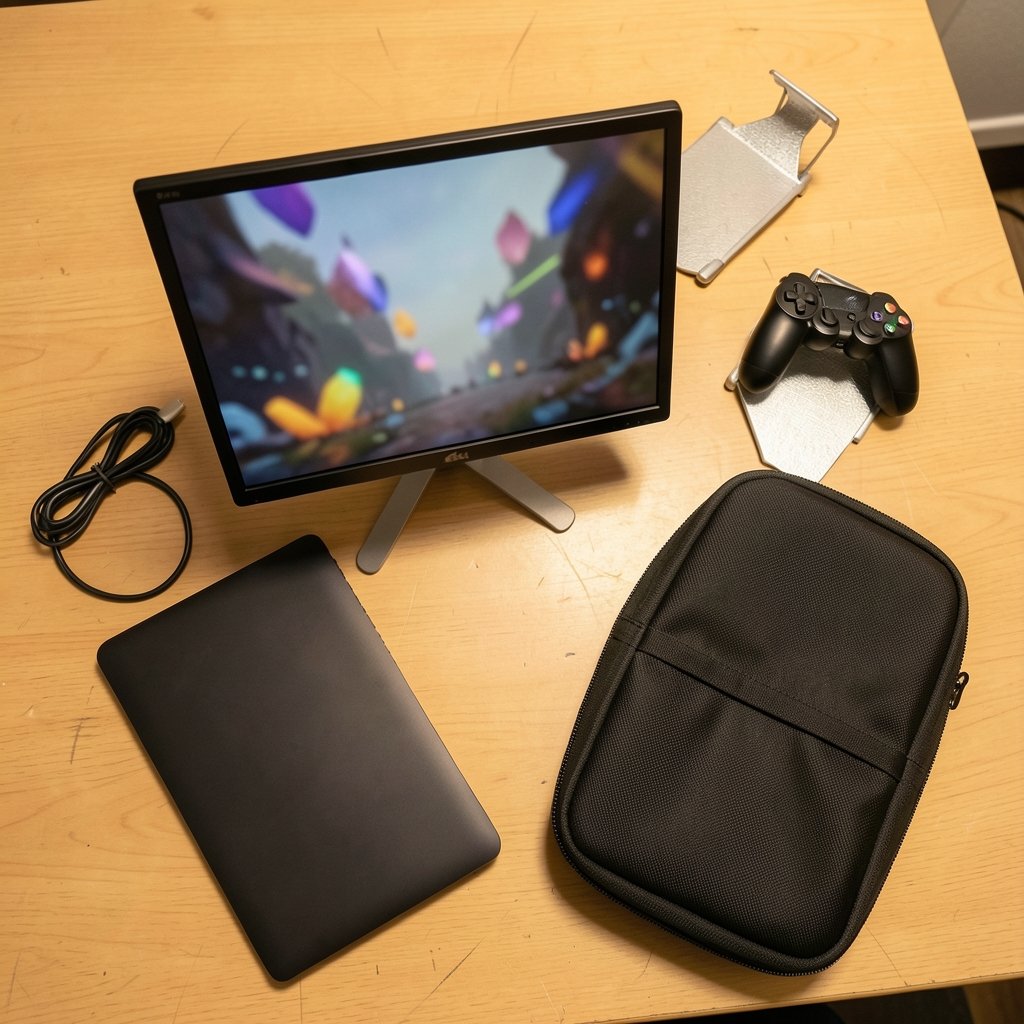
Most portable gaming monitors land between roughly 13 and 17 inches, with 15.6 inches the sweet spot for backpack life. Weight typically falls around 0.5 to 1.5 kg. Lighter is better for travel, but very light panels often come with flimsy kickstands.
That kickstand is where beginner purchases go wrong. A fold-out leg that props the screen at one fixed angle sounds fine until glare forces a tilt the stand cannot manage. Many portable monitors also skip VESA mounting holes entirely, which rules out monitor arms and clamps. Check for VESA compatibility before buying if a proper arm matters.
Practical tip: a cheap tablet stand or a small tripod mount often solves the wobble problem better than the included kickstand. It is the kind of small fix that turns a frustrating screen into a usable one.
Brightness and HDR Claims
Budget portable monitors love the letters HDR. In practice, many panels peak at low brightness with no local dimming, so HDR content looks flat rather than dramatic. Real HDR needs higher brightness and dimming zones, and portable screens rarely deliver either at beginner prices.
Beginners should prioritize solid standard brightness over a nominal HDR badge. A panel that stays readable near a window beats one that claims HDR but washes out in daylight. If HDR matters, save it for a desktop monitor later.
Matching the Monitor to Your Setup
The right portable monitor depends on what it plugs into. A gaming laptop, a handheld console, and a mini PC each have different port and power realities.
For anyone still assembling a machine, the monitor decision pairs naturally with the rest of the build. A step-by-step guide to building a gaming PC as a beginner covers the port and power questions that also determine which portable screen will work.
Handheld owners should look for USB-C video support and low power draw. Laptop owners can often get away with a single cable. Console players may need mini-HDMI and a separate power source. Naming the host device first narrows the shortlist fast.
Common Beginner Mistakes
The same missteps show up again and again in beginner setups.
Buying on spec sheets alone ranks first. Response time and HDR numbers are not standardized across brands, so independent reviews matter more than a bold sticker.
Ignoring the host port comes second. A monitor with a beautiful USB-C implementation is useless if the laptop port cannot output video.
Skipping the stand check comes third. A wobbly screen ruins the experience faster than a slightly slower panel.
Overpaying for resolution is fourth. A 4K portable panel at 60 Hz costs more and demands more GPU power than most beginners need.
Forgetting cables and adapters is fifth. Budget for a mini-HDMI cable, a spare USB-C cable, and possibly a small power adapter. The hidden cost surprises people.
Where Budget Actually Goes Furthest
A sensible beginner budget buys an IPS panel, 120 Hz or higher, USB-C with DisplayPort Alt Mode, and a decent kickstand. That combination covers most needs without paying for OLED or nominal HDR.
Spending more makes sense in two cases: fast competitive play, where response and refresh matter most, or frequent travel, where build quality and weight justify the premium. Otherwise, the mid-range is where value lives. A practical buying guide for beginners choosing a gaming monitor walks through how to weigh those trade-offs without overspending.
It also helps to compare brands side by side rather than in isolation. Looking at how Asus, Nexigo, and Uperfect portable gaming monitors stack up shows where each brand cuts corners and where it spends.
What Everyday Use Reveals
Specs tell one story; daily use tells another. A monitor that looks great in a review can feel cramped after a week if the stand slips or the brightness struggles at noon.
Beginners who use a portable screen for both work and play tend to value color consistency and a matte finish over raw refresh rate. Those who mostly game value smoothness and low input lag. Thinking about everyday use before buying a gaming monitor prevents the classic mistake of optimizing for benchmarks instead of actual habits.
A quick reality check before checkout: picture the desk, the bag, and the games. If the monitor fits all three, it is probably the right one.
Conclusion
The best portable gaming monitor for a beginner is not the flashiest one. It is a 15- to 16-inch IPS panel with 120 Hz or higher, USB-C video support that matches the host device, and a stand that holds its angle. OLED and VA panels have real strengths, but they ask beginners to pay more or accept trade-offs that rarely matter in the first year.
Check the panel, the ports, the brightness, the weight, and the mounting options before the price tag. Read independent reviews instead of trusting response time stickers. Then buy a cable or two, test the setup at home, and adjust. A portable monitor is a small purchase that quietly changes how often a laptop or handheld actually gets used for games. Get the fundamentals right, and the rest is easy.
FAQ
Do I need 144 Hz for a portable gaming monitor?
No. A 120 Hz panel captures most of the benefit, and a good 60 Hz screen still works for slower games. Higher refresh rates help most in fast-paced titles where motion blur is noticeable.
Can a portable monitor run off a single USB-C cable?
Often yes, if the host port supports DisplayPort Alt Mode and enough power delivery. Not every USB-C port does, so confirm the host device’s spec and keep a mini-HDMI cable as a fallback.
Is OLED worth it for a beginner?
Usually not at first. OLED offers instant response and true blacks, but costs more and carries some burn-in risk. Most beginners get better value from a solid IPS panel and put the savings toward a better stand or cables.
Why does my portable monitor look dim when connected to a laptop?
The host may not be supplying enough power over USB-C. Plugging the monitor into its own adapter, or using a powered hub, usually restores full brightness and prevents dropouts.
Do portable gaming monitors work with consoles?
Many do, but usually through mini-HDMI rather than USB-C, and often with a separate power source. Check the port list on the specific model before assuming a one-cable setup will work.
How do I stop a portable monitor from wobbling?
Start with a stand that adjusts and locks. If the included kickstand is weak, a small tablet stand or a VESA-compatible arm, where mounting holes exist, fixes the problem for very little money.