Quick Answer: What are the best gaming laptop cooling pads for beginners?
The best gaming laptop cooling pads for beginners are mid-size, adjustable-speed models with fans that line up with the laptop’s bottom vents, rather than the biggest or flashiest units on the shelf. A pad mainly helps by lifting the rear edge and pushing more air across the underside, which can lower surface and component temperatures somewhat, though gains vary a lot by laptop design.
A plain riser stand is a quieter, cheaper alternative that improves angle and airflow without any fans at all, and some machines see as much benefit from it as from a powered pad. Before buying, check the pad’s size match to a 15 to 17 inch laptop, fan placement against your vents, noise level, USB power draw, height and angle settings, build weight, and dust maintenance.
Why a Cooling Pad Is Not a Magic Fix
So the laptop is running hot, the fans are screaming, and the frame rate is dipping. Time to buy a cooling pad, right? Maybe. But before spending money, it helps to understand what a pad can and cannot do.
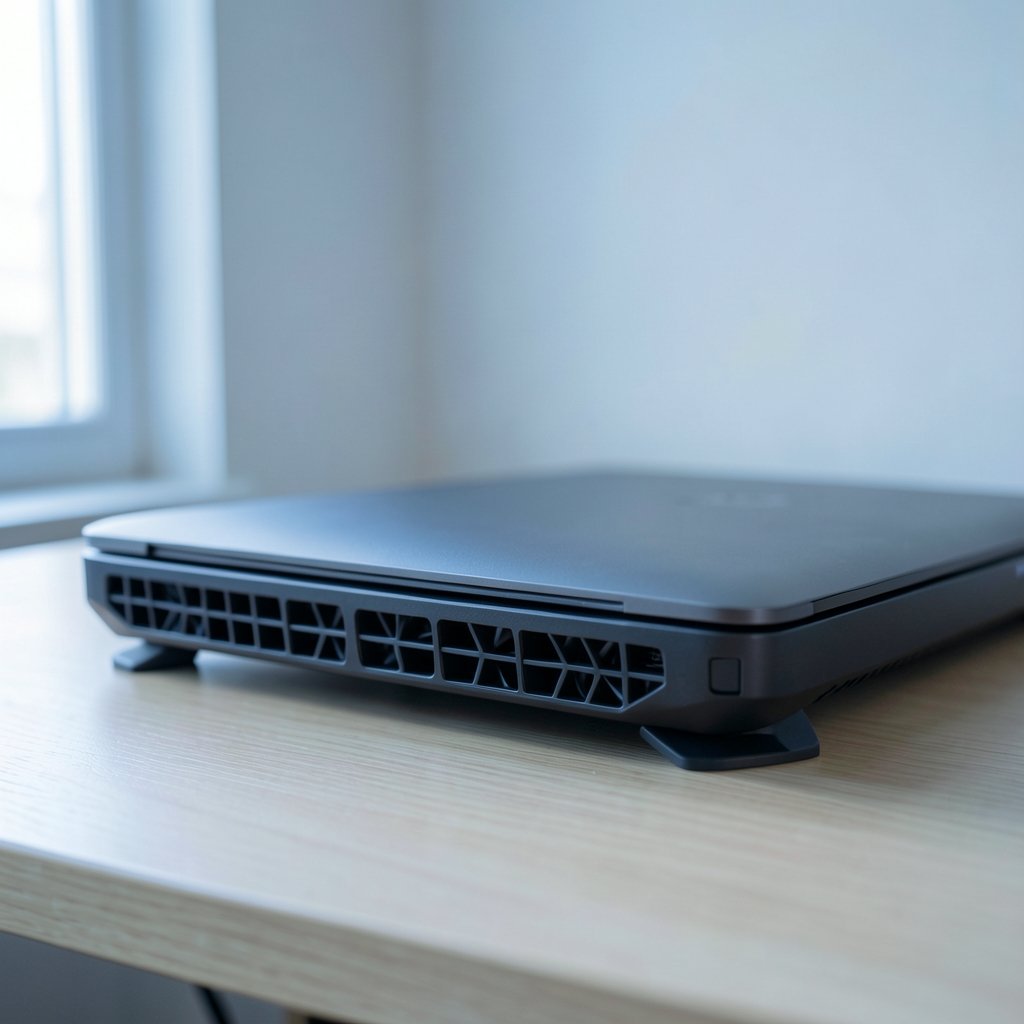
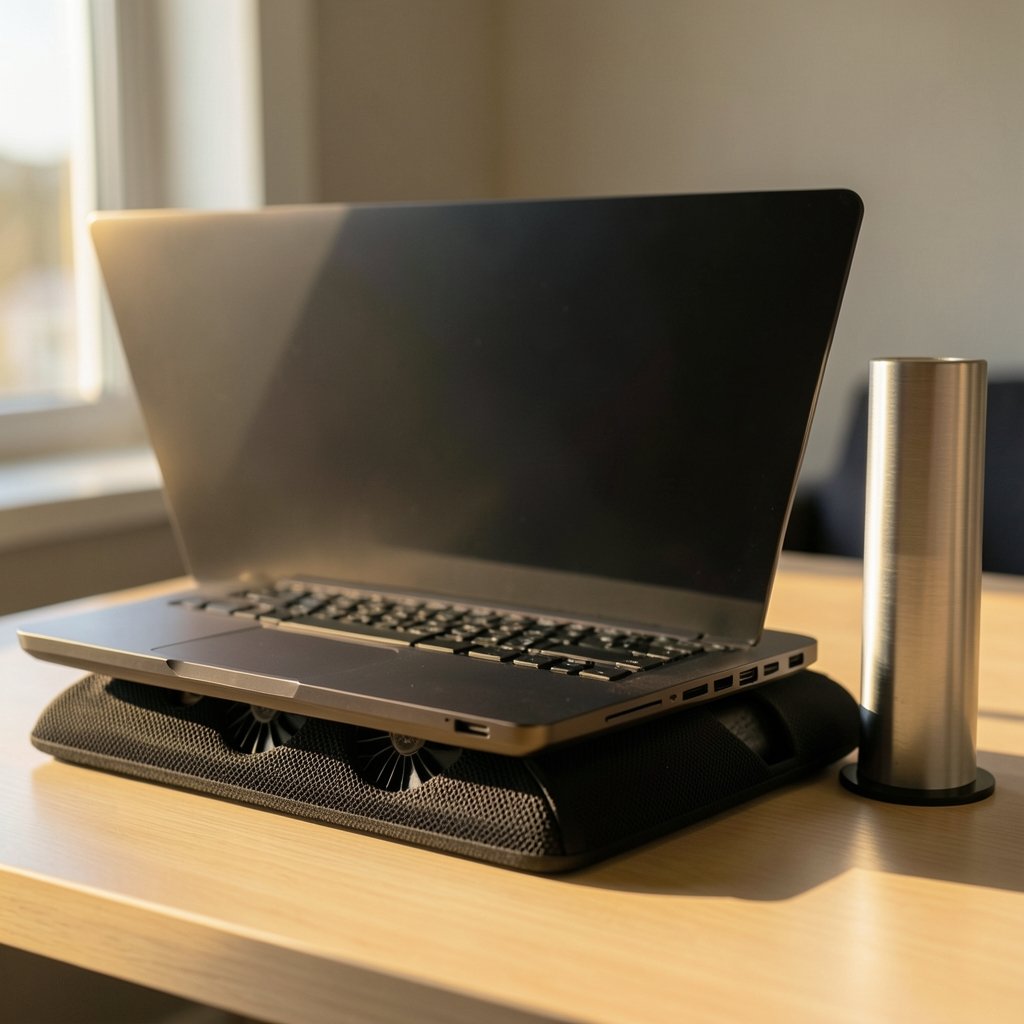
A cooling pad works on airflow and ergonomics. It lifts the rear of the machine and blows air at the underside. Laptops that draw air from the bottom benefit most. Laptops with rear or side intakes may see very little change, because the pad is pushing air at a surface that does not take air in.
Here is the part beginners often miss. If a laptop is thermally limited, meaning the processor or graphics chip is capped by power limits or the heatsink is simply too small, extra airflow gives modest returns. A pad cannot fix an undersized cooling system. It can help a machine that is close to its limits, and it can make a hot chassis more comfortable on a desk or lap. That is a real benefit, just a smaller one than the marketing suggests.
Set expectations accordingly. A pad is a support tool, not an upgrade. If the goal is a machine that stays cool under load by design, that decision happens at purchase time. Guides on picking a gaming laptop that actually keeps its performance cover cooling design in more depth than any accessory can compensate for.
What to Look For in a Beginner Cooling Pad
Fit matters more than fan count. A pad with six small fans that miss the vents is worse than a pad with two large fans that line up perfectly. Work through these checks before buying.
- Size match. Most pads are built for 15 to 17 inch laptops. A 14 inch machine on a 17 inch pad can slide around; a 17 inch machine on a small pad overhangs and blocks airflow.
- Fan placement. Look at where your laptop’s bottom vents sit, then check photos of the pad’s fan positions. Alignment matters most.
- Speed control. Adjustable fan speed lets you run quiet for browsing and raise it for gaming. Fixed-speed pads force one noise level on you.
- Noise. More and larger fans usually mean more airflow but also more noise. Look for reviews that report measured decibel levels rather than relying only on star ratings.
- Power draw. USB-powered pads draw from the laptop, which slightly affects battery life. Some pads use an external adapter instead.
- Height and angle. Multiple tilt settings help with neck strain during long sessions and give the underside more breathing room.
- Build and weight. A light pad suits lap and couch use; a heavier metal frame stays put on a desk.
- Maintenance. Fans collect dust. A pad that is easy to wipe down and whose fans are reachable will last longer.
If you are still assembling your setup, the same fit-first thinking applies to peripherals. A practical buying guide for gaming monitors aimed at beginners makes the point well: match the gear to the machine and the desk, not to the spec sheet.
Cooling Pad Types Compared
Beginners usually meet four kinds of pad. Each suits a different situation.
| Type | How it works | Best for | Trade-offs |
|---|---|---|---|
| Passive riser stand | Lifts the rear edge, no fans | Quiet desks, light laptops, budget buyers | No active airflow; gains depend on vent layout |
| Single large fan pad | One big fan, often center-mounted | Laptops with a central bottom intake | Airflow concentrated in one spot |
| Multi-fan pad | Three to six smaller fans across the surface | Laptops with vents spread across the base | More noise; alignment matters more |
| High-airflow gaming pad | Large fans, high RPM, RGB, sometimes sealed ducts | Heavy gaming laptops on a desk | Loudest option; draws more USB power |
For most beginners, a multi-fan pad with adjustable speed is the sensible middle ground. It covers a range of vent layouts, lets you dial noise down, and does not cost much more than a passive stand. A passive riser is the better pick if the laptop is light, the desk is quiet, or the budget is tight.
Common Mistakes Beginners Make
The mistakes are predictable, and each one is easy to avoid.
Buying by fan count. Six tiny fans can move less air than two big ones. Placement beats quantity every time.
Ignoring vent location. Before buying anything, flip the laptop over and find the intakes. If they are on the rear or sides, a pad will do little and a riser plus better desk clearance may be the smarter buy.
Using the pad on a soft surface. A blanket or cushion traps heat and blocks the pad’s own airflow. Pads belong on hard, flat surfaces.
Running full speed all the time. Maximum RPM is for heavy gaming sessions. For browsing and video, drop the speed and save your ears.
Expecting a frame rate miracle. A pad might help a thermally marginal laptop hold its clocks a little longer. It will not turn a struggling machine into a fast one. If the budget is tight and the current laptop is the bottleneck, a guide to gaming laptops under 1000 that actually fit the budget is a more useful read than any accessory review.
Skipping dust cleaning. A dusty pad blows dust into the laptop. Wipe the fans monthly and keep the vents clear.
Chasing RGB. Lights do not cool anything. Spend the difference on better fan placement or a quieter design.
How to Set Up a Cooling Pad Properly
Setup matters as much as the purchase. A well-placed budget pad beats a badly placed premium one.
- Place the pad on a hard, flat desk surface, clear of walls and clutter.
- Set the rear edge higher than the front so the laptop tilts toward you and the underside gets more clearance.
- Slide the laptop so its bottom vents sit over the pad’s fans. Check from the side if you can.
- Start at low speed, then raise it during gaming and watch the temperatures.
- Keep the laptop’s own fan exhausts, usually at the rear or sides, unobstructed.
- Clean the pad’s fans and filters monthly with a soft brush or compressed air.
- If noise bothers you, test a lower speed first. Many machines lose little cooling at half RPM.
If you are new to the hardware side of all this, a step by step first build guide for beginners explains how airflow works inside a machine. The same principles, intake versus exhaust and clear paths for air, apply to a laptop sitting on a pad.
Do Cooling Pads Actually Lower Temperatures?
Sometimes, and by varying amounts. That honest answer frustrates buyers, but it reflects how laptops differ. A machine with a wide bottom intake and a hot chassis will usually show a measurable drop in surface temperature and some drop in component temperature. A machine with rear intakes and a well-designed cooling system may show almost nothing.
The practical test is simple. Note the temperatures and fan noise during a gaming session without the pad. Then repeat with the pad at medium and high speed. If nothing changes, the pad is not earning its place, and a passive riser or a return is the better move. Reviews that report actual temperature and decibel measurements are far more useful than ones that only describe how the pad looks.
There is a second benefit that does not show up in temperature logs: ergonomics. A raised, tilted laptop is easier on the neck and wrists during long sessions. For many beginners, that alone justifies a stand or pad.
Cooling Pads vs Other Heat Fixes
A pad is one option among several. Here is how the alternatives compare.
| Approach | Effort | Cost | What it fixes |
|---|---|---|---|
| Cooling pad | Low | Low to mid | Airflow, angle, surface heat |
| Passive riser stand | Very low | Low | Angle and underside clearance |
| Laptop repaste | High, voids warranty risk | Mid | Dried thermal paste, long-term heat |
| Undervolting | Mid, software only | Free | Power draw and heat at the source |
| External keyboard and mouse | Low | Low to mid | Hands away from a hot deck |
| Better laptop choice | High | High | Everything, at purchase time |
Beginners often skip the free options. Undervolting, where supported, can cut heat at the source. An external keyboard keeps hands off a warm palm rest. A simple riser costs less than a fan pad and makes no noise. Combining a riser with a cheap pad at low speed is a common and sensible setup.
There is a parallel with other tech purchases: the accessory only helps if it addresses the actual bottleneck. A web application firewall explained for beginners makes a similar point in security terms. The tool that blocks the real threat beats the tool with the longest feature list. Cooling works the same way.
When to Skip the Pad Entirely
Some situations call for a different fix.
If the laptop is new and running hot, check the power profile first. Many gaming laptops ship in a balanced mode and run cooler in a quieter preset with a small performance cost. If the laptop is older and the fans are loud and the chassis hot, a repaste may do more than any pad. If the plan is to play on a couch or bed, a pad will not help much because soft surfaces trap heat, so a lap desk with a hard top is the better buy.
And if the machine is simply past its limits for the games being played, no accessory closes that gap. That is a purchase decision, not a cooling one.
Conclusion
The best gaming laptop cooling pad for a beginner is not the biggest or the loudest. It is the one whose fans line up with the laptop’s vents, whose speed can be turned down, and whose size matches the machine. Start by flipping the laptop over and finding the intakes. If they are on the bottom, a multi-fan pad with adjustable speed is a reasonable buy. If they are on the rear or sides, a passive riser may serve just as well for less money and no noise.
Keep expectations realistic. A pad supports airflow and ergonomics; it does not redesign a laptop’s cooling system. Test temperatures before and after, clean the fans monthly, and keep the whole setup on a hard surface. Do those things and a modest pad will earn its place on the desk.
Frequently Asked Questions
Do cooling pads really work for gaming laptops?
They can help, but results vary by laptop design. Pads work best on machines that draw air from the bottom, where extra airflow and rear-edge lift make a difference. Laptops with rear or side intakes may see little change. A pad cannot overcome power limits or an undersized heatsink.
How much should a beginner spend on a cooling pad?
Most beginners do fine in the budget to mid range. Spending more mostly buys quieter fans, better build, and more adjustment. Since gains vary by laptop, test a modest pad first. If it does not lower your temperatures, a passive riser is the cheaper fallback.
Is a cooling pad or a laptop stand better?
It depends on the laptop and the goal. A stand improves angle and underside clearance and makes no noise. A pad adds active airflow on top of that. For quiet desks and light laptops, a stand is often enough. For hot gaming sessions on a bottom-intake machine, a pad does more.
Will a cooling pad make my gaming laptop quieter?
Usually not directly. The pad adds its own fan noise. It can indirectly help by lowering temperatures, which may let the laptop’s own fans spin slower, but the pad’s fans often offset that gain. Running the pad at medium speed is the usual compromise.
Can a cooling pad damage my laptop?
Not if it is used sensibly. Keep vents unobstructed, avoid soft surfaces that trap heat, and clean the pad’s fans so it does not blow dust into the machine. Choose a pad that fits the laptop so it does not slide around or block the intakes.
How do I know if my cooling pad is actually helping?
Measure it. Note temperatures and fan noise during a gaming session without the pad, then repeat at medium and high speed. If nothing changes, the pad is not helping your machine. Reviews that report measured temperatures and decibel levels are the most reliable guide before buying.