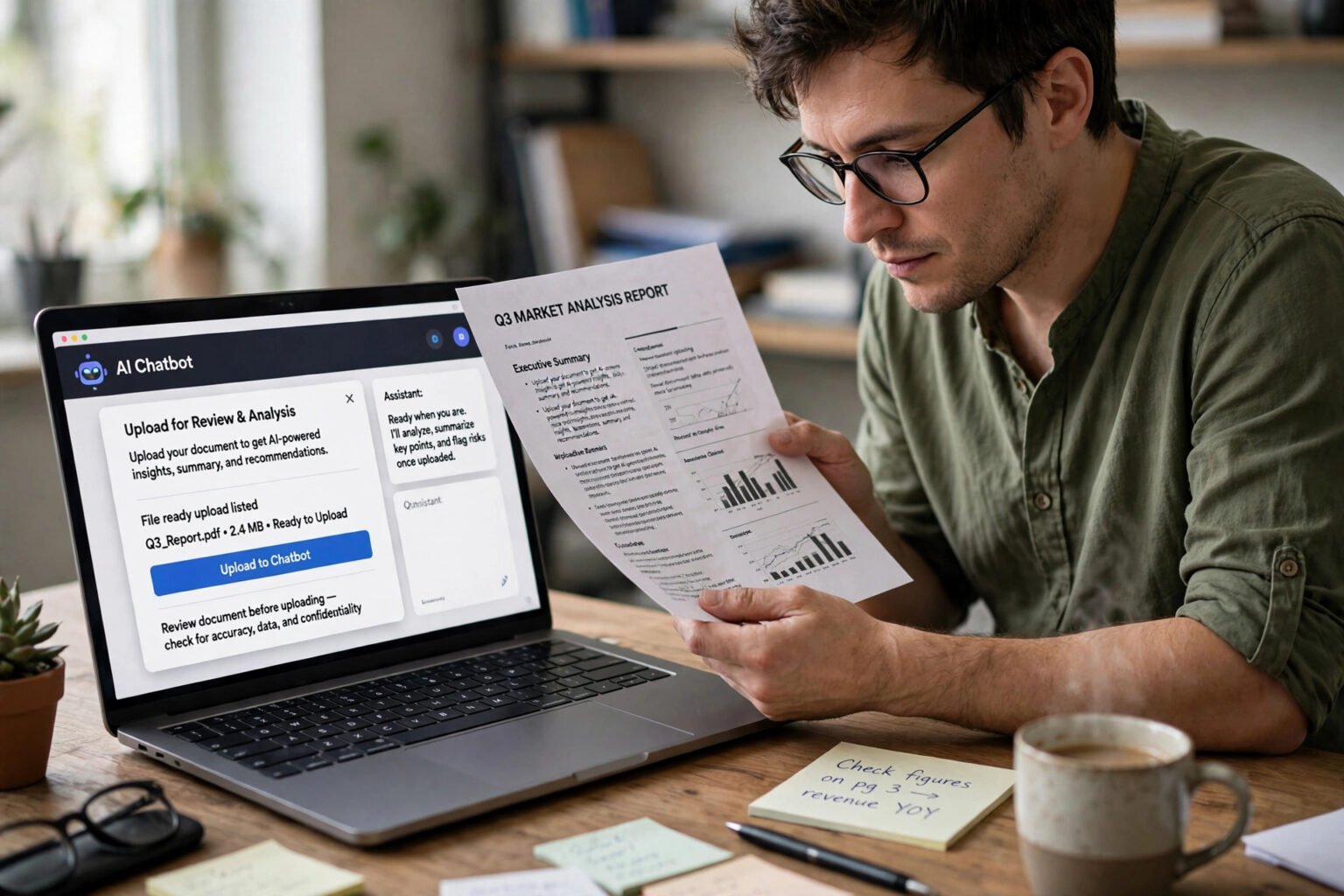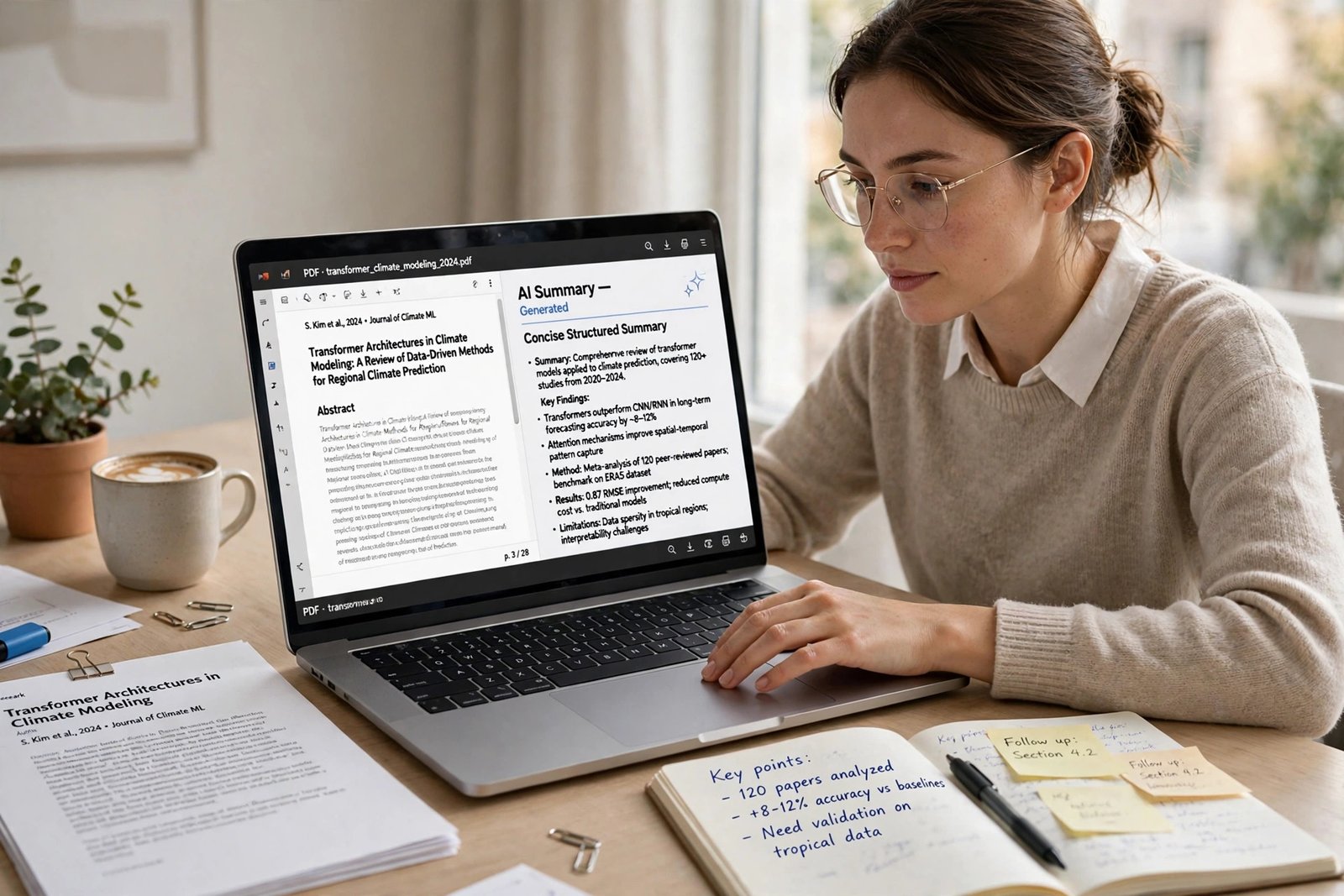
Learning how to use AI to summarise long PDFs and research papers is mostly about asking the right question in the right way. You can use AI to summarise long PDFs and research papers by uploading the file to a tool that reads it, asking for a structured summary with page references, and then checking the key claims against the original before you rely on them.
That step matters more than the tool you pick: an AI summary can be fluent, confident and wrong in the same sentence, and the longer the document, the easier the error is to miss.
Key takeaways
- Pick the tool by document length: NotebookLM handles very long sources best, Claude reads PDFs up to 1,000 pages, and ChatGPT accepts files up to 512 MB.
- Ask for structure, not a blob of text: headings, page references and a list of the paper’s claims are far easier to check.
- Split very long documents into sections and summarise each part before asking for one overall summary.
- Never trust a figure, date or quote from a summary until you have found it in the original PDF.
- Never upload a confidential paper without checking the tool’s training and retention settings first.
How AI summarising actually works
An AI summariser does not read a PDF the way you do: it extracts the text layer, breaks the document into chunks, and produces new text describing what it found. So the quality of the summary depends heavily on the quality of the file. A clean, text-based PDF usually summarises well. A scanned PDF is different: if the pages are images, the tool must run optical character recognition (OCR) first, and OCR errors become summary errors. Check for OCR support before uploading a scan, or convert it to searchable text first. Length is the other constraint. Every AI tool has a context window — a limit on how much text it can hold at once. A 20-page paper fits comfortably; a 400-page report may not, and the tool may read only part of it.
Which tool should you use?
There is no single best tool: it depends on your document’s length, whether you need citations, and whether you will pay. The table compares the five tools most people reach for, using limits and prices reported in November 2026.
| Tool | Free plan | Paid plan from | Long-document limit | Citations to the source |
|---|---|---|---|---|
| ChatGPT | 3 file uploads a day | Plus, $20 a month | 512 MB per file; 2 million tokens of text per file | Not by default |
| Claude | Free tier available | Pro, $20 a month | PDFs up to 1,000 pages; visuals analysed up to 100 pages | Yes, when asked |
| NotebookLM (now Gemini Notebook) | Free; 50 sources per notebook | Plus via Google AI Pro, $19.99 a month | 500,000 words or 200 MB per source | Yes, inline citations |
| ChatPDF | 2 PDFs a day, up to 120 pages each | Plus; price shown in the app | Up to 2,000 pages per PDF on Plus | Yes, page-linked |
| Humata | 60 pages a month | Expert, $9.99 a month | Metered by pages; 500 pages a month on Expert | Yes, linked to passages |
Best for most people: NotebookLM. It is free, answers only from the sources you upload, and attaches citations, which makes checking far quicker. Google renamed it Gemini Notebook in July 2026.
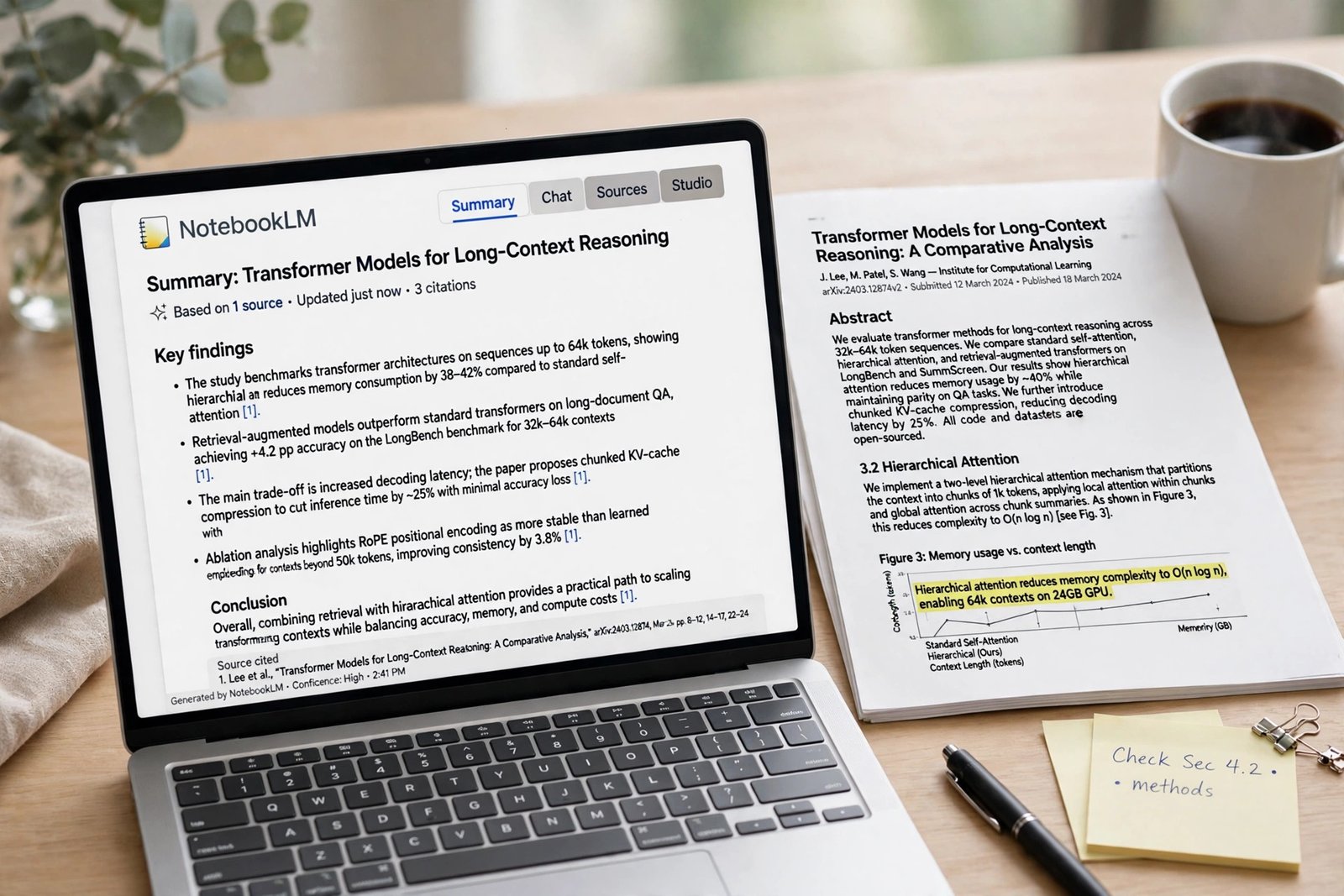
Best for a single long paper: Claude. It accepts PDFs of up to 1,000 pages, and for papers of 100 pages or fewer it also analyses charts and figures. Above 100 pages it reads text only.
Best for a quick, one-off summaries: ChatGPT. Files up to 512 MB and two million tokens of text per file cover almost any single document, though the free tier allows only three uploads a day.
Best for a tight budget on many short papers: ChatPDF or Humata. Both have useful free tiers and page-linked citations: ChatPDF’s free plan covers two PDFs a day at up to 120 pages each, and Humata’s covers 60 pages a month, with Expert at $9.99 a month for 500 pages.
How to prompt for a faithful summary
A vague prompt produces a vague summary. “Summarise this” lets the model choose what matters, and its choices may not match yours. A specific prompt keeps it anchored to the document. Tell the tool what the document is and what you need, then ask for a structure you can check. A prompt that works well for research papers looks like this: “Summarise this paper in about 400 words under these headings: research question, method, main findings, limitations. Add the page number after each finding, and do not add information that is not in the paper.” The page numbers are the point. They turn a summary from something you take on trust into something you can verify in a minute. Two habits improve almost every summary: ask the tool to quote exact figures, dates and definitions rather than paraphrase them, and to say what it cannot find instead of guessing.
What to do with a very long PDF
When a document is too long for one pass, do not ask for a single summary and hope for the best. Work in sections, then combine. Split the document by its own structure: chapters, sections or parts. Summarise each section separately, using the same headings each time. Then paste those section summaries into a fresh conversation and ask for one overall summary built only from them. If the tool lets you ask questions about the document, use that. “What does section 4 conclude about costs?” is often more reliable than a summary of the whole report, because the tool can focus on one part. NotebookLM is built for this: load up to 50 sources into one notebook on the free tier and question them together, which helps when comparing several papers.
Checking the summary against the original
AI summaries can invent details, and that is the main risk of using them for research. A summary may attribute a finding to the wrong study, swap two figures, or state a conclusion the paper never reaches. The fix is a short verification routine, not a second summary. Check three things: the numbers — every figure, percentage and date should appear in the original, on the page cited; the claims — read the passage behind the findings you plan to use; and the limits — the summary should mention the paper’s own caveats, such as a small sample. If a citation does not check out, ask the tool to show you the exact passage it relied on. If it cannot, treat that claim as unverified and leave it out. For anything you will publish, cite or base a decision on, the original paper is the source, not the summary.
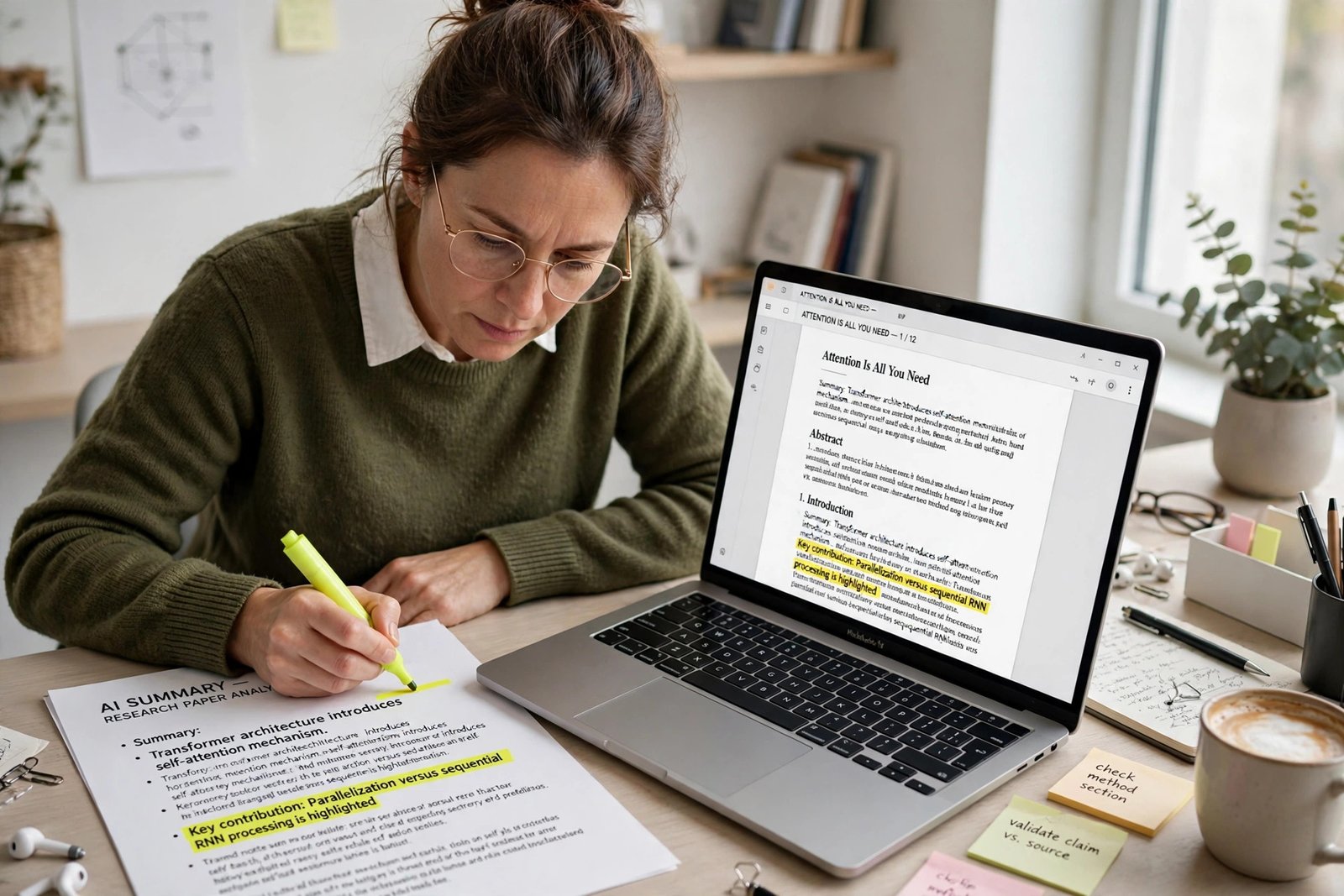
If you are unsure how to test an AI answer, our guide to what AI hallucination is and how to check AI answers explains the checks in more detail.
Privacy: what not to upload
A PDF summary is only as safe as the upload behind it. Before you send a document to any AI tool, ask whether you would be comfortable with that file sitting on the provider’s servers. If not, do not upload it. Never upload unpublished research, patient or client data, commercially sensitive reports, or anything under a non-disclosure agreement to a personal AI account without checking the training settings first. On personal plans, providers may use your uploads to improve their models unless you opt out; on business plans, OpenAI, Anthropic and Google all state data is not used for training by default. Our guide to using AI safely at work without sharing private data explains the settings to change. For sensitive material, use the tool your employer or institution provides, switch off training, or use a temporary chat where offered. Delete the conversation when you are done — deleting a chat does not always delete the file immediately. Before uploading anything, read whether it is safe to upload documents to AI chatbots first.
A checklist before you trust a summary
Run through this list before you use a summary in your own work; if any answer is no, fix that step first.
- Did the tool read the whole document? Check the file was accepted in full and the summary covers the final sections.
- Does the summary have page references? If not, ask for them — a summary without citations is much harder to verify.
- Have I checked the numbers? Confirm every figure, date and percentage against the original PDF.
- Have I read the key passages myself? Read the passages behind the findings you plan to use.
- Are the caveats included? The paper’s limitations should appear in the summary, not vanish from it.
- Is anything in the summary not in the paper? If a claim has no matching passage, treat it as unverified.
- Was this document safe to upload? Confirm the training and retention settings before you upload anything confidential.
Frequently asked questions
Can AI summarise a 500-page PDF?
It depends on the tool: Claude accepts PDFs of up to 1,000 pages in a chat, and NotebookLM accepts sources of up to 500,000 words or 200 MB. Even so, summarise section by section and combine those summaries, rather than asking for one summary of the whole file.
Which AI tool is best for summarising research papers?
NotebookLM is the strongest free choice for research: it answers only from your uploaded sources and attaches citations to each answer. Claude is a good alternative for a single long paper, especially under 100 pages, because it also reads charts and figures. ChatGPT works well for quick summaries of single documents.
Is it free to summarise PDFs with AI?
Yes, within limits. NotebookLM is free with up to 50 sources per notebook, ChatGPT’s free tier allows three uploads a day, ChatPDF’s free plan covers two PDFs a day, and Humata’s covers 60 pages a month. Regular heavy use needs a paid plan, from $9.99 a month for Humata Expert or $20 a month for ChatGPT Plus and Claude Pro.
Can AI summaries be wrong?
Yes. AI tools can invent figures, misattribute findings and state conclusions a paper never reaches, all in confident language. Check numbers, dates and the findings you plan to use against the original PDF, and ask for page references so you can find each passage quickly.
Does AI keep the PDFs I upload?
It depends on the account and the settings. On personal plans, providers may retain uploads and use them for training unless you opt out; on business plans, data is generally not used for training by default. Check the provider’s privacy page and your settings before uploading anything sensitive, and delete the conversation when done.
The bottom line
AI can turn a long PDF into a useful summary in minutes, but the summary is a starting point, not a finished piece of work. Choose the tool that fits your document, prompt for structure and page references, split very long files into sections, and check the numbers and key claims against the original before you use them. Start with one paper this week: upload it to NotebookLM or Claude, ask for a structured summary with page numbers, and run the seven-point checklist above. The first time you catch an error, you will understand why the check matters more than the tool.