A well-placed site visual can make an offer or update easy to notice before someone reads the rest of the page. An AI banner generator can turn a campaign idea into a polished visual for your website, without making design the whole job. A site hero often carries the main message at the top of a page, while a smaller promotional placement supports a product, sale, or event elsewhere.
Pixel dimensions are the exact width and height of an image, measured in pixels. They help you match a visual to the space where it will appear. A strong result still needs a clear message and a final review, especially when the banner includes dates, prices, or a button.
You can start with one idea, build a draft, and shape it to fit your site’s content and marketing workflow. The goal is not to add more decoration. It is to help visitors notice the right message and understand what to do next.
Key Takeaways
- Start with one clear campaign goal.
- Match the canvas to its final placement.
- Treat generated layouts as drafts.
- Review wording, crop, and contrast.
- Check license terms before business use.
- Keep key details easy to read.
Start with the one message a visitor should remember.
What can an AI workflow automate, and what still needs review?
A generator can turn a short brief into a first layout, but a person still needs to check the details that carry meaning. The best use is a quick draft: a banner generator can suggest images, colors, and layouts while you shape the final design. Generated banners are starting points, not finished page assets.
From a prompt to a first layout
Write a brief with the campaign goal and audience, then ask the tool to create a banner. Review the options and choose the closest fit. Refine its image, text, or layout before exporting. Browser-based tools run online, so you can work without installing design software.
An AI banner generator can create website banners online for free, though free access may limit credits or downloads. Ima Studio gives registered users 200 free credits, and most banners generate in under 10 seconds. Piktochart also generates banners in seconds, while complex prompts can take 15-20 seconds. A free online banner maker without login can help with a quick draft, but may save less work.
- Describe the goal and audience.
- Generate several options.
- Revise the closest fit.
- Review the result and export.
For a wider workflow that uses AI for research and drafting, see practical AI review steps.
The final text and accessibility check
Check every word, date, URL, and offer detail before publishing. Generated text can change a price or miss a letter, and a wrong link can send visitors away from the right page. Review the image description, too, rather than treating the first generation as final.
Treat every generated layout as a draft, not a finished page asset.
Meaningful images need suitable text alternatives that describe the information they convey. A purely decorative image can use an empty alt attribute, which lets screen readers skip it. A banner that communicates information through its imagery needs an appropriate text alternative as well.
AI Banner Generator: Create Website Banners in the Right Dimensions
The right canvas is the one that matches the final placement, not just the shape of the design. Check the platform’s upload requirements before you generate an image. A close match can still fail if its pixel dimensions fall below the minimum. Aspect ratio describes shape; pixel dimensions specify upload size.
Match the canvas to its placement
Use the platform’s canvas when the banner must fill a specific space. These common headers call for different proportions and pixel dimensions:
| Placement | Pixel dimensions | Practical note |
|---|---|---|
| YouTube channel art | 2560 × 1440 px | Central safe zone is smaller |
| LinkedIn personal cover | 1584 × 396 px | Wide personal-profile header |
| LinkedIn company cover | 1128 × 191 px | Very shallow page header |
| X header | 1500 × 500 px | Keep key details away from edges |
| Twitch profile banner | 1200 × 480 px | Designed for a wide profile area |
For YouTube channel art, the central safe zone is 1546 × 423 px, and the minimum upload size is 2048 × 1152 px. YouTube also sets a 6MB maximum file size. Mew Design supports 1024 × 576 px drafts and previews that can be upscaled to full HD. Genspark supports custom dimensions, from examples such as 728 × 90 px to 2560 × 1440 px.
Protect the text-safe area
Place key copy and logos in YouTube’s central safe zone. Content near the edges can disappear or shift across devices, so a desktop preview may not show what mobile viewers see.
Standard display ads include 728 × 90, 300 × 250, and 320 × 50 px sizes. Social media link-post banners use 1200 × 628 px; story or vertical banners use 1080 × 1920 px. Discord server banners are 960 × 540 px. Website hero banners commonly run 1920 px wide by 500-700 px tall, while email headers are about 600 px wide by 150-200 px tall.
ZSky AI supports cropping for website heroes, YouTube channel art, Facebook covers, X headers, and email headers. A common mistake is choosing a familiar ratio but missing the platform’s minimum upload size. Cropping an AI image works best when you check the target canvas, not just the shape. Keep essential copy and logos inside the platform’s text-safe area.
How do you write a prompt that matches your brand?
A useful prompt names the audience, the message, and the visual direction in the same brief. Give the generator enough detail to make a relevant first image, then refine the closest design. Specific details make the draft easier to judge, while one clear message should lead the layout.
Specify the message and visual direction
Include these five points in your prompt:
- Campaign goal and intended audience.
- Exact headline and offer.
- Visual style, such as calm, bold, or playful.
- Brand colors and fonts.
- Desired imagery, logo, and CTA.
A short prompt can still carry useful direction. Piktochart prompts can be up to 120 characters, so choose the details that matter most. Designkit accepts text prompts or uploaded logos and product photos. Those brand assets can make a generated layout feel more specific to your product.
For more control over the brief, use this simple image prompt formula to name the subject, style, and composition.
Refine the draft without starting over
Change one instruction at a time when a draft nearly fits. You might ask for a darker background, more room beside the product, or a smaller logo. Designkit lets you edit generated layouts, text, colors, and visuals, so a near-fit does not always need a fresh generation.
Check text placement, colors, and contrast in the editor after each change. Under WCAG guidance, normal text needs a minimum contrast ratio of 4.5:1, while large text needs 3:1. A common mistake is asking an image model to reproduce a long, exact headline without proofreading it. Keep the smallest text readable against its background before exporting.
Which free tools fit your budget and license needs?
Free access can be enough for a test banner, but the best fit depends on what you need to export and how you plan to use it. Compare credits, download limits, privacy, and commercial-use license terms. Free plans vary, and permission for business use is not the same as copyright ownership.
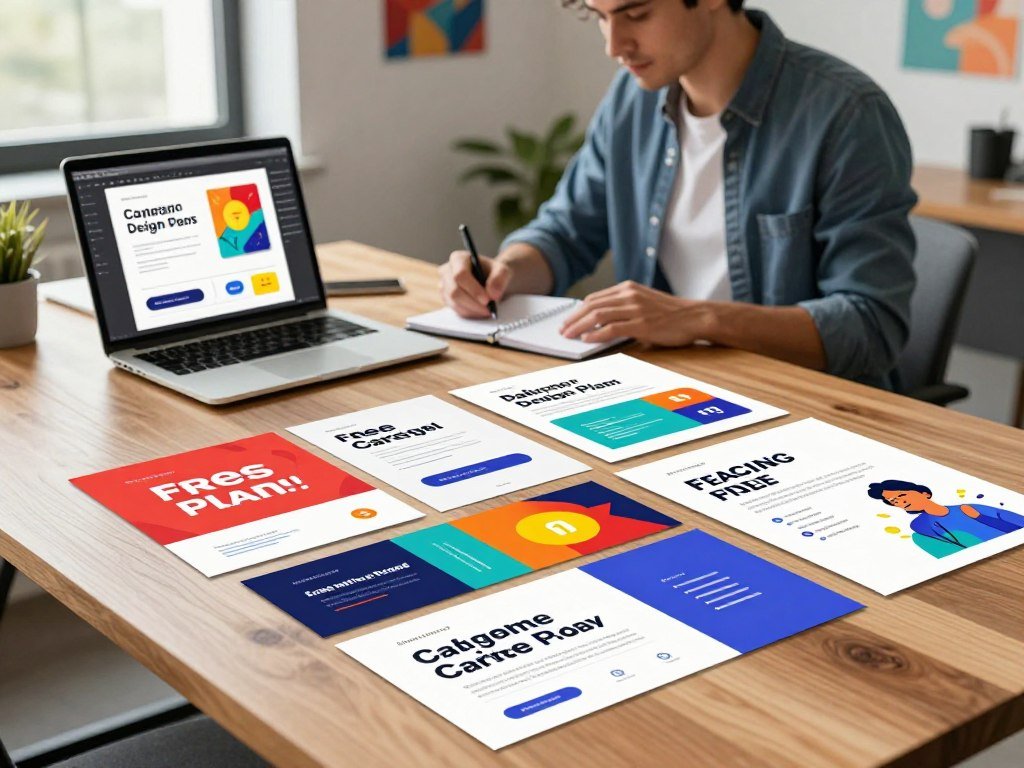
Compare free allowances and paid plans
| Tool | Free allowance | Paid option | Key condition |
|---|---|---|---|
| Canva | Free; no card required | Pro: $18/month or $144/year; Business: $25/user/month | Pro and Business add paid features |
| Adobe Express | 25 generative credits/month, 100,000+ templates, 5GB storage | Premium: $9.99/month | Free plan needs an Adobe account |
| Piktochart | 60 AI credits, 2 PNG downloads/month | Pro: $10/month annual billing or $15 monthly | Pro adds unlimited downloads and 500 AI credits |
| Krea | 100 compute units/day | Basic: $9/month, 5,000 units; Pro: $35/month, 20,000 units | Free has no commercial license |
| Ideogram | Weekly slow-queue credits | Plus: $15/month; Pro: $42/month, annual billing | Free images are public |
Krea Basic includes a commercial license with its 5,000 monthly compute units. Ideogram Plus and Pro prices use annual billing. Canva Free requires no card, while Venngage Free includes AI features; its Premium and Business plans add private sharing and auto branding.
Ima Studio gives registered users 200 free credits, and its free results are watermark-free with commercial-use permission. Mew Design gives new users 50 signup credits, with use depending on the design; its exports have no watermark. ZSky AI offers unlimited free banner generation, but free images carry a small “MADE WITH / zsky.ai” wordmark plate. RunComfy allows five free image generations daily without sign-in, and Genspark is free to start without a credit card.
PixExact uses eight credits per generation, makes designs public, and limits free banners to personal use. Paid plans include a commercial-use license. Venngage permits personal and commercial use of its AI-generated banners without copyright restrictions. The difference between use rights and ownership matters when a campaign is for sale or a client.
Check privacy and commercial-use terms
A commercial-use license gives permission to use a result for business, but it does not grant copyright ownership. The U.S. Copyright Office requires human authorship for copyright protection, so human-created elements in AI-assisted work matter. Check whether the exact free plan makes a banner public or adds a watermark before using it in an ad or client campaign.
An AI banner generator can create website banners for free, but limits differ by credits, downloads, privacy, and commercial-use permission. Ima Studio and Mew Design offer watermark-free exports, while ZSky AI adds a wordmark plate to free-tier images. Check the license and visibility setting on the exact plan you intend to use.
Which export format works for a static or HTML banner?
A static image is the right export for placements that accept a single banner file. PNG, JPG, PDF, and layered PSD each serve a different handoff. Choose by placement, not by which file looks familiar. A visually suitable file can still fail if the ad platform cannot accept it.
Choose an image file for a static placement
PNG works well when you need sharp text or transparent areas. JPG suits a flat image with photos, while PDF helps when someone needs a print-ready or review copy. A layered PSD keeps parts of a design editable for later work.
Designkit exports banner files as PNG or JPG. Piktochart offers PNG or PDF downloads, though those downloads require Pro. Genspark exports static banners as PNG, layered PSD, or PDF. Sivi supports JPG, PNG, PDF, or HTML exports and lets you edit individual design elements.
For a wider view of AI image tools and workflows, compare how each handles editing and output before settling on a deliverable.
Use an HTML export only when the placement needs it
An HTML banner generator creates an HTML-based asset rather than only a flat image. Use that type of export when an ad placement requires HTML or animation, then match its technical specifications. The export label alone does not tell you whether the file meets those rules.
Genspark exports static banners and does not create animated or HTML5 banners. An HTML export from another tool is not proof that the file is an animated HTML5 ad. A platform may require specific behavior or packaging, so a simple web page file may not qualify.
Choosing a good-looking file that the ad platform rejects wastes the finished layout. Check its accepted types and technical requirements before you hand it off. Verify the platform’s accepted file type before you finish the design.
How can one campaign stay consistent across platforms and languages?
A consistent campaign repeats its visual identity while adapting the composition to each placement. Keep the logo, colors, type, and main message recognizable across social media, web, email, and event visuals. Adapt the frame, not the whole brand, and check each crop before reuse.
A wide visual cropped into a narrow header can cut off a logo or the person shown in the image. ZSky AI supports cropping for website heroes, YouTube channel art, Facebook covers, X headers, and email headers. Treat each crop as a new composition, even when it shares the same source image.
The Brief supports more than 72 languages, which can help you prepare campaign versions for different audiences. A translated headline may take more space than the original, so check its length before reusing the same layout. Right-to-left text also needs a layout that preserves reading order, rather than simply reversing every visual element.
Keep one campaign identity, but give each placement room to work.
Before you generate banners for a new market, review the translated wording and visual choices with someone who knows the audience. The same image can carry different meanings across regions. Free text-to-image tools can help create visual options, but a person still needs to judge their fit. Preview each language and crop before publishing the full campaign.
Conclusion
A strong first banner starts with one goal and a canvas chosen for its destination. Pick one placement, write one clear message, and generate a draft you can review. Then check readability, crop, file type, and license before you publish.
Good banner design makes the key message easy to find without crowding the layout. Keep the essential elements clear, and make sure the final file suits the place where visitors will see it. Choose your placement, write the brief, and generate a draft you can review.
FAQ
How can I stop a logo or headline from getting cropped on mobile?
Keep the logo and headline inside the platform’s safe area, then preview the banner at its actual display size. Mobile screens can show a tighter crop than desktop screens. Place the CTA and any offer details away from the edges, too. Check the smallest view you expect visitors to use, since a design that reads well on a large monitor may feel crowded on a phone.
Can a generator spell a headline accurately in another language?
Not reliably; proofread every generated headline and translated version before export. Check spelling, punctuation, accents, and whether the wording still fits the offer. Languages that read from right to left need a layout that keeps the reading order clear. A native speaker can catch wording that looks correct but sounds odd or changes the meaning for local readers.
Does every free banner tool keep designs private?
No, free-plan privacy rules differ, and Ideogram’s free-plan images are public. Other tools may also show or share designs under specific plan settings. Check the visibility option before you upload client work, unreleased products, or campaign details. A private workspace can matter as much as the number of free credits when several teams or clients use the same tool.
Will changing a banner’s aspect ratio preserve the whole design?
No, changing the aspect ratio can crop edge content or shift the subject. Check the logo, person, product, and CTA after adapting the canvas. A wider image may lose useful space when turned into a narrow header, while a vertical crop may cut off a headline. Move elements as needed instead of assuming one crop will fit every channel.
Is a PNG enough for an online ad?
Yes, a PNG is enough for a static placement that accepts PNG files. It is a flat image, so it cannot provide animation or interactive HTML behavior by itself. If the ad placement asks for an animated or HTML-based asset, export a compatible deliverable instead. Check the platform’s file rules before uploading, since accepted types can differ by placement.
Should banner text be included in alt text?
Include text in alt text when it communicates information that visitors need, such as a sale or event detail. Describe the banner’s meaning in a short, useful way rather than listing every visual feature. A purely decorative image can use an empty alt attribute so screen readers skip it. If the page already repeats the banner’s full message nearby, avoid an alt description that reads like duplicate content.



