A still visual can become a short, moving clip without a camera shoot or a full editing setup. With Image to Video AI, you can add motion to a photo, illustration, or other source image, then refine the result before sharing it. The process gives you a way to add movement to content when a static post feels too quiet.
A motion prompt is the text direction that tells the video model what should move, how it should move, and what should stay still. You can also guide motion with controls, if your chosen tool offers them. The first result is a draft, not a promise of a polished clip in seconds. Give the model a clear visual and a focused idea, then judge whether the result fits your mood and purpose.
That approach can save time when you need a short visual for social media, a presentation, or a product post. It also leaves room to adjust the result if the movement feels too strong or changes an important detail. Start with one visual and one clear idea for its movement.
Key Takeaways
- Use an existing visual as the starting point for a clip.
- Keep the first movement idea focused and easy to see.
- Preview the result before treating it as finished content.
- Choose a tool based on the edit you need afterward.
- Check access limits before planning several generations.
Image to Video AI: How to Animate Still Images Step by Step
A first clip takes only a few decisions: choose a starting image, describe its motion, and generate a preview. Image-to-video AI online uses an existing visual as its starting point, rather than inventing an entire scene from text. Your source image anchors the scene while the model adds movement.
Most web tools follow a similar path, though their settings and names can differ. For a broader introduction to making clips from text or images, see this step-by-step AI video guide.
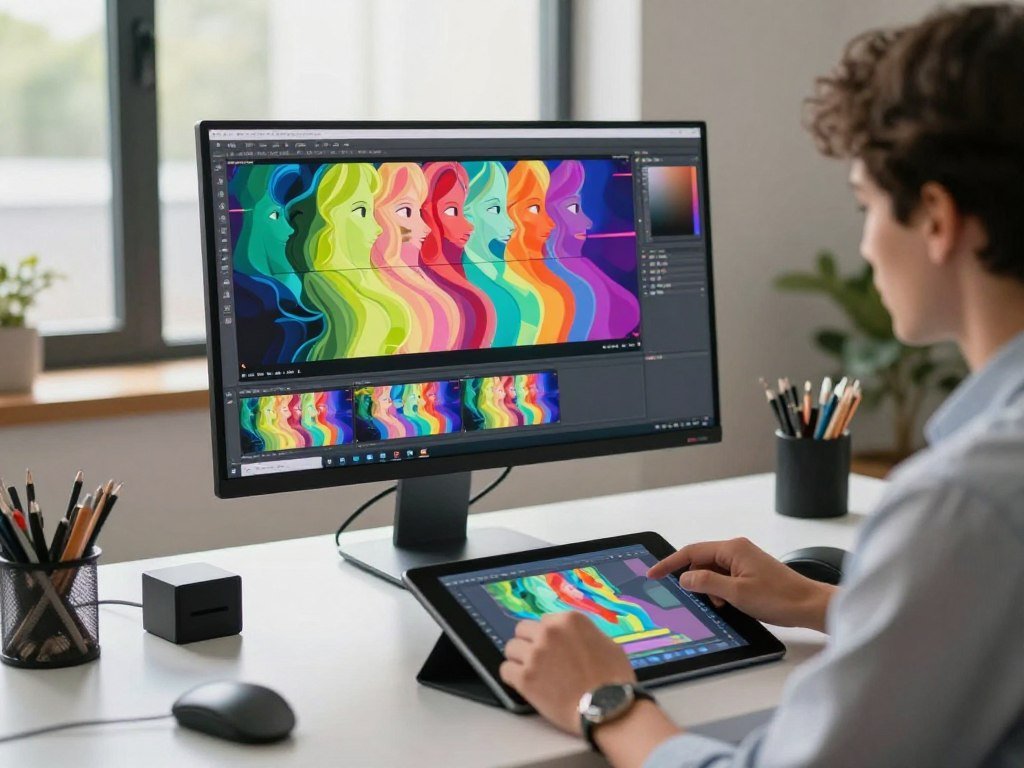
Prepare the Starting Image and Optional End Frame
Choose a web-based image video tool, then upload your source image. Set the aspect ratio to match the place where you plan to use the clip. A vertical frame suits many phone-first posts, while a wide frame works for slides or landscape video.
Some tools let you choose a duration or resolution before generation. Pick a setting that fits the task, rather than asking for the largest file by default. These controls can affect how much detail appears and how long the generation takes.
An end frame is optional. It gives the model a visual guide for how the scene should finish, such as a product turning toward a logo or a person facing the camera. Use one when the ending matters; a single source image is enough for a simple motion test.
Adobe Firefly accepts an uploaded starting image and an optional end frame. Depending on the model, it can generate video up to 4K. Its image-to-video downloads are MP4 clips of about five seconds, and Firefly typically shows results in under two minutes.
Generate an AI Animation from an Image
Write a motion prompt that says what should happen, then generate a preview. The model uses the image as its visual base and the text as direction for movement. This differs from text-to-video generation, which starts with words rather than an uploaded image.
Watch the whole clip before changing anything. Look for a subject that shifts, a frame that bends, or movement that does not match your idea. When one detail is off, make one change and generate again.
Once the preview works, export the clip in a format your project can use. The exact export controls depend on the tool, so check the selected file type and frame size before saving. A short clip can still need a second pass to feel right.
Preview the clip before downloading so you can catch a subject or frame that changed unexpectedly.
Firefly offers a quick path from upload to preview, but generation time and output details depend on the model. A tool may also use different labels for its image, prompt, or export settings. Keep the source image handy if you plan to try a second version.
What Kind of Image Gives AI the Best Starting Point?
A source image with one clear focal subject is usually easier to animate than a crowded frame. Clear visual boundaries help the model tell a face, object, or skyline from the background. Choose an image that makes the subject easy to identify at a glance.
Portraits, product photos, illustrations, and landscapes can all work. JPEG and PNG are common still-image formats accepted by many tools. For tips on making or refining a source visual, see this guide to creating images with AI.
Choose an Image for Portraits, Products, or Landscapes
For a portrait, keep the face large enough to read and avoid clutter near the head or shoulders. A small face can be hard to preserve when the model adds movement. For a product shot, make the shape and key details easy to see.
Landscapes often allow broader scene-wide effects, such as moving clouds or shifting light. Leave open space where the subject or camera should move. If a person looks toward the right, room on that side can make the composition feel less cramped.
A busy image can work when the goal is to animate the whole scene. It is a poor choice when you need to preserve a small face or product detail. If you are comparing ways to build a source visual, this guide to AI image generator tools can help you think through the image itself.
Clean Up the Image Before Uploading
A tight crop can help the model focus on the subject. Clean edges also make it easier to separate an object from nearby shapes. Readable lighting can show depth and help define where one element ends.
Look for cut-off limbs, text over a face, or a sharp shadow that resembles an extra object. Those details may confuse the model once motion begins. An image can be attractive as a still and still be a tricky source for animation.
Make a copy before cropping if the original may be useful later. Crop out distracting details before upload rather than asking motion to hide them.
How Do You Write a Motion Prompt That Looks Natural?
A prompt that asks for one visible action is easier to control than one that asks the whole scene to change. One action gives the model a clear job. Keep the subject’s movement separate from camera motion.
Leonardo’s video prompting guidance uses lighting, movement, and mood as direction. A prompt can also say what the subject does while the camera stays fixed. For more on clear visual wording, see this guide to writing AI image prompts.

Describe the Subject’s Action and What Stays Still
Try this order: name the subject, specify one action, state what stays fixed, describe camera motion, then add pace and lighting or mood. A short direction can be clearer than a paragraph of scene details. Keep the words tied to what the model can show.
For a portrait, ask for a gentle head turn with a fixed camera. For a landscape, describe leaves moving in a light breeze while buildings stay still. For a product, request a slow push-in and unchanged label text.
Add Camera Direction, Pace, and Mood
Use plain terms such as slow, gentle, steady, or subtle. Add lighting or mood only when it supports the scene, such as warm afternoon light or a calm tone. Extra details can help, but each new request gives the model more to interpret.
Before generating, check these four parts:
- Subject action: one movement the viewer can notice.
- Fixed elements: details that should not change.
- Camera direction: a clear move or a fixed frame.
- Pace or mood: a speed and feeling that fit the image.
Stacking unrelated actions can make the clip less consistent. Asking a person to wave, walk, smile, and turn while the camera circles adds several moving parts. If the first result adds unwanted movement, simplify the prompt before adding new directions.
Which Camera Moves Work Best for a Still Image?
A gentle zoom is a useful first test when the subject should stay central. Small camera motion can add depth without taking over the scene. Choose a move that guides attention toward the subject.
Camera movement changes what the viewer notices and how a scene feels. A short overview of cinematography and camera choices explains how framing, light, and movement shape a shot.
| Move | What changes in the frame | Useful when |
|---|---|---|
| Pan | The view sweeps across a horizontal space. | You want to reveal more of a room or landscape. |
| Zoom | The subject appears larger or smaller. | You want to stress a detail or widen the view. |
| Tilt | The view shifts up or down. | You want to show a tall object or move attention vertically. |
| Directional movement | The frame travels left to right or top to bottom. | You want a clear path across a scene or object. |
Adobe Firefly offers pan, zoom, and tilt controls. Its shot options range from extreme close-up to long shot, and from aerial to low-angle. These choices can set a useful visual direction before you generate.
Some supported settings use keyframes, which guide changes at chosen points in a clip. Kling 4.0 supports up to 10 flexible keyframes for guiding video changes. That control can help with a planned shift, but too much movement can pull attention away from the subject.
Try a restrained move first, then judge whether it helps the image tell its story. Keep the camera move small when preserving the original composition matters.
Which Image-to-Video Tool Fits Your Project?
Choose by what you need to do after generation, not just by how quickly a tool makes a preview. The next editing step is often the best way to narrow your choice. No tool fits every image-to-video project equally well.
For a wider comparison of free image makers and their limits, read this guide to free AI image generator tools. That can help if you still need to create a source image before making a clip.
Try Free Online Photo-to-Video Tools
You can animate a photo online with AI for free through tools that offer free access, but their limits differ. An image-to-video generator can animate a photo into a clip; free use may depend on credits, account access, or export rules. A free photo-to-video tool is not always available without a sign-in.
Vidu presents a free no-sign-up option, while access requirements vary by tool. If you want to animate a photo with AI for free without logging in, check whether the tool allows that workflow before uploading an image. Do not assume every free tier has the same controls.
Match an AI Animation Workflow to Your Project
Adobe Firefly suits camera controls and a timeline for editing. Canva Magic Studio offers Smart automatic animation and Custom prompting; its generated video is three seconds. That makes Canva convenient when the clip is part of a design-led edit.
CapCut Web can make a script from uploaded photos, add an AI voiceover, and let you adjust text, music, visuals, and timing. You can set duration before generation, then adjust export quality, resolution, and frame rate. It fits a photo-led script or narrated social post.
Kling 4.0 supports image-to-video clips from 3 to 30 seconds per generation. Kling 4.0 Omni Reference supports up to 15 combined reference assets, subject to individual input limits. Kling 4.0 Video Extension can reach two minutes through multiple extension passes.
| Tool | Starting input or control | Clip or export detail | Useful workflow |
|---|---|---|---|
| Adobe Firefly | Uploaded image, optional end frame, camera controls | MP4 clips of about five seconds, model-dependent | Camera moves and timeline editing |
| Canva Magic Studio | Smart automatic animation or Custom prompting | Generated video is three seconds | Design-led edits and social graphics |
| CapCut Web | Uploaded photos, script, and AI voiceover | Set duration, resolution, and frame rate | Photo-led scripts with sound and timing edits |
| Kling 4.0 | Image input and reference assets | 3 to 30 seconds per generation | Longer generations and multiple references |
| VEED | Text prompt placed into an editor scene | Generated video appears as an editor scene | Editing a generated scene in the same workspace |
VEED places its prompt-generated video as a scene in the editor, which suits a workflow that moves straight into editing. ChatGPT app choices can also help you compare connected tools for other tasks, though access rules differ across services.
Test the same source image in a short preview before building a larger edit around it.
How Can You Make a Photo Speak or Lip-Sync?
A speaking portrait needs a voice or script workflow, not just a camera-movement prompt. Dialogue needs sound as well as facial motion. Choose a face-focused tool when the clip must appear to speak.
AI Studios accepts a still image with typed dialogue or uploaded audio to make a speaking-avatar video. It supports more than 150 languages and accents for animated-avatar videos, which can suit narrated content in different languages.
That setup differs from ordinary image-to-video generation. A regular motion prompt can animate a wider scene without dialogue, such as a moving landscape or a shifting product view. Avatar workflows focus on a face, voice, and the timing between them.
Revive offers app-style effects, including lip-syncing, talking-photo, face-dance, and photo-to-video options. These effects make the face the main visual feature, rather than guiding motion across an entire scene.
Choose the route based on the result you need. A typed script or audio track supports a narrated avatar, while a face effect can create a short playful clip. Neither option should be treated as proof that a person agreed to the animation.
Keep the spoken content brief enough to fit the visual. If a clip uses uploaded audio, the length and pace of the speech shape how the face animation reads. Match the tool to whether the clip needs a voice, a facial effect, or only scene motion.
Which Free Image-to-Video Tools Can You Try Online?
Free access can mean a one-time credit deposit, a daily allowance, or a no-charge export, and those are different benefits. Free use has limits, and the rules can differ by tool and plan. Image-to-video AI can be tried for free online, but the amount of free use depends on the tool.
Firefly offers free daily generations, while CapCut Web says its image-to-video generator exports without a watermark at no charge. A free trial, recurring credits, and a no-watermark export are not the same offer. An online free workflow is not automatically watermark-free.
Free Credits, Daily Limits, and Watermarks
Runway’s Free plan includes a one-time deposit of 125 credits that does not expire. In 2026, Runway Gen-4.5 uses 12 credits per second of generated video. Credit use varies by model, duration, and resolution.
| Access option | Allowance | Expiration or rollover |
|---|---|---|
| Runway Free | One-time deposit of 125 credits | Credits do not expire |
| Runway Standard and Pro | Monthly credits | Unused credits reset within 24 hours of the billing date; no rollover |
| Runway Max | Monthly credits | Up to one month of unused credits can roll over |
| Google Flow without a subscription | 50 daily credits | Unused daily credits expire |
In 2026, Runway users can buy additional credits in purchases of at least 1,000 credits. Purchased credits do not expire. Runway’s credit and rollover rules can help you estimate how many tests fit your allowance.
Google Flow’s generation costs vary by model, while its daily credits expire unused. In 2026, Kling’s free tier generally adds a watermark to video exports, and watermark removal is a membership benefit. Those limits matter if you want several versions or a clean file.
CapCut Web says its image-to-video generator exports without a watermark at no charge. That does not mean every feature or workflow across every tool is free. Read the specific allowance before you count on repeated generations.
When a Free Tool Is Enough
A free tier can be enough for a short personal test, a simple post, or a single preview. It may not suit a project that needs many takes, longer clips, or steady monthly use. A no-watermark export can matter more than a large credit balance for a one-off post.
Runway Standard and Pro monthly credits reset within 24 hours of the billing date in 2026, without rollover. Runway Max allows up to one month of unused credits to roll over. Google Flow users without a subscription receive 50 daily credits, but unused credits expire each day.
Firefly’s daily generations may suit a small test, while a no-charge CapCut Web export may work for a simple clip. Check the credit reset or expiration rule before spending time on a multi-clip project.
How Do You Fix Flicker, Warping, or Unwanted Movement?
A clip that changes a face, product shape, or background needs a simpler motion request before a sharper export. Fix the movement first, then decide whether the image needs more pixels. Upscaling cannot repair motion that changes the subject.
Watch the full clip once, then note the first clear problem. Changing several things at once makes it harder to tell which edit helped. Use this quality check:
- Subject and face consistency: does the person or product keep its shape?
- Edges and background flicker: do borders or details flash between frames?
- Prompt match: does the motion contradict the direction you gave?
- Camera effect: does the move distort the composition?
If objects warp or move unexpectedly, reduce the number of requested actions. Holding the camera still can also make the next test easier to judge. A cleaner source image may help when the model cannot separate an object from its background.
Change one part of the request, then generate another clip. For example, remove a requested hand gesture while keeping the head turn. Small edits make it easier to learn what the model can handle.
Upscaling changes the final resolution, not the motion itself. Adobe Firefly Video supports upscaling to 1080p or UHD through Topaz Labs Astra, with Precise and Creative options, each at two levels.
Use a sharper export only after the movement and subject look right. Regenerate when the subject changes identity or shape, and reserve upscaling for a clip whose motion already works.
What Can You Make from an Animated Photo?
A moving product detail can add interest to a short ad without turning the clip into a full product shoot. A little motion can give an image a clear role in a larger project. Use the effect to support the message, not compete with it.
Common uses include:
- Product teasers that bring attention to one feature.
- Social-media posts that add movement to a still visual.
- Animated logos or graphics for a title or transition.
- Short B-roll or presentation visuals to support a spoken point.
A gentle animation can suit a family or archival photo. A dramatic effect may feel wrong for a sensitive memory, especially when it changes a person’s expression or pose. Keep the visual treatment in line with what the image means to you.
Use rights depend on the model and the image. Adobe says its Firefly model is trained on licensed content and public-domain content where copyright has expired. That detail applies to Firefly, not every generator, and rights to the source image still matter when publishing.
Commercial-use conditions can differ across models. The person uploading an image needs the rights required for its intended use, including the right to animate and share it. Use a photo only when you have permission to animate and share it in the way you intend.
What Should You Check Before Sharing an AI-Animated Photo?
A clip that looks right in the editor still needs a final check at the size and format where people will watch it. Check the finished file, not just the preview inside the tool. The destination should guide the frame shape and file type.
Run through these four checks:
- Aspect ratio: does the frame suit the platform or screen?
- File format: can the destination use the file you exported?
- Captions: can viewers understand meaningful speech or audio?
- Playback: does the clip work with sound off and on?
MP4 is a practical choice for ordinary video sharing. GIF works for short looping visuals without audio. Canva videos can be downloaded as MP4 or GIF files, so choose based on whether sound matters.
Captions help people follow speech when audio is muted or hard to hear. WCAG 2.2 Success Criterion 1.2.2 requires captions for prerecorded synchronized media at Level A. Add them when speech or other meaningful audio needs to be understood.
Listen once with sound on, then watch again with sound off. Check that text remains readable and the main action still makes sense. Preview the exported file on the intended platform before scheduling or sending it.
Conclusion
A useful first animation starts with a clear image and a small, specific motion idea. You do not need to turn every still into a moving scene. A restrained effect is often easier to judge and refine.
Upload one visual and try one simple prompt. Keep the first clip only if its movement supports the intended use, whether that is a post, product teaser, or presentation. If the result changes an important detail, adjust the idea and test again.
Choose one photo and make a short preview today.
FAQ
How can I animate photos with AI?
Upload a still image to an image-to-video tool, direct its motion with a prompt or preset, then preview and export the clip. The image gives the model a visual starting point, while your direction guides what changes. A portrait might turn its head, while a landscape might show moving clouds. Start with one clear action for an easier first test.
Can ChatGPT animate a still image?
ChatGPT can help draft a motion prompt, while direct video generation depends on the video-generation tool and account features available. You can describe the image and ask for a concise direction that names the subject, action, and fixed details. Then use that text in an image-to-video tool. The tool, not the prompt alone, creates the clip.
Is there an app that can animate a still photo?
Yes, apps such as Revive offer talking-photo, lip-sync, face-dance, and photo-to-video effects. These options focus on facial movement and often suit short, playful clips. Other apps may animate a wider scene from an uploaded image. Pick the one that matches whether you want a speaking face, a facial effect, or movement across the whole image.
Can I animate a photo for free?
Yes, free access can come with credit limits, expiring allowances, or watermark differences. Some tools offer a small set of generations, while others give daily credits or a no-charge export. Those benefits are not the same. Check whether the free option covers the clip length and file you need before building a larger project around it.
How to animate old still photos?
Upload a clear scan, choose gentle movement, and avoid asking the model to change faces or add unsupported details. A slow zoom or slight movement in the background can preserve the feel of an old portrait. If the scan has scratches or faded areas, save a clean copy before testing. Review faces closely, since small changes can affect how the memory feels.
Can CapCut animate photos?
Yes, CapCut Web can create a script from uploaded photos, add an AI voiceover, and let you adjust the visuals and timing. You can also set the duration before generation and adjust export quality, resolution, and frame rate. This workflow can suit a photo-led story with narration. Review the generated script and voice before sharing the finished clip.