
A small online store can test a new visual direction without arranging a full studio shoot with an AI Product Photography Generator for Ecommerce. Product fidelity means how accurately a generated image preserves the real item’s shape, color, labels, and other distinct details. For U.S. e-commerce sellers, AI can create listing visuals and marketing variations, but the right tool depends on your output needs, usage rights, and catalog work.
You might need one new background for a product photo, or a set of scenes for a brand campaign. Those jobs can call for different tools, plans, and review time. Polished visuals still need a human accuracy check before they appear in a listing or ads. Compare what each tool can make, how you can use its output, and how much editing it leaves to you. The best starting point is a tool whose limits and license fit the way you plan to use the finished visuals.
Key Takeaways
- Choose a generator that suits your image needs and catalog size.
- Check commercial terms for the plan and feature you use.
- Compare generated images with the real product before publishing.
- Pick a workflow that fits your editing time and sales channels.
- Export separate copies when marketplaces use different image rules.
How to Use an AI Product Photography Generator for Ecommerce
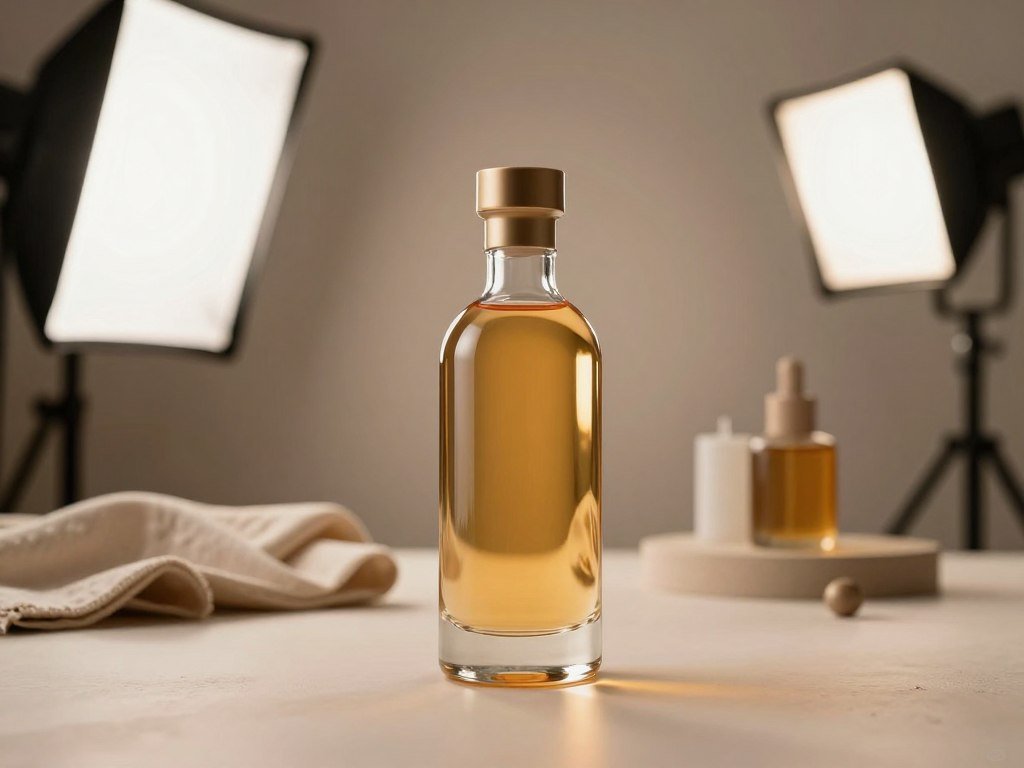
An AI product photography generator for ecommerce works online by transforming a source photo through a prompt, a generated scene, and a review before export. Your source photo gives the generator a view of the item to work from. The clearest results start with a sharp photo that shows the product’s real shape, color, and details.
This online workflow can help you create a new product image without setting up a physical studio. You upload a source photo, describe the scene, generate versions, then inspect and export the result. A prompt should say what surrounds the product, how the lighting looks, which angle you want, and whether props belong in the scene.
Start with a clear source photo
Use a well-lit photo with the product in focus and its edges easy to see. A plain background helps the tool separate the item from its surroundings. For example, photograph a blue ceramic mug against a light wall, with the handle visible and no objects covering its rim.
Check that the source photo shows the product’s proportions and finish. A dark image or a partly hidden label gives the generator less to work with. Krea accepts PNG, JPEG, WebP, HEIC, HEIF, and AVIF uploads, so you can start with common phone or camera files.
Describe the scene and shot
Write a prompt for the setting, lighting, camera angle, and any props. “Blue ceramic mug on a pale kitchen counter, soft morning window light, eye-level view, one folded linen napkin” gives the tool clear choices. Name the item’s color, material, shape, and finish so the scene prompt does not leave those details open.
Keep the background from competing with the product. A simple scene helps shoppers see the item, while a more detailed setting can show how it might fit into daily life. Leave space around the product when you need room for a headline in an ad.
A repeatable prompt formula can help you describe the scene and framing with less guesswork. Change one part at a time when you refine a prompt. That makes it easier to see which instruction changed the image.
Review, refine, and export
Generate a few variations and compare them with your goal. A good-looking scene can still alter a logo, label, or small product feature. Refine the prompt or edit the image when a detail is off, rather than accepting the first attractive result.
Compare every generated item with the source photo before using it in a live listing.
Krea can place a product naturally in a person’s hand, but that workflow needs both a person photo and a separate product photo. After exporting, check that the finished image fits the channel where you plan to use it. Compare the generated item against the source photo before using it in a live listing.
Which Product Image Styles Should You Create?
A useful listing set pairs a clean catalog view with context images that answer practical questions about scale, use, or included pieces. One hero shot rarely answers every shopper question. Build a mix of product photos that shows the item clearly and gives useful context.
Different product images can help shoppers understand the same product in different ways. A clean shot shows what you sell. Lifestyle photography shows a likely use, while a scale reference can make size easier to judge.
Listing shots and context scenes
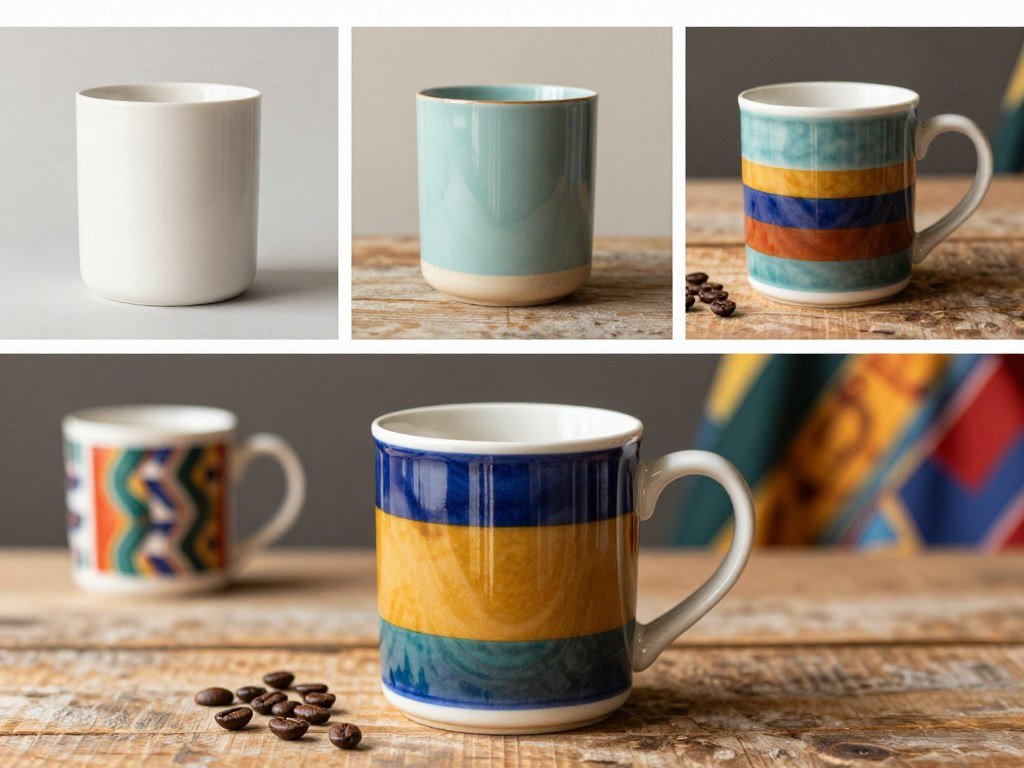
A clean studio or pack shot gives shoppers a direct view of the item. For example, a white-background listing setup might use a 70mm lens and even, diffused light. That is an example setup, not a rule for every product or camera.
A lifestyle scene shows the product in a setting that helps explain its use. A 35mm lens and soft window daylight can serve as an example for this style. A desk lamp beside a book tells a shopper more about its setting than a plain catalog view.
Keep props in their place: a scene should not suggest that an item comes with extras that are not included. Your product photos can show how an item fits into a room, but the product should remain the focus. Use background details to add context, not distract from the item.
Scale, flat lays, and virtual models
Five image types can give a listing a helpful range of views:
- Clean studio or pack shot: shows the item’s color, shape, and finish.
- Lifestyle scene: shows the product in a familiar setting.
- In-hand scale reference: gives shoppers a sense of size; a 50mm lens is one example setup.
- Overhead flat lay: shows included pieces together; a 35mm lens is one example setup.
- Virtual or ghost-mannequin fashion view: shows how clothing may sit on a body or form.
A flat lay can answer what comes in a box, as long as every shown piece is included. An in-hand view gives a size cue, but hands should not cover the product’s key features. These example lens choices describe possible setups, not universal rules for product photography.
Fashion sellers can use an AI model to show clothing in a worn view, or a ghost mannequin to show its shape without a visible person. The right style depends on what shoppers need to see before they buy. Keep the product clearly recognizable in every style, even when the surrounding scene changes.
Which AI Tools Fit Different Ecommerce Needs?
Photoroom is the strongest starting choice for most sellers who want quick background changes and product staging. For common listing work, it can create backgrounds from a text prompt or a reference image. Choose tools by the work you need done, not by a promise of guaranteed image quality.
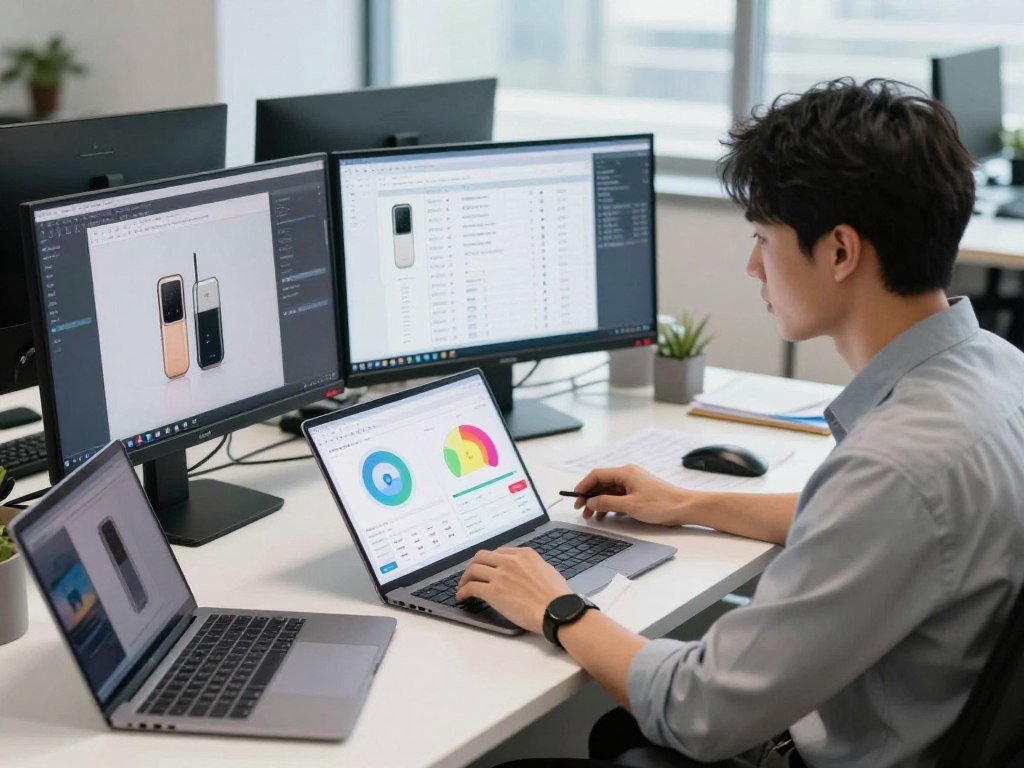
Other product image tools suit sellers who want more scene control, templates, high resolution, or creative styling. A tool that works well for one brand may not fit another seller’s visual workflow. Use the table to match a capability with your own task.
| Tool | Best fit | Relevant capability |
|---|---|---|
| Photoroom | Background and staging | Prompt or reference-image scenes |
| Flair | Hands-on scene control | Drag-and-drop canvas and 3D props |
| Pebblely | Template-led lifestyle backgrounds | More than 100 templates |
| Adobe Firefly | Creative styling and text preservation | Integrated generative editing |
| Nightjar | High-resolution product output | Up to 4K in JPEG, PNG, or WebP |
Photoroom is a practical fit when your main task is replacing a background or staging a product in a scene. Its AI product staging can help you build a product image without laying out every prop by hand. Compare results on your own source photo before choosing it for a full catalog.
Flair’s canvas gives you a more hands-on way to place digital 3D props around a product. Pebblely suits a template-first workflow, with more than 100 templates to choose from. These are different ways to work, not a ranking of guaranteed results.
Adobe Firefly can suit creative professionals who want stylistic control and text preservation while editing. Nightjar supports Product Photography outputs up to 4K in JPEG, PNG, or WebP. Consider the output format and image size when choosing where to make and edit your visuals.
A broader comparison of AI image tools can help you weigh editing features and output needs beyond product staging. Some sellers may need one tool for listing shots and another for ads. Choose a more controlled canvas or a template-first workflow when those specific ways of working matter more than a simple background edit.
Which Free AI Product Photography Tools Are Worth Trying?
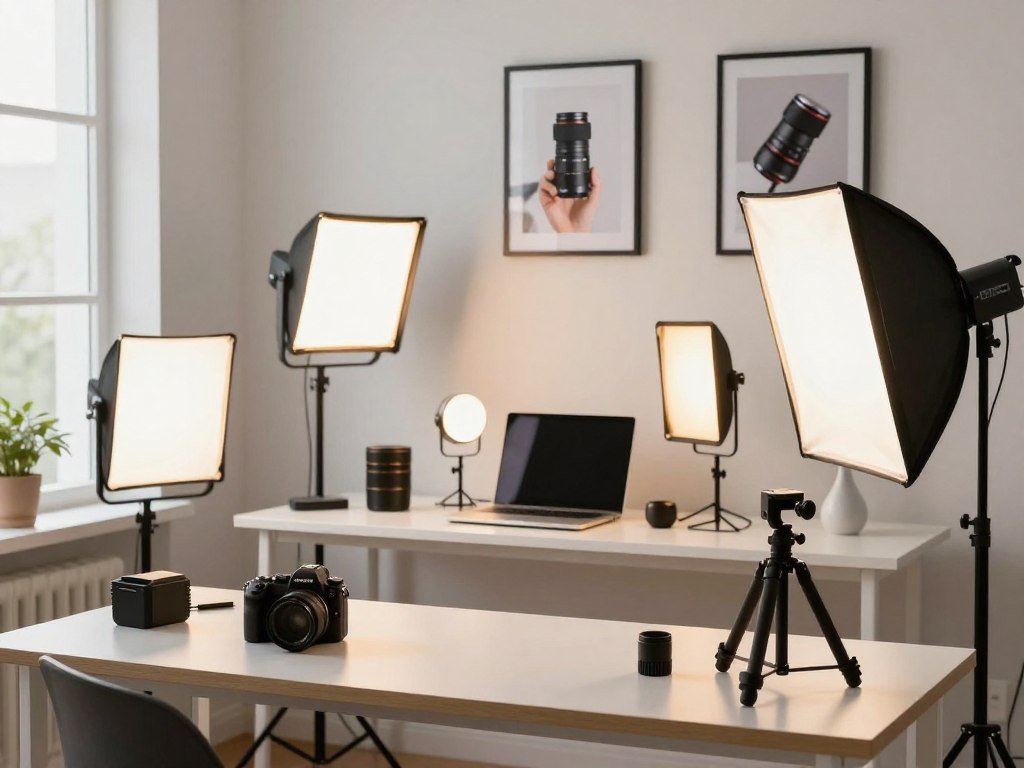
A free plan is useful for testing a workflow, but its generation cap and usage license determine whether it can support a real store. Free access can mean a few credits, limited downloads, or personal use only. Do not assume that every free image can appear in a commercial listing or ad.
Free AI product photography can be useful for testing, but limits or commercial restrictions may prevent production use. An AI product photography generator for ecommerce can be free to try, but check generation and export rules. A free download is not required for browser-based tools, while an app is a separate way to work on a phone.
Free access and generation limits
Compare the allowance with the number of images you need to test. Some services grant credits or daily generations, while others limit exports or place a mark on downloads. The difference between a free preview and a usable product image matters when you are planning a store launch.
| Tool | Free access | Commercial-use or output condition |
|---|---|---|
| Nightjar | 6 signup credits, no card | Any lawful use, including commercial use; subscription after credits |
| Adobe Firefly | Variable daily generations | Commercial use for non-beta features; no IP indemnification on free tier |
| Gemini | Standard limits that can change with demand | 1K downloads with visible Gemini mark and invisible SynthID |
| Leonardo AI | 150 Fast Tokens per day | Free creations are public; non-exclusive, royalty-free commercial license |
| ArtNovaAI | Free tier, no card | States free commercial license, 4K output, 50-plus styles, 5-10 seconds per image |
Leonardo AI retains intellectual-property rights even while granting a non-exclusive, royalty-free commercial license. That is separate from whether you want free creations visible to others. For Adobe Firefly, commercial use of non-beta features does not include IP indemnification on the free tier.
Commercial use and license checks
Canva limits free access to selected AI tools each month, and its library content has its own license. Photoroom free use is non-commercial, with limited AI generation and monthly exports. Microsoft Designer requires a Microsoft account and allows personal, non-commercial use only.
CreatorKit offers unlimited free generation without a card, but downloads start at $2.99 per image used. Free-member output is non-commercial. Morphic’s free plan offers up to 20 credits, one user, and limited models.
These plans can change how useful a free product image is for your store. A no-cost preview may be enough to test prompts, while paid ads or a full listing set need broader rights or more downloads. Review terms for both the tool and any built-in stock content you add.
A free image-generator comparison can help you compare allowances and limits across other tools. Browser-based tools do not need a free download, though a separate app may suit phone editing. Check the rights for the exact plan and feature you used before putting an image in a paid campaign.
How Much Do AI Product Image Generators Cost?
Paid plans with known starting prices in this comparison range from $4.99 to $12 per month, while Midjourney starts at $10 per month. Those prices buy different allowances, so they do not show value on their own. Compare generation volume, credits, commercial terms, and access to the feature you need.
A product image generator may charge a flat monthly fee, grant a set amount of credits, or include a stated level of access. The number of images you can make is not the same as the number you can approve and use. Include the time spent fixing results when you compare costs.
| Plan | Starting price | Included generation or access |
|---|---|---|
| Midjourney | $10 per month | Approximately 200 images per month and commercial usage rights |
| Adobe Firefly image-generation plan | $9.99 per month | Unlimited Firefly image generation |
| Google AI Plus | $4.99 per month | Includes Nano Banana |
| Leonardo AI Essential | $12 per month | Plan starting price |
Midjourney’s starting plan includes commercial usage rights and about 200 images each month. Adobe Firefly’s paid image-generation plan starts at $9.99 per month and includes unlimited Firefly image generation. These features differ, so a simple price-per-generation comparison can mislead.
Google AI Plus costs $4.99 per month and includes Nano Banana. The free plan has limited Nano Banana access. Leonardo AI Essential starts at $12 per month, but a low starting price does not tell you how many useful product visuals your workflow will produce.
Credits, generation volume, commercial terms, and whether a plan includes the feature you need all affect its value. A seller who needs a few launch images may value a lower monthly fee. A busy store may care more about reliable access and enough generations for a broad catalog.
Plan details can change, and checkout displays the terms you accept. Confirm the current plan terms at checkout before subscribing. Compare the cost per usable, approved image rather than the number of generations alone.
How Can You Keep AI Product Images Trustworthy?
A convincing scene is not enough if the generated item looks different from what a shopper will receive. Accuracy comes first, because shoppers use product visuals to judge what they may buy. Check both the product details and the message the scene sends.
In a 2025 survey of 411 shoppers, 71% judged paired real and AI images similar or only slightly different. In a September 2025 survey of 401 U.S. consumers, respondents misidentified images as AI-generated or real at an average rate of 57% across five questions. Familiar-looking visuals do not remove the need to check details.
Check product fidelity before publishing
Compare the generated image with the source photo, looking closely at color, shape, logos, labels, packaging, and proportions. A realistic shadow or reflection can make an image feel convincing while the product itself has changed. Small differences can matter when shoppers rely on a particular label or size.
Baymard product-page usability testing found that 56% of participants first explored product images on arrival. In Salsify’s 2025 survey of 1,910 shoppers, 71% had returned an item in the previous year because of incorrect product content, including images or descriptions. Product visuals can shape expectations before a shopper reads the details.
Match shopper expectations with honest visuals
Review the scene for claims it implies. A model holding a bottle should not make it seem larger or smaller than it is. A scene with accessories should not suggest they come with the product when they do not.
Salsify’s 2025 survey also found that 54% of shoppers had abandoned a purchase over inconsistent information across websites. Your listing, store, and ads should show the same product details. A different background can suit each channel, but the item and its included pieces should stay consistent.
Use this short review list before publishing:
- Item details: compare shape, color, finish, and proportions.
- Label text: inspect logos, small lettering, and package claims.
- Included accessories: confirm every visible extra comes with the item.
- Store and ads: check that product details stay consistent across both.
A beginner image creation workflow can help you make focused edits and review the result. Keep descriptions and claims aligned with the actual item, not with details invented by a generated scene. Reject any frame that changes a product detail a buyer relies on to make a decision.
What Image Sizes and Formats Do Ecommerce Platforms Require?
Amazon, Etsy, eBay, Shopify, and WooCommerce do not all use the same image limits or display rules. One export may not fit every channel, even when the product image looks the same. Use each platform’s size, file, and background guidance when preparing a listing image.
Keep a high-quality master image, then make copies for each store or marketplace. The table gives the listed limits and recommendations for common e-commerce platforms. Display crops and zoom rules can affect how shoppers see the product.
Platform dimensions and image rules
| Platform | Size or zoom guidance | Other requirement or recommendation |
|---|---|---|
| Shopify | Up to 4,472 × 4,472 pixels; recommends 2,048 × 2,048 pixels | 20 MB maximum |
| Amazon | Zoom needs 1,000 pixels on longest side; 1,600-2,000 pixels recommended | Main image needs pure white RGB 255,255,255; product fills roughly 85% of frame; 10 MB limit |
| Etsy | Recommends 2,000 pixels on shortest side | 1 MB per-photo cap; thumbnails crop to roughly 4:3 |
| eBay | 500 pixels minimum on long side; zoom starts at 1,600 pixels | Follow the stated minimum for listing photos |
| WooCommerce | No maximum size; 2,000 × 2,000 pixels recommended | Use an image size that suits your store theme |
Amazon’s main listing image has a specific look: a pure white background with RGB values of 255,255,255, and the product filling roughly 85% of the frame. A lifestyle scene may work for another slot, but it does not replace that main image rule. Shopify permits larger files, while Etsy’s per-photo cap is much smaller.
File size, compression, and transparency
JPEG is a practical format for product photos because it compresses photographic scenes. PNG works well when you need transparency, such as a product cutout with no background. WebP can reduce file weight while keeping visual quality.
WebP files are typically 25-35% smaller than an equivalent JPEG at the same visual quality. Shopify, WooCommerce, and Ecwid accept WebP directly. The MDN image format guide explains how formats differ in compression, transparency, and browser support.
For a 2,048-pixel product image, 200-500 KB is a general target, not a universal platform cap. JPEG quality of 80-85 is a practical recommendation for photo exports. Use PNG when transparency matters more than a smaller file.
Avoid shrinking an image so far that product edges or label text become hard to read. Check the final file at its intended display size, not just in an editing window. Export a platform-specific copy when a single file cannot satisfy every channel’s crop, size, or background rule.
How Can You Produce Images Faster Across a Catalog?
A phone app can handle a small run of edits, while a growing catalog benefits from repeatable batch operations. Pick the workflow that fits your volume, rather than treating every product photo as a new project. Save time by using the same framing, lighting, and background choices across related items.
A product photography app can be free to try, but its generation or export terms may limit commercial use. Photoroom’s Android app supports background replacement, batch editing, AI fashion models, ghost mannequins, flat lays, product videos, and ecommerce resizing. Its batch-editing feature can process hundreds of photos at once.
A phone-first workflow
Phone editing can suit a solo seller who needs to fix a few product photos between other tasks. You can take a source photo, remove its background, and prepare a listing visual in the same app. A phone screen is handy for quick edits, but small details can be harder to inspect.
Photoroom’s Android app also supports product videos and ecommerce resizing. Those features can help when you want more than a still image from the same photo setup. Check each output before using it in a listing or ad, especially when the app has changed the background around the item.
Saved brand templates can reduce repeat choices about backgrounds, light, and framing. A consistent setup makes related products look like part of the same store. It also gives your team a clear starting point when more than one person edits images.
Batch editing and connected production
Batch work suits a catalog with many similar items, such as candles in several scents or shirts in several colors. Photoroom can process hundreds of photos at once, while Pebblely supports bulk generation. These features help with volume, but each product still needs an accuracy check.
A connected production flow can group photography, editing, review, and export. Keep source photos together by product or SKU, then apply the same template to similar items. When one image needs a different crop or setting, handle that exception separately instead of changing the whole batch.
Use three steps to prepare a larger run:
- Group source photos by product type, SKU, or launch batch.
- Apply one consistent template or edit to each matching group.
- Review a sample image before exporting the full batch.
Bulk generation saves repeated setup, but it can repeat the same mistake across many images. Review one sample from each group for product shape, color, and framing. Start with a small sample batch and inspect it before applying the same settings across every SKU.
Conclusion
Choose the simplest tool that meets your image needs and gives you clear permission for the way you plan to use the output. A useful fit matches your editing habits, catalog size, and license needs. Check the generated item against the real product before publishing.
Start with one source photo and use a free tier or trial to test the workflow. Inspect the result for changed details, then read the commercial terms for the plan and feature you used. If the image holds up, you can decide whether the process suits more products.
Good product photography should make the item easier to understand, not create a different expectation. One accurate test image can show whether a tool saves you time without adding extra review work. Test one image, verify the details and terms, then decide whether the workflow is ready for your catalog.
Conclusion
Choose the simplest tool that meets your image needs and gives you clear permission for the way you plan to use the output. A useful fit matches your editing habits, catalog size, and license needs. Check the generated item against the real product before publishing.
Start with one source photo and use a free tier or trial to test the workflow. Inspect the result for changed details, then read the commercial terms for the plan and feature you used. If the image holds up, you can decide whether the process suits more products.
Good product photography should make the item easier to understand, not create a different expectation. One accurate test image can show whether a tool saves you time without adding extra review work. Test one image, verify the details and terms, then decide whether the workflow is ready for your catalog.
FAQ
Can AI-generated product images change my logo or label text?
Yes, AI-generated product images can change logos and label text, especially when lettering is small. A generator may blur, bend, or replace letters while making the rest of a scene look real. Compare every visible mark with the actual package before publishing. If a label carries a size, ingredient, safety, or brand detail, use an accurate source image instead of trusting generated text.
How many source photos do I need to create a usable image?
One clear product photo can be a starting point for a usable generated image. Choose a photo that shows the item’s shape, color, and key details without glare or objects blocking it. Some workflows need more than one image: Krea’s person-in-hand workflow requires a separate person photo and product photo. Extra views can help you check details, but they do not replace a close review of the result.
Can I use AI-generated product images in paid ads?
Yes, you can use an AI-generated image in a paid ad only when the specific tool, plan, and feature license allow commercial use. Permission to use an image commercially is different from IP indemnification, which concerns certain legal claims. Free plans may limit commercial use, and some features may have separate terms. Check the terms that apply to the exact image you made before adding it to a campaign.
Do AI product images guarantee more sales?
No, AI product images do not guarantee more sales. They are creative assets that may help you test a new scene or presentation, but buyer response depends on many parts of the offer and store. Compare results in your own store rather than assuming a generated visual will lift conversions. Keep the product details accurate, and do not make sales or performance claims based only on using AI images.
Can AI make product videos as well as still images?
Yes, some tools offer product video features as well as still-image editing. Photoroom’s Android app supports product videos, but video generation may not be included in every plan or workflow. Check what the plan includes before building your production process around moving clips. Review the video for product accuracy too, since a change in motion or angle can make a feature look different.
Are AI-generated images accurate enough for every product category?
No, AI-generated images are not automatically accurate enough for every product category. Inspect color, proportions, packaging, and small details, especially when shoppers rely on them to make a buying decision. Items with fine labels, exact shapes, or visible parts may need more careful review. Use the source photo as your comparison point, and leave out any result that changes a detail the buyer expects.