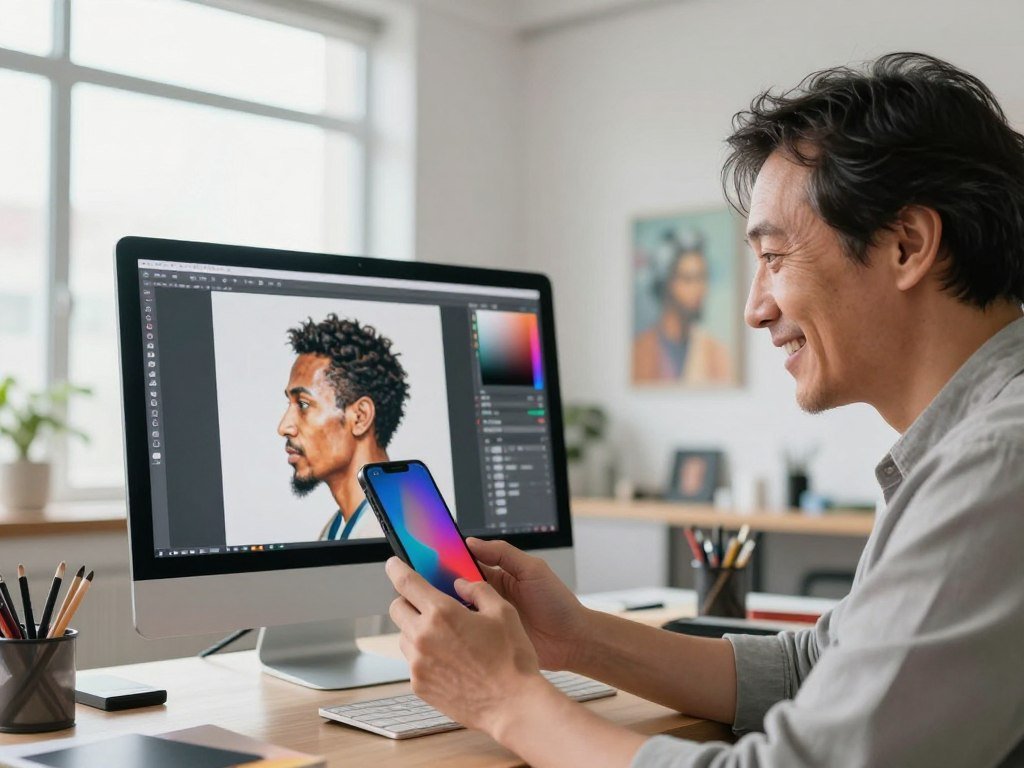
A polished profile image or a visual idea for a creative project can start with a photo you already have or a short description. You can shape the result for work, social media, or a personal project without setting up a studio.
Choose a look, then adjust details such as clothing, lighting, and background. A realistic result may take a few tries, since small changes can affect the face or scene in unexpected ways.
That flexibility helps when you need a fresh headshot, a social media image, or art for a project. You can begin with a familiar face or build a new character from scratch. The best result should suit its purpose, not just look polished on screen.
A strong first result is a starting point, so choose a tool that lets you refine the details that matter to you.
Key Takeaways
- Start with a reference photo for a specific person or a text idea for an imagined subject.
- Pick a style that fits where you plan to use the portrait.
- Refine one or two details at a time to keep changes easy to judge.
- Check the final crop and file type before sharing or uploading.
- Review privacy and use terms before uploading a personal photo.
AI Portrait Generator: Create Realistic Portraits From Photos or Text
You can begin with a clear selfie when likeness matters, or with a written description when you are inventing someone new. An AI portrait generator online can create realistic portraits from either input, within the tool’s rules.
A reference photo is an uploaded picture used to guide a generated portrait toward a specific person, look, or composition. Adobe Firefly can start with text or an uploaded reference image, while upload rules vary by tool.
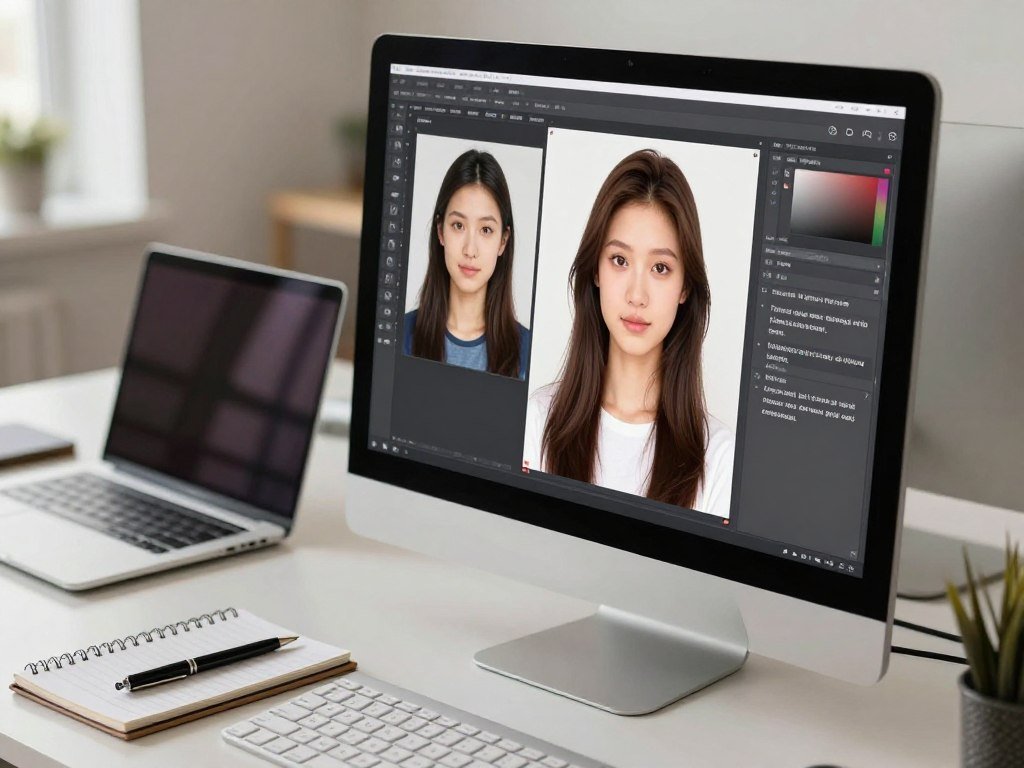
Photo-guided generation uses the uploaded image as visual guidance. Text-to-image uses your words to invent a subject, setting, and style. Editing an existing image starts with a picture and changes selected parts.
| Starting point | What the generator uses | Best fit |
|---|---|---|
| Text description | Words for the subject, setting, mood, and style | An imagined person or character |
| Reference photo | An uploaded picture for a person, look, or composition | A portrait guided by a specific person |
| Existing image edit | A current image plus instructions for selected changes | Restyling or fixing part of a picture |
Text-only generation suits an imagined subject, while a reference photo helps guide a portrait of a specific person. The generator may still change small facial details, so check likeness before using the image as a personal profile photo.
Check a tool’s upload format and size rules before choosing a photo-based workflow.
Adobe accepts JPG, PNG, and WEBP uploads up to 100 MB, and rejects images smaller than 512 x 512 pixels. For a broader look at text-based options, compare these free text-to-image generators.
Upload rules can shape your workflow before generation begins. Check the upload format and minimum image size before choosing a photo-based workflow.
What Can You Make With an AI Portrait Tool?
The right portrait depends on where it will appear, from a polished work profile to an illustrated character concept. Start with its destination, then choose a style that feels right there.
Portrait tools can make professional headshots, social avatars, creative artwork, and fictional characters. Adobe Firefly offers Fantasy, Anime, Oil Paint, and Grainy Film effects. Canva lists photo, 3D, concept art, anime, and watercolor portrait styles.
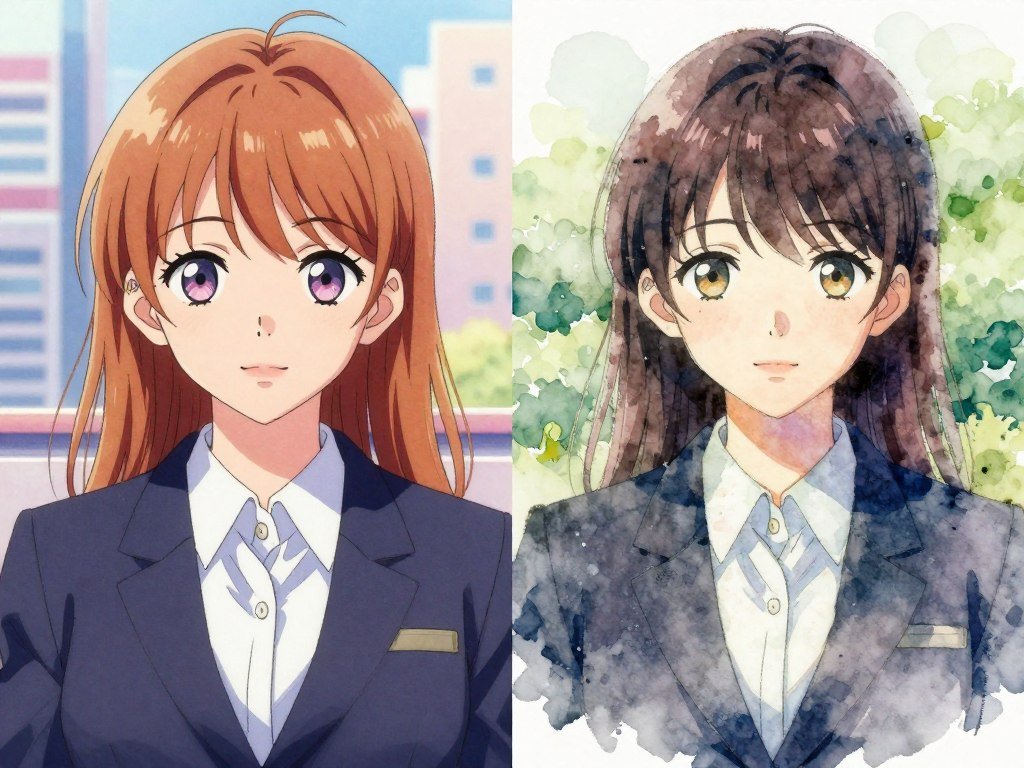
A photographic look can feel close to a studio photo, while watercolor softens edges and colors. Anime adds a drawn character feel. A stylized portrait does not automatically suit a formal work profile.
- Professional profile: create a clean headshot for a work bio or team page.
- Social avatar: make a colorful image that stays clear in a small profile circle.
- Art or gift: turn a friend’s interests into a custom illustrated portrait.
- Fictional character: design a hero or side character for a story or game.
The same person can look very different across styles, so consider how viewers will read the image. A formal profile often calls for a natural photographic style, while character art can use bold colors or fantasy details.
Choose the destination first, then pick a style that looks appropriate in that setting.
How Do You Turn Your Own Photo Into a Portrait?
Start with the clearest image you have, not the most heavily filtered selfie. A clear starting point gives the portrait generator better visual details to follow.
A sharp, well-lit, front-facing photo gives the generator more useful facial details. You can convert a normal photo to a portrait online by selecting a look and refining the result, rather than changing every feature at once.
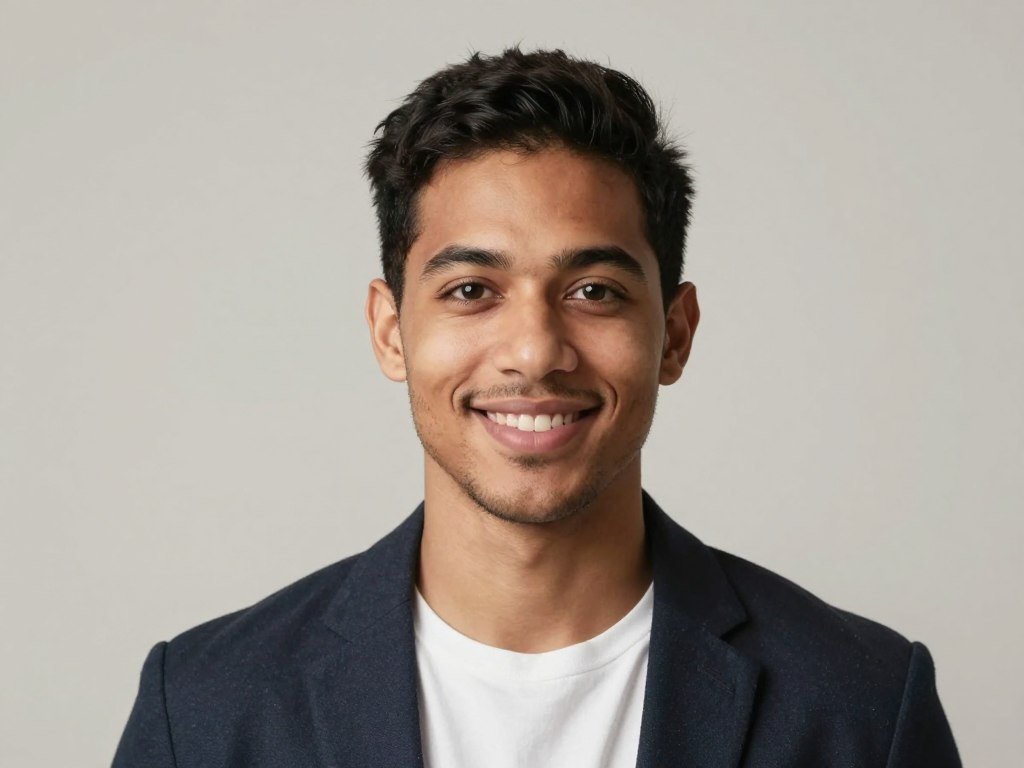
Choose a clear source photo
Choose a photo where your face is easy to see. Strong shadows, blur, and filters can hide details the tool needs to guide a likeness. OpenArt recommends adding a reference photo when you want a portrait of a specific person.
- Even light: use soft light that does not hide one side of the face.
- Visible face: keep the eyes, nose, and mouth clear in the image.
- Minimal obstruction: avoid sunglasses, hands, or hair across key features.
- Useful crop: include enough of the head and shoulders for your intended style.
Fotor asks users to select at least three styles, so compare options before settling on one. A photo-guided AI portrait generator can restyle a selfie while keeping its basic subject recognizable.
Control what changes
State which facial features, clothing, and background should change. Then name what should stay the same, such as your face shape, hair, or expression.
For example, ask for a new jacket and a plain background while keeping the face and hairstyle unchanged. OpenArt also recommends setting output dimensions and stating which details should remain as they are. See this beginner guide to creating AI images for more on reference-led edits.
Compare the generated face with the original before accepting the result as a likeness of you. If the eyes or jaw look different, try another version before making more changes.
Compare the generated face with the original before accepting a result as a likeness of you.
How Do You Write a Prompt for a Realistic Portrait?
A prompt such as “realistic portrait” leaves too many choices for the generator to make on your behalf. Specific details help an AI portrait generator from text create an imagined person with a clear look.
Name the subject, expression, pose, outfit, setting, framing, and mood. A prompt can also guide a reference-photo edit, but text-generated portraits rely on your written description for their visual direction.
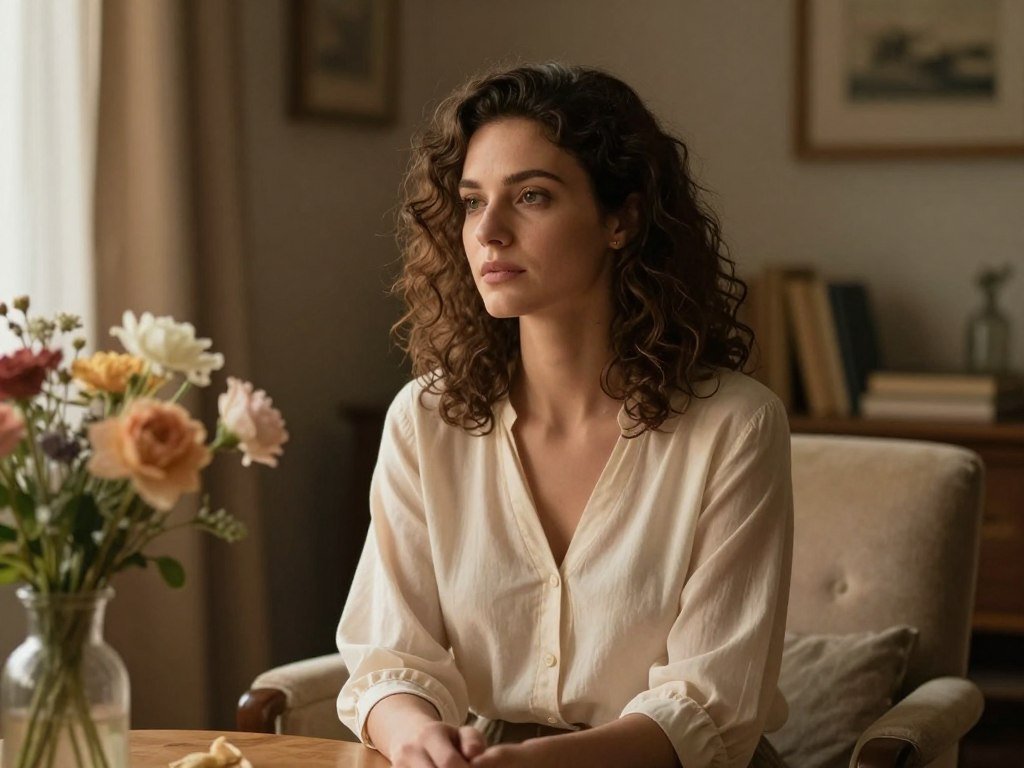
Describe the person and the scene
Begin with the subject’s age range and appearance, then describe their expression and pose. Add clothing, setting, and framing, such as a waist-up portrait in a home office.
Mood helps set the overall feel. “Calm editorial portrait” gives a different direction from “bright graduation photo.” A clear scene also helps the tool make choices that fit together.
Add photographic cues
Name a light source, such as a window or a softbox, to give the face a clear lighting plan. A portrait lighting guide from PPA explains how light placement shapes shadows and facial form.
Lens framing changes how much of the scene appears. A 35mm lens often suits environmental framing, while an 85mm lens is commonly used for a closer portrait. Depth of field can keep the subject sharp and soften the background.
Natural skin texture helps avoid a plastic finish. Try describing pores, fine lines, and small, normal skin marks instead of asking for a flawless face.
Sample prompt: “Adult woman reading in a real neighborhood cafe, relaxed pose, soft window light, close portrait on an 85mm lens at f2.0, visible skin texture, calm editorial mood.”
Change one or two prompt details at a time so you can tell what improved the result. This makes it easier to judge whether the change came from the lighting, framing, or style.
Change one or two prompt details at a time so you can tell what improved the result.
Which AI Model Should You Use for a Portrait?
Choose the model around the detail that is hardest to get right, such as keeping a face recognizable or rendering a name tag legibly. One task at a time makes model comparisons easier.
Nano Banana 2 suits identity-preserving edits, GPT Image 2 suits readable scene text, and Flux 1.1 Pro Ultra suits camera-specific prompts. Adobe Firefly lists models including Gemini 3, GPT Image, FLUX, Ideogram, and Imagen.
| Model | Distinctive capability | Useful for |
|---|---|---|
| Nano Banana 2 | Edits existing portraits while preserving identity | Restyling a known person |
| GPT Image 2 | Readable text in portrait scenes | Name tags, badges, and branded backgrounds |
| Flux 1.1 Pro Ultra | Prompts for focal length, aperture, and film stock | Camera-led portrait direction |
Model names alone do not tell you how a portrait will look. Compare realistic skin, coherent lighting, anatomy, and facial consistency across generations.
To compare models fairly, keep the same prompt and reference photo when possible. Then judge whether each result keeps the features and visual details that matter most.
AI image generators compared by use case can help you weigh model strengths against the task at hand. Nano Banana 2 supports edits to existing portraits while preserving identity, while GPT Image 2 can render readable scene text.
If identity matters most, test the same reference and prompt across a small number of options before settling on a workflow. This gives you a direct comparison without changing several factors at once.
If identity matters most, test the same reference and prompt across a small number of options before settling on a workflow.
How Do You Refine and Export the Finished Image?
A portrait that looks polished at full size can still lose its impact when cropped into a small profile tile. Check the final view before choosing an export.
Crop for the final layout, then save a file type that works at its destination. Small edits can fix a distracting object or background without changing the person’s face.
Fix the crop and small distractions
Adjust the crop so the face stays clear at both full size and thumbnail size. You can replace a busy background, remove one distracting object, or apply light retouching.
Avoid over-editing skin. Heavy smoothing can erase texture and make a portrait look less natural. A focused change is often easier to judge than a full makeover.
Editing tools can also change a selected area or extend the canvas. This can help when a portrait needs more room around the shoulders or a cleaner background.
Export for the final destination
A profile usually needs an image file, while a presentation or design handoff may need a document or slide file. Adobe Firefly downloads generated images as JPEG or PNG up to 2000 x 2000 pixels.
Canva exports designs as JPG, PNG, PDF, or PPTX. Use an image file for a profile photo, and choose a document or presentation format when the portrait sits inside a larger layout.
- Face remains recognizable in the finished portrait.
- Crop works when the image appears at thumbnail size.
- Background has no obvious artifacts or stray objects.
- Chosen file format fits the place you plan to use it.
For more tool options, compare AI image generators for different creative tasks. Open the exported file once before uploading it to catch a crop or format problem.
What Size Should a LinkedIn Profile Photo Be?
For a LinkedIn profile photo, prepare a 1000 x 1000-pixel square image and leave breathing room around the face. The square source appears as a circle on the profile.
LinkedIn accepts JPG or PNG profile uploads from 400 x 400 pixels up to 7680 x 4320 pixels, with an 8 MB maximum. The 1000 x 1000-pixel size is a recommended production target, and 400 x 400 pixels is a minimum working size.
Keep your face, hair, and shoulders inside the center of the square. LinkedIn displays the profile image through a circular crop, which can trim corners from the original frame.
This sizing guidance applies to LinkedIn, not every social media platform. Other sites may use different image shapes, file limits, or display crops, so make a separate export when needed.
A close headshot can lose hair or shoulders when the circle cuts into its edges. Leave enough space around the head to keep the face balanced in the smaller display.
Preview the circular crop before uploading, especially if the original frame is tight.
Is an AI Portrait Generator Free or Paid?
A free tier is useful for testing a style, but it may limit how often you can generate or which models you can use. Check the allowance before planning a larger portrait project.
Free access can cover realistic portraits when its credits allow the model and export you need. Paid features and usage terms can differ, so read the plan details before subscribing.
| Option | Access or price | Credit detail |
|---|---|---|
| Leonardo AI free plan | Free access | 150 tokens per day; cost varies by action and model |
| Ideogram free access | Free access with credits | Allowance and reset appear in the user’s account |
| AI Photos app subscription | Starts at $4.99 USD; varies by country | Weekly, monthly, or yearly plans; credits refresh every 7 days |
AI Photos also offers one-time credit packs. A recurring plan may suit regular use, while a one-time pack can fit a short project.
Adobe Firefly accounts include free daily generations. The number of portraits you can make depends on which model and actions use your available credits.
Free AI image generator options can help you compare limits and workflows. AI Photos subscription prices start at $4.99 USD and vary by country.
Check whether unused credits expire or refresh before choosing a recurring plan.
Should You Use a Portrait App or a Browser Tool?
An app is convenient when you want a batch of looks on your phone, while a browser workspace can suit a longer edit-and-design session. Choose by workflow, not by the number of features listed.
A mobile app can make batches and quick edits easy, while a browser workspace can keep generation and design together. The right fit is the one that matches how you work with photos.
In 2026, the AI Photos app offers photoshoots that generate 20 or more photos in styles such as professional headshots, dating profiles, fashion shots, and travel photos. It also supports business portraits, LinkedIn profile photos, and corporate headshots.
Its plain-English editing instructions can change backgrounds, outfits, or hairstyles, and remove photobombers. The app includes an image upscaler, photo reframing, and aspect-ratio tools.
An iPhone user needs iOS 17.0 or later to run the AI Photos app. That requirement matters if an older phone is part of your workflow.
Canva works in a browser and autosaves designs. It offers 5 GB of free storage, while Canva Pro storage can reach 1 TB. That setup can help when you want to keep a portrait inside a larger design.
A browser workspace may suit you if you plan to create, revise, and save within one design file. An app may feel simpler when you want a batch of mobile-ready variations.
Choose the interface you will actually use to compare, revise, and save the final image.
Is It Safe to Upload a Personal Photo?
Before uploading a face, check what the service retains, whether generations are public, and how it handles training and processing. These are separate questions, not one general privacy setting.
Review retention, model-training use, third-party processing, account visibility, and usage-data collection separately. A service may handle each of these in a different way.
EzEnhancer says it deletes uploaded images within 24 hours after processing ends. It also says it does not train AI or machine-learning models on uploads without explicit consent.
EzEnhancer says it shares uploaded images with third parties only when strictly needed for the requested processing. The AI Photos App Store listing says its privacy practices may include collecting usage data not linked to your identity.
Ideogram images are public by default unless private generation is available and selected. Adobe says personal content is not used to train Firefly, and generated images are stored in Creative Cloud subject to allocated storage.
Those examples show why the exact service settings matter. Check whether an image is public, how long the upload remains, and what processing the service needs.
For a wider comparison of tool settings and tradeoffs, read this guide to choosing an AI image generator. Avoid uploading someone else’s identifiable photo unless you have permission to use it.
Avoid uploading someone else’s identifiable photo unless you have permission to use it.
How Should You Use Generated Portraits Responsibly?
A generated portrait works best when it is clearly a creative image, not a record of something that happened. Be clear about its role when you share it.
Use generated portraits for concepts, social content, and creative projects, not as proof of a real person or event. Documentary, editorial, and authenticity-critical work calls for real photography when an actual person, place, or event must be shown.
Commercial-use permission depends on the tool and its terms. Adobe Firefly commercial use is limited to its commercially released model and compliance with Adobe guidelines.
- Get permission before using a real person’s likeness.
- Review the specific tool’s terms for your planned use.
- Label or explain synthetic imagery when viewers could mistake it for a real event.
Use a real photograph whenever the image must prove who was present or what took place.
Generated images can support an idea, but they should not be presented as documentary evidence. Use a real photograph whenever the image must prove who was present or what took place.
Conclusion
A realistic-looking result starts with a clear idea of who or what the image needs to show. A focused prompt or reference photo gives the generator a useful direction without asking it to guess every detail.
Let the portrait fit its destination and purpose. A work profile, a character concept, and a social post may call for different styles and levels of realism.
Try one focused prompt or reference photo, then save the version that feels both natural and appropriate for its use.
FAQ
Can I create a portrait without uploading a selfie?
Yes, text-to-image generation can create an imagined person from a written description. Name the subject, style, lighting, and mood to guide the result. You can describe an adult character in a real setting, for example, without supplying a personal photo. The generator builds the face from those words, so the result will not represent a specific person unless you provide visual guidance.
Can an AI portrait generator keep my face recognizable?
A reference photo and clear instructions can help keep your face recognizable, but the result may still change some features. Tell the tool what must stay the same, such as your face shape, hairstyle, or expression. Then compare the generated image with the original. If the face looks unlike you, try another version before using it as a personal profile image.
What kind of photo works best as a reference?
A sharp, well-lit, front-facing photo with visible features works best as a reference. Choose an image without sunglasses, hands, or hair hiding the face. A simple background can also make the person easier to distinguish. You do not need a formal studio shot, but a clear, unfiltered image gives the tool more useful visual detail.
How do I make AI portraits look less artificial?
Describe natural skin texture, a real light source, deliberate framing, and modest imperfections. Asking for a flawless face can lead to smooth skin that looks plastic. A window-lit room or a shaded outdoor setting gives the prompt a clear light source. Small details, such as fine lines or stray hairs, can make the portrait feel less polished and more lifelike.
Can I use an AI-generated portrait for commercial projects?
Yes, you may use some AI-generated portraits commercially, but permission depends on the tool and its terms. Adobe Firefly commercial use is limited to its commercially released model and compliance with Adobe guidelines. Other tools may set different limits for models, outputs, or account types. Read the terms that apply to your planned project before using a portrait in paid work.
Do free portrait generators include unlimited use?
No, free portrait generators may limit use through daily tokens, credits, model access, or export features. Some accounts show an allowance that resets on a schedule, while token costs can vary by action or model. Free access may cover a few tests but not a large project. Check the credit amount and reset timing shown in your account before planning repeated generations.