A lifelike result usually comes from a few coordinated choices, not a single magic setting. If you are making art for a portrait, product page, or personal project, the right controls can save time and make the process easier to repeat. Settings differ by model, so a small test on the Generate screen beats copying one universal preset.
A negative prompt is a separate set of terms used to discourage unwanted visual elements or artifacts. You can use it alongside your main prompt, then judge the image instead of piling on effects. A clear composition and a few purposeful tools often do more useful work than a long list of settings.
Think of each generation as a test, not a final answer. Keep track of the choices that change the result, including the model and image size. A useful first test changes one variable at a time so you can see what improved the image.
Key Takeaways
- Start with Lucid Realism for a photographic look.
- Describe the subject, setting, camera, light, and texture.
- Keep negative prompts limited to relevant unwanted details.
- Use a fixed seed to compare changes more clearly.
- Check the image before you upscale or share it.
- Review token costs and privacy before sensitive work.
Best Leonardo AI Settings for Photorealistic Images: Choose a Model and Mode
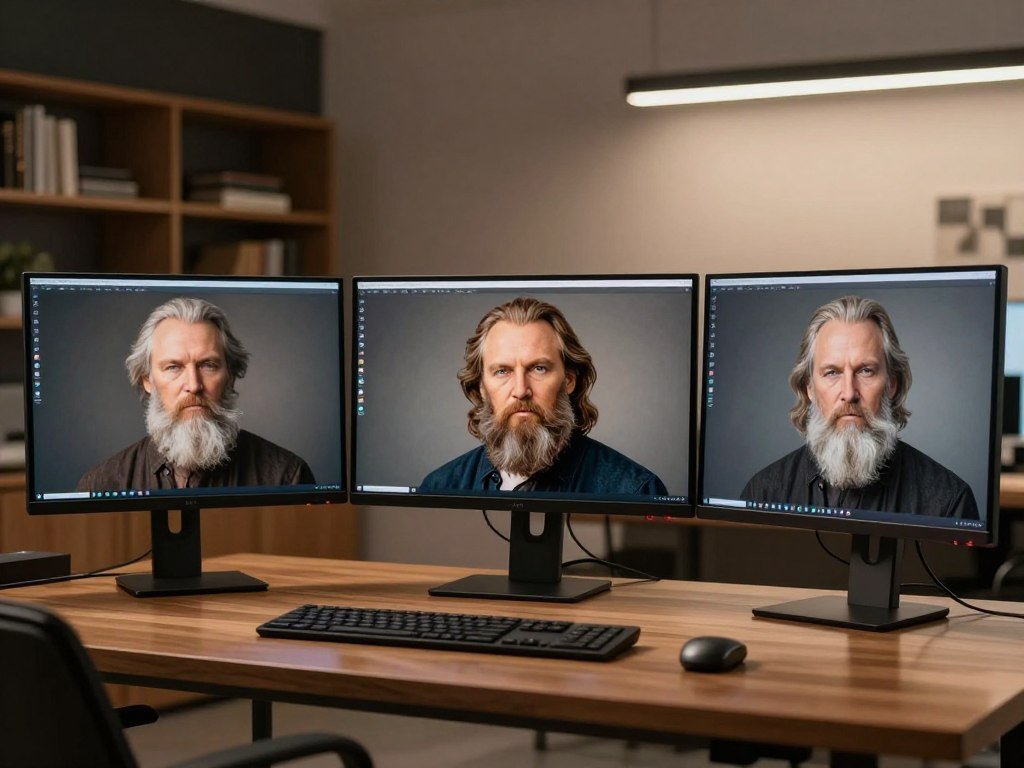
For a first photographic portrait, try Lucid Realism; choose Phoenix instead when long instructions or legible text are central. Lucid Realism offers FAST and ULTRA modes, while Phoenix is available on Free and paid plans. These are starting points to test, not promises that every prompt will suit one model.
Lucid Realism can produce output heights up to 2,496 pixels, in multiples of eight. Phoenix is Leonardo’s foundational image-generation model, built to follow long prompts and render readable text. Lucid Origin supports Full HD output at 1,920 × 1,080 pixels.
| Model | Useful starting case | Distinguishing capability |
|---|---|---|
| Lucid Realism | Photographic portraits | FAST and ULTRA modes |
| Phoenix | Long prompts or readable text | Available on Free and paid plans |
| Lucid Origin | Full HD output | 1,920 × 1,080 pixels |
A model can change how it reads your prompt, handles colors, or shapes realism. For a fair test, keep the prompt and output settings steady while you compare models. Leonardo’s Phoenix model details include its availability across plans.
The Leonardo API values guide lists model and parameter options, though API settings may differ from the app. Pick the mode that fits your intended image, then judge the actual result. A portrait and a text-heavy poster need different strengths.
Keep the model fixed while you test a prompt so the comparison tells you something useful.
Lucid Realism’s height options help when you need a taller image, while Lucid Origin fits a Full HD frame. Keep the model fixed while you test a prompt so the comparison tells you something useful.
What should a photorealistic prompt specify?
“A person at a cafe” gives the model little photographic direction, while a described subject, setting, lens, and light give it a clearer brief. Start with the scene, then add camera choices and texture that support it. A focused prompt gives the model a clear subject and a believable photographic plan.
Prompts work best when each detail adds useful information. A quiet morning cafe portrait needs a different light and depth than a sharp product photo. Think about the image’s purpose before adding photography terms.

Build the prompt from subject to texture
Use this order: subject and setting, camera and lens, light source and direction, then texture and photographic depth. For example, describe a baker by a cafe window, photographed with an 85mm lens at f/1.8. Add soft morning light from the left, natural skin detail, and a gentle background blur.
The lens should support the shot, not decorate the prompt. An 85mm lens can suit a close portrait, while a wider view may better show the room. Shallow depth of field and bokeh can keep attention on the face.
Describe the light in plain terms: window light from the side, or a lamp above the subject. A clear direction helps the image feel grounded. The same scene can feel flat or dramatic as the lighting changes.
For a repeatable prompt formula, see this guide to writing AI image prompts. It covers framing and other choices that shape what the viewer notices. A subject’s place in the frame can matter as much as its style.
Keep negative prompts focused
A negative prompt names visual elements you want the model to avoid. For a realistic portrait, useful exclusions might include cartoon, illustration, 3D render, plastic skin, oversaturation, or blur. Choose only terms that fit the image you are making.
Keep the negative prompt to roughly 10-15 relevant artifacts. A long set of exclusions can add noise instead of helping the model understand your goal. For example, exclude text only when stray lettering would hurt the intended image.
Texture words can make a scene feel more specific. Detailed skin pores may suit a close portrait, while natural imperfections can help a handmade object feel real. Add texture details that fit the subject, such as fabric weave for clothing, rather than stacking unrelated quality adjectives.
For more beginner steps on making and reviewing images, use this guide to creating AI images. It explains how subject, setting, and mood work together. Keep the prompt readable enough that each detail has a clear job.
Which generation controls affect the final image?
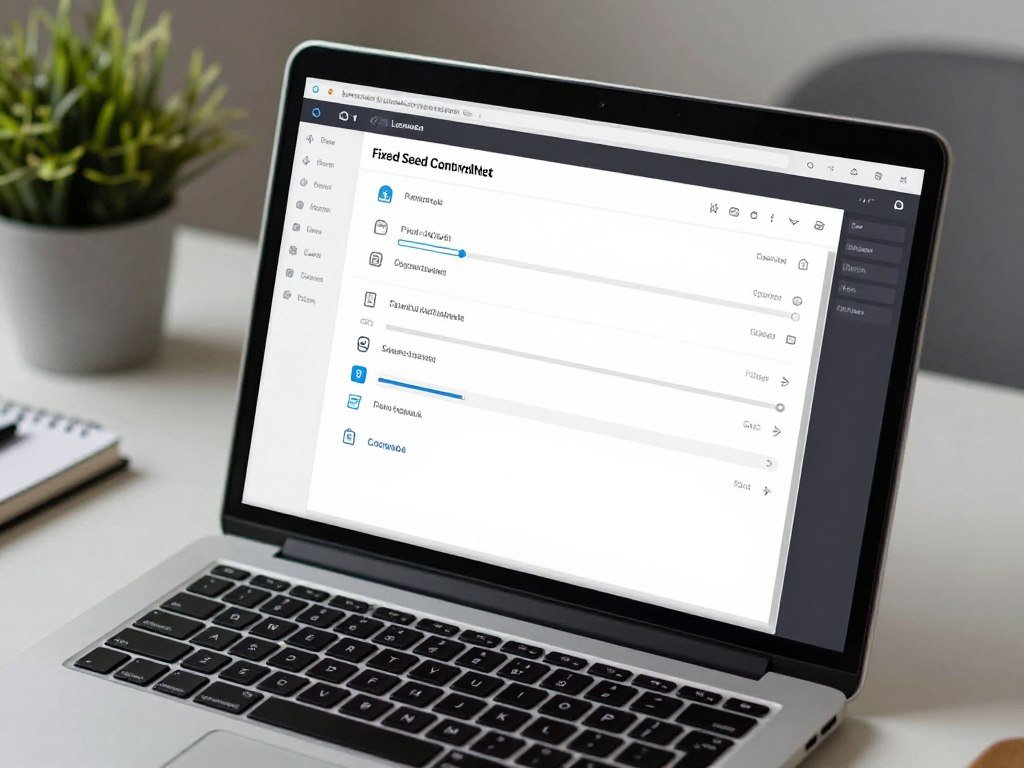
A fixed seed is a useful first control when you want to compare prompt or lighting changes without changing the starting variation. One seed makes a test easier to read. Control compatibility depends on the selected model, so check the available options before building a workflow around one.
Leonardo’s generation tools include negative prompts, fixed seeds, prompt enhancement, style selection, image references, and ControlNet guidance. Each can affect a different part of the result, from visual style to image structure. Some combinations are not available for every model.
Tune guidance controls selectively
Prompt enhancement can adjust how the model reads a prompt, while style selection can shift the look. A reference image can guide visual traits, and ControlNet can guide structure. Try one control at a time so you can tell which change shaped the output.
Use these first adjustments when a test goes off track:
- Prompt drifts from the subject: give the subject clearer priority.
- Outputs keep changing: use a fixed seed for comparison.
- Reference or ControlNet will not work: choose a compatible model.
- Composition misses its destination: revise the frame.
Leonardo’s controls can affect rendering in different ways, so judge the image rather than assuming a setting improves quality. Keep the subject’s place in the frame in mind. A square crop may not suit a wide banner, even when the details look right.
Match Canvas and output dimensions
Leonardo Canvas uploads have a maximum size of 1,536 × 1,536 pixels. Some models and features do not work in Canvas, so the generation workflow can limit which settings you use. Choose a resolution that fits the final use instead of asking for extra pixels without a reason.
Canvas is useful for editing an image, but its upload cap can affect how you bring a large file into that workflow. Check the dimensions before upload and plan the frame around the destination. A portrait crop and a landscape cover need different space for the subject.
When you want more control over an existing image, this Leonardo AI overview describes its editing tools and workflow. Before generating in Canvas, confirm that both the selected model and the needed guidance feature work in that workflow.
How can you refine a result without losing realism?
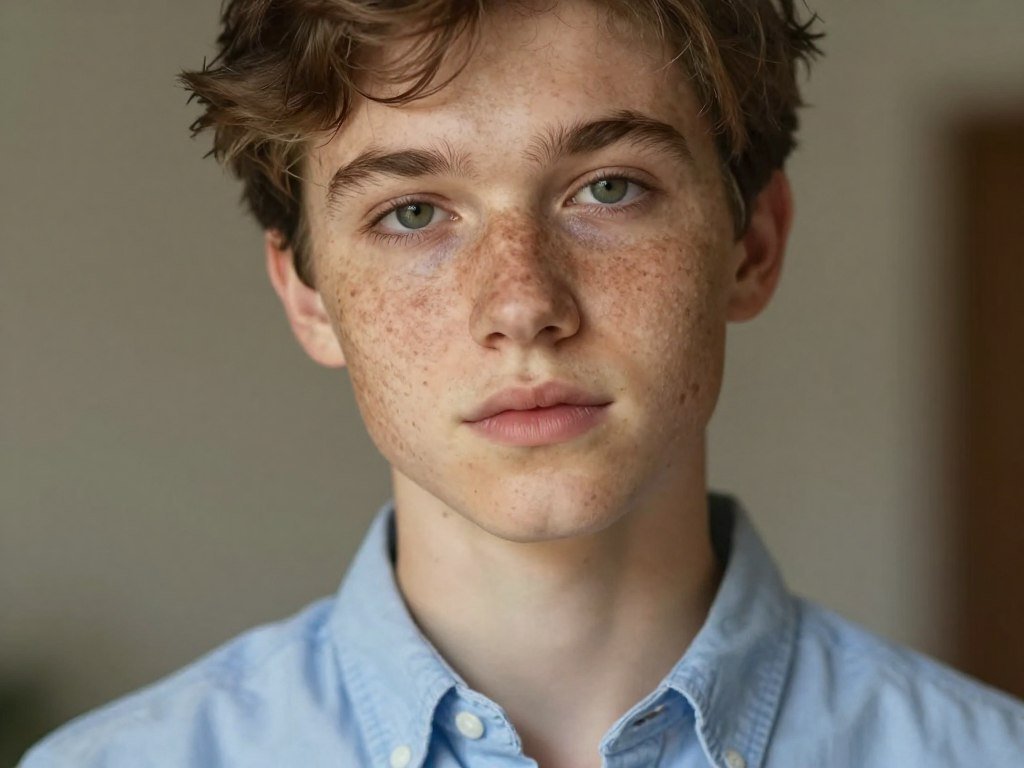
If a character’s freckles or facial structure keep changing, use the same clear reference image for the next generation. A reference image can guide consistent traits, such as skin tone, freckles, or face shape. Guidance behavior depends on the selected model, so inspect the new image for identity changes.
Choose a reference with a clear face and useful detail. A blurry or heavily shadowed face gives the model less to follow. For images Leonardo generates, the reference should show the traits you want to keep, not just a similar pose.
Preserve character continuity with references
Reuse the same reference image when you create several scenes with one character. Keep the person’s core traits steady, then adjust the setting or pose. The model may interpret references in different ways, so compare the face and skin texture in each result.
A reference helps when identity matters across generations, but it does not lock every feature in place. If the face shifts, simplify the change you are asking for. Small edits can make it easier to see whether the subject still reads as the same character.
For example, you might keep the same person while changing a cafe background to a park. Check whether the light changes the apparent skin tone or hides a familiar freckle. A useful reference gives you a point of comparison, not a guarantee.
Upscale only a strong base image
Upscaling increases pixel dimensions, but it cannot repair a weak pose, expression, or composition. Select a strong base image before enlargement. Pro Upscaler can enlarge images to as much as 105 megapixels; outputs that exceed that ceiling fall to the next lower step.
A test enlarged an image from 5,056 × 3,392 pixels to 10,112 × 6,784 pixels, or 68.59 megapixels. The Pro Upscaler test shows why the starting image matters for fine detail. Upscaling can make textures look different, so check the result at its intended size.
Before the final enlargement, inspect these four areas:
- Hands: check finger shape and position.
- Eyes: look for uneven details or strange reflections.
- Image edges: check for cut-off objects or warped lines.
- Shadows: make sure they fit the light in the scene.
Choose a clear face and a balanced frame before spending time on a larger file. A soft background can suit a portrait, but the eyes should still hold focus. Judge the enlarged file at the size where it will actually be viewed, not only at maximum zoom.
What do free-plan tokens, privacy, and iOS access mean?
The Free plan gives you 150 tokens each day, so an unused balance will not build up for a later session. Daily tokens reset, and task costs depend on the model, features, image size, settings, references, and image count. Generate displays the cost before a task runs.
The best Leonardo AI settings for photorealistic images on the free plan begin with a default image and a cost check before adding token-consuming options. A default image up to 768 × 768 costs one token. Prompt Magic V2 costs two tokens per image.
| Task or allowance | Token cost | Practical note |
|---|---|---|
| Daily allowance and reset | 150 tokens per day | Unused tokens expire at daily reset |
| Default image up to 768 × 768 | 1 token per image | Basic starting generation |
| Prompt Magic V2 | 2 tokens per image | Check the added cost first |
| Background removal plus Upscaler | 2 plus 5 tokens | Costs 7 tokens for both tasks |
| Advanced options | Alchemy: 8-16; 3D preview: 5; full 3D: 30 | Mode, batch size, and settings affect cost |
Listed Alchemy modes cost 8-16 tokens, while a 3D texture preview costs five. Full 3D texture generation costs 30 tokens. Batch size and settings affect the displayed cost, so review Generate before starting a task.
Free-plan users may use their own generations commercially, but Free-plan generations are public. Paid plans offer a Private Mode option. Check the account and plan details you will use before confidential or client-sensitive work.
Free AI image tools compared can help you weigh token limits against other options. Leonardo’s tokens can go quickly when you add background removal, an Upscaler, or advanced settings.
Check the displayed token cost before each task, since the mode and batch size can change what a generation uses.
On iOS, the best Leonardo AI settings for photorealistic images follow the same model and prompt logic, and the iPhone and iPad app requires iOS 16.0 or later. The screen may differ from the web app, so look for the same controls by name. Check the privacy setting on the account you will actually use before generating confidential or client-sensitive material.
Conclusion
Start with one subject, one photographic direction, and only the details that make that scene believable. Purposeful lighting can shape a portrait, while relevant texture can add detail without distracting from the person. A clean render often feels closer to photography than an image crowded with effects.
Use the field of view and frame to support the subject, then review the result at its intended size. Do not judge a scene by one element alone; the light, color, skin, and shadows should make sense together. Run that first test, keep the strongest result, and adjust a single detail in the next pass.
FAQ
Does adding more camera terminology always make an image more realistic?
No, extra camera terms do not always make an image more realistic. Use lens and depth-of-field details that match the shot, such as a portrait lens for a close face. Remove details that compete with the subject or describe a different kind of photo. A few fitting choices can give the model clearer direction than a long list of technical terms.
Can a negative prompt guarantee anatomically correct hands?
No, a negative prompt cannot guarantee anatomically correct hands. It can discourage unwanted artifacts, but the model may still draw fingers in odd positions. Keep exclusions focused on the image you need, then inspect the hands before you finalize the result. A good pose and clear view of the hands can make problems easier to spot.
Do I need a reference image to make a photorealistic portrait?
No, you do not need a reference image for a photorealistic portrait. A clear prompt can guide a single portrait without one. Use a reference when you want the same identity traits, such as facial structure or freckles, across several generations. The selected model affects how it follows that image, so review each result for changes.
Will upscaling fix a blurry face or a weak composition?
No, upscaling will not fix a blurry face or a weak composition. It increases the image’s pixel dimensions, but the pose, expression, and framing still come from the base image. Choose a clear, well-composed result first. Then inspect the enlarged version at the size you plan to share or print, since fine details can change during enlargement.
Can I use the same prompt unchanged with Phoenix and Lucid Realism?
Yes, you can try the same prompt with Phoenix and Lucid Realism as a comparison. The models may interpret the words differently, and some controls may not work with both. Keep the prompt and other settings steady for a useful test. Then compare the subject, colors, and photographic feel instead of expecting identical images.
Can I use Free-plan Leonardo generations for client work?
Yes, you may use your own Free-plan generations commercially, including for client work. Free-plan generations are public, so do not treat them as confidential. Paid plans offer a Private Mode option. Check the current account and plan details you will use before creating material with private client information or other sensitive content.



