
A first session can start with one small idea, such as imagining a product, character, or scene. If you are new to generative AI, the range of tools can feel like a lot. You do not need to understand every setting before making something useful.
This practical starting guide is for beginners who want to turn visual ideas into digital art. You can learn by testing one change at a time, then comparing the results. That simple habit makes the creative process easier to follow and helps you see which choices shape an image.
Give yourself room to experiment. A first result may not match the picture in your mind, but it can show what to adjust next. You will get more from a focused trial than from changing many settings at once.
Pick one visual idea to explore rather than trying to master every feature at once.
Key Takeaways
- Begin with one subject or scene you want to see.
- Use a small test to learn how each choice affects the result.
- Keep the first session focused on one creative goal.
- Let an early result guide your next small change.
- Use more tools only when your project calls for them.
What Can You Create With Leonardo AI?
Leonardo.Ai is a creative platform for generating and editing still images and motion content. You can make an illustration, change an existing image, improve its resolution, or build a video from a still visual. The platform brings these jobs into one place, which makes experimentation easier.
Image generation makes a new still image, while image editing changes an image you already have. Upscaling raises an image’s resolution and can make details clearer. Video generation adds motion, while video editing changes a video that already exists.
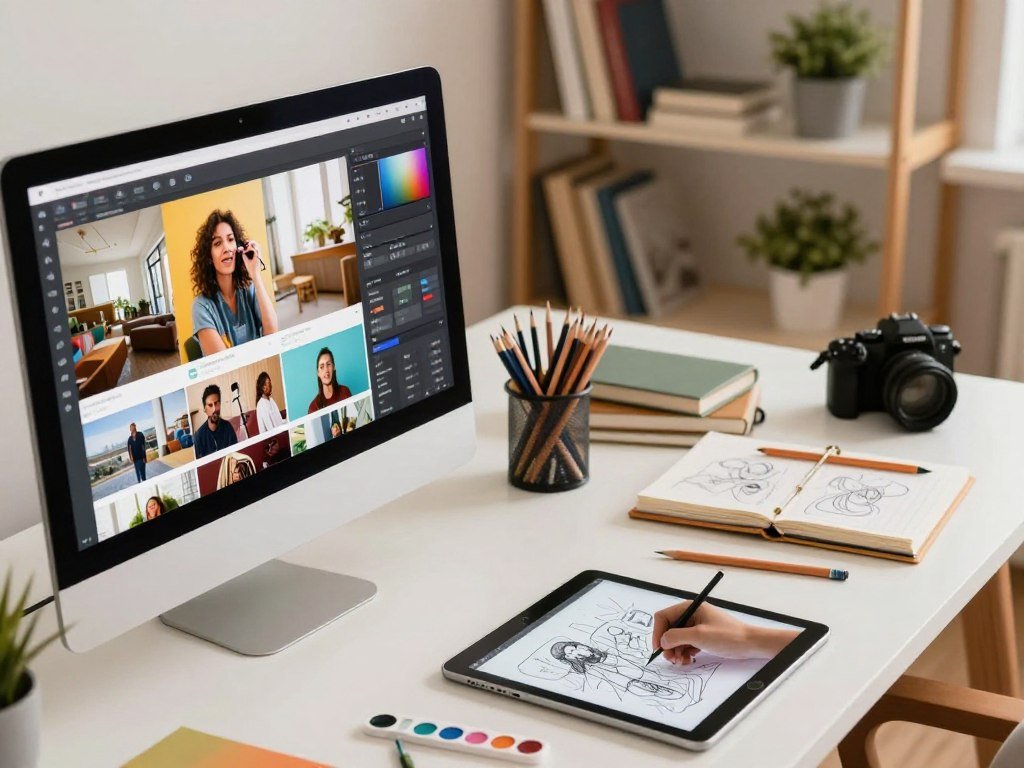
Choose the tool based on the asset you need: a new still image, a revised image, or moving content.
These tools can support different kinds of work. You might make concept art for a story, a product visual for an ad, or a moving scene for a short clip. A still image can serve as a starting point for motion, while a generated video can receive its own edits.
Leonardo.Ai lets users switch between models and generation modes within the same platform. A model is a system that creates or edits content, and each model has a different role. If you want a wider overview of the creative tools, read this beginner’s guide to Leonardo.Ai.
For a first project, keep the choice simple. Decide whether you want to create a new visual from text or change an asset that you already have. Your goal will point you toward the right starting area.
Choose whether your first goal is a new still image or a change to something you already have.
How Do You Create a Leonardo AI Account?
The quickest starting point is to sign up or log in through Leonardo.Ai’s login page. Once you are in, open the image-creation area and explore its tools. Start by finding the main work area, not by trying every feature.
The login page lets new users sign up and returning users log in. Leonardo.Ai is available through a web experience and as an app for iOS and Android. The login page identifies both mobile platforms, so you can choose the access method that suits you.

- Open Leonardo.Ai’s login page.
- Sign up for an account or log in to an existing account.
- Open the web experience or use the app on iOS or Android.
- Find the image-generation area in the main interface.
- Browse the home community feed for examples and attached prompts.
The community feed can give you a useful look at how other users describe their images. Some posts include the prompt used to generate an image. You can inspect those prompts and reuse them as a starting point, then change the details to fit your own idea.
Keep the feed in its proper role: it is a place to study examples, not a substitute for your own test. A prompt that worked for one image may lead to a different result with another model or subject. Read it for ideas, then make the visual yours.
If you are looking for a Leonardo AI app download, the login page identifies iOS and Android availability without listing store links or download steps. Use the app or web option that you prefer, then locate the image-creation tools. The platform also has other work areas, so check which one is open.
Before generating, make sure you are in the image-creation area rather than a video or editing mode.
How Does Leonardo AI’s Free Plan Work?
A Leonardo Free account gets 150 tokens per day in 2026, so a beginner can try image generation without starting with a paid plan. Tokens are Leonardo.Ai’s usage credits for running generations and tools. The daily allowance gives you room to test, but each task draws from it.
Unused Free tokens expire instead of rolling over, and the allowance resets every 24 hours in 2026. Your Free account’s token counter shows the next reset time. Check that counter when planning several generations, since saved tokens do not build up for a larger project later.

Token costs change with the model, feature, image size, settings, reference images, and image count. A default image up to 768 × 768 costs one token per image. The cost rises for some tools, so a low-cost test can leave more tokens for later work.
| Task | Listed token cost | Listed condition |
|---|---|---|
| Default image | 1 token per image | Up to 768 × 768 |
| Prompt Magic V2 | 2 tokens per image | Per image |
| Background removal | 2 tokens | Removal tool |
| Upscaler | 5 tokens | Upscaling tool |
| Alchemy | 8-16 tokens | Listed modes |
Other tools have different listed costs. A 3D texture preview costs five tokens, while full 3D texture generation costs 30 tokens. Paid plans are available, and the listed prices on Leonardo.Ai’s pricing page exclude tax.
The Generate button shows the cost for the task you have set up. That amount can change if you switch a model, resize the image, add a reference, or request more images. A default image costs one token under the listed size condition, while other settings can raise the total.
Check the displayed Generate-button cost before each task, especially after changing settings or adding reference images.
How to Use Leonardo AI for Beginners Step by Step
A beginner’s first image can be as simple as a perfume bottle on driftwood beneath a warm sunset. The prompt describes what you want the image to show, and Generate starts the task. Keep your first idea clear enough to judge.
Enter a short prompt in the prompt bar, then select Generate to create the image. You can let Leonardo.Ai choose a model at first. Manual model selection can wait until you have seen an initial result and want to compare options.

Write a prompt for one clear visual
Describe a glass perfume bottle filled with golden liquid, resting on driftwood with moss beneath a warm sunset. That is enough to set the subject and scene for a first attempt. Do not add extra objects unless they matter to the visual you want.
The prompt bar is where you enter the text instructions for a generation. After typing the scene, select Generate and let the platform make the image. The first result gives you something concrete to review, even if it does not match every detail.
If you want a repeatable way to plan a fuller description, use this simple guide to writing AI image prompts. For a broader look at the basic process, see these beginner steps for creating AI images. Each approach can help you build on a rough visual idea.
Generate and assess the first result
After the generation finishes, look at the image as a whole. Check whether you can recognize the bottle, golden liquid, driftwood, moss, and sunset. Notice which part feels closest to your idea before choosing an edit.
A first image can miss a detail or place an object differently than expected. That does not mean the full concept has failed. The result can show whether the subject reads clearly and whether the scene has the feeling you wanted.
Keep the first assessment focused. If the bottle is clear but the moss is missing, the missing moss is a more useful point to address than changing the whole scene. Small adjustments make the next generation easier to compare.
Judge the first result against the central subject and scene before deciding what to change.
What Makes an Image Prompt Clear?
A clear prompt names what should appear and gives enough detail to separate the subject from its surroundings. A good description makes the main visual easy to picture without crowding it with unrelated ideas. Concrete wording helps the image generator follow your intent.
Include the details that shape the image, then leave out details that compete with the main subject. A prompt can name the subject, setting, style, composition, lighting, and mood. Each ingredient guides a different part of the result.
- Subject: name the person, object, animal, or scene.
- Setting: state where the subject appears.
- Style: choose a look, such as a painted illustration or realistic product art.
- Composition: describe the subject’s place or size in the frame.
- Lighting: identify the light source or its quality.
- Mood: describe the feeling the image should give.
Specific details help separate one feature from the rest of the scene. For example, “a purple cape” gives a character a clear garment color, while “a purple cape against pale stone walls” helps distinguish it from the setting. A few strong details can direct the eye without turning the prompt into a long inventory.
A negative prompt identifies elements you want the image to avoid. You might name unwanted objects or visual flaws that distract from the scene. It works best as a short set of exclusions, rather than a second full description of the image.
Dimensions, image count, and model are generation controls, not prompt ingredients. They shape how a task runs, while the prompt describes its visual content. If the result becomes confused, your prompt may be asking for too many competing things.
Try simplifying an overloaded prompt before adding more details back. Remove a color, object, or style direction that is pulling the image away from its main subject. Then compare the simpler version with the result you wanted.
If the result goes off course, remove one prompt detail and test the simpler version before rebuilding it.
Which Image Model and Settings Should You Choose?
Start with an image-generation model when the goal is a still visual, and switch to an editing or video model only when the task calls for it. Lucid Origin and Lucid Realism are image-generation models, while Nano Banana is an editing model. Match the model to the job.
The model selector is the place to compare the models and modes available in your account. Names and options can change, so use the mode label to tell whether a model creates an image, edits one, or makes video.
Match the model to the job
Lucid Origin and Lucid Realism suit image generation. Nano Banana is for image edits. Veo 3.1 and Kling O1 are video models, so they are not the first choice for a still visual.
| Model | Mode | Basic workflow role |
|---|---|---|
| Lucid Origin | Image | Image generation |
| Lucid Realism | Image | Image generation |
| Nano Banana | Editing | Image edits |
| Veo 3.1 | Video | Video generation |
| Kling O1 | Video | Video generation |
More recent reference options can also matter when a task needs several visual inputs. Nano Banana 2.1 was released on October 9, 2026, with up to 14 image references and one video reference at up to 4K. GPT Image 2.5 was released on September 9, 2026, with up to 16 image references.
Adjust image size and references
Choose an image size that suits the place where you plan to use it. A larger output can affect the generation cost, so consider whether you need that size for your current test. Reference images can help guide a result when a specific visual matters.
Available choices can differ by model and mode. The selector shows the options you can use, while the settings control the task itself. If you are comparing free text-to-image tools beyond Leonardo.Ai, this comparison of free image generators can help you think about task fit.
Try one model and one setting change at a time. That way, you can tell whether the model, image size, or reference affected the result. Model names may shift as the platform changes, but the mode still signals the basic workflow role.
Treat a model’s first result as a test, then change one setting at a time so you can tell what affected the outcome.
How Can You Improve an Image After Generation?
A focused edit works best when the original image is attached and the prompt names the precise change. Select an editing model, then add an uploaded image or a previous generation as a reference. Keep the requested change clear and limited.
Attach the image you want to change, then state exactly what the edit should add, remove, or alter. For example, you can ask Nano Banana to add a golden SOLARIS logo to a perfume bottle. The image reference gives the editing model a starting point.
Keep the prompt centered on the change. For the bottle, name the golden SOLARIS logo and where it should appear. A focused request makes it easier to see whether the edit changed only the part you meant to adjust.
Upscaling is a separate option from editing. It increases the image’s resolution and can make fine details clearer. Use it when the visual is already working, but needs more detail or a larger output.
- Check that the main subject remains intact.
- Confirm the edit stays within the requested change.
- Look for fine details that may need enhancement.
- Check whether the file is ready to export.
Some edits can alter parts of the original image beyond the target area. Compare the new version with the starting image, especially around the logo and bottle shape. If the change spreads too far, adjust the request to name the intended area more clearly.
Export only after the image looks right at full size. Small flaws can be hard to see in a thumbnail or preview. A full-size view helps you spot softened edges, stray marks, or details that shifted during editing.
Review the edited image at full size before saving it as a finished asset.
How Does Real-Time Canvas Help With Image Editing?
A canvas workflow is useful when a visual idea is easier to sketch or guide than to describe in a prompt alone. AI Canvas gives you a space to work with visual material directly. It can help you explore shape and layout before settling on a final image.
Use a canvas when seeing and adjusting the image matters more than describing every part in text. Leonardo.Ai includes a real-time canvas, image guidance, and image upscaling. These tools support different points in a visual workflow.
Sketch and guide a visual in real time
Sketching can help when a pose, outline, or rough layout is easier to show than explain. You can work from a visual guide and explore how the idea might look as a finished piece. That gives you a way to test a concept before committing to its details.
A canvas can also help you adjust the image as the concept develops. You might change a color or refine how parts of the visual sit together. This hands-on approach gives you a different kind of control than relying on a written prompt alone.
Use image guidance and upscaling in the workflow
Image guidance lets you use a visual starting point to influence the result. It can be useful when the shape, pose, or layout needs to remain close to your idea. A reference can carry details that are hard to put into words.
Upscaling can fit into a canvas workflow when you need a higher-resolution result. After upscaling, AI Canvas can add text overlays or adjust colors in a thumbnail workflow. These changes let you refine the finished visual without treating every change as a new generation.
Consider which parts of the image need to stay fixed and which can change. A sketch or reference can guide the parts that matter most, while the canvas gives you room to make visual adjustments. You can use it to shape a concept, not just polish a finished asset.
Use image guidance when the starting visual matters as much as the written instruction.
How Do You Turn a Still Image Into Video?
To animate an image, use it as the start frame and describe what should happen next. The start frame is the image that anchors the video, while the prompt gives the action. Focus on motion that makes sense for the still visual.
Select a video model, set the image as the start frame, and describe the movement in the prompt. Leonardo.Ai supports video generation and video editing, and its video models include Veo 3.1, Sora 2, Kling O1, and Hailuo 2.3.
For the perfume-bottle scene, use the still image as the start frame. Describe warm light moving across the glass, followed by a hand lifting the bottle. That gives the model a clear sequence to animate from the original visual.
Choose one of the available video models, enter the motion prompt, and generate the video. The start frame anchors the scene, so the prompt can spend its words on the action. If you already have a video, video editing uses a prompt to describe the change you want.
| Task | Starting point | Prompt role |
|---|---|---|
| Image-to-video | Selected image | Describe the action |
| Video editing | Existing video | Describe the change |
| Blueprint product-spin video | Product image | No prompt required for the example workflow |
Motion can change the feel of an image, so keep the first clip easy to judge. One clear action, such as a hand lifting a bottle, gives you a better test than several events at once. You can add more movement after seeing how the first action looks.
Keep the first motion prompt focused on one clear action so the movement is easy to assess.
How Can Flow State and Blueprints Speed Up Creation?
Use Flow State when you have a broad concept but have not settled on its visual direction. It helps users explore tens of visual ideas from a simple description. Explore variations first, then choose the one that best fits your project.
Flow State supports open-ended exploration, while Blueprints guide you through a task-specific workflow. The two features suit different stages of creation. One helps you find a direction; the other follows steps built for a defined result.
Explore directions with Flow State
For example, describe a luxury watch and review the variations Flow State creates. You might prefer a clean studio look, a dark dramatic scene, or a close view of the watch face. Choose a variation that matches your idea, then develop that direction further.
Flow State can help when you know the subject but cannot yet picture the best treatment. You can compare different visual directions without writing a separate full prompt for every version. The range of ideas can reveal a style you had not planned.
Run a guided workflow with Blueprints
Blueprints are guided, multi-step workflows for specific tasks. Examples include a product-spin video, object removal, and furnishing an empty room. A product-spin Blueprint can create a rotating product video from a product image without requiring a prompt for that example workflow.
That makes a Blueprint useful when its steps match the job you need done. It handles a defined path instead of asking you to build every part from scratch. Review the task name and expected result before choosing one.
Element Training is an optional later-stage feature. It can create custom elements or models using your images and style. If you want to learn more about what training involves, read this step-by-step guide to training an AI model.
A Blueprint saves effort only when its preset steps fit the asset you want to make.
Choose a Blueprint only when its preset workflow matches the result you actually need.
What Should You Know About Image Rights and Privacy?
Commercial-use permission and privacy are separate questions, so check both before using an image in a project. In 2026, Free users may use their own generated images commercially, but Free-plan generations are public. Public visibility is a different issue from permission to use an image in business.
Commercial-use permission does not settle copyright, trademark, privacy, or other rights. Leonardo.Ai retains broad rights to use publicly generated content in 2026. Paid plans offer a Private Mode option in 2026, which addresses a different concern from commercial use.
Before using an image, consider who or what it depicts. A permission to use your generated image commercially does not promise exclusive use or ownership. It also does not clear rights tied to a person, logo, or protected work that appears in the result.
- Copyright: check whether the image includes protected creative work.
- Trademark: look for logos, brand names, or other marks.
- Privacy: consider identifiable people and personal details.
- Other rights: review any additional rights tied to the content.
These checks matter even when the image is your own generation. A model can produce a visual that resembles a real person or a known brand. Review the output for elements that could create a separate rights issue before sharing it.
Public generations can be viewed by others, and Leonardo.Ai retains broad rights to use publicly generated content. Free generations are public in 2026, while paid plans offer a Private Mode option. Consider whether public visibility suits the material before generating it.
Review the rights connected to any people, logos or other protected material in an image before publishing it.
How Can You Make a Thumbnail With Leonardo AI?
A thumbnail starts with a visual style and a clear subject, not with extra effects. Choose a realistic, stylized, or illustrated look before writing the prompt. Style gives the image a clear direction from the start.
For a 16:9 thumbnail, 1024 × 576 is an example generation resolution. You can also include 1280×720 as the intended thumbnail size in a prompt. These sizes give you a practical frame for making a visual that fits a video.
Generate four variations, then choose the one with the clearest subject and strongest fit for your chosen style. Upscale that selection and download it as a PNG. If the image needs words or color changes, AI Canvas can add text overlays or adjust colors after upscaling.
Check the image at a small display size, not just in a large preview. A subject that looks clear on a full screen may disappear when reduced. Leave enough open space if the design needs a title or other text.
- Subject reads clearly at small size.
- Composition leaves room for text.
- Chosen variation fits the intended style.
- Final export is PNG.
A thumbnail has little room for detail, so each visual choice needs to support the main subject. The strongest variation may have a simple background and a clear focal point. Use the final checks to catch issues before sharing the file.
Check legibility at thumbnail size before treating the PNG as final.
Where Can Beginners Find More Practice?
A short video can help you recognize the interface, while a structured course gives you a broader sequence of lessons. For a quick start, a free beginner video listed on Class Central is called “Leonardo AI Tutorial for Beginners – How to Use – Full Guide 2026,” from Skills Factory.
Choose a short video for an introduction, or a longer course for step-by-step practice across more tools. Haider Studio’s beginner course includes 33 minutes of video on prompting, artwork-to-video, and Real-Time Canvas.
Short video learning
A short video can help you see how the interface looks while someone works through a task. The Skills Factory video is listed as a free video on Class Central. Haider Studio offers a 33-minute beginner course with several practical subjects.
Choose a lesson that matches the part of the platform you want to practice. A video about prompts can help you test image creation, while an artwork-to-video lesson focuses on motion. A focused lesson is easier to follow than trying to learn every tool at once.
Structured course study
The Complete Leonardo AI Megacourse from Skillademia has 29 lectures and five hours of content. It covers account setup, image generation, real-time canvas, upscaling, motion tools, and ethical considerations. Lessons also cover Photoshop and After Effects integration, custom AI model training, and AI Canvas image editing.
| Resource | Format | What it covers |
|---|---|---|
| Skills Factory beginner video | Free video listing | Beginner Leonardo tutorial |
| Haider Studio Ultimate Guide | 33 minutes | Prompts, artwork-to-video, Real-Time Canvas |
| Skillademia Complete Leonardo AI Megacourse | 29 lectures, 5 hours | Setup, generation, canvas, upscaling, motion, ethics, Photoshop and After Effects integration, custom model training, AI Canvas editing |
Course formats offer different levels of depth, so think about how you prefer to learn. A short video may be enough to get started, while a longer course can cover more tools in sequence. Skillademia’s course has 29 lectures and five hours of content.
The free Skills Factory beginner video offers a lighter first step through a listed video lesson. A small project of your own can help you put either format into practice. Choose one visual goal, then use the lesson to support that work.
Practice with one small project so each lesson has a clear purpose.
Choose one resource that fits the way you learn, then practice by making a small project of your own.
Conclusion
A useful first result comes from a clear goal and a willingness to refine it. Start with one visual idea, then adjust one element at a time. That keeps the creative process easy to follow and gives each new image a clear purpose.
Use broader tools when they help your project, not simply because they are available. A prompt and one focused change can be enough to get moving. More options can wait until you need them.
Open Leonardo.Ai, write one simple prompt, and save the variation you most want to develop.
FAQ
What is Leonardo.Ai mainly used for?
Leonardo.Ai is mainly used to generate and edit images and motion assets. You can make a still image, alter an existing one, upscale an image, or create video from an image. Video editing lets you describe changes to an existing clip. These tools support tasks such as illustrations, product visuals, and short moving scenes.
How do I start learning AI?
Start with one beginner-friendly tool and a small hands-on project. A simple image or short visual concept gives you a way to learn core terms while making something real. Practice in short sessions, and change one choice at a time so you can see what affects the result. You do not need a technical background to begin.
Does Leonardo.Ai cost money?
Leonardo.Ai has a Free account with 150 tokens daily in 2026, and paid plans are also available. Tokens cover generations and tool use, so tasks can draw different amounts. Unused Free tokens expire instead of carrying forward. Displayed prices on the pricing page exclude tax.
What is the best AI course to take for beginners?
For guided Leonardo.Ai study, Skillademia’s Complete Leonardo AI Megacourse offers 29 lectures and five hours of lessons. It covers setup, image generation, canvas, upscaling, motion, ethics, and other practical topics. A free Skills Factory beginner video listed on Class Central is a lighter first step if you want to preview the subject.
Can I learn AI at the age of 40?
Yes, you can learn AI at 40, and age does not prevent you from learning the basics. Start with a small task and practice in short sessions that fit your schedule. You can build skill over time by trying a tool, reviewing the result, and making one change. A beginner video can help you get familiar with the interface.
What to not ask an AI?
Do not enter passwords, payment credentials, or sensitive personal information into an AI tool. Avoid sharing confidential material that you are not authorized to disclose. Treat prompts as information you are submitting to a service, and keep private details out of them. For work materials, follow your organization’s rules before uploading files or text.
What are some good AI courses for older people?
Good options for older learners are beginner-friendly, self-paced lessons with practical exercises. The Skills Factory beginner video listed on Class Central offers a short introduction, while Skillademia’s course covers more Leonardo.Ai tools in depth. Adult learners can use the same resources as any beginner, then practice at a pace that feels comfortable.



